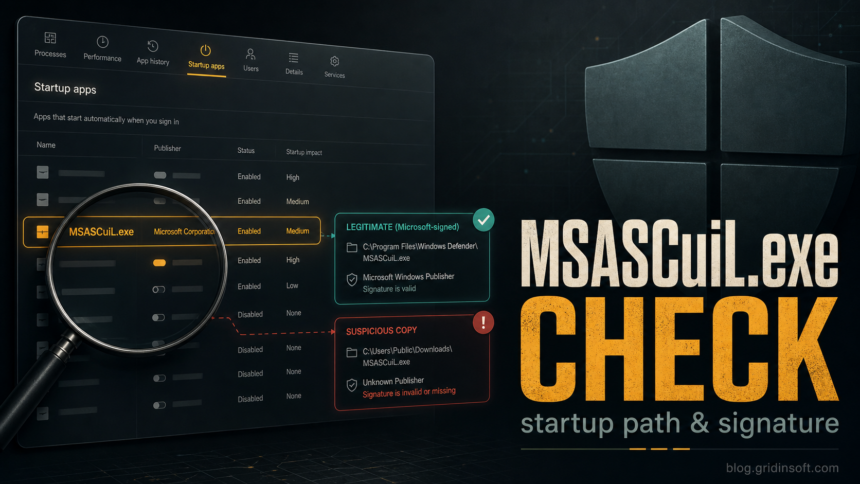
MSASCuiL.exe is an older Microsoft Defender notification-icon launcher that can still appear in Startup, especially on older Windows 10 systems or when limited periodic scanning is enabled alongside another antivirus. The filename alone does not prove malware, and this component is not the Defender scanning engine. Do not delete it just because it appears in Startup apps. First check the command path and digital signature. A normal entry points to C:\Program Files\Windows Defender\MSASCuiL.exe or %ProgramFiles%\Windows Defender\MSASCuiL.exe and is signed by Microsoft; a copy in Downloads, Temp, AppData, or a public user folder needs a scan before you trust it.
The confusing part is that users often see MSASCuiL appear once, disappear after reboot, or remain as a leftover startup entry even when the file is not visible in the folder. That behavior can be a Windows Security/periodic-scanning artifact, but the name is also easy for malware to copy. The safe answer is not “always remove” or “always ignore”; it is to verify the file behind the startup entry.
What is MSASCuiL.exe?
MSASCuiL.exe is the older Microsoft Antivirus Security Center User Interface Logo component used for the Windows Defender notification and tray experience; it does not perform antivirus scanning itself. Current Windows builds more commonly show related Windows Security components such as SecurityHealthSystray.exe, so seeing MSASCuiL.exe in a startup list can feel suspicious even when the entry is legitimate or stale.
Microsoft’s current Windows Security documentation focuses on the Windows Security app, scan options, real-time protection, allowed threats, protection history, and offline scans rather than telling users to manage individual executable names manually. That is why the practical check should focus on source, signature, and behavior instead of treating the filename alone as proof.
MSASCuiL.exe: normal vs suspicious
- Microsoft-signed file under
C:\Program Files\Windows Defender: Usually normal. Leave it alone unless Windows Security is broken or the entry keeps recreating with other symptoms. - Appeared after enabling limited periodic scanning: Usually explainable when another antivirus product is installed.
- User-writable path such as
C:\Users\Public\Downloads\MSASCuiL.exe,%TEMP%\MSASCuiL.exe, or%APPDATA%\MSASCuiL.exe: Suspicious. Do not run it; scan the file and check what created the startup entry. - Unknown or missing signature, or a lookalike name such as
MSASCui1.exeorMSASCuiI.exe: Suspicious. Treat it as possible masquerading with a trusted Windows-looking name. - Windows Security is disabled, protection history is missing, browser pop-ups started, or alerts return after reboot: Higher risk. Check startup persistence and run a full scan before trusting the machine.
Why did MSASCuiL.exe appear in Startup?
The most common benign explanations are Windows Security state changes, older Windows 10 behavior, third-party antivirus coexistence, or a leftover startup reference. Microsoft documents limited periodic scanning as a Defender feature available when another antivirus product is installed on Windows 10 or Windows 11. If Task Manager does not expose the backing command, Microsoft Sysinternals Autoruns can show the Registry or file-system location and verify signatures.
It can also be a stale registry entry. Some users report that Task Manager shows MSASCuiL.exe but “Open file location” is unavailable or the referenced file is gone. If the command points to %ProgramFiles%\Windows Defender\MSASCuiL.exe and Windows Security works normally, that is different from a live executable running from a suspicious user folder.
Use a simple order instead: identify the startup command, verify the folder, check the Microsoft digital signature, then decide whether to leave it enabled, disable a stale entry, or scan a suspicious copy. This avoids the common mistake of deleting a Windows Defender file before you know which executable the startup entry actually launches.
How to check MSASCuiL.exe safely
- Open Startup apps or Task Manager. In Windows 10, check Task Manager > Startup. In Windows 11, Settings > Apps > Startup may show the simpler list.
- Find the command path. If Task Manager does not show it, use Autoruns from Microsoft Sysinternals or check the usual Run key:
HKLM\SOFTWARE\Microsoft\Windows\CurrentVersion\Run. - Verify the folder. The normal path should be under
C:\Program Files\Windows Defender. A copy under%USERPROFILE%\Downloads,%TEMP%,%APPDATA%, Desktop, or a random vendor-looking folder is not automatically trusted. - Check the digital signature. Right-click the file, open Properties, and review Digital Signatures. A legitimate copy should be signed by Microsoft. If the signature tab is absent or invalid, treat the file as suspicious.
- Open Windows Security. Confirm Virus & threat protection works, security intelligence is updating, and protection history is visible.
- Scan when the entry is suspicious. If the path, signature, parent app, or recent symptoms do not make sense, run a full security scan before deleting random Windows-looking files.
Should you disable or remove it?
If the entry is legitimate and Windows Security is working, you normally do not need to remove MSASCuiL.exe. If it is only a stale startup entry and the referenced file is missing, disabling the startup item is usually safer than deleting Windows Defender folders or registry values blindly. If it comes back with a wrong path, unknown publisher, or other symptoms, treat it as persistence rather than a cosmetic startup annoyance.
Do not add a Defender exclusion just to stop a startup warning. Exclusions can hide the very file you are trying to verify. If you believe the file is a false alarm, confirm the path and signature first, then use Windows Security history or Microsoft file submission workflows instead of creating a broad folder exclusion.
When to scan the PC
Scan the system when MSASCuiL.exe appears after a suspicious download, fake update, cracked installer, remote-support session, browser redirect, or other malware symptom. Also scan when Windows Security will not open, real-time protection keeps turning off, or the startup entry returns after you disable it.
If the Microsoft-signed file is genuine but protection, notifications, or scan results still look wrong, audit the wider Windows Security state before changing more startup entries.
A wrong-path MSASCuiL.exe can be only one part of a larger persistence chain: a scheduled task, service, browser extension, bundled app, or downloader may recreate it after reboot. Run a full Gridinsoft Anti-Malware scan, remove detections, reboot, and scan again if the startup entry or security warning returns. For broader startup triage, use the Suspicious Startup Apps checklist and the EXE file safety guide.
What not to do
- Do not delete
C:\Program Files\Windows Defenderfiles just because a forum post says the name is old. - Do not trust a file only because it uses the exact
MSASCuiL.exename. - Do not download a “MSASCuiL fixer” from a random removal site.
- Do not use Registry Cleaner results as malware proof without checking the actual startup command.
- Do not restore an allowed threat or exclusion until you verify the path, publisher, and behavior.
FAQ
Is MSASCuiL.exe a virus?
Usually no. The legitimate MSASCuiL.exe is associated with Windows Defender or Windows Security on older Windows 10 systems. It becomes suspicious when it runs from the wrong folder, lacks a Microsoft signature, uses a look-alike name, or appears with other malware symptoms.
Why did MSASCuiL.exe disappear after reboot?
It can disappear when Windows Security refreshes the startup list, periodic scanning state changes, or a stale startup entry is cleaned up. If the entry disappears and Windows Security works normally, that is usually less concerning than a wrong-path file that keeps returning.
Is it safe to disable MSASCuiL.exe from Startup?
Disabling a legitimate tray/startup entry is usually not the same as removing Defender, but it can hide useful security notifications on older systems. Verify the file first. If the command is stale or missing, disabling the startup entry is safer than deleting Defender files manually.
Where should the real MSASCuiL.exe be located?
The expected location is under C:\Program Files\Windows Defender, often shown as %ProgramFiles%\Windows Defender\MSASCuiL.exe. A file with the same name in Downloads, Temp, AppData, Desktop, or another user-writable folder should be scanned before you trust it.
References
- Microsoft. “Use limited periodic scanning in Microsoft Defender Antivirus.” Microsoft Learn, updated June 2026, accessed July 7, 2026. https://learn.microsoft.com/en-us/defender-endpoint/limited-periodic-scanning-microsoft-defender-antivirus
- Microsoft Support. “Virus and Threat Protection in the Windows Security App.” Microsoft Support, accessed July 7, 2026. https://support.microsoft.com/en-us/windows/security/threat-malware-protection/virus-and-threat-protection-in-the-windows-security-app
- Mark Russinovich. “Autoruns.” Microsoft Sysinternals, updated June 17, 2026, accessed September 5, 2026. https://learn.microsoft.com/en-us/sysinternals/downloads/autoruns