LocalServiceControl.exe is normally a Hikvision LocalServiceComponents helper used to provide live view and playback in modern web browsers. It is not a Windows system file. If it starts with Windows and triggers a User Account Control prompt, first check its folder, digital signature, neighboring Hikvision files, and whether you still use browser camera viewing. Disable the startup entry for a reversible test or uninstall the parent component when it is no longer needed; do not weaken UAC or delete the EXE by itself.
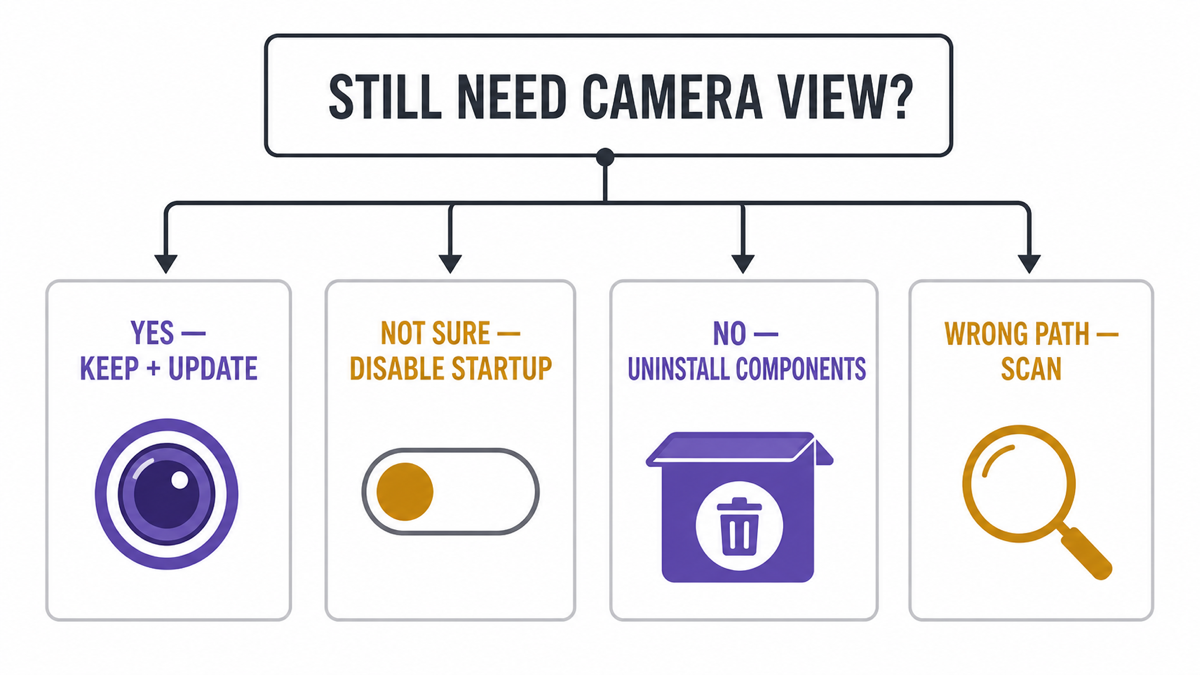
Choose the action that matches your setup:
- You still view Hikvision or HiLook cameras in Chrome or Edge: keep the component, update it from the device/vendor source, and fix the startup configuration rather than deleting files.
- You are not sure whether it is needed: disable only the LocalServiceControl startup entry, restart, and test browser live view.
- You no longer use browser camera viewing: uninstall LocalServiceComponents or the matching Hikvision web component through Windows Installed apps.
- The file is gone but the prompt remains: disable the stale startup entry with Startup Apps or Microsoft Autoruns.
- The copy is outside a Hikvision folder or has an unrelated signer: treat it as a suspicious lookalike and scan before allowing it.
What is LocalServiceControl.exe?
LocalServiceControl.exe belongs to Hikvision’s LocalServiceComponents package. Hikvision describes LocalServiceComponents as a Windows browser plug-in that supplies video functions such as live view and playback in browsers other than Internet Explorer.[1] Depending on the camera, recorder, firmware, and client setup, the package may be installed from a Hikvision or HiLook device web interface, a vendor download, or alongside Hikvision management software such as iVMS-4200.
The helper runs locally so the browser can communicate with the video component. That explains why declining the prompt or stopping the process can leave the device’s settings page accessible while the live camera pane stays blank. It does not make the executable a Windows requirement: if you do not use that browser-viewing function, Windows itself does not need LocalServiceControl.exe.
Do not confuse this filename with a generic Windows “local service.” The legitimate component is third-party software. Windows does not ship a standard LocalServiceControl.exe in C:\Windows or C:\Windows\System32.
How to verify the file before changing anything
- Open its file location. In Task Manager, find LocalServiceControl.exe, right-click it, and choose Open file location. If the prompt appears before the process runs, open Task Manager → Startup apps and inspect the entry there.
- Check the parent folder. A commonly reported legitimate layout is
C:\Program Files (x86)\LocalServiceComponents\LocalServiceControl.exe. Other vendor/OEM builds can differ, so require matching Hikvision component files rather than trusting one path copied from a process database. - Check the digital signature. Open Properties → Digital Signatures. The publisher should identify Hangzhou Hikvision Digital Technology or a closely matching Hikvision legal name. Certificate wording can change between releases; a valid matching signer is useful evidence, not a universal promise.
- Check why it was installed. Look for LocalServiceComponents in Settings → Apps → Installed apps and review when Hikvision, HiLook, iVMS-4200, or a camera web plug-in was added.
- Compare the behavior. A helper that starts with Windows, listens locally, and enables a known camera page is different from an isolated same-name file launched by PowerShell, an unknown task, or a random executable.
Use several signals together. Our EXE safety checklist explains why path, signer, parent, source, and behavior are stronger than the filename or one online hash.
| Evidence | Risk and next step |
|---|---|
| LocalServiceComponents folder, matching Hikvision files, valid Hikvision signer | Probably the browser-viewing component. Decide whether to keep, disable at startup, or uninstall it. |
| Known Hikvision folder but no signature | Do not call it malware automatically. Confirm the installer source and version, then update or reinstall from the device/vendor source. |
AppData, Temp, Downloads, Desktop, Startup, or an unrelated application folder |
Suspicious until explained. Record the parent process and startup trigger, then scan. |
C:\Windows\LocalServiceControl.exe or C:\Windows\System32\LocalServiceControl.exe |
Not an expected Windows component location. Investigate the signer, parent, and persistence. |
| File no longer exists but a startup prompt or error remains | Likely a stale startup entry. Disable the entry; do not recreate or download the missing EXE. |
Why does LocalServiceControl.exe show a UAC prompt at startup?
The startup entry asks Windows to launch a component that requests administrative privileges. User Account Control pauses the sign-in flow because Windows requires approval before elevating it. This can happen after LocalServiceComponents is installed or updated, and it can persist when iVMS is removed but the separate browser component or its startup registration remains.
A recurring prompt is annoying, but the safe response is to change the component or its startup entry. Do not use a `RunAsInvoker` compatibility shim, a scheduled task set to run with highest privileges, blanket UAC suppression, broad folder-permission changes, or antivirus/firewall exclusions merely to hide the dialog. Those workarounds can silently grant more trust than the component needs and make a future wrong-path copy harder to notice.
Do you still need LocalServiceControl.exe?
The answer depends on how you view the cameras:
- Keep it if your Hikvision/HiLook device web interface requires LocalServiceComponents for Chrome or Edge live view or playback.
- Test without startup if you normally use iVMS, Hik-Connect, an NVR monitor, a mobile app, or a browser/device combination that already provides plug-in-free viewing.
- Uninstall it if you no longer own or manage the device, no longer access it through a browser, or confirmed that all required functions work without the helper.
Disabling automatic launch does not delete the program. It is the safest way to learn whether another workflow still depends on it. If a live-view page later needs the component, you can re-enable the entry or start/reinstall the package from the device’s trusted source.
How to stop the startup popup safely
- Open Settings → Apps → Startup or Task Manager → Startup apps.
- Find LocalServiceControl, LocalServiceComponents, or the entry whose command points to LocalServiceControl.exe.
- Choose Disable. Microsoft documents this as the normal reversible way to prevent a registered startup app from launching automatically.[2]
- Restart Windows. Confirm that the UAC prompt is gone.
- Open the Hikvision/HiLook browser page and test live view, playback, and any local configuration you actually use.
If camera viewing still works, leave the entry disabled. If it fails, re-enable the entry and update LocalServiceComponents from the camera/recorder interface or a current Hikvision support page. Avoid downloading a loose LocalServiceControl.exe from an executable library: it may not match the package, architecture, or device generation.
If you cannot find the entry in Startup Apps, use the broader startup-app inspection guide to check Startup folders, Run keys, scheduled tasks, and services without deleting unrelated entries.
How to uninstall LocalServiceComponents
- Close Chrome, Edge, iVMS-4200, and any camera-viewing application.
- Open Settings → Apps → Installed apps.
- Search for LocalServiceComponents, Hikvision web components, or the component installed on the same date as the camera software.
- Choose Uninstall and complete the package’s own removal flow.
- Restart Windows, then verify that the folder and startup entry are gone.
Uninstall the parent package before deleting files. Removing only LocalServiceControl.exe can leave the uninstaller, registry entry, service registration, or startup command behind. It can also cause the component’s updater to restore the file later.
If you removed iVMS-4200 but LocalServiceComponents remains, treat them as separate installed items. Remove the browser component only after confirming that you no longer need it for direct camera or recorder access.
Remove a stale startup entry after uninstall
A stale entry is likely when Windows refers to LocalServiceControl.exe but the file or LocalServiceComponents folder no longer exists. Do not download a replacement file just to satisfy the startup command.
- Check Settings → Apps → Startup and Task Manager → Startup apps again. Disable the entry if it is still listed.
- If it is not visible there, run Microsoft’s Sysinternals Autoruns as an administrator. Autoruns shows logon entries, Run/RunOnce keys, scheduled tasks, services, and other auto-start locations; clearing an entry’s checkbox disables it reversibly.[3]
- Search inside Autoruns for LocalServiceControl or LocalServiceComponents.
- Confirm that the Image Path points to the missing Hikvision component. Uncheck the entry first and restart.
- Delete the stale entry only after the restart proves that it belonged to the removed package and nothing still depends on it.
Autoruns may show many legitimate entries. Do not remove an item merely because it is unfamiliar. Match the exact image path and publisher before changing it.
What if the LocalServiceControl.exe copy is suspicious?
Switch from software troubleshooting to security triage when the path, signer, or launch context does not match the Hikvision component. Strong warning combinations include:
- a copy under
%APPDATA%,%TEMP%, Downloads, Desktop, a random Startup folder, orC:\Windows\System32; - an invalid signature or a publisher unrelated to Hikvision;
- PowerShell,
cmd.exe, a random script, unknown service, or scheduled task launches it; - the process appears even though no Hikvision/HiLook camera software or browser component is installed;
- it returns after removal, opens unrelated network connections, changes browser settings, or appears after a crack, fake update, or unknown installer.
Record the full path, signer, parent process, command line, and startup trigger before deleting anything. A suspicious process may be only the visible part of a loader, task, service, bundled app, or browser change that recreates it. Gridinsoft Anti-Malware can check the file, nearby components, startup entries, scheduled tasks, services, bundled programs, and other persistence; remove confirmed detections, reboot, and scan again if the process returns.
If the process path is wrong, the name imitates a Windows component, or high CPU started after an unknown installer, scan for hidden miners, services, startup entries, and bundled components.
Scan a suspicious LocalServiceControl copyWhen an unknown copy has already run, follow the Windows post-cleanup security audit for persistence, browser, account, and recovery checks. A UAC prompt alone does not prove malware, but an unexplained file in a writable folder should not be allowed just because its name resembles a known camera component.
What not to do
- Do not permanently disable UAC to suppress one vendor prompt.
- Do not create an always-elevated task or compatibility shim solely to bypass approval.
- Do not grant broad write permissions to Program Files or camera-component folders.
- Do not exclude the file or folder from security scanning before verifying its source.
- Do not download a replacement LocalServiceControl.exe from a process or DLL website.
- Do not delete the file before uninstalling LocalServiceComponents and recording its startup entry.
If Windows blocks a verified current vendor build, use the steps in “This app has been blocked for your protection” to check the publisher, date, source, and device policy instead of weakening protection globally.
FAQ
Is LocalServiceControl.exe part of Windows?
No. It is normally installed with Hikvision LocalServiceComponents for browser video functions. Windows does not require a standard copy in the Windows or System32 folders.
Is LocalServiceControl.exe malware?
The legitimate Hikvision component is not malware. A same-name file can still be suspicious when it is in the wrong folder, has an unrelated signer or parent, or starts without any Hikvision software installed.
Can I disable LocalServiceControl at startup?
Yes. Disabling the startup entry is a reversible test. Windows will still start, but Hikvision/HiLook browser live view or playback may require you to start or re-enable the component.
Why did the popup remain after I removed iVMS-4200?
LocalServiceComponents may be a separate installed package, or its startup entry may remain after the executable is removed. Uninstall the separate component when present; otherwise disable the stale entry with Startup Apps or Autoruns.
Should I allow the UAC prompt every time?
Allow it only after the path, signer, and installed component match the camera software you use. If you no longer need browser viewing, disable startup or uninstall the component instead of approving an unnecessary prompt.
References
- Hangzhou Hikvision Digital Technology Co., Ltd. “LocalServiceComponents.” Hikvision HiTools, version 1.0.0.114, updated August 25, 2025; accessed August 4, 2026. Hikvision LocalServiceComponents listing.
- Microsoft. “Configure Startup Applications in Windows.” Microsoft Support, accessed August 4, 2026. Windows startup-app guidance.
- Mark Russinovich. “Autoruns v14.3.” Microsoft Sysinternals, published June 17, 2026; accessed August 4, 2026. Microsoft Autoruns documentation.