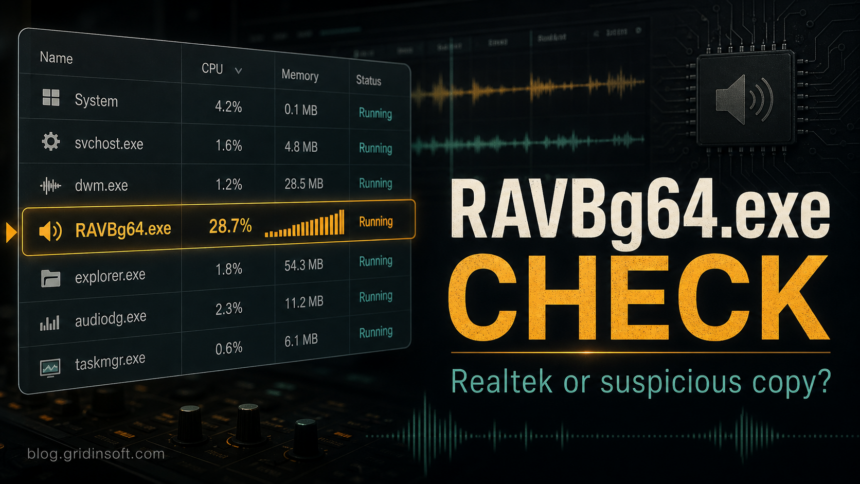
RAVBg64.exe is normally the Realtek HD Audio Background Process, so seeing it in Task Manager is not automatically a virus. Treat it as suspicious when it runs from the wrong folder, has no Realtek signature, keeps using CPU after audio is idle, starts pop-ups or redirects, or appears after an unknown driver bundle.
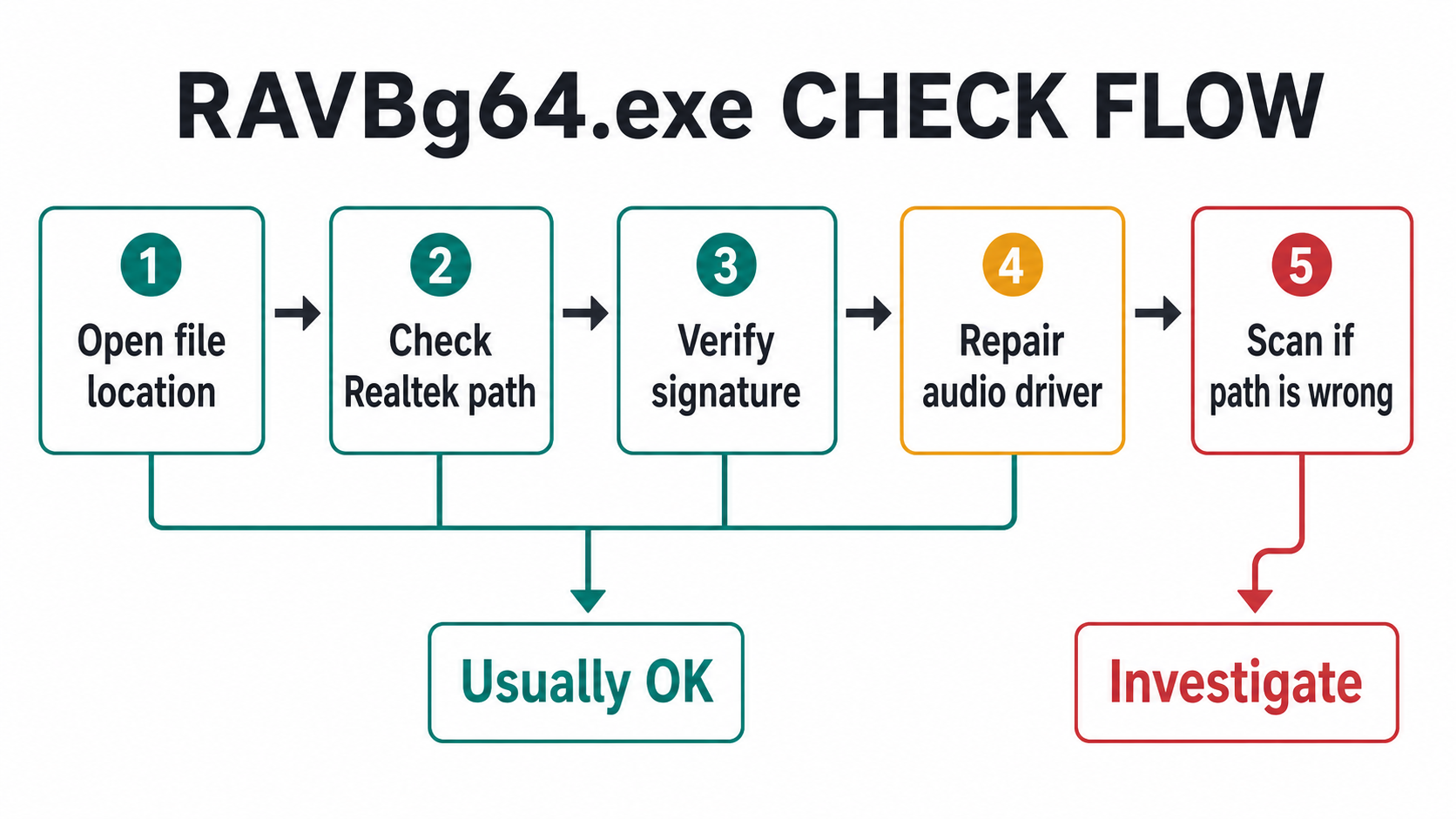
The safest order is simple: open the file location, verify the Realtek path and signature, repair the audio driver if CPU stays high, and scan only when the file’s location or behavior does not match a normal Realtek component. A startup entry or several RAVBg64.exe instances alone do not prove malware; compare every copy before disabling or deleting anything.
What is RAVBg64.exe?
RAVBg64.exe is associated with Realtek HD Audio software on Windows PCs. On many systems it supports the audio manager, speaker/microphone effects, jack detection, and audio-device background functions. It is not a core Windows system file, but deleting it blindly can break audio controls or leave the Realtek driver in a half-installed state.
A normal copy is usually tied to a Realtek audio driver package and may appear near other Realtek files. Common legitimate locations include folders such as C:\Program Files\Realtek\Audio\HDA\RAVBg64.exe or an OEM Realtek driver package path under C:\Windows\System32\DriverStore\FileRepository\. The exact folder can vary by laptop or motherboard vendor, which is why the signature and install source matter as much as the folder name.
Quick check: Realtek or suspicious copy?
- Expected Realtek/OEM path and signature: A
RAVBg64.execopy signed by Realtek Semiconductor Corp. is usually normal. If CPU is high, repair or reinstall the audio driver instead of deleting the file. - User, temporary, or random startup path: A copy in
%USERPROFILE%\Downloads,%TEMP%,%APPDATA%,C:\Users\Public\, or an unknown startup folder is suspicious because malware may reuse the Realtek name. - CPU spike during audio changes: Activity limited to headset switching, device changes, or driver updates is often driver-related. Reboot, update from the PC maker, and test audio enhancements.
- CPU returns with other symptoms: Pop-ups, browser redirects, unknown startup tasks, or a missing signature after reboot require malware and unwanted-software checks.
1. Open the file location first
In Task Manager, right-click RAVBg64.exe and choose Open file location. Do not end the task or delete files yet. Write down the folder path, then right-click the file, open Properties, and check the Digital Signatures tab.
Normal Realtek files should not be launching from a user downloads folder, a temporary archive extraction folder, a browser cache, or an unknown folder with random characters. A wrong path is more important than the name. Malware often copies trusted-looking names such as RAVBg64.exe, svchost.exe, or audiodg.exe to avoid attention.
2. Verify the signature and driver source
Look for a valid Realtek signature or a trusted OEM driver package from your PC or motherboard vendor. If the signature is missing, invalid, or the file comes from an installer you downloaded from ads, mirrors, cracks, or a driver-updater pop-up, treat it as unsafe until scanned.
For a normal driver issue, prefer the support page from your laptop, motherboard, or sound-card vendor. Realtek also maintains official HD audio codec downloads, but many OEM systems need customized audio packages, so the PC maker’s package is often the safer repair route.
3. Fix RAVBg64.exe high CPU without breaking audio
If the file is in the expected Realtek/OEM driver path and the signature is valid, start with driver repair rather than malware removal:
- Restart Windows and test whether CPU settles after a few minutes.
- Unplug and reconnect headsets, HDMI audio devices, USB audio adapters, and Bluetooth audio devices one at a time.
- Open Settings > System > Sound and disable unnecessary audio enhancements for the active output and input device.
- Install the latest audio driver from your PC or motherboard vendor. Avoid download ads and generic driver-updater sites.
- If the problem started after a driver update, use Device Manager to roll back the Realtek audio driver or uninstall the device and let Windows reinstall it after reboot.
Do not remove every Realtek file manually. That can leave Windows with no audio, repeated driver install loops, or broken headset/microphone controls.
Can you disable RAVBg64.exe at startup?
You can run a reversible startup test when the file is signed by Realtek, uses the expected driver path, and audio works normally. Windows may show the entry as RAVBg64, HD Audio Background Process, or an OEM-specific audio helper rather than the full executable name.
- Open Settings > Apps > Startup and look for the exact verified RAVBg64 or HD Audio Background Process entry.
- If it is not listed there, open Task Manager > Startup apps and check the entry name and publisher. Do not disable Windows Audio or a different Realtek service just because its name looks related.
- Turn off or disable only the verified startup entry, restart Windows, and test speakers, headphones, microphone input, jack detection, and the Realtek/OEM audio console.
- If any feature stops working, enable the entry again. If high CPU continues, re-enable it and use the driver-repair steps above instead of deleting the executable.
Disabling a startup entry does not uninstall the audio driver, and it may not stop a copy that the driver or another audio service starts later. The test is useful only for deciding whether the optional background helper is causing the problem.
Why are several RAVBg64.exe processes running?
Two or more instances are not automatically malicious, but the count by itself does not explain why they are running. In Task Manager, open the file location for each instance and check each file’s Digital Signatures tab. If every copy resolves to the same expected Realtek/OEM driver location, carries a valid Realtek signature, and settles when audio is idle, do not delete them just to reduce the process count.
Investigate the outlier when one instance uses a different path, lacks the Realtek signature, consumes CPU while the others are idle, or returns through an unknown startup task. End only the suspicious instance after recording its path, then scan the system and repair the official audio driver separately if normal audio functions are also unstable.
4. When should you scan for malware?
Scan the system when the file path or behavior does not fit a normal Realtek driver. The strongest warning signs are a copy outside the Realtek/OEM driver folder, a missing or invalid signature, a startup entry that recreates the file, browser redirects, fake driver-updater pop-ups, or high CPU that started after installing a codec, crack, game mod, or driver package from a search ad.
If a suspicious copy already ran, do not just delete the visible file. A loader, scheduled task, startup entry, browser change, or bundled app may restore it after reboot. Run a full Gridinsoft Anti-Malware scan, remove detections, restart, and check Task Manager again. If the alert or high CPU returns, scan again before restoring or reinstalling the same driver package.
Related Realtek and audio processes
RAVBg64.exe is only one audio-related process. If the process name is different, compare it with the right guide before taking action:
- RtkNGUI64.exe is the Realtek HD Audio Manager GUI; its guide separates the optional startup interface from the driver and covers not-opening errors.
- RtkAudUService64.exe is the Realtek Audio Universal Service and has its own startup/high-CPU checks.
- ALCMTR.EXE is another older Realtek startup component that can be confused with suspicious copies.
- Audiodg.exe is a Windows audio process; high CPU there often points to enhancements or driver issues.
- Suspicious startup apps explains how to check unknown startup entries before deleting them.
- EXE file safety checks cover signature, source, path, and scan decisions for any unknown executable.
How to prevent repeat Realtek driver problems
Keep Realtek audio drivers updated through Windows Update, the PC maker, or Realtek’s official site. Avoid driver bundles from ads, codec packs from streaming pages, and “one-click driver updater” pop-ups. If you need to reinstall audio, download the package before disconnecting from the network, then verify the file name, publisher, and folder before running it.
Old driver packages can also have security issues. For example, SafeBreach documented a Realtek HD Audio Driver package DLL-loading weakness in 2020. That does not mean every RAVBg64.exe process is malicious, but it is another reason to keep OEM audio packages current and avoid unknown driver mirrors.
FAQ
Is RAVBg64.exe a virus?
Usually no. RAVBg64.exe is normally part of Realtek HD Audio software. It becomes suspicious when it is outside a Realtek/OEM driver folder, unsigned, paired with unwanted pop-ups, or recreated by unknown startup tasks.
Can I disable RAVBg64.exe from startup?
Yes, but disable only the verified RAVBg64 or HD Audio Background Process startup entry. Use Settings > Apps > Startup or Task Manager > Startup apps, restart, and test speakers, microphone input, jack detection, and the Realtek/OEM audio console. Re-enable the entry if a feature breaks; do not delete the executable.
Why does RAVBg64.exe use high CPU?
High CPU is often caused by a damaged audio driver, audio enhancements, headset/device switching, or an OEM audio manager loop. If the file path and signature are wrong, scan for malware before reinstalling drivers.
Where should RAVBg64.exe be located?
A normal copy is usually in a Realtek audio driver folder such as C:\Program Files\Realtek\Audio\HDA\ or an OEM driver package location. A copy in Downloads, Temp, AppData, or a random startup folder is suspicious.
References
- Realtek Semiconductor Corp. “PC Audio Codecs > High Definition Audio Codecs Software.” Realtek, accessed July 7, 2026. https://www.realtek.com/Download/List?cate_id=593
- Microsoft Support. “Configure Startup applications in Windows.” Microsoft, accessed July 28, 2026. https://support.microsoft.com/en-us/windows/experience/startup-boot/configure-startup-applications-in-windows
- SafeBreach Labs. “Realtek HD Audio Driver Package DLL Preloading and Potential Abuses.” SafeBreach, February 2020, accessed July 7, 2026. https://www.safebreach.com/blog/realtek-hd-audio-driver-package-dll-preloading-and-potential-abuses-cve-2019-19705/