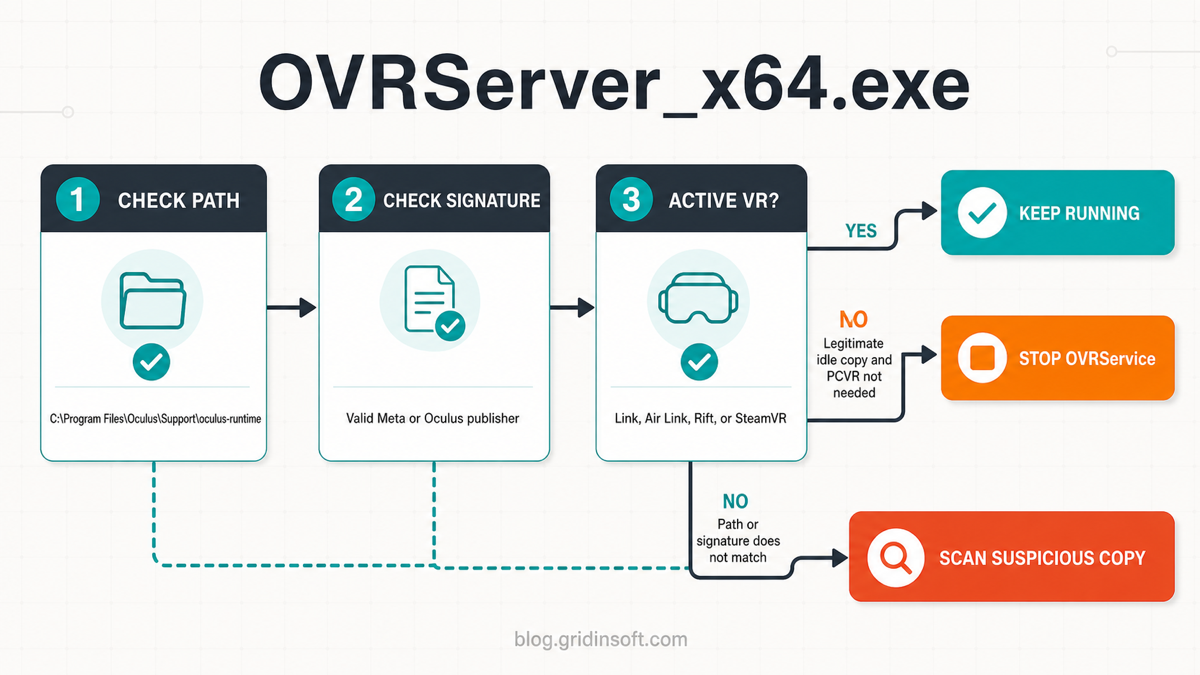
OVRServer_x64.exe is normally a legitimate part of Meta Quest Link (formerly the Oculus PC software), not a Windows system process. A standard copy is usually found at C:\Program Files\Oculus\Support\oculus-runtime\OVRServer_x64.exe and runs with the Oculus VR Runtime Service. CPU or GPU use is expected while Link, Air Link, Rift, or an Oculus-compatible SteamVR session is active. Sustained load while the headset and Link app are idle, repeated crashes, or a same-name file in an unrelated folder needs troubleshooting.
Do not delete OVRServer_x64.exe by itself. First verify its location and digital signature, then choose whether to keep the runtime active, stop its service temporarily, repair Meta Quest Link, or investigate a suspicious copy.
What is OVRServer_x64.exe?
OVRServer_x64.exe is a user-mode runtime server used by Meta’s Windows PCVR stack. It helps coordinate the headset, tracking, audio, graphics, and applications that communicate through the Oculus runtime. Meta now calls the Windows software Meta Horizon Link, but the installation folder, service names, and many executable names still use Oculus or OVR.
| Check | Normal result and what it means |
|---|---|
| File path | C:\Program Files\Oculus\Support\oculus-runtime\OVRServer_x64.exe on a standard installation. A custom installation can differ, so also verify the parent package and signature. |
| Digital signature | Properties should show a valid publisher associated with Meta or Oculus. Publisher wording can vary between releases; the important result is a valid signature from the expected vendor. |
| Related service | Oculus VR Runtime Service, whose service name is OVRService. The service stack can relaunch the server after you end only the process. |
| Normal activity | Link, Air Link, Rift, an Oculus runtime, or a compatible SteamVR game is open; the headset or desktop view is rendering. |
| Warning signs | The file is in Temp, AppData, System32, or an unrelated program folder; its signature is missing or invalid; its parent process has no Meta/Oculus connection; or it returns through unrelated startup persistence. |
Microsoft’s Sigcheck can display a file’s version and digital-signature chain. If you prefer the graphical method, right-click the executable, open Properties, and check the Digital Signatures tab. A familiar filename alone is not proof that a file is safe, which is why path, signature, parent software, and behavior should be evaluated together.
Why OVRServer_x64.exe starts with Windows or comes back
Ending OVRServer_x64.exe in Task Manager is only a temporary test. The OVRService service supervises the PCVR runtime and can start the process again. The Meta Quest Link client, a headset connection, a VR game, or software that requests the Oculus runtime can also reactivate it.
This distinction matters: disabling a normal Startup app entry may close the visible Link client but leave the runtime service available. Conversely, stopping the runtime service interrupts Link, Rift, and Oculus-runtime-dependent sessions even if a tray or desktop window is still visible. If you are auditing other programs that launch at sign-in, use the broader Windows startup inspection guide rather than deleting entries at random.
Is high CPU, GPU, VRAM, or memory use normal?
OVRServer_x64.exe can legitimately use substantial CPU, GPU, video memory, and RAM while it renders or streams PCVR. A Task Manager spike during Link startup, headset wake-up, a game launch, or desktop-view use is not enough to call it malware.
Investigate when the load stays high for several minutes after you exit the VR game, close the Link client, and disconnect or put down the headset. Also investigate when memory keeps growing, the process repeatedly crashes and relaunches, or ordinary desktop performance remains degraded with no PCVR task active.
- Close the VR workload first. Exit the game, SteamVR when used, and the Meta Quest Link client. Wait briefly and recheck Task Manager.
- End the process once as a test. If it immediately returns, the runtime service or another VR application still needs it. Do not keep killing it in a loop.
- Restart the service. Open Services, find Oculus VR Runtime Service, and choose Restart. This is safer than deleting files and often clears a stuck idle state.
- Check for an update or repair. Update the graphics driver and Meta Quest Link. If the issue began after a failed update or the service crashes, run the current Meta setup package and choose its repair option when offered.
- Test conflicting overlays only when symptoms match. Performance overlays, recording tools, and GPU-tuning utilities can complicate PCVR troubleshooting. Close them for one controlled test, then restore them individually instead of uninstalling everything.
If Task Manager attributes the load to System Interrupts rather than OVRServer_x64.exe, investigate the USB or driver path separately. Our System Interrupts high CPU guide explains how to compare peripheral connections and trace persistent interrupt activity.
How to disable OVRServer_x64.exe safely
The safest choice depends on whether you still use PCVR. Start with the most reversible option.
- For a one-session stop: close the Meta Quest Link app and all VR programs, then stop Oculus VR Runtime Service in Services. Start the service again before using Link or Rift.
- For occasional PCVR use: set Oculus VR Runtime Service to Manual and reboot to test. The Link client may start it when needed. If Link stops launching reliably, return the service to Automatic.
- If you no longer use Meta PCVR: uninstall Meta Quest Link from Settings → Apps → Installed apps. This removes the parent package cleanly and is safer than deleting OVRServer_x64.exe or its runtime directory.
Stopping or changing OVRService does not damage Windows, but Meta Quest Link, Oculus Rift software, and VR applications that need the Oculus runtime will not work until the service is running again. Record the original startup setting before changing it.
Fix a black screen, crash loop, or “Can’t Reach Oculus Service”
A legitimate OVRServer_x64.exe error is usually a Meta runtime, graphics, service, or installation problem—not a reason to remove the process.
- Confirm the service state. In Services, start or restart Oculus VR Runtime Service. If it is missing entirely, repair or reinstall Meta Quest Link rather than creating a service manually.
- Match the graphics adapter for a black desktop view. Add the standard OVRServer_x64.exe path in Settings → System → Display → Graphics and test the GPU preference that matches the desktop display. This is most relevant on laptops with integrated and discrete graphics.
- Update the graphics driver and Windows. Reboot after the driver update before testing Link again.
- Repair the Link installation. Download the current Meta Horizon Link installer from Meta’s setup page. Use repair when available; reinstall only after a repair and reboot fail.
- Test locally if the error occurs through Remote Desktop. Audio, graphics, and headset-device access can differ in an RDP session. Launch the Link app at the physical PC before changing service permissions.
- Collect logs for a persistent crash. Note the Link version, GPU model/driver, Event Viewer faulting module, and whether the issue happens with cable, Air Link, or both before contacting Meta support.
Do not solve these errors by granting broad folder permissions, permanently disabling antivirus protection, or forcing Realtime process priority. Those changes can create a larger security or stability problem while leaving the broken runtime untouched.
If the path or signature does not match
A same-name file outside the Meta/Oculus runtime tree is not automatically malware—a custom installation or unpacked support bundle can change context—but it should not be trusted based on its name. Use Task Manager’s Open file location, check the signature, and identify the parent process. Our EXE safety checklist explains how to combine those signals.
If the copy is unsigned, starts from AppData or Temp, has an unrelated parent, or returns after the Meta software is removed, submit the file to the Gridinsoft Online Virus Scanner. If it already ran or created recurring activity, run a full Gridinsoft Anti-Malware scan to check for detections, startup entries, scheduled tasks, bundled apps, and other persistence. A clean result lowers suspicion but does not prove that no compromise occurred.
If the process path is wrong, the name imitates a Windows component, or high CPU started after an unknown installer, scan for hidden miners, services, startup entries, and bundled components.
Check a suspicious OVRServer copyFAQ
Is OVRServer_x64.exe a virus?
The standard Meta Quest Link copy in the Oculus runtime folder with a valid Meta/Oculus signature is legitimate. Treat a wrong-path, unsigned, or unrelated-parent copy as a separate file that needs verification.
Can I disable OVRServer_x64.exe at startup?
Yes. If you use PCVR only occasionally, test Oculus VR Runtime Service in Manual mode. Link, Rift, and applications that require the Oculus runtime may not work until the service starts again.
Why does OVRServer_x64.exe use GPU when no game is open?
The Link runtime may still be rendering a headset view, desktop view, or waiting for an active VR session. Close all VR programs and the Link client, then stop or restart the runtime service. Persistent idle GPU use after that points to a stuck runtime, driver issue, or conflicting overlay.
Why does OVRServer_x64.exe restart after I end it?
Oculus VR Runtime Service or another application requesting the Oculus runtime can relaunch it. Stop the parent service for a controlled test instead of repeatedly ending the process.
References
- Meta. “Set up your Meta Quest.” Meta Store, accessed August 4, 2026. https://www.meta.com/quest/setup/
- Microsoft Support. “Optimizations for windowed games in Windows 11.” Microsoft, accessed August 4, 2026. https://support.microsoft.com/en-us/windows/optimizations-for-windowed-games-in-windows-11-3f006843-2c7e-4ed0-9a5e-f9389e535952
- Russinovich, Mark. “Sigcheck v2.91.” Microsoft Sysinternals, updated February 4, 2026, accessed August 4, 2026. https://learn.microsoft.com/en-us/sysinternals/downloads/sigcheck