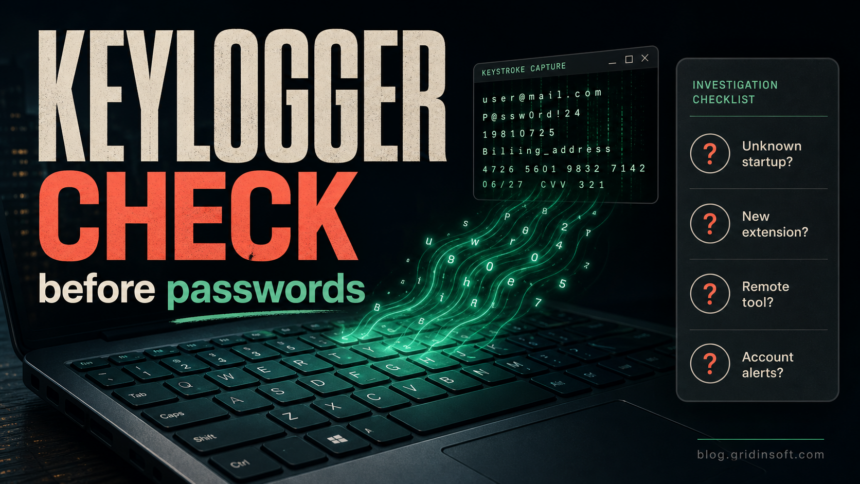
If you think someone is tracking your keyboard presses, treat the PC as unsafe for passwords until you check it. A real keylogger may be malware, a browser extension, a remote-access tool, or monitoring software installed without clear consent. Start by stopping password resets on that computer, then inspect startup items, extensions, recently installed apps, and account alerts before you decide it is only a false alarm.
The important distinction is intent and consent. A macro recorder or automation tool can react to keyboard input without being spyware. A hidden program that records everything you type, stores it, sends it elsewhere, or appears after a suspicious download should be handled like credential-theft malware.
Do this first if you suspect keyboard tracking
- Stop typing new passwords on the suspected PC. Do not sign in to email, banking, crypto, password managers, or work accounts from that device until you finish the checks.
- Use a clean device for account recovery. If you already saw account alerts or unauthorized sessions, change the email password first from another phone or computer, then revoke sessions for important accounts.
- Disconnect if the behavior is active. If windows open by themselves, remote-control tools appear, or the mouse/keyboard moves unexpectedly, disconnect from the network and investigate offline.
- Preserve obvious evidence. Write down suspicious app names, install dates, file paths, browser extensions, and account alerts before deleting things.
Signs that keyboard presses may be monitored
Keyloggers are often quiet, so the absence of a dramatic pop-up does not prove the PC is clean. Look for a pattern rather than one isolated symptom:
- new sign-in alerts shortly after you typed a password;
- unknown sessions in email, Microsoft, Google, Steam, Discord, banking, or crypto accounts;
- a remote-support app, monitoring app, or browser extension you do not remember installing;
- startup entries with random names, wrong paths, or unsigned executables in user folders;
- security-tool detections for spyware, password stealers, RATs, or suspicious input hooks;
- passwords being changed or accounts sending messages after a download, crack, fake update, or unknown installer;
- new browser policies, extensions that return after removal, or synced extensions appearing on several devices.
Hardware keyloggers are rarer for home users because they require physical access, but they still matter on shared, school, office, hotel, and repair-shop computers. Check the keyboard cable, USB receiver, docking station, and any small adapter between the keyboard and the PC.
Not every keyboard tool is a keylogger
Some legitimate utilities watch keyboard input so they can do their job. Examples include hotkey managers, accessibility tools, game overlays, macro recorders, clipboard managers, password-manager auto-type features, and automation tools. They become suspicious when the source is unclear, the program hides, starts from a strange path, asks for network access without a reason, or appeared after a risky download.
If the concern started with a macro tool, compare the source and behavior with our TinyTask safety and false-positive guide or the AutoHotkey malware or false-positive guide. Those tools can be legitimate, but fake copies and bundled installers can still carry malware.
How to check Windows for keylogger-like persistence
1. Review installed apps and recent downloads
Open Settings > Apps > Installed apps and sort by install date. Look for monitoring tools, screen recorders, remote-access clients, browser assistants, unknown driver utilities, fake security tools, and programs installed on the day the problem started. Do the same in Downloads, Desktop, and the folder where the suspicious installer ran.
2. Inspect Startup Apps and Task Manager
Open Task Manager > Startup apps. Disable only entries you can identify as unwanted or clearly suspicious. Do not delete random Windows files. If an entry launches from %APPDATA%, %LOCALAPPDATA%, %TEMP%, a game folder, or a recently unpacked archive, treat it as higher risk.
For a safer workflow, use the same keep/disable/scan logic from our suspicious startup apps checklist. Microsoft Sysinternals Autoruns can also show many auto-start locations that normal Startup Apps misses, including services, browser helpers, scheduled tasks, and Winlogon entries [1].
3. Check browser extensions and policies
A browser extension can read what you type into web pages if it has broad permissions. Remove extensions you do not recognize, then restart the browser. If an extension returns, check browser sync, Chrome/Edge policies, and local startup tasks. Our extension keeps returning guide explains the sync and policy checks without turning every unknown extension ID into a malware claim.
4. Look for remote-access tools
A remote-access trojan or abused support tool can capture screens, files, clipboard contents, and keyboard input. If you see AnyDesk, RustDesk, ScreenConnect, TeamViewer, Quick Assist, or another remote tool you did not authorize, treat account recovery as urgent. For the broader symptom set, use our RAT malware signs and removal guide.
5. Scan before changing passwords on that PC
If the suspicious app came from a crack, game mod, fake update, invoice, browser extension, or unknown EXE, the visible file may not be the only problem. A loader, scheduled task, service, extension, or bundled module can remain after the first detection and continue watching input or stealing browser data.
Run a full Gridinsoft Anti-Malware scan, remove detections, reboot, then check Startup Apps, extensions, and account sessions again. A scan can help find detections, hidden files, startup entries, scheduled tasks, bundled apps, browser changes, and persistence. It cannot prove no data was ever exposed, recover stolen passwords, or undo account actions that already happened.
What to do if passwords may have been typed into a keylogger
Use a clean device for recovery. Start with the account that controls password resets: usually email. For Microsoft accounts, review the Recent activity page and expand unfamiliar entries to see location, device, and access method [2]. Then work outward to banking, payment, crypto, work, gaming, social, and cloud accounts.
- Change the email password from a clean device.
- Revoke sessions or sign out of other devices where the account supports it.
- Enable MFA, preferably a phishing-resistant method where available. CISA recommends moving toward FIDO/WebAuthn authentication where possible [3].
- Check recovery email, phone number, forwarding rules, filters, app passwords, and connected apps.
- Change passwords for accounts that were typed on the suspected PC. Use unique passwords, not small variations.
- Watch financial accounts and marketplace accounts for unauthorized activity.
If the incident involved stolen browser cookies or session tokens, changing the password alone may not end every active session. Use account-specific sign-out and session revocation controls when they exist. For broader password-stealer cleanup, see our infostealer detection and removal guide and the Microsoft account hacked after malware checklist.
When a Windows reset or clean install is reasonable
You do not need to reinstall Windows for every suspicious hotkey app or false positive. Consider a reset or clean install when:
- the keylogger or RAT keeps returning after removal;
- you found multiple persistence locations, unknown admin users, or tampered security settings;
- banking, work, crypto, or business accounts were accessed from the infected PC;
- the malware had administrator access and you cannot identify what changed;
- you need high confidence before using the device for sensitive work again.
Back up personal files carefully, but do not copy unknown executables, cracks, scripts, browser profiles, or installer folders back to the new system. If the concern started with a suspicious executable, the EXE safety checklist can help you decide what to keep, scan, or discard.
FAQ
Can someone track my keyboard without malware?
Yes. A person with physical access could use hardware, a disclosed monitoring app, a remote-support tool, or a browser extension with broad permissions. Malware is only one route, so check both software and account/session evidence.
Will Task Manager always show a keylogger?
No. Some keyloggers use normal-looking process names, services, scheduled tasks, browser extensions, or remote tools. Task Manager is a starting point, not a complete answer.
Should I change passwords immediately?
Change them immediately from a clean device if account alerts or unauthorized sessions appeared. Avoid changing passwords on the suspected PC until it is cleaned, because a running keylogger could capture the new password too.
Is a macro recorder the same as a keylogger?
No. A macro recorder may watch keyboard input for automation, but a hidden or fake copy can still be risky. Source, path, permissions, network behavior, and whether you knowingly installed it matter.
Can browser extensions track what I type?
Some extensions can read form input on pages where they have permission. Remove unknown extensions, check sync and policies if they return, and reset passwords from a clean device if sensitive credentials were typed.
References
- Microsoft Learn. “Autoruns for Windows.” Sysinternals, accessed July 7, 2026. https://learn.microsoft.com/en-us/sysinternals/downloads/autoruns
- Microsoft Support. “What is the Recent activity page?” Microsoft, accessed July 7, 2026. https://support.microsoft.com/en-us/accounts-billing/security/what-is-the-recent-activity-page
- Cybersecurity and Infrastructure Security Agency. “More than a Password.” CISA, accessed July 7, 2026. https://www.cisa.gov/MFA