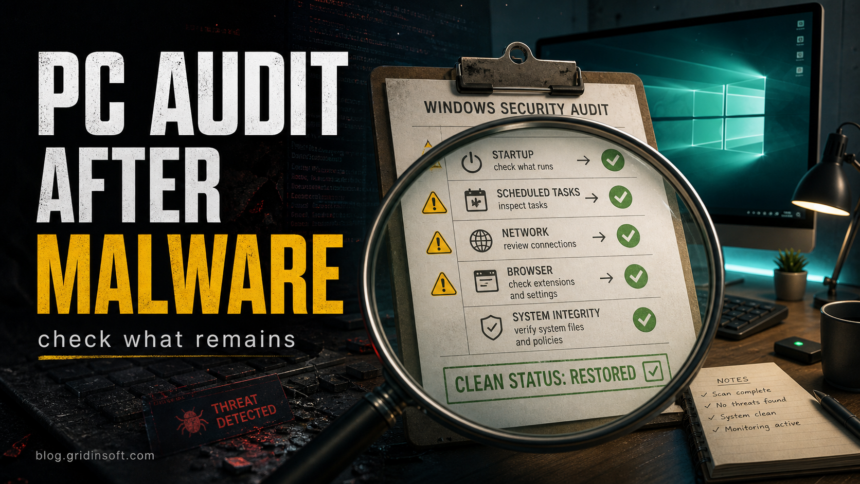
If malware was removed or you still see suspicious Windows behavior, audit the PC before you trust it again. Start with a clean scan and Windows Security history, then check the places where malware commonly survives: startup entries, scheduled tasks, services, browser extensions, DNS or proxy settings, remote-access tools, and accounts that were used while the infection was active. If one scan reports several threats at once, keep active or unknown items quarantined and treat the result as one possible infection chain instead of guessing which label is “worst.” If alerts return after reboot, credentials were exposed, or core security settings keep changing back, treat the machine as not clean yet and consider an offline scan or clean reinstall.
This guide is for a home or small-office Windows PC after a suspicious download, browser redirect, fake installer, cracked app, security-tool alert, or obvious malware removal. It does not replace a forensic investigation for a business breach, but it gives you a practical audit order that catches the most common leftovers before you restore backups or keep using the same accounts.
What to do when antivirus finds multiple threats
Several detection names do not automatically mean several unrelated infections. One fake installer or downloader can leave a payload, script, browser change, and scheduled task, while Protection History can also record the same affected item more than once. Before clearing history, save each detection name, file path, time, and action status so you can see whether the entries are different components or repeated observations.
| What the scan shows | What to do first |
|---|---|
| Active threat, ongoing downloads, ransomware-like changes, or unknown remote access | Disconnect the PC from the network, keep the items quarantined, and do not use banking, crypto, admin, or work accounts on it. |
| Downloader or loader plus several payloads, tasks, services, or browser changes | Remove the original download and persistence before treating the secondary files as separate problems; otherwise the loader can recreate them. |
| Trojan or stealer together with adware or potentially unwanted apps | Keep every unknown item contained, but prioritize credential theft, remote access, and active persistence. Do not restore a lower-severity item just because another label looks more dangerous. |
| The same path and time appear in several cards | Check the action status and affected item before assuming the PC has dozens of independent infections. Repeated entries can describe one file or one remediation attempt. |
| Remediation incomplete, quarantine failed, or detections return after reboot | Run an offline scan, then check Startup, Task Scheduler, Services, browser extensions, and other persistence locations before rescanning. |
- Contain active behavior first. Isolate the PC when remote access, encryption, repeated downloads, or suspicious outbound traffic is still happening.
- Record and quarantine before you delete. Keep the exact labels, paths, times, and action statuses. Do not allow items or delete legitimate Windows binaries blindly.
- Remove the source and persistence. Delete the suspicious installer, archive, crack, or attachment and disable only verified malicious startup tasks, services, extensions, or policies.
- Reboot and scan again. Update security intelligence, run a full or offline scan, and use the mixed-infection malware removal workflow when several components need to be reviewed together.
- Protect accounts from a clean device. If a stealer, keylogger, remote tool, or unknown administrator was involved, change important passwords and revoke sessions only after containment.
Post-malware PC audit order
Work in this order. It prevents a common mistake: changing passwords or restoring files while the same loader, browser extension, scheduled task, or remote-access tool is still active.
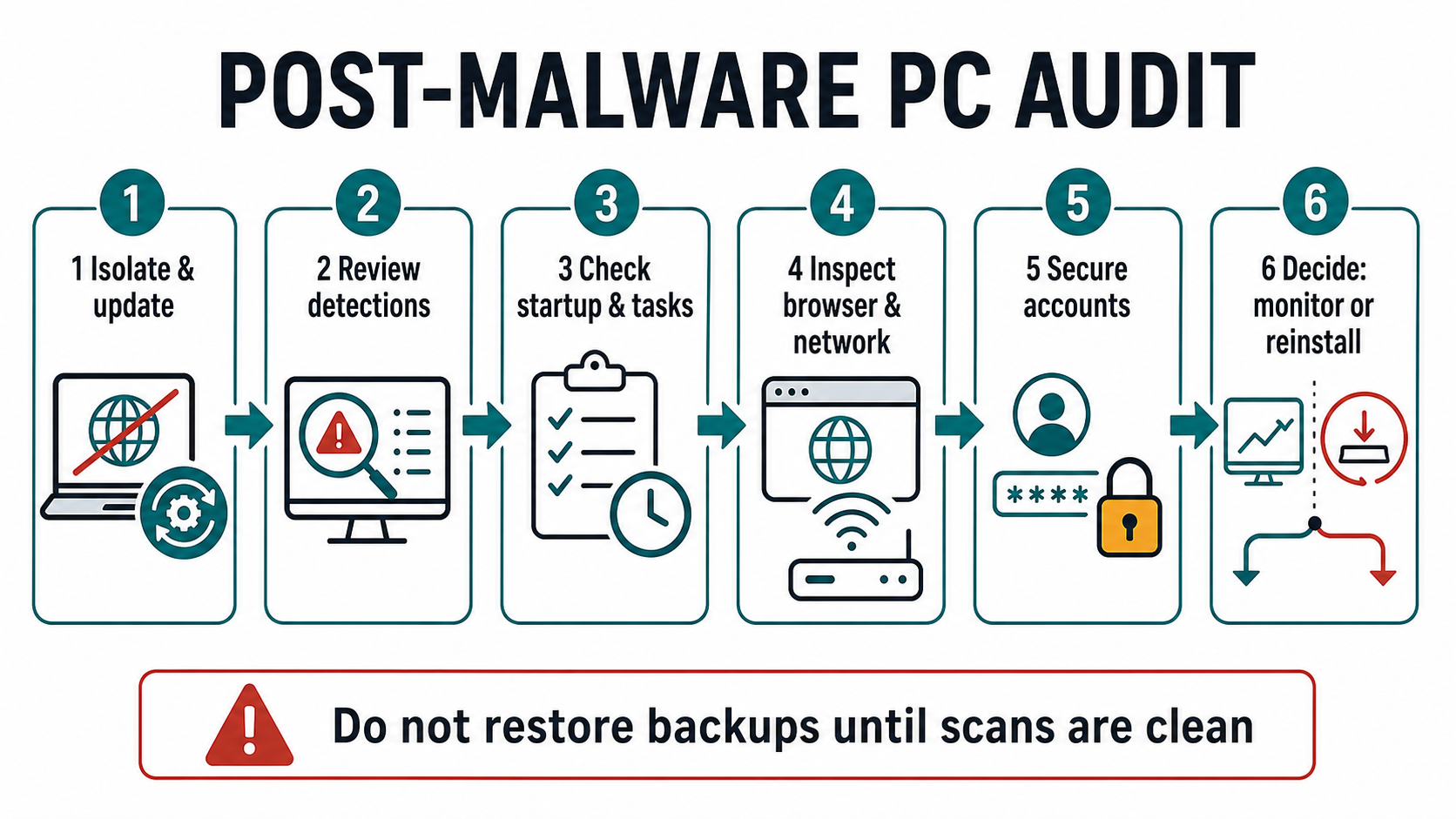
- Isolate the PC if something is still active. Disconnect from Wi-Fi or unplug Ethernet when pop-ups, unknown remote access, suspicious outbound traffic, or repeated downloads continue. Do not sign in to banking, crypto, admin, or work accounts from that PC yet.
- Update Windows and your security tools. Open Windows Security and check that real-time protection is on. Run a full scan, then use Microsoft Defender Offline if the alert returns after reboot or the malware appears to defend itself while Windows is running. If the offline scan does not restart, returns straight to Windows, or leaves no visible result, follow the Defender Offline troubleshooting flow. If removable media was involved, use the USB malware removal decision guide before copying files back.
- Review detection history before clearing it. Note the detection name, affected file path, and action taken. A quarantine in
%USERPROFILE%\Downloadsmeans a different problem than recurring detections from%APPDATA%,%LOCALAPPDATA%\Temp, Startup, or a browser profile. - Check persistence. Review Startup apps, Task Scheduler, Services, and unusual Run keys such as
HKCU\Software\Microsoft\Windows\CurrentVersion\Run. If you are comfortable with advanced tools, Microsoft Sysinternals Autoruns can show many auto-start locations in one place. - Inspect browser and network changes. Remove unfamiliar extensions, check notification permissions, reset changed home/search pages, and review proxy, DNS, VPN, and hosts-file settings. Browser hijackers and adware often return because one extension, policy, or scheduled task survived the first cleanup.
- Secure accounts from a clean device. After the PC is scanned or while it remains offline, change important passwords from another trusted device. Sign out of active sessions where the service allows it, rotate recovery email and MFA methods, and check email forwarding rules.
- Decide whether to monitor or reinstall. If scans stay clean, no persistence remains, and accounts are secured, monitor the PC for a few days. If alerts return, security settings keep disabling, unknown admin accounts or remote tools appear, or ransomware/stealer activity is suspected, a clean reinstall is safer than endless cleanup.
What to check in Windows after malware
Use this checklist as a practical audit, not as a hunt for every normal Windows event. Many Windows services and scheduled tasks are legitimate; the warning sign is a new, unsigned, wrong-path, random-name, or recently created item that matches the time of the suspicious download. For a current example, see the OkoBot/TookPS scheduled-task indicators, where a fake backup-sync name hides a PowerShell callback.
Windows Security and scan results
If Protection History shows a cryptic threat label, use the Microsoft Defender detection-name guide to decode the family, platform, and suffix before deciding whether the affected path indicates malware or a false positive.
- Open Windows Security and confirm Virus & threat protection, Firewall & network protection, and App & browser control are not disabled.
- Run a full scan after updates. If the same threat returns after reboot, use an offline scan before trusting the result.
- Record the detection name and path before removing history. This helps you decide whether you are dealing with a browser cache file, a downloaded installer, a startup payload, or a repeated loader.
Startup, tasks, services, and Run keys
Malware often survives by starting again after sign-in or reboot. Check these locations before you assume a deleted file solved the problem:
- Settings > Apps > Startup and Task Manager > Startup apps.
- Task Scheduler Library for recently created tasks, random names, hidden PowerShell or script actions, and triggers at logon or every few minutes.
- Services for unknown publishers, odd paths under user folders, or services created near the incident time.
- Run keys such as
HKCU\Software\Microsoft\Windows\CurrentVersion\RunandHKLM\Software\Microsoft\Windows\CurrentVersion\Run.
If you are not sure whether a startup item is normal, do not delete it blindly. Compare the publisher, file path, digital signature, and creation time, then scan the file. Our Suspicious Startup Apps guide explains how to disable and verify startup entries without breaking Windows.
If Behavior:Win32/MaleficAms returns after a clean scan, compare the newest event time, action status, and startup source before treating an old history card as a fresh detection.
Browser, DNS, proxy, and hosts-file changes
Browser hijackers and adware can look cleaned until the browser profile syncs the same extension back. Check installed extensions, notification permissions, default search engine, homepage, and managed-browser policies. Then review proxy/VPN/DNS settings and the hosts file if websites redirect, certificates look wrong, or search results keep opening unknown pages.
If the suspicious behavior started after visiting a site or clicking a fake download ad, also read Can You Get Malware Just by Visiting a Website? and How to Check if an EXE File Is Safe.
Remote access and account exposure
Look for AnyDesk, TeamViewer, ScreenConnect, Tiflux, RDP changes, new local users, new administrators, or unfamiliar browser profiles. If a remote-access tool appeared without your clear action, treat the PC as exposed. Check recent sign-ins for email, Microsoft, Google, Steam, Discord, banking, crypto, and work accounts from a clean device.
For remote-access cleanup context, see our Tiflux RMM malware cleanup guide. For password or session risk after keyboard symptoms, see keylogger signs and cleanup.
When a second scan is worth it
A visible quarantine does not always remove the component that put the file there. A loader, scheduled task, service, browser extension, modified proxy, or bundled module can recreate the same alert after reboot. After you finish the manual checks above, run a full Gridinsoft Anti-Malware scan, remove confirmed detections, reboot, and scan again if symptoms return. Keep the wording of any detection and file path so you can compare whether the same item is coming back.
When to monitor, restore, or reinstall Windows
It is reasonable to monitor the PC when the audit finds no new startup entries, no unknown remote-access tools, no suspicious browser/network changes, and repeated scans stay clean. Keep backups disconnected until you know the system is stable.
Move toward a clean reinstall when malware ran with administrator rights, ransomware or stealer behavior is likely, security settings keep turning off, unknown admin accounts appear, or you cannot explain repeated alerts from user-profile startup paths. A factory reset may be enough for simple adware, but a clean Windows install from trusted media is safer when you suspect persistence. Use our factory reset malware guide and clean-install USB after malware guide for that decision. If files end in .locked and the note is How to Restore My Files.html, follow the HYFLOCK ransomware recovery sequence before reconnecting backups.
If the incident left files ending in .encrypted together with !.txt and a 10-attempt lock window, use the SUCKS 2 SUCK ransomware recovery guide before reconnecting backups; the generic extension alone is not enough to identify the family.
For .umbra files accompanied by a UMBRA README note, the UMBRA recovery guide explains what to preserve before cleanup and how to check recovery options without modifying the only encrypted copies.
What not to do after malware removal
- Do not restore a full backup before scans and persistence checks are clean.
- Do not change important passwords on the same PC while suspicious activity is still active.
- Do not delete random Windows services or registry keys just because they look technical.
- Do not assume a browser reset fixed DNS, proxy, scheduled-task, or account-session changes.
- Do not keep using a cracked app, fake installer, or unknown tool that started the incident.
Destructive-malware warning: if the audit finds a suspicious OneDrive Update task, HKCU\SOFTWARE\OneDrive\Environment, or unexpected disk-wiping behavior, use the GigaWiper indicator and response checklist and treat the endpoint as a potential full breach rather than a routine cleanup.
FAQ
How do I know my PC is clean after malware?
You cannot prove perfect cleanliness with one scan. A practical clean signal is that Windows Security stays enabled, full and offline scans stop finding active threats, startup and scheduled-task checks show no unexplained entries, browser/network settings stay unchanged, and suspicious account sign-ins stop.
Should I change passwords before or after scanning?
Change critical passwords from a separate clean device first if you suspect credential theft. On the affected PC, scan and remove malware before signing back in. Otherwise a keylogger, browser stealer, or remote-access tool may capture the new password too.
Is Microsoft Defender Offline enough after a malware infection?
It is a useful step when malware may hide while Windows is running, but it should be part of a broader audit. You still need to check startup entries, tasks, services, browsers, network settings, accounts, and backups.
When should I reinstall Windows instead of cleaning?
Reinstall when repeated alerts return after reboot, unknown administrator accounts or remote-access tools appear, security settings keep reverting, ransomware or stealer activity is likely, or you cannot trust the history of the machine. Back up only personal files you need and scan them before restoring.
If the original alert was Trojan:Win32/BypassUAC!rfn, follow the BypassUAC cleanup and recurrence guide before closing the audit; a UAC-bypass detection raises the importance of checking scheduled tasks, services, Defender exclusions, and unexpected administrator-level changes.
For a recurring Trojan:Win64/Lazy.PGLI!MTB event, use the Lazy.PGLI!MTB file, process, history, and account-response guide before deciding that a clean second-opinion scan or an old Protection History card closed the incident.
References
- Microsoft Support. “Virus and Threat Protection in the Windows Security App.” Microsoft, accessed July 7, 2026. https://support.microsoft.com/en-us/windows/security/threat-malware-protection/virus-and-threat-protection-in-the-windows-security-app
- Microsoft Learn. “Autoruns – Sysinternals.” Microsoft, accessed July 7, 2026. https://learn.microsoft.com/en-us/sysinternals/downloads/autoruns
- Microsoft Support. “How to recover a hacked or compromised Microsoft account.” Microsoft, accessed July 7, 2026. https://support.microsoft.com/en-us/accounts-billing/manage/how-to-recover-a-hacked-or-compromised-microsoft-account
When the audit includes Windows Security startup entries, verify older Defender names such as MSASCuiL.exe by path and signature before you disable them or assume they are malware.