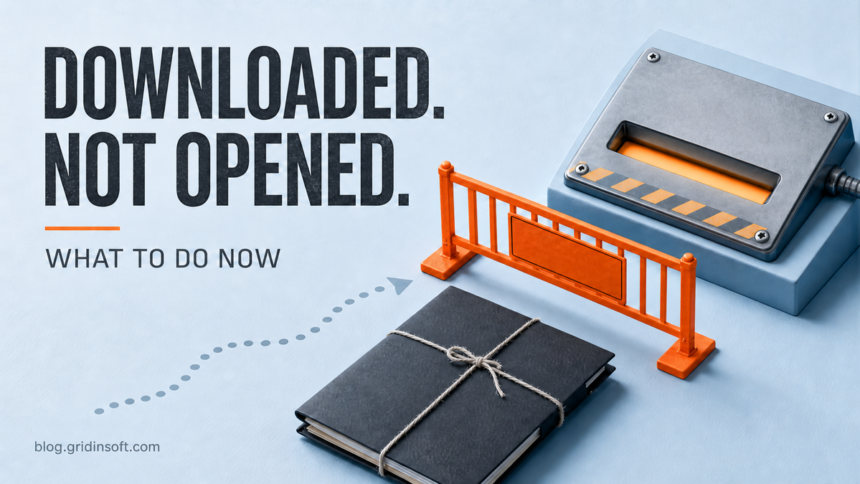
If a suspicious file was only downloaded and you did not preview, extract, mount, open, or run it, the file usually has not executed. Keep it closed, turn off any browser setting that automatically opens downloads, scan the file in %USERPROFILE%\Downloads, and delete or quarantine it if you do not trust the source. Do not double-click it “to see what happens.” The risk changes if File Explorer previewed it, an archive was extracted, an ISO was mounted, a document opened, or an executable or script ran. Use the table below to choose the right response.
“I didn’t open it” can describe several different states. Windows may have saved the file, an application may have parsed it for a preview, or the user may have opened a container without launching the visible installer. Those states do not carry the same risk.
Do these three things first
- Do not interact with the file again. Cancel any installer, document prompt, archive window, or “Run anyway” dialog that is still open.
- Record the facts. Note the filename, full path, extension, download source, approximate time, and any browser or antivirus warning. If security software detected it, record the exact detection name and action before clearing history.
- Decide which state applies. “Downloaded only” is different from previewed, extracted, mounted, opened, or ran. If you are not sure, choose the more cautious state.
| What happened | What it means and what to do |
|---|---|
| Downloaded only | The file was saved but not intentionally processed. Keep it closed, scan it, and delete or quarantine it if the source cannot be verified. A full account reset is not normally justified by the download alone. |
| Previewed | File Explorer, a mail app, browser, PDF reader, or media app parsed some content. Close the preview, update the app and Windows, scan the file and PC, and use the opened-file branch if the preview behaved unexpectedly. |
| Extracted | An archive tool wrote its contents to disk. Extraction does not normally launch every file, but the new files are now available to scripts, previews, and accidental clicks. Scan the archive and the entire extracted folder; delete both if untrusted. |
| Mounted | Windows exposed an ISO, IMG, or VHD as a virtual drive. Mounting alone is not the same as running its contents. Eject the virtual drive, scan the original image, and treat the case as executed if setup, a shortcut, script, or document inside was opened. For the full file-format decision, see whether an ISO file can contain malware and how to check it. |
| Opened | An application parsed the file. A document may have used Protected View, but that is not proof of safety. Close it, do not enable content or macros, update the app, scan the PC, and review any prompt or unusual behavior. |
| Ran | An EXE, MSI, SCR, LNK target, script, command, or installer executed. Treat compromise as possible: disconnect if suspicious activity continues, run full scans, inspect persistence, and protect accounts that were used after execution. |
Confirm what Windows actually did
Start with the Downloads list in the browser and the file’s current location. A completed download only proves that bytes were written to disk. It does not prove that Windows launched them. However, check for details that can move the incident into a higher-risk state:
- The browser says Opened, Show in app, or was configured to open that file type automatically.
- File Explorer’s Preview pane displayed the document, image, PDF, or media contents rather than only an icon.
- An archive window opened and files appeared in a new folder under
%USERPROFILE%\Downloadsor%LOCALAPPDATA%\Temp. - A new virtual DVD drive appeared after an ISO or IMG was double-clicked.
- Windows showed User Account Control, SmartScreen, a script host, Terminal, or an installer window.
- A document asked you to enable editing, enable content, allow macros, sign in, or install an update.
Windows Attachment Manager uses source information—often called Mark of the Web—to decide whether a downloaded item should receive a security warning, and Office applications may use Protected View for downloaded documents.2 A missing warning does not certify a file as safe, and clicking Unblock removes a useful signal. Do not unblock a file merely to make the warning disappear.
Verify and scan the file without opening it
- Turn on filename extensions. In File Explorer, select View > Show > File name extensions. A name such as
invoice.pdf.exeis an executable, not a PDF. - Check the source. Return to the vendor or service through a bookmark or a newly typed official address—not through the message or ad that supplied the download. If no legitimate source was expected, there is little reason to keep the file.
- Scan with Microsoft Defender. Right-click the file, select Show more options, then Scan with Microsoft Defender. Microsoft documents this as the built-in way to scan an individual file or folder.1
- Check publisher information when appropriate. For an EXE, MSI, or script package, open Properties > Digital Signatures without launching it. A valid signature supports identity; it does not excuse a wrong source, unexpected behavior, or mismatched product. If the download is a Windows Installer package, use the dedicated MSI source, signature, and contents checklist before approving installation.
- Calculate a hash if you need a stable identifier. In PowerShell, replace the example name but do not run the file:
Get-FileHash "$env:USERPROFILE\Downloads\suspicious-file.exe" -Algorithm SHA256
Get-AuthenticodeSignature "$env:USERPROFILE\Downloads\suspicious-file.exe" |
  Format-List Status,StatusMessage,SignerCertificate
For a non-confidential file, the Gridinsoft Online Virus Scanner can provide another file-level verdict without opening it. Do not upload private documents, company files, password databases, tax records, medical records, or proprietary archives to a public scanning service. Use the organization’s approved security channel instead.
If scanners disagree, do not count detections as votes. Check which engines detected the file, the detection family, the source, signature, hash, age, and behavior. The multi-engine false-positive guide explains how to interpret a mixed result. For an executable, follow the broader EXE safety checklist before any restore decision.
Should you delete or quarantine it?
If you did not request the file, cannot verify its source, or no longer need it, deleting it is usually the simplest choice. If Microsoft Defender has already quarantined it, leave it quarantined while you record the exact alert. Do not restore it just because the original website claimed the warning was a false positive.
After ordinary deletion, empty the Recycle Bin only when you no longer need the file for an internal security investigation. Remove duplicate copies from the browser’s download folder, extracted directory, email attachment cache, shared folder, or synchronized cloud folder. Do not manually dig through %LOCALAPPDATA%\Temp deleting unrelated files; scan the relevant folder and let the security tool handle a confirmed detection.
Microsoft Defender SmartScreen evaluates downloaded apps and installers using factors that include the URL, known malicious-file information, app reputation, and digital signatures.3 A SmartScreen warning may mean the file is unknown rather than confirmed malware, but bypassing the warning is not a substitute for verifying the source and publisher.
If the file was opened or ran
Move beyond a single-file scan if an application processed the file, an executable or script ran, an installer requested elevation, or the PC changed afterward. First close the file or installer. Disconnect the PC from the network if you see active credential prompts, unknown remote-control software, browser redirects, disabled security settings, rapid file changes, or unexplained outbound activity.
- Run a Microsoft Defender full scan. Use Defender Offline when the alert returns after reboot, normal scanning cannot remove it, or the suspected program interferes with security tools.
- Run a full Gridinsoft Anti-Malware scan when the file executed, the warning repeats, or new symptoms appear.
- Review recently installed apps, browser extensions, Startup apps, Task Scheduler, services, and security-tool exclusions. The Windows post-malware audit provides the full persistence checklist.
- If the file came from a message or fake login page, follow the phishing-link recovery flow for passwords, sessions, and payment information.
Deleting the visible download is not enough when it ran. A loader may have written another file to %LOCALAPPDATA%\Temp, created a scheduled task or service, added a startup entry, changed the browser, or installed a second module. Those possibilities justify a system scan; they do not mean every downloaded-only file created persistence.
If the downloaded item was a .bat, .cmd, .vbs, .js, .wsf, or .ps1 file, use the Windows script-file safety checklist to inspect its commands and interpreter without running it again.
If the page or email made you download an invoice, coupon, tracking app, browser extension, or support tool, scan the PC before opening it again or logging into sensitive accounts.
Scan after a suspicious downloadDo you need to change passwords?
Not for a file that was only saved and never processed, unless the surrounding phishing incident also exposed credentials. Change passwords and revoke sessions from a clean device if the file ran, a fake sign-in page received your password or code, the browser stored important sessions during suspected stealer activity, or security tools identify an infostealer or remote-access threat. Prioritize email, password manager, banking, work, social, gaming, and cryptocurrency accounts. Do not change every password on a PC that may still be compromised.
What not to do
- Do not double-click the file to learn whether it is malicious.
- Do not disable Defender, SmartScreen, or browser protection to complete the download.
- Do not use Run anyway because the filename or icon looks familiar.
- Do not add the Downloads folder to antivirus exclusions.
- Do not upload confidential files to public scanners.
- Do not assume that deleting the original is complete cleanup after execution.
FAQ
Can a virus infect Windows just by being downloaded?
A completed download normally saves a file; it does not intentionally launch it. Risk is higher if a vulnerable browser or handler processed malicious content, the browser auto-opened the file, a preview rendered it, or another component executed it. Keep Windows and applications updated and choose the cautious branch when the state is uncertain.
Is previewing a suspicious file the same as opening it?
Preview is not the same as deliberately running an installer, but a preview handler still parses content. Close the preview, update the application, and scan the file and PC. Treat unexpected prompts, crashes, alerts, or follow-on behavior as an opened-file incident.
Is an unopened ZIP file safe?
An archive sitting unopened on disk has not launched its contents. If you extracted it, scan both the original archive and the extracted folder. Do not open shortcuts, scripts, documents, or installers inside an untrusted archive.
Does mounting an ISO run the malware inside?
Mounting normally exposes the image as a virtual drive; it does not automatically mean every contained file ran. Eject it and scan the image. If you opened setup, a shortcut, script, or document from the mounted drive, use the executed or opened branch.
Should I restore a file that Defender quarantined?
Restore only after the expected source, exact file, publisher, hash, and detection context support a false positive. The Defender detection-name guide helps explain what the label means. Never restore merely because a download page told you to disable antivirus.
References
- Microsoft Support. “Scan an item with Windows Security.” Microsoft, accessed July 17, 2026. https://support.microsoft.com/en-us/windows/scan-an-item-with-windows-security-d1c8c01d-12ed-e768-cbb8-830ea8ccf8e6
- Microsoft Support. “Information about the Attachment Manager in Microsoft Windows.” Microsoft, accessed July 17, 2026. https://support.microsoft.com/en-us/windows/security/information-about-the-attachment-manager-in-microsoft-windows
- Microsoft Learn. “Microsoft Defender SmartScreen overview.” Microsoft, accessed July 17, 2026. https://learn.microsoft.com/en-us/windows/security/operating-system-security/virus-and-threat-protection/microsoft-defender-smartscreen/