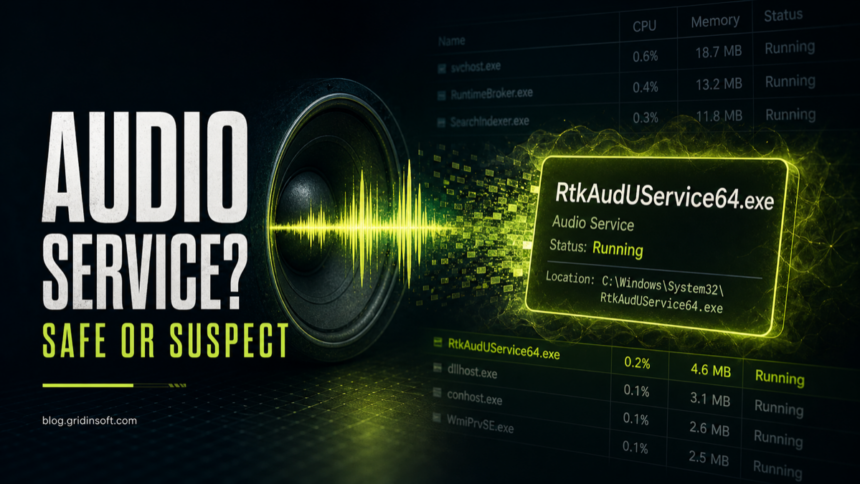
RtkAudUService64.exe is normally the Realtek Audio Universal Service process installed with Realtek or OEM audio drivers. Most users should leave it enabled. You can disable its Startup Apps entry temporarily to test startup impact, but Realtek Audio Console, jack detection, microphone effects, or speaker enhancements may stop working even when basic sound still plays. Do not delete the file just because it starts with Windows: first check its path, signature, and whether the PC uses Realtek audio. The same filename becomes suspicious when it runs from AppData, Temp, Downloads, a random folder, or returns after removal without a matching Realtek driver. For an older Realtek startup-name example, see the ALCMTR.EXE startup safety check.
RtkAudUService64.exe quick check
- Usually safe: part of Realtek Audio Universal Service / Realtek HD Audio Universal Service.
- Why it starts with Windows: it helps Realtek Audio Console, jack detection, audio effects, and driver events work in the background.
- Trust it only after checking: the file should be in a Realtek/OEM driver location and signed by Realtek Semiconductor Corp. or your device vendor.
- Be careful: the name is suspicious in user-profile folders, Temp, Downloads, unknown ProgramData folders, or on a system with no Realtek audio device.
- Best fix: update or reinstall the OEM audio driver before deleting the executable manually.
| Keep enabled | Audio works normally and you use built-in speakers, the headset jack, microphone effects, audio enhancements, or Realtek Audio Console. |
| Disable for a test | You use USB, HDMI, Bluetooth, or an external audio interface and want to measure startup impact. Disable only the Startup Apps entry, restart, test every input/output, and re-enable it if a feature stops working. |
| Repair the driver | CPU stays high, the process crashes, Realtek Audio Console cannot connect to RPC, or audio features disappeared after an update. |
| Investigate and scan | The file is unsigned, runs from a user-writable folder, appears on a PC without Realtek audio, or returns from a suspicious path after removal. |
What is RtkAudUService64.exe?
RtkAudUService64.exe is a background executable used by Realtek audio driver packages on 64-bit Windows systems. It is commonly tied to Realtek Audio Universal Service, which supports audio-device events, Realtek Audio Console features, jack detection, microphone/speaker settings, and audio enhancements.
Realtek also notes that the audio drivers on its own download page are general drivers and may not include the custom settings from your PC or motherboard maker. For that reason, Dell, HP, Lenovo, ASUS, MSI, Gigabyte, Acer, or your exact motherboard support page is usually the better source for a repair install.
Why is RtkAudUService64.exe in startup?
The service often starts with Windows so Realtek audio controls are available before you open any audio app. That startup entry is not automatically a malware sign. It becomes worth investigating when the process uses CPU constantly, appears after you removed Realtek drivers, launches from a user-writable folder, or is not signed by a trusted publisher.
How to test disabling RtkAudUService64 safely
- Open Task Manager with Ctrl + Shift + Esc, then select Startup apps.
- Select Realtek HD Audio Universal Service, Realtek Audio Universal Service, or the matching Realtek entry and choose Disable. Do not delete the executable or uninstall the driver for this test.
- Restart Windows and test speakers, headphones, the built-in and headset microphones, jack detection, audio enhancements, and Realtek Audio Console.
- If a feature fails or the console shows an RPC connection error, return to Startup apps, re-enable the Realtek entry, and restart.
- If disabling it makes no difference and you use another audio device, you can leave the startup entry disabled. Record the original setting so the test remains reversible.
If the publisher, path, or startup name does not match what you expect, use the broader suspicious startup apps checklist before removing anything.
How to tell if RtkAudUService64.exe is legitimate
The same source, signature, path, and scan logic applies to other unknown executables too; use this EXE safety checklist when a file name does not have a dedicated Gridinsoft process page yet.
- Open the file location. In Task Manager, right-click the process and choose Open file location.
- Check the folder. Normal installs commonly use Realtek, OEM driver, Program Files, or Windows DriverStore locations. A copy in
AppData,Temp,Downloads, or a random folder is a warning sign. - Check the signature. Open Properties → Digital Signatures. A genuine file should be signed by Realtek Semiconductor Corp. or a trusted device/OEM publisher.
- Match it to your hardware. If your computer does not use Realtek audio, the process deserves a closer look.
- Watch behavior. Low idle usage is normal. Persistent CPU spikes, crashes, strange scheduled tasks, or repeated re-creation after cleanup are not normal.
- Likely normal:
C:\Windows\System32\DriverStore\FileRepository\...,C:\Program Files\Realtek\..., OEM audio-driver folders, and a valid Realtek/OEM signature. - Needs investigation:
C:\Users\...\AppData\...,Temp,Downloads, randomProgramDatafolders, an unsigned file, the wrong publisher, or no Realtek audio device. - Driver repair sign: Realtek Audio Console cannot connect, audio effects disappear, service start errors appear, or CPU usage jumps after sleep or an update.
Is RtkAudUService64.exe a virus?
The real Realtek service is not a virus. The risk is a look-alike file using the same name. Treat it as safe only after the path and signature make sense. If the file sits in a suspicious folder, has no trusted signature, or appears with other malware symptoms, scan the system before restoring, excluding, or deleting anything.
If the warning names C:\ProgramData\RealtekHD\taskhostw.exe or shows AutoIt Error Line 21219, use the RealtekHD taskhostw.exe cleanup guide instead of treating it as a normal Realtek driver repair.
How to fix RtkAudUService64.exe high CPU, startup, or RPC errors
How to diagnose RtkAudUService64.exe Application Error
An RtkAudUService64.exe - Application Error dialog means the Realtek service crashed or could not load one of its components; the message alone does not prove malware. Record the exact text and time before reinstalling anything. If Windows logs an Application Error event at the same time, its faulting module and exception code can separate a damaged audio package from an unrelated or suspicious copy.
- Match the event to the crash. Open Event Viewer, expand Windows Logs, select Application, and open the error recorded at the same time as the dialog. For an Application Error / Event ID
1000entry, save the faulting application name and path, faulting module name and path, exception code, and timestamp. - Treat the faulting module as a clue, not a verdict. A Realtek or OEM audio module points toward that driver package. A Windows module such as
KERNELBASE.dllorntdll.dllrecords where the crash surfaced, but does not by itself identify the root cause or justify replacing the DLL. - Verify the executable before repair. Confirm that the faulting application is the signed Realtek/OEM
RtkAudUService64.exefrom the expected driver location. A user-profile, Temp, Downloads, or other unsigned copy belongs in the investigation-and-scan branch, not the driver-repair branch. - Repair the exact audio package. If the signed service began crashing after a driver or Windows update, install the current audio package for the exact PC or motherboard model. Reboot and check whether the same event returns. Do not download a standalone replacement EXE or DLL from a file library.
- Test one recent audio change at a time. If the event started after enabling an enhancement, spatial-audio tool, USB dock, headset utility, or vendor effect, disable or roll back only that change, restart, and retest. Repeated Event ID 1000 entries can also explain extra Windows Error Reporting activity while the crash loop continues.
This branch is different from Realtek Audio Console cannot connect to RPC service, where the console cannot reach the service, and from a Bad Image or missing-DLL dialog that names a particular component. Keep the exact error wording: it determines whether to restart the service, repair the OEM package, roll back a recent change, or investigate an untrusted file.
- Restart Windows. Audio services can get stuck after sleep, driver updates, headset changes, or dock/monitor audio switching.
- Confirm the path and signature. Do this before removing the file, especially if it appeared suddenly.
- Install the OEM audio driver. Use the support page for your exact laptop, desktop, or motherboard model first.
- Repair the Realtek service. In Device Manager, uninstall the Realtek audio device, reboot, then install the correct driver package again.
- Restart the service. Open Services and restart Realtek Audio Universal Service if it exists.
- Disable audio enhancements temporarily. Test enhancements, spatial audio, noise suppression, and vendor audio effects if CPU spikes only during playback or calls.
- Scan if the file looks wrong. A suspicious path, unsigned file, repeated reappearance, or security warning means this is no longer just an audio-driver problem.
After uninstalling the suspicious app or deleting the visible threat, use Gridinsoft Anti-Malware to check hidden files, startup entries, scheduled tasks, bundled apps, browser changes, and other persistence points that can restore malware.
Download Anti-MalwareIf the Realtek process you see is RAVBg64.exe rather than the universal service, use the RAVBg64.exe high CPU and malware-copy checklist to verify its folder, signature, and driver-repair path before deleting audio files. If it is WavesSvc64.exe, the WavesSvc64.exe MaxxAudio-or-malware check also covers the documented same-name ValleyRAT loader and its persistence clues.
If you are checking several vendor background services at once, compare this audio-service workflow with the same path/signature logic in our AppHelperCap.exe safety guide for HP laptops.
If the process is RtkNGUI64.exe rather than the universal service, use the RtkNGUI64.exe startup and safety guide to test the optional Realtek HD Audio Manager GUI, repair launch errors, and check a wrong-path copy without disabling this service.
FAQ
Can I disable RtkAudUService64.exe?
You can disable it for testing, but Realtek Audio Console, jack detection, microphone effects, or speaker enhancements may stop working. If audio matters on that PC, repair or reinstall the driver before leaving the service disabled.
Why is Realtek Audio Console unable to connect to RPC service?
The Realtek service may be stopped, missing, or mismatched with the driver package. Reinstall the audio driver from your device or motherboard maker, then restart Windows.
Why does RtkAudUService64.exe keep coming back?
If it is the legitimate Realtek service, the driver package restores it because audio features depend on it. If it returns from a suspicious folder after deletion, check startup entries and run a malware scan.
Where should I download Realtek audio drivers?
Use your PC or motherboard manufacturer first. Realtek’s own downloads are general drivers and may not include OEM customizations for your exact model.
References
- Realtek Semiconductor Corp. “Realtek download notice for general audio drivers.” Realtek, accessed July 13, 2026. https://www.realtek.com/Download/ToDownload
- Microsoft. “Configure Startup applications in Windows.” Microsoft Support, accessed July 13, 2026. https://support.microsoft.com/en-US/Windows/Experience/Startup-Boot/configure-startup-applications-in-windows
- Microsoft. “The application or service crashing behavior troubleshooting guidance.” Microsoft Learn, updated March 13, 2026; accessed August 4, 2026. https://learn.microsoft.com/en-us/troubleshoot/windows-server/performance/troubleshoot-application-service-crashing-behavior