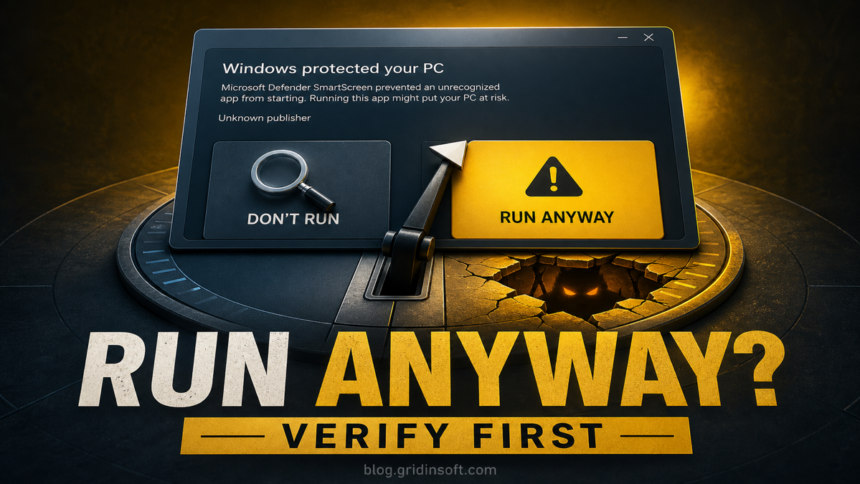
Do not click Run anyway just because you recognize the app name. The “Windows protected your PC” dialog is a Microsoft Defender SmartScreen reputation warning: it can appear for a new or uncommon legitimate app, but it can also stop an unsafe download. Continue only when the file came from the official source, its digital signature matches the expected publisher, its hash matches a published checksum when one exists, and a security scan finds no problem.
If any of those checks fails—or the file came from an ad, message attachment, crack, mirror, or shortened link—choose Don’t run. A clean signature or scan result is supporting evidence, not a guarantee.
What “Windows protected your PC” means
Microsoft Defender SmartScreen checks downloaded apps and installers against reputation signals. Microsoft says it considers known unsafe files, download reputation, URLs, apps, and the digital signature used to sign a file [1]. When the file or publisher does not have enough established reputation, Windows can pause execution and show the warning.
That distinction matters: “unrecognized app” is not the same message as a named Microsoft Defender malware detection. It means Windows does not have enough trust evidence to let the app start silently. It does not certify malware, and it does not certify a false positive.
A newly released signed application can still be uncommon. Microsoft’s current developer guidance says SmartScreen evaluates both publisher reputation and file-hash reputation; even a validly signed new binary can be warned about until reputation accumulates [2]. An unsigned file starts with less identity evidence, so Unknown publisher should make the decision stricter.
Is it safe to click Run anyway?
| What you can verify | Safest decision |
|---|---|
| Official vendor or project source, expected valid signature, matching published SHA-256 checksum, and clean scan | Run anyway can be reasonable if you intended to install the app and understand what it will change. |
| Official source and valid expected signature, but no published checksum | Check the release page, scan the file, and confirm the filename/version. Continue only if all evidence agrees. |
| Unknown publisher, but the project intentionally distributes unsigned builds | Do not rely on the project name alone. Verify the exact release source and checksum; otherwise do not run it. |
| Ad, mirror, forum attachment, email, chat, cloud share, crack, activator, mod loader, or unexpected download | Choose Don’t run, delete or quarantine the file, and scan the device. |
| Signature is invalid, publisher is unrelated, hash differs, or security software names a threat | Do not override the warning. Remove the file and investigate the source. |
Vendor instructions that say “click More info, then Run anyway” are safe only for the vendor’s own file obtained through the vendor’s verified channel. They are not general permission to bypass SmartScreen for another installer.
Check the file before choosing Run anyway
- Close the warning without running the app. Record the exact filename and publisher shown after selecting More info. Do not disable reputation-based protection.
- Verify where the download came from. Return to the official vendor, Microsoft Store, Windows Update, device-maker support page, or trusted project release page by typing or using a known bookmark. Do not trust the page merely because an ad or message linked to it.
- Check Properties and the digital signature. Right-click the file, choose Properties, then inspect Digital Signatures when that tab exists. The signer must match the company or developer you expected, and Windows must report the signature as valid.
- Compare the SHA-256 hash when the publisher provides one. The checksum on the official release page must match the file exactly. A checksum copied from the same untrusted download page proves nothing.
- Scan without executing. Keep the file closed while Microsoft Defender and Gridinsoft Anti-Malware examine it. If the download source or publisher cannot be proved, a clean scan is not enough reason to run it.
- Check whether the requested privileges make sense. A small viewer, theme, document, or game mod asking for administrator access, a service installation, disabled antivirus, or a broad firewall exception needs stronger evidence.
- Make the final decision. Use Run anyway only when the source, signer, release details, scan, and intended behavior agree. Otherwise choose Don’t run.
For a broader checklist covering double extensions, suspicious folders, archives, and upload privacy, use our guide to checking an EXE before you run it.
Verify a signature and SHA-256 hash with PowerShell
On Windows, the following commands inspect a downloaded installer without starting it. Replace setup.exe with the real filename:
Get-AuthenticodeSignature -LiteralPath "$env:USERPROFILE\Downloads\setup.exe" | Format-List Status,StatusMessage,SignerCertificate
Get-FileHash -Algorithm SHA256 -LiteralPath "$env:USERPROFILE\Downloads\setup.exe"
A signature status of Valid means the file’s Authenticode signature validates. It does not mean the signed software is bug-free or harmless. Confirm that the signer’s subject matches the publisher you expected, then compare the SHA-256 value with a checksum published on an independent official channel.
If there is no signature or checksum, the burden of proof does not shift to you. You can stop and ask the developer for a signed build, use a Store/package-manager version, or choose another program.
Why a legitimate app can be unrecognized
- The release is new. Each changed binary has a different hash and may not yet have broad download history.
- The app is niche. A small user base can produce limited reputation evidence even when the project is legitimate.
- The file is unsigned or self-signed. Windows cannot connect it to a broadly trusted publisher identity.
- The publisher changed its signing identity. A new or different certificate can interrupt the continuity users expect.
- The file was repackaged. A mirror or bundler may wrap a legitimate app in a different installer. That is not the file the original developer released.
Do not “fix” the warning by clearing the downloaded-file marker, turning off Check apps and files, disabling antivirus, or adding a broad exclusion. Those actions remove a useful checkpoint without proving the file is safe.
Smart App Control is not the same warning
On supported Windows 11 systems, Smart App Control can supersede the older SmartScreen application-reputation flow. Microsoft says it first asks its cloud service to predict whether an app is safe; when the service cannot decide, it checks for a valid signature. An unsigned or invalidly signed app can then be treated as untrusted [3].
The practical difference is important: Smart App Control does not offer a per-app “allow this once” exception. If Windows says the app is blocked by Smart App Control rather than showing the normal More info/Run anyway path, do not follow a tutorial that tells you to disable protection globally. Look for a signed version from the developer or a Microsoft Store release instead.
If the dialog is red and says “This app has been blocked for your protection” with no Yes button, use the blocked-app safe-fix guide to check the signature, installer version, or administrator policy. That refusal needs a different diagnosis from this blue SmartScreen reputation warning.
What to do if you already clicked Run anyway
If the app came from a verified official source, had the expected valid signature, and behaved exactly as intended, review what it installed and keep it updated. If you cannot prove the source—or the program requested unexpected privileges—treat execution as a possible compromise rather than relying on the SmartScreen wording.
- Disconnect from sensitive work and close the app. If it is making suspicious network connections or changing security settings, disconnect the PC from the network.
- Save the filename, download URL, signature details, SHA-256 hash, and install time before deleting evidence.
- Uninstall the unexpected app when it appears in Settings, but do not assume uninstalling removes every component.
- Check Startup Apps, Task Scheduler, Services, browser extensions, notification permissions, proxy settings, and Microsoft Defender exclusions for changes made at the same time.
- Run a full Gridinsoft Anti-Malware scan, remove detections, reboot, and scan again if alerts, redirects, or processes return.
- If the app handled passwords, browser sessions, wallets, or remote access, change important credentials from a clean device and revoke active sessions.
The visible installer can disappear while a loader, scheduled task, service, Defender exclusion, browser change, or bundled module remains. That is why a full scan is useful after an unknown file ran, especially when the warning followed a crack, fake update, email attachment, or ad-driven download.
If the process path is wrong, the name imitates a Windows component, or high CPU started after an unknown installer, scan for hidden miners, services, startup entries, and bundled components.
Scan after running an unknown appIf you downloaded the file but did not start it, the risk is usually lower. Follow the separate downloaded-but-not-opened checklist before deleting it or deciding whether account recovery is necessary.
Is the warning real or a fake browser alert?
A genuine SmartScreen app warning is an operating-system dialog tied to a file you just tried to run. A web page that imitates the blue window, lists a support phone number, claims the computer is locked, plays an alarm, or demands payment is a scam. Do not call the number or download the offered “support” tool. Close the browser and use our fake Windows Defender warning removal guide if the page keeps returning.
FAQ
Does Windows protected your PC mean the app is a virus?
No. It is commonly a reputation warning for an app or publisher Windows does not recognize well enough. The file may be new and legitimate, unsigned, repackaged, or malicious. Verify the source, signature, hash, and scan result before deciding.
Is Unknown publisher always dangerous?
No, but it removes important identity evidence. Some small open-source projects publish unsigned files, while malware often has no trustworthy signature. Run an unsigned app only when you can verify the exact official release and checksum and accept the remaining risk.
Why is there no Run anyway button?
An administrator or enterprise policy may prohibit bypassing SmartScreen, or Smart App Control may be enforcing a different block. Do not disable protection to make the button appear. Ask the administrator or developer for an approved, signed distribution path.
Can a valid digital signature prove the file is safe?
No. It helps verify publisher identity and whether the signed file changed, but signed software can still be vulnerable, unwanted, or malicious. The source, expected signer, hash, scan, and requested behavior must all make sense.
References
- Microsoft. “Microsoft Defender SmartScreen.” Microsoft Learn, updated April 23, 2026; accessed July 21, 2026. learn.microsoft.com/windows/security/microsoft-defender-smartscreen
- Microsoft. “SmartScreen Reputation for Windows App Developers.” Windows App Development documentation, accessed July 21, 2026. learn.microsoft.com/windows/apps/smartscreen-reputation
- Microsoft. “Smart App Control Frequently Asked Questions.” Microsoft Support, accessed July 21, 2026. support.microsoft.com/smart-app-control-faq