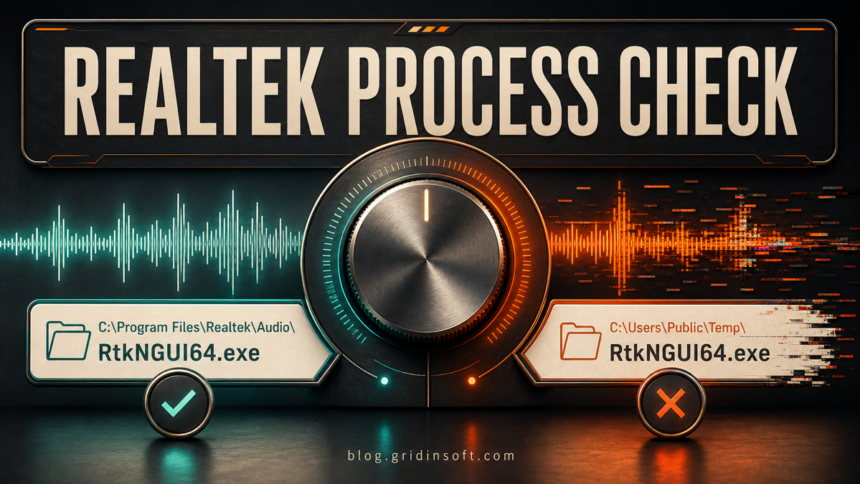
RtkNGUI64.exe is normally the 64-bit Realtek HD Audio Manager interface installed by an older or OEM audio-driver package; it is not the core audio driver itself. You can usually disable only its Startup app as a reversible test, but you may lose the Realtek tray icon, connector prompts, jack retasking, or sound-effect controls. Keep it when the file is in a matching Realtek program folder and has a valid Realtek signature. Investigate it when the path, publisher, startup trigger, or behavior does not fit the installed audio hardware.
What is RtkNGUI64.exe?
RtkNGUI64.exe launches the graphical Realtek HD Audio Manager on 64-bit Windows systems that use a compatible legacy or OEM Realtek package. The interface may expose speaker and microphone controls, connector settings, audio effects, and a notification-area icon. The actual audio driver and background services use other files, so closing this GUI is not the same as uninstalling the audio device.
Do not be surprised if a newer PC has no RtkNGUI64.exe. Current OEM packages can use a separate Realtek Audio Console app and different service processes. ASUS, for example, documents a console interface for playback, recording, equalizer, environment, and connector settings.[1] Use the package designed for the exact laptop or motherboard rather than trying to restore this legacy filename from a download site.
Is RtkNGUI64.exe safe?
The name is usually legitimate, but a filename alone is not an allowlist. Check the file that is actually running.
| What you find | Risk and what to do |
|---|---|
| Realtek or OEM program folder, valid Realtek signature, matching audio hardware | Usually legitimate. Keep it, or test disabling only the GUI startup item if you do not need its controls at sign-in. |
| Signed Realtek file, but the manager crashes, will not open, or uses CPU | Likely a driver-package problem. Update or reinstall the correct OEM audio package instead of deleting the executable. |
AppData, Temp, Downloads, a browser folder, or a random public folder |
Suspicious. Check the signer, parent process, startup trigger, and scan the system. |
| Unsigned copy, wrong publisher, lookalike spelling, unexplained network activity, or return after deletion | Treat it as a possible malware copy or persistence symptom, not as a normal Realtek component. |
How to verify RtkNGUI64.exe
- Open the running file’s location. In Task Manager, right-click
RtkNGUI64.exeand choose Open file location. A common legacy path isC:\Program Files\Realtek\Audio\HDA\RtkNGUI64.exe; some packages use another Realtek or OEM folder. Treat the folder as context, not proof. - Check the digital signature. Open Properties → Digital Signatures and verify that Windows reports a valid signature from Realtek Semiconductor Corp. Microsoft Sysinternals Sigcheck can also display the file version, hashes, and certificate chain.[2]
- Match it to the hardware. In Device Manager, expand Sound, video and game controllers. A Realtek audio device and an OEM Realtek package make the process plausible. A same-named file on a PC with no Realtek audio deserves more scrutiny.
- Inspect the startup entry. Task Manager’s Startup apps page should point to the same signed file. Check the command line with Autoruns when the entry has no publisher, an odd path, or extra arguments.
- Observe its behavior. Opening an audio-control window or sitting quietly in the tray fits the role. Sustained CPU while audio is idle, unknown outbound connections, file copies in user folders, pop-ups, or repeated recreation do not.
Can I disable RtkNGUI64.exe at startup?
Usually, yes—when you disable only the Realtek HD Audio Manager GUI and test the result. This does not uninstall the audio driver, but the OEM package may use the interface for a tray icon, connector popup, jack choice, equalizer, or microphone effects.
- Before changing anything, plug in the headset or microphone you normally use and note whether Windows asks what type of device was connected.
- Open Task Manager → Startup apps and disable the entry that points specifically to
RtkNGUI64.exe. Do not disable Realtek services or delete driver files for this test. - Restart Windows, then test speakers, headphones, microphone input, front and rear jacks, connector prompts, and any audio effects you use.
- If basic sound works and you do not need the missing interface features, leave the GUI disabled. If a feature fails, re-enable the entry and repair the OEM package.
High startup impact is not evidence of malware by itself. It is a reason to measure the optional GUI, not to remove every process with “Realtek” in its name.
Fix RtkNGUI64.exe high CPU
If the file is signed and in the expected package folder, start with audio troubleshooting:
- End the Realtek manager task once. If CPU returns immediately, note which service or startup entry launches it.
- Disable only the GUI startup item and restart. If CPU drops while sound remains normal, keep the interface disabled or reinstall it later.
- Install pending Windows updates and optional audio-driver updates.
- Use Device Manager to update the Realtek audio device. If the problem continues, uninstall the audio device, restart, and install the package for the exact PC or motherboard model.
- If the issue began after a driver update, use Roll Back Driver when available.
Microsoft recommends Windows Update first, then Device Manager, reinstalling the audio driver, or obtaining the current package from the PC/audio-device manufacturer.[3] Avoid standalone EXE downloads, registry cleaners, and generic driver-updater ads; they can add a second problem without fixing the package mismatch.
What if RtkNGUI64.exe will not open?
A silent launch, missing-DLL message, blank manager, or “code execution cannot proceed” error usually points to an incomplete, incompatible, or mixed-generation audio package. Do not download the named DLL or RtkNGUI64.exe from a file library.
- Confirm the Realtek audio device still appears and basic sound works.
- Check the exact PC or motherboard support page for its audio package and supported Windows version.
- Uninstall the existing Realtek audio application/driver through Settings or Device Manager, restart, and install the OEM package cleanly.
- If the OEM now uses Realtek Audio Console, use that supported interface instead of forcing the old HD Audio Manager executable to start.
If sound is missing entirely, follow the broader RtkAudUService64.exe service checklist and test the audio device, service, and OEM package—not just this GUI.
When RtkNGUI64.exe may be a malware copy
Investigate when the process launches from %LOCALAPPDATA%, %TEMP%, Downloads, a browser profile, C:\Users\Public\, or another user-writable folder; lacks a valid Realtek signature; uses a slightly changed name; appears without Realtek hardware; or returns through an unknown scheduled task, Run key, or service. The EXE safety checklist explains how to compare the path, signer, hash, and launch context before allowing a file.
Deleting one suspicious copy may leave behind the loader, scheduled task, service, browser change, or bundled application that restores it. Keep the file quarantined, run a full Gridinsoft Anti-Malware scan, remove confirmed detections, restart, and scan again if the process returns. Check other entries with the suspicious startup apps guide rather than deleting unfamiliar items at random.
If the process path is wrong, the name imitates a Windows component, or high CPU started after an unknown installer, scan for hidden miners, services, startup entries, and bundled components.
Scan a suspicious RtkNGUI64.exe copyDo not confuse these Realtek processes
- RAVCpl64.exe is a legacy Realtek audio-control-panel filename with its own startup, missing-DLL, and package-repair checks.
- RAVBg64.exe is a Realtek audio background process often investigated for high CPU.
- RtkAudUService64.exe is the Realtek Audio Universal Service used by newer packages.
- ALCMTR.EXE is an older Realtek startup component with a different role.
Each name needs its own path and signature check. Do not copy instructions for one process onto another just because all three belong to an audio package.
Keep, disable, repair, or scan?
- Keep it: the signed Realtek GUI belongs to the installed OEM package and you use its controls or connector prompts.
- Disable startup: the file is legitimate, but you do not need the manager at sign-in and all audio functions pass the reboot test.
- Repair the package: the signed file consumes CPU, throws a DLL error, will not open, or no longer matches the OEM driver generation.
- Scan: the path, signature, spelling, startup trigger, or behavior is inconsistent with the legitimate Realtek interface.
FAQ
Is RtkNGUI64.exe a Windows system file?
No. It is a Realtek or OEM audio-manager component, not a core Windows executable.
Will disabling RtkNGUI64.exe stop sound?
Disabling only the GUI startup item normally leaves the driver installed, so basic audio may continue. Connector prompts, jack retasking, effects, or the Realtek tray interface can disappear on some OEM packages; reboot and test them before leaving it disabled.
Why is RtkNGUI64.exe missing on Windows 11?
The PC may use a newer Realtek Audio Console/DCH package, a generic Microsoft audio driver, or a different audio vendor. Install the package for the exact model rather than downloading the old executable alone.
Should I delete RtkNGUI64.exe if it uses high CPU?
No. First verify its path and signature. Repair or reinstall a legitimate OEM audio package; quarantine and scan a wrong-path or unsigned copy.
References
- ASUSTeK Computer Inc. “Realtek Audio Console — Introduction.” ASUS Official Support, updated April 9, 2025; accessed July 13, 2026. ASUS Support FAQ 1042534.
- Mark Russinovich. “Sigcheck v2.91.” Microsoft Sysinternals, published February 4, 2026; accessed July 13, 2026. Microsoft Learn.
- Microsoft. “Update Audio Drivers in Windows.” Microsoft Support, accessed July 13, 2026. Microsoft Support.