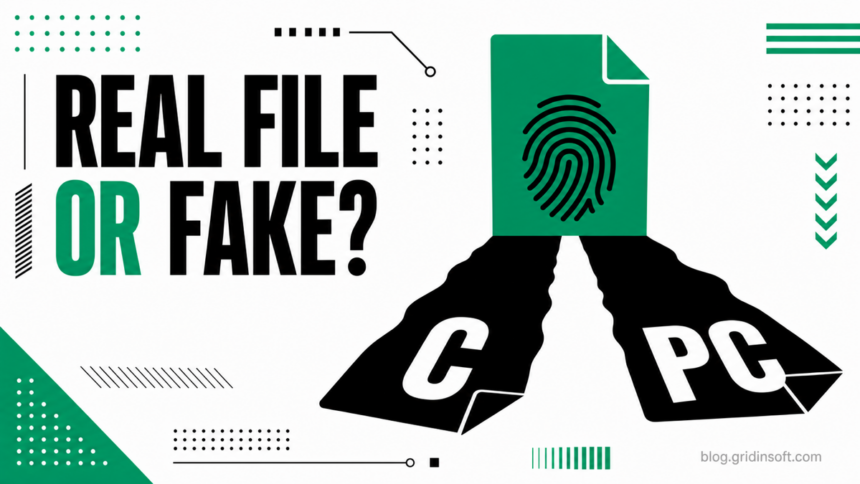
AgentActivationRuntimeStarter.exe is normally a legitimate Windows component when the filename is exact, the file is in a Windows system directory, and its Microsoft signature validates. Do not delete that copy just because a search result calls the name a virus. Investigate when the spelling has an added prefix such as cagentactivationruntimestarter.exe or pcagentactivationruntimestarter.exe, the path is under AppData or Temp, the signature is missing, or an unfamiliar scheduled task keeps launching it. The name alone cannot prove malware; the path, signer, task action, and behavior decide.
Microsoft documents Agent Activation Runtime, or AarSvc, as a per-user Windows service for activating conversational-agent applications.[1] Per-user service names can include a changing suffix, so several AarSvc_... entries across user sessions are not the same clue as many unknown ServiceTask{GUID} tasks that launch a renamed executable. Separate those two observations before removing anything.
Legitimate file or lookalike: what to compare
| Check | What the result means |
|---|---|
| Exact filename | AgentActivationRuntimeStarter.exe matches the Windows component. Extra leading letters, misspellings, or a double extension require investigation; they are not proof by themselves. |
| Full path | C:\Windows\System32\AgentActivationRuntimeStarter.exe is the expected primary location. A Microsoft-signed 32-bit copy can also appear under C:\Windows\SysWOW64\AgentActivationRuntimeStarter.exe on some Windows builds. Copies under Downloads, AppData, Temp, ProgramData, or a random folder are suspicious. |
| Digital signature | A valid Microsoft Windows signature supports the legitimate-file verdict. Missing, invalid, or unrelated publisher details change the decision to quarantine and investigate. |
| Scheduled task | A Windows-owned task should point to the exact system file and have an understandable trigger. A task with a generic name, an unknown author, odd arguments, or a user-writable path is a persistence clue. |
| Recurrence | A normal per-user service can return with the next sign-in. Multiple new tasks, a wrong-name process, or a task that recreates itself after reboot suggests another component is restoring it. |
| Child behavior | The legitimate component should not unexpectedly launch encoded PowerShell, scripts, an unknown downloader, or a browser-extension installer. Preserve that process tree as evidence. |
Use the whole set of checks. A familiar path does not excuse a broken signature, and a valid-looking icon does not make an AppData copy trustworthy. The broader EXE safety checklist explains why source, path, signer, parent process, and scan result must agree.
How to verify AgentActivationRuntimeStarter.exe
1. Open the process or task location
If the process is running, open Task Manager, right-click the process, and choose Open file location. Record the complete path before ending it. If the clue came from Task Scheduler or a security alert, open the matching task and inspect its Actions tab. The executable path and arguments are more useful than the task name.
Do not copy the file to another folder or run it again for testing. If it is outside the Windows directories, note its creation time, parent folder, publisher, and any related task first. A task that launches from %APPDATA%, %LOCALAPPDATA%, %TEMP%, or a newly created ProgramData folder deserves immediate containment.
2. Check the exact spelling
Windows uses the exact base name AgentActivationRuntimeStarter.exe. A leading c or pc creates a different filename, even when the rest looks identical. Treat cagentactivationruntimestarter.exe and pcagentactivationruntimestarter.exe as lookalikes that need path, signature, task, and scan checks. Do not publish a universal verdict for those names: attackers can rename files, and a filename does not identify one stable malware family or hash.
3. Verify the Microsoft signature
Open Properties > Digital Signatures and verify that the signature is valid and the signer matches Microsoft Windows. PowerShell can retrieve the same Authenticode information; Microsoft documents Get-AuthenticodeSignature specifically for this purpose.[2]
$file = "C:\Windows\System32\AgentActivationRuntimeStarter.exe"
Get-AuthenticodeSignature -LiteralPath $file |
  Select-Object Status, StatusMessage,
    @{Name="Signer";Expression={$_.SignerCertificate.Subject}}
Status = Valid with a Microsoft Windows signer is strong origin evidence, but it is not a reason to ignore a wrong path or suspicious task action. If the signature is absent or invalid, keep the file blocked and scan it. For a file that has not run, the Gridinsoft Online Virus Scanner can check the exact sample; do not upload confidential or internal files to a public service.
4. Inspect every task that launches the name
The ScheduledTasks PowerShell module can list registered task definitions and their actions.[3] This read-only query finds tasks whose executable action contains the legitimate name or the two lookalike spellings:
Get-ScheduledTask |
  Where-Object {
    $_.Actions.Execute -match
      'AgentActivationRuntimeStarter|cagentactivationruntimestarter|pcagentactivationruntimestarter'
  } |
  Select-Object TaskPath, TaskName, State,
    @{Name="Execute";Expression={$_.Actions.Execute}},
    @{Name="Arguments";Expression={$_.Actions.Arguments}}
Review the task path, author, trigger, executable, arguments, and last-run time. A large set of recently created ServiceTask{GUID}-style entries is not automatically malicious, but it becomes high-risk when the actions point to a lookalike under a user-writable folder, launch PowerShell or Command Prompt, or return after you disable one task. The suspicious startup apps guide covers Task Scheduler, Run keys, Startup folders, and reversible testing.
When the process is likely suspicious
Escalate from “verify” to “contain and clean” when several signals agree:
- the filename has an added prefix, missing letters, or another extension;
- the file runs from AppData, Temp, Downloads, ProgramData, a browser profile, or an unrelated application folder;
- the Microsoft signature is missing, invalid, or replaced by an unrelated publisher;
- an unfamiliar task launches the file at logon, after a delay, or every few minutes;
- multiple generic tasks reappear after reboot or after you disable one;
- the process starts PowerShell,
cmd.exe, scripts, unknown network connections, or an extension installer; - the same period brings new browser extensions, redirects, blocked requests, disabled protection, or unknown startup entries.
One clue can have an innocent explanation. A wrong-name executable plus a user-writable path, invalid signature, and recurring task is a much stronger incident pattern. If a browser extension also keeps returning, use the recurring-extension cleanup order so sync, policy, and a Windows-level installer are not missed.
Remove only the suspicious copy or task
- Preserve the evidence. Record the task name, action, trigger, file path, signer, hash, and security-alert time. Do not rerun the file or open any destination it contacts.
- Disable the suspicious task first. Use Task Scheduler to disable the matching task as a reversible containment step. Do not disable every Agent Activation Runtime service or task by name.
- Quarantine the wrong-path file. Let the security product quarantine a confirmed suspicious copy. Do not manually delete the genuine System32 file. If a Windows component was damaged, repair Windows rather than downloading a replacement EXE from a file site.
- Check adjacent persistence. Review recently installed apps, services, Startup Apps, Run keys, other scheduled tasks, browser extensions, proxy/DNS changes, and Defender exclusions created around the same time.
- Scan, reboot, and verify again. Remove confirmed detections, reboot, repeat the full scan, and rerun the task query. Confirm that the wrong-name process and suspicious task do not return.
A task or security tool can stop the visible process while a second task, service, startup entry, browser change, or bundled module remains and recreates it. Gridinsoft Anti-Malware can check for detections, hidden files, scheduled tasks, startup entries, bundled applications, browser changes, and other persistence. Remove confirmed items, reboot, and scan again if the process or alert returns.
If the suspicious file executed while browsers or sensitive accounts were open, finish endpoint cleanup before changing passwords. Then use a different trusted device to change the email, password-manager, banking, work, gaming, and cloud credentials that matter, and revoke unfamiliar sessions. A malware scan can find local artifacts; it cannot recover an exposed password or prove that no session token left the device. Use the Windows Security audit after malware to restore protection settings and verify the machine after cleanup.
FAQ
Should I delete AgentActivationRuntimeStarter.exe from System32?
No. An exact, valid Microsoft-signed copy in the Windows system directory is normally legitimate. Deleting it can damage Windows functionality. Investigate and quarantine only a wrong-path, wrong-name, invalidly signed, or behaviorally suspicious copy.
Are cagentactivationruntimestarter.exe and pcagentactivationruntimestarter.exe malware?
They are not the exact Windows filename, so treat them as lookalikes and investigate immediately. The spelling alone does not identify one malware family. Use the path, signer, scheduled-task action, scan result, and recurrence to reach a verdict.
Why do I see several AarSvc entries?
Agent Activation Runtime is a per-user Windows service, and per-user instances can have changing suffixes for different sessions. That can be normal. It is different from many newly created generic scheduled tasks pointing to an unsigned or renamed executable.
What if the suspicious task returns after reboot?
Another persistence point is probably recreating it. Check other scheduled tasks, services, Startup Apps, Run keys, recent programs, browser policies and extensions, then scan and verify again after reboot. Do not keep deleting the same task without finding its creator.
References
- Microsoft Learn. “Per-user services in Windows.” Microsoft, updated September 10, 2024, accessed August 12, 2026. Microsoft per-user services documentation.
- Microsoft Learn. “Get-AuthenticodeSignature (Microsoft.PowerShell.Security).” Microsoft, accessed August 12, 2026. PowerShell signature documentation.
- Microsoft Learn. “ScheduledTasks module.” Microsoft, accessed August 12, 2026. PowerShell ScheduledTasks documentation.