Un_A.exe is usually a temporary self-copy created by an NSIS-based software uninstaller, not a Windows component and not a product-specific executable. A copy that appears once in %LOCALAPPDATA%\Temp\~nsuA.tmp immediately after you remove a known app, then disappears, is normally expected. The same filename is not a trust certificate, however. Investigate it when it starts without an uninstall, returns after reboot, persists, runs from an unrelated writable folder, or has parent or network behavior that does not match the app you removed.
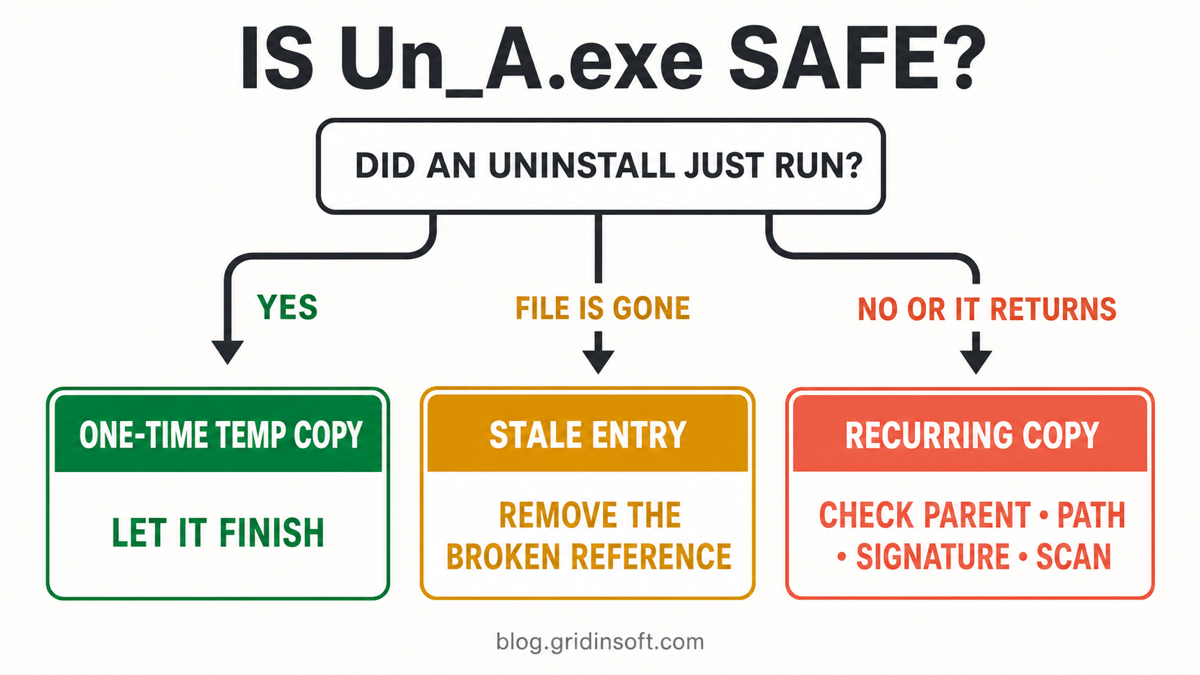
Do not delete the file while a known uninstall is still running. First identify what launched it and which of the three situations below applies: a one-time Temp copy, a broken reference to a file that is already gone, or an executable that keeps coming back.
What is Un_A.exe?
Un_A.exe is a generic runtime name used by uninstallers built with Nullsoft Scriptable Install System (NSIS). When an installed program needs to remove its own uninstaller, NSIS can run a temporary background copy so the original file can be deleted. An NSIS maintainer describes that behavior as intentional: the extra process exists so the uninstaller can delete itself.[1]
This explains why the file can appear under a short-lived folder such as %LOCALAPPDATA%\Temp\~nsuA.tmp, finish the uninstall, and then vanish. An uninstall running in a system context may instead use C:\Windows\Temp. Neither location proves safety by itself. Malware can also run from Temp, and many unrelated vendors can build software with NSIS.
There is therefore no universal legitimate hash, size, signer, or parent application for every copy of Un_A.exe. The useful question is not “Is this filename safe?” but “Does this specific file match the uninstall that just happened?”
When is Un_A.exe normal or suspicious?
| Situation | Risk and what to do |
|---|---|
A known app is being uninstalled; the file appears once in ~nsuA.tmp and disappears |
Usually expected NSIS behavior. Let the uninstall finish, then confirm the temporary folder and process are gone. |
| Task Manager or an old startup record shows the name, but Open file location fails | Often a stale reference. Verify that the target file is missing, disable the entry, and remove only the broken reference. |
| The file starts at sign-in, returns after reboot, or appears when no uninstall ran | Suspicious. Check the parent, full path, signer, hash, persistence, and network activity before allowing or deleting anything. |
| The path is an unrelated Downloads, Roaming, browser-profile, or random user-writable folder | The normal NSIS explanation is weaker. Isolate the system and scan the exact copy plus its parent application. |
| A security tool gives a specific malware-family detection | Keep it quarantined. Treat a named detection differently from a generic reputation, UAC, or firewall prompt. |
How to find which application created Un_A.exe
- Reconstruct the timing. Note which app you removed and the exact time the prompt or process appeared. A one-time match within the same minute is stronger evidence than the filename alone.
- Capture the full path before it disappears. In Task Manager, open the Details tab, add the Command line column, and use Open file location when available. Do not rerun the file just to inspect it.
- Check the parent process. Process Explorer can show the process tree and properties. A temporary copy launched by the uninstaller you deliberately started is more consistent with normal cleanup than a copy launched by a browser, script host, unknown service, or unrelated program.
- Inspect the folder context. A fresh
~nsuA.tmpfolder created during the same uninstall supports the NSIS explanation. Compare creation times and neighboring files; do not assume every file in Temp belongs to the same app. - Check the signature and hash. File Properties or Microsoft Sigcheck can show version data, hashes, signing details, and certificate chains.[2] A missing signature increases uncertainty but is not automatic proof of malware because different NSIS packages are built and signed differently.
- Compare the signer with the app, not with the filename. A valid signature should match the vendor whose software you removed. A valid but unrelated signer, invalid chain, or metadata that conflicts with the parent app is a reason to stop and investigate.
For a broader pre-run checklist, use the guide to check whether an EXE file is safe. It covers source, path, signature, hash, reputation, and behavior without treating any single signal as decisive.
What to do about a UAC, firewall, or antivirus alert
A one-time UAC prompt during a known uninstall
UAC is expected when the software needs administrator rights to remove files, services, or machine-wide Registry entries. Check that the prompt appeared after you selected Uninstall, that its publisher matches the app when a signature is present, and that the path points to the fresh Temp copy. Cancel if the timing, vendor, or path does not match.
A firewall prompt from Un_A.exe
Do not allow network access just because the file is part of an uninstall. Record the destination and parent process, then block the connection unless the vendor documents a cleanup or update request you actually initiated. An inbound firewall exception is rarely necessary for an uninstaller. A recurring connection attempt after the app is gone deserves a persistence and malware check.
A security-tool warning
Read the exact wording. A named malware or PUA detection is different from “unknown,” “uncommon,” or behavior-based monitoring. Keep a specifically detected file quarantined while you inspect the parent application and scan the system. Do not restore it based only on the familiar NSIS filename.
If the file is gone but a startup entry remains
An uninstall can finish successfully while leaving a Registry value, scheduled task, service, or startup record that still points to the deleted Temp path. That is why Task Manager may show a blank icon or fail to open the file location.
Disable the entry first. Microsoft Autoruns shows startup programs across Run and RunOnce keys, services, scheduled tasks, Winlogon locations, and other persistence points; it can also verify signatures and jump to the underlying file or Registry location.[3] Confirm that the target is missing and belongs to the removed app before deleting the broken entry. Do not search random download sites for a replacement Un_A.exe.
The guide to checking suspicious startup apps explains how to review command lines, publishers, Run keys, services, and scheduled tasks without deleting legitimate Windows components. If the leftover belongs to a normal program, review it with the same care recommended for uninstaller and Registry leftovers.
Remove a recurring or mismatched copy safely
- Disconnect the PC from the network if the file makes unexpected connections, launches scripts, or returns outside an uninstall.
- Do not run the file again. Record its path, parent, signer, hash, creation time, and the startup location that launches it.
- Disable suspicious persistence. Check Task Manager Startup, Autoruns Logon, scheduled tasks, services, browser extensions, and the relevant Run keys. Disable before deletion so you have a reversible step.
- Remove the parent application through Windows Settings when it is an unwanted but recognizable program. If the parent is unknown or clearly malicious, keep evidence for the scan instead of trusting its own uninstaller.
- Run a full malware scan. A security tool may quarantine the visible copy while a loader, scheduled task, service, browser change, exclusion, or bundled module remains and recreates it. Run Gridinsoft Anti-Malware, remove confirmed detections, reboot, and scan again if the process or alert returns.
- Recheck the original trigger. The process should not return at sign-in or after reboot. Review the same path, startup locations, and network destination rather than assuming one deleted file proves the system is clean.
If the process path is wrong, the name imitates a Windows component, or high CPU started after an unknown installer, scan for hidden miners, services, startup entries, and bundled components.
Scan a recurring Un_A.exe copyIf the file ran from a suspicious download or was launched by a script, also change important passwords from a clean device after the system is contained. A malware scan can find files and persistence, but it cannot revoke stolen browser sessions or prove that credentials were never exposed.
FAQ
Is Un_A.exe a Windows system file?
No. It is not a core Windows executable. The common legitimate explanation is a temporary copy made by an NSIS-based third-party uninstaller.
Is Un_A.exe in AppData\Local\Temp a virus?
Not automatically. A fresh ~nsuA.tmp copy that appears during a known uninstall and disappears afterward is consistent with normal NSIS behavior. A copy that returns, persists, or has unrelated parentage needs investigation.
Why is Un_A.exe unsigned?
NSIS is used by many software vendors, and generated uninstallers do not share one signer. No signature raises uncertainty, but the verdict must also use the parent app, path, timing, hash reputation, and behavior.
Should I allow Un_A.exe through the firewall?
Do not allow it by default. A normal uninstall usually does not need an inbound firewall exception. Verify the parent application and documented destination first, and investigate any connection that returns after the uninstall.
Can I delete the ~nsuA.tmp folder?
Wait until the uninstall finishes and the process exits. If the folder remains after a reboot and no process uses it, verify its contents and parent application before removing the leftover.
References
- NSIS Project. “Bug #1290: uninstaller runs ‘un_a.exe’ in the background.” SourceForge, updated January 13, 2023; accessed August 4, 2026. NSIS bug tracker.
- Russinovich, Mark. “Sigcheck v2.91.” Microsoft Sysinternals, published February 4, 2026; accessed August 4, 2026. Microsoft Learn.
- Russinovich, Mark. “Autoruns v14.3.” Microsoft Sysinternals, published June 17, 2026; accessed August 4, 2026. Microsoft Learn.