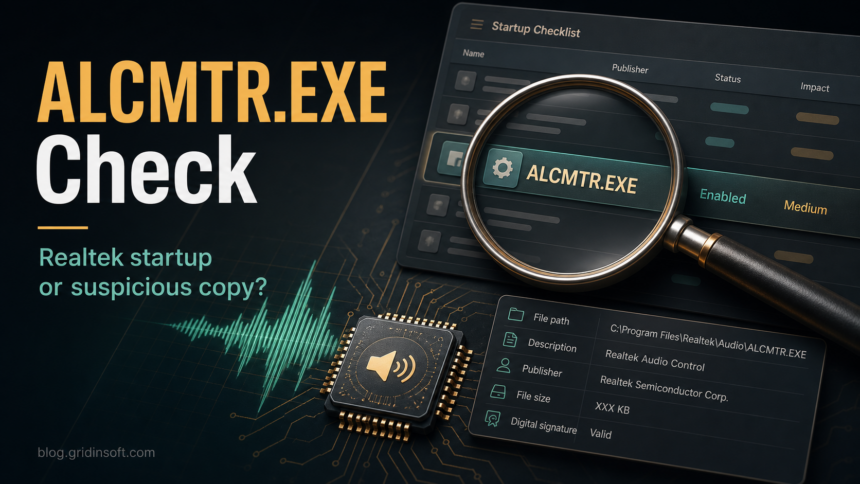
ALCMTR.EXE is usually an old Realtek audio startup component, not a Windows system file. Treat it as a keep-or-disable decision first: verify the file path, publisher, and audio-driver context before deleting anything. It becomes suspicious when the same name runs from a user-writable folder, has no trustworthy signature, returns after you disable it, or appears with other startup, browser, or security-tool alerts.
What is ALCMTR.EXE?
ALCMTR.EXE is commonly associated with Realtek AC’97/Azalia audio driver packages and older startup entries that monitored audio-jack or driver events. On many modern Windows systems you will not see it at all, because Realtek audio packages and OEM driver layouts have changed over time.
The important distinction is that ALCMTR.EXE is not required for Windows itself. If it is a legitimate Realtek component, disabling the startup entry usually should not break Windows. If your audio stops working after driver changes, repair or reinstall the audio driver from your PC or motherboard maker instead of restoring a random executable from the web.
Quick decision: keep, disable, or scan?
| What you see | What to do |
|---|---|
| Realtek/OEM audio driver is installed, the file is in a trusted driver folder or old Windows driver location, and the signature/details match the driver package. | Usually safe. You may disable the startup entry if you do not need the monitor running at login. |
The file is in C:Windows or C:WindowsSystem32 on an older Realtek AC’97 system, but you are unsure whether the driver is still needed. |
Check the file properties and installed audio driver first. Do not delete it blindly; disable the startup entry and test audio. |
The file runs from %APPDATA%, %TEMP%, Downloads, a browser profile, C:UsersPublic, or a random folder. |
Treat it as suspicious. Disconnect unknown downloads, check startup locations, and scan the system. |
| ALCMTR.EXE returns after you disable it, starts through a scheduled task, or appears with pop-ups, redirects, high CPU, or security warnings. | Assume there may be a loader or unwanted app recreating it. Remove the launcher and scan before trusting the file. |
How to verify ALCMTR.EXE safely
- Open the file location. In Task Manager, right-click the process or startup entry and choose Open file location. If the option is missing, use Autoruns or Process Explorer to inspect the entry.
- Check the path. A legitimate Realtek-related file should make sense next to an installed Realtek/OEM audio driver. A copy in
%APPDATA%,%TEMP%, a browser folder, or a startup shortcut folder is a red flag. - Check the publisher and signature. Open file properties and review Digital Signatures and Details. Microsoft Sysinternals Autoruns and Sigcheck can verify signatures for startup entries.
- Check the startup launcher. Look at Run keys, the Startup folder, services, and scheduled tasks. Common places include
HKLMSoftwareMicrosoftWindowsCurrentVersionRun,HKCUSoftwareMicrosoftWindowsCurrentVersionRun, and%APPDATA%MicrosoftWindowsStart MenuProgramsStartup. - Compare the behavior. A quiet Realtek startup monitor is different from a process that keeps restarting, contacts unknown hosts, opens pop-ups, or runs from a newly created folder.
Can I disable ALCMTR.EXE from startup?
Yes, if it is the legitimate Realtek monitor and your audio works, you can disable its startup entry instead of deleting the file. Use Task Manager’s Startup tab, Windows Startup apps settings, or Autoruns. Reboot once and test speakers, headphones, microphone input, and jack detection.
If audio breaks, restore the startup entry or reinstall the correct audio driver from your device maker. Avoid driver download sites that bundle updaters, cleaners, or unrelated installers. Realtek’s own download page is useful for general packages, but many laptops and motherboards need customized OEM drivers.
When ALCMTR.EXE is more likely to be malware or unwanted
A filename alone does not prove malware. Attackers and unwanted apps can name a file after a known component, so the strongest signals are path, signature, launcher, and behavior.
- The file is unsigned or has a publisher that does not match Realtek, Microsoft, or your PC vendor.
- The executable sits in a user-writable path such as
%APPDATA%,%LOCALAPPDATA%,%TEMP%,Downloads, or a browser profile. - A Run key, scheduled task, service, or shortcut recreates the entry after you disable it.
- The same time window includes fake driver-updater pop-ups, search redirects, suspicious browser extensions, or other unknown startup apps.
- A security tool flags the file, but the alert keeps returning after quarantine.
That pattern is similar to other fake-driver and startup-persistence cases. For example, Gridinsoft’s guide to RealtekHD taskhostw.exe AutoIt errors covers a fake Realtek-themed folder, while CMD opening a website on startup shows why the launcher behind a startup symptom matters more than the visible Windows filename.
Cleanup steps if the file looks suspicious
If the path, signature, or launcher looks wrong, do not only delete ALCMTR.EXE. A visible executable may be recreated by a startup task, service, browser change, bundled app, or installer leftover.
- Disconnect from suspicious downloads and close the program if it is running.
- In Autoruns, disable the ALCMTR-related entry first instead of deleting it immediately. Export or screenshot the entry name, path, and publisher for reference.
- Check Task Scheduler, Services, Run keys, and Startup folders for the same path or folder name.
- Uninstall suspicious driver updaters, PC cleaners, audio enhancer bundles, or apps installed around the same time.
- Run a full Gridinsoft Anti-Malware scan, remove detections, reboot, and scan again if the startup entry returns.
If Gridinsoft or another security tool removes malware, still review browser extensions, notification permissions, and newly installed apps. Startup persistence often arrives with browser or adware changes that are easy to miss.
What not to do
- Do not download a replacement
ALCMTR.EXEfrom a file mirror. - Do not delete audio-driver files just because a process database labels the entry as unnecessary.
- Do not ignore a wrong-path copy because the name looks familiar.
- Do not treat every old Realtek startup entry as malware; privacy-sensitive or unnecessary does not automatically mean infected.
Related Gridinsoft guides
- RtkAudUService64.exe: safe Realtek service or malware?
- dwm.exe: safe Windows process or malware copy?
- PowerShell opens on startup or connects out: what to do
- jusched.exe Java Update Scheduler safety check
For a newer Realtek audio background-process example, compare this with the RAVBg64.exe safety and high-CPU guide, which uses the same path/signature logic but focuses on modern Realtek HD Audio packages.
For the legacy Realtek HD Audio Manager interface that often sits between the background process and this older startup component, see the RtkNGUI64.exe path, startup, and repair guide.
n
If ALCMTR.EXE is only one of several unclear Startup apps on the machine, use the broader suspicious startup apps checklist to compare no-publisher entries, Run keys, Startup folders, scheduled tasks, and Autoruns results before deleting anything.
FAQ
Is ALCMTR.EXE a virus?
Not by name alone. ALCMTR.EXE is commonly tied to older Realtek audio startup software, but a copy in a suspicious folder or a file with no trustworthy signature should be checked as possible malware.
Is it safe to disable ALCMTR.EXE?
Usually yes, if it is only the Realtek startup monitor and your audio driver is otherwise working. Disable the startup entry, reboot, and test speakers, headphones, microphone input, and jack detection.
Where should ALCMTR.EXE be located?
Older Realtek entries were often seen in Windows or driver-related locations. Be cautious with copies in %APPDATA%, %TEMP%, Downloads, browser folders, or random user-writable folders.
Should I remove Realtek audio drivers to remove ALCMTR.EXE?
No, not as the first step. Disable the startup entry first. If you need to repair audio, reinstall the correct driver from your PC or motherboard maker rather than removing random files by hand.
What if ALCMTR.EXE keeps coming back?
Look for the launcher that recreates it: Run keys, scheduled tasks, services, Startup-folder shortcuts, bundled apps, or a fake driver-updater. Then scan the system and reboot to confirm it stays gone.
References
- Realtek Semiconductor Corp. “High Definition Audio Codecs Software.” Realtek, accessed July 7, 2026. https://www.realtek.com/Download/List?cate_id=593
- Mark Russinovich. “Autoruns for Windows.” Microsoft Sysinternals, accessed July 7, 2026. https://learn.microsoft.com/en-us/sysinternals/downloads/autoruns
- Mark Russinovich. “Sigcheck.” Microsoft Sysinternals, accessed July 7, 2026. https://learn.microsoft.com/en-us/sysinternals/downloads/sigcheck