Suspicious startup apps are not all malware, but they do deserve a careful check before you disable or delete files. Start by finding the command line, file path, publisher, and startup location. A normal updater or driver helper can look vague in Task Manager, while malware often hides behind the same startup places: Run keys, Startup folders, scheduled tasks, services, and Winlogon settings.
The safest rule is simple: disable an unknown entry first when you need to stop it, verify what launched it, and remove the underlying app or malware only after the path and behavior make sense. Do not delete Windows files such as C:\Windows\System32\winlogon.exe, C:\Windows\System32\cmd.exe, or C:\Windows\System32\WindowsPowerShell\v1.0\powershell.exe just because they appear in a startup command.
What a Suspicious Startup App Usually Means
Windows can start programs from several places when you sign in. Task Manager and Settings show the simple list, but they do not always show the full command or every autostart location. That is why a startup item may appear as Program, a blank icon, a random-looking name, or a no-publisher entry.
Common benign causes include:
- a broken leftover after an app was uninstalled;
- an updater that lost its display name;
- a driver utility from an OEM audio, touchpad, GPU, printer, or RGB package;
- a shortcut in the Startup folder pointing to an app that no longer exists;
- a quoted-path mistake in a registry value, which makes Task Manager show only Program.
Malware, adware, and unwanted apps can use the same locations. Treat the entry as risky when it starts from a user-writable folder, has no trustworthy signature, returns after you disable it, launches a browser or script, or appears after a cracked installer, fake update, browser extension, or support-tool download.
A device-linked utility can also arrive through Windows instead of a visible installer. The LG Monitor App Installer safety check shows how to distinguish an official Store package from an unrelated copy by publisher and path.
Camera software can add a separate browser helper too. If the startup entry is LocalServiceControl.exe, use the LocalServiceControl.exe startup prompt guide to decide whether Hikvision browser viewing still needs it, disable it for a reversible test, or remove a stale component entry.
Vendor-looking process names need the same caution. For example, igfxpers.exe can be a normal Intel graphics helper from a trusted driver path, but the same name in a user-writable folder is a startup-copy red flag.
User-installed customization tools need that same path check. Rainmeter.exe is expected in the official install or portable folder, while a Rainmeter-named file in Temp, AppData, or Startup should be scanned before you trust it.
For Microsoft-looking entries, check the exact executable name too. A startup item such as MSASCuiL.exe can be normal when it points to Windows Defender and carries a Microsoft signature, but the same name in a user-writable folder should be treated as a suspicious copy.
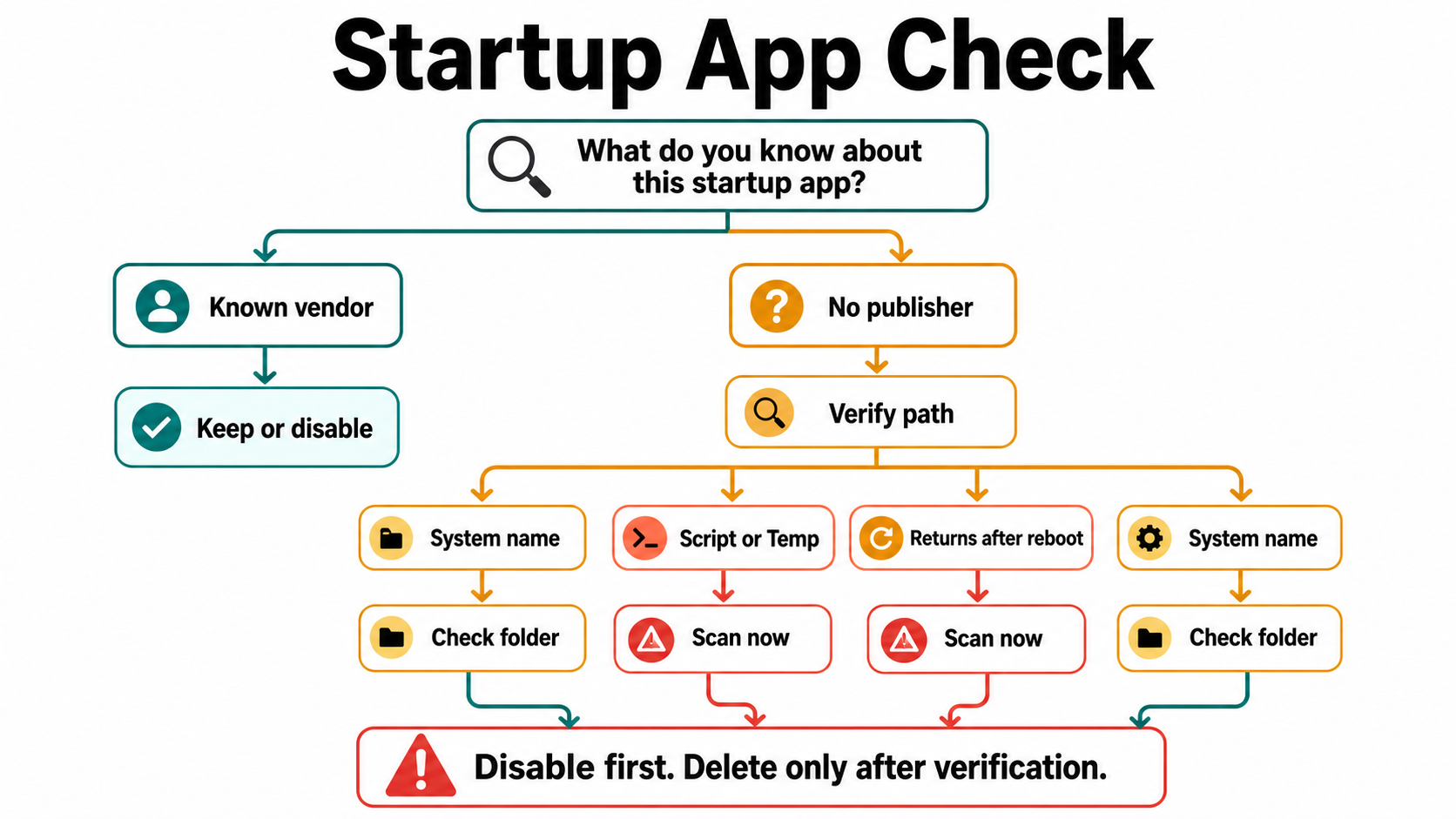
Quick Triage: Keep, Disable, or Scan
| What you see | Risk and what to do |
|---|---|
Known vendor app in Program Files with a valid publisher |
Usually safe. Disable it only if you do not need it at startup. |
| Program, blank icon, or no publisher but the file path points to a removed app | Often an orphaned entry. Disable first, then clean the leftover startup value after confirming the app is gone. |
Random name, GUID-like entry, or script from %APPDATA%, %LOCALAPPDATA%, %TEMP%, or Downloads |
Suspicious. Disconnect from risky pages, disable the entry, and scan before deleting files manually. |
Startup command opens cmd.exe, powershell.exe, wscript.exe, mshta.exe, or a browser URL |
Investigate the launcher, not the Windows binary. Check the full command, task, registry value, and source app. If Windows Script Host says the referenced VBS or JS file is missing, use the missing script-file startup fix to trace the orphan safely. |
Winlogon Shell or Userinit value contains extra commands |
High risk. Back up evidence, do not experiment blindly, and use a trusted cleanup workflow. |
Check the Command Line in Task Manager
Task Manager is the quickest first look. Open Task Manager, go to Startup apps, then right-click the column header and enable Command line and Startup type if your Windows build offers those columns. The command line often explains what the entry really is.
Look for four things:
- Folder: installed apps usually live under
C:\Program FilesorC:\Program Files (x86). User-writable paths such as%APPDATA%,%LOCALAPPDATA%,%TEMP%, and Downloads deserve more caution. - Publisher: a valid signature from Microsoft, Intel, Realtek, NVIDIA, AMD, Adobe, Oracle, Valve, or another expected vendor is not a guarantee, but it is useful context.
- Command shape: startup commands that run scripts, encoded PowerShell, browser URLs, or files from temporary folders are more suspicious than plain app updaters.
- Timing: a new entry that appeared after a fake update, cracked app, game mod, browser extension, or support session needs a deeper scan.
If the only action available is Disable, use that instead of deleting files. Reboot once and check whether the entry stays disabled, disappears as an orphan, or returns through another launcher.
Use Autoruns Without Breaking Windows
Microsoft Sysinternals Autoruns gives a fuller view than Task Manager because it lists many autostart locations, including logon entries, services, scheduled tasks, browser helper objects, Winlogon-related entries, codecs, Winsock providers, and more. That power is useful, but it also means you should avoid mass-deleting entries.
If Autoruns shows entries under Image Hijacks, treat those separately: a Windows Image File Execution Options hijack can redirect or close a specific executable through a Debugger value. Check the target and debugger path before deleting anything.
Use this safe workflow:
- Download Autoruns only from Microsoft Sysinternals.
- Run it as administrator.
- Open Options and enable Hide Microsoft Entries and Verify Code Signatures.
- Use the Logon, Scheduled Tasks, Services, and Drivers tabs to find the startup item behind the symptom.
- Uncheck a suspicious non-Microsoft entry first. Reboot and verify the symptom before deleting anything.
- Export or screenshot the entry if it looks malicious, especially before removing a Run key or scheduled task.
Yellow or missing-file entries in Autoruns often mean an orphaned value, not active malware. Red or unsigned entries are not automatically bad either. The important question is whether the path, publisher, command, and behavior match something you intentionally installed.
If the executable remains but its required library is missing, use the A_Navi.exe and MAXKERNL.dll startup checks to distinguish a damaged wanted application from an unwanted installation before replacing any component.
For the missing-file case, the Un_A.exe decision guide shows how to distinguish a one-time NSIS Temp copy from a broken reference or a process that keeps returning.
When the recurring startup message names ParaRouter128.exe, compare the launch command and file state before and after a restart. The filename-specific checklist separates an orphaned reference, a still-present file, and a component that is being recreated.
Startup Locations Worth Checking
Most home-user cases can be narrowed down to a few places:
- Startup folders:
%APPDATA%\Microsoft\Windows\Start Menu\Programs\Startupand%ProgramData%\Microsoft\Windows\Start Menu\Programs\Startup. - Run keys:
HKCU\Software\Microsoft\Windows\CurrentVersion\RunandHKLM\Software\Microsoft\Windows\CurrentVersion\Run. - RunOnce keys: similar locations that should run once, then disappear.
- Scheduled tasks: especially tasks triggered At log on or At startup.
- Services and drivers: useful for legitimate security tools and drivers, but also abused by malware.
- Winlogon values:
Shellshould normally launch Explorer, andUserinitshould not include random extra programs.
Do not edit the registry just because a web answer lists a path. First confirm the exact value, the file it launches, and whether the file still exists. If you remove a registry value, export that key first so you can reverse the change.
An Adobe entry is a separate identification case: the CCXProcess startup and safety guide explains how to check the file and test optional startup without deleting Creative Cloud components.
System-Looking Names: What Not to Delete
Attackers sometimes copy trusted names, but Windows also has many real system processes with boring names. For example, winlogon.exe is a core Windows logon process when it runs from C:\Windows\System32. SgrmBroker.exe is associated with Windows System Guard Runtime Monitor Broker on supported Windows builds. The same rule applies to csrss.exe: verify the System32 path and Microsoft signature before removing a Windows-looking process. Deleting files like these can break the system.
When a name looks official, check the path first:
- Expected:
C:\Windows\System32\winlogon.exe. - Suspicious:
%APPDATA%\winlogon.exe,%LOCALAPPDATA%\Temp\winlogon.exe, or a startup command that points to a similarly named file outside Windows folders. - Expected: a vendor updater under that vendor’s installed program folder.
- Suspicious: the same vendor-like name under Downloads, Temp, a random folder, or a recently created user profile folder.
If a startup entry uses cmd.exe or powershell.exe, the Windows tool is usually not the payload. The risk is the command after it: a URL, encoded script, hidden window, downloaded file, or scheduled task that launches it. For that pattern, see the Gridinsoft guides on CMD opening a website on startup and PowerShell opening on startup or connecting out.
When a Startup Entry Should Trigger a Malware Scan
A startup entry deserves a full scan when it is paired with other symptoms: redirects, browser extensions you did not install, disabled security settings, repeated alerts, high CPU after login, unknown scheduled tasks, new services, or files that reappear after reboot. For a named updater example, compare this with the jusched.exe Java Update Scheduler safety check, where the right answer depends on path, publisher, and whether Java is still needed. For an antivirus-process case, use the avgcsrva.exe AVG process check to separate normal scanning load from a suspicious same-name copy.
If the startup entry claims to be NVIDIA, the LabubaRAT nvidia-sysruntime.exe check provides an exact unsigned-file hash, database, mutex, and autorun pattern to compare without deleting legitimate graphics drivers.
If the startup entry is only one sign of a wider incident, use the Windows security audit after malware checklist to continue through scheduled tasks, services, browser and network settings, remote-access tools, and account cleanup.
Manual cleanup can stop the visible launcher, but it may miss the installer, scheduled task, service, browser change, or bundled module that recreates the entry. If the startup item came from a crack, repack, fake update, fake CAPTCHA command, suspicious browser extension, or unknown installer, run a full Gridinsoft Anti-Malware scan after disabling the entry and rebooting.
For Intel graphics startup names, check exact helper pages before deleting driver files: hkcmd.exe covers the Intel hotkey module, while igfxtray.exe covers the older graphics tray helper.
Touchpad helpers are a useful vendor-name test: the ETDCtrl.exe and ETDCtrlHelper.exe check shows how an unfamiliar startup item can be legitimate in a signed ELAN driver folder but suspicious from a user-writable path.
Safe Cleanup Sequence
If the startup entry points to a downloaded installer or unknown executable, use the broader EXE file safety checklist before you restore, allow, or run that file again.
- Record the entry: save the name, command line, file path, publisher, and startup location.
- Disable first: use Task Manager, Settings, or Autoruns to disable the nonessential entry.
- Reboot once: check whether the entry returns or the symptom stops.
- Uninstall the parent app: remove the related app from Windows Settings when it is a normal program.
- Scan if suspicious: check for bundled apps, persistence, browser changes, and hidden files.
- Remove leftovers carefully: delete orphaned startup shortcuts or registry values only after confirming they point to a removed or malicious file. If a cleanup tool shows a long Registry or file-leftover list, use the Revo Uninstaller leftovers guide before selecting everything.
- Check accounts if needed: if the entry launched a stealer-like script, fake support tool, browser data grabber, or suspicious keyboard monitor, change passwords from a clean device and sign out other sessions. For keyboard-specific symptoms, follow the keylogger signs and cleanup checklist before typing new passwords on the same PC.
If the startup entry is WSHelper.exe, match it to installed Wondershare software, then choose a reversible startup disable test, parent-app repair or uninstall, or a scan for a wrong-path copy.
If the startup entry belongs to WPS or Kingsoft, use the WPS Office safety and removal checklist to distinguish an unwanted office component from an unverified copy. Disabling an entry alone does not uninstall the suite or identify what restores it.
For exact process lookups, use a narrower guide when one exists. For example, ALCMTR.EXE is a Realtek startup-entry case with its own path and driver context, while dwm.exe has a different Windows-process safety profile.
Touchpad helpers need the same vendor-context check: the SynTPEnh.exe safety and startup guide explains when the signed Synaptics enhancement process can be disabled for testing and when a wrong-path copy should be scanned.
For an Intel graphics example, see our igfxtray.exe startup check: it shows how to compare a normal vendor tray helper with a suspicious copy by path, signature, and post-reboot behavior.
Adobe updater entries are a useful example of why context matters: our AdobeARM.exe startup safety check separates a signed Acrobat updater and scheduled task from an unsigned copy in a user-writable folder.
Intel storage helpers need an extra hardware-context check: the IAStorIcon.exe startup safety guide explains how to distinguish the optional legacy RST tray interface from the storage driver and why RAID or Optane users should verify their configuration before disabling it.
FAQ
Is a no-publisher startup app always malware?
No. Some old or poorly packaged apps have missing publisher details, and orphaned entries can remain after uninstalling software. It becomes more suspicious when the path is user-writable, the command runs a script or URL, or the entry returns after you disable it.
Should I delete unknown startup apps from the registry?
Not immediately. Disable the entry first, record the path and command, reboot, and confirm what it belongs to. If you later remove a registry value, export the key first so the change can be reversed.
Why does Task Manager show a startup item called Program?
That often happens when a startup command has a broken path or missing quotation marks. It can be harmless leftover clutter, but you should still check the command line and file location before removing it.
Is Autoruns safe for beginners?
Autoruns is safe to use for inspection, but it exposes many sensitive startup locations. Beginners should hide Microsoft entries, verify signatures, uncheck suspicious nonessential items first, and avoid deleting system-looking entries without a backup.
Can malware hide from Task Manager Startup apps?
Yes. Some malware uses scheduled tasks, services, browser extensions, Winlogon values, or scripts that do not appear clearly in Task Manager. That is why Autoruns and a malware scan are useful when the startup symptom returns.
References
- Microsoft Sysinternals. “Autoruns for Windows.” Microsoft Learn, accessed July 7, 2026. https://learn.microsoft.com/en-us/sysinternals/downloads/autoruns
- Microsoft. “Run and RunOnce Registry Keys.” Microsoft Learn, updated March 6, 2026, accessed July 7, 2026. https://learn.microsoft.com/en-us/windows/win32/setupapi/run-and-runonce-registry-keys
- MITRE ATT&CK. “Boot or Logon Autostart Execution: Registry Run Keys / Startup Folder (T1547.001).” MITRE, accessed July 7, 2026. https://attack.mitre.org/techniques/T1547/001/