Can You Run It is a legitimate System Requirements Lab service, and its official Windows hardware scanner is called Detection.exe. That does not make every file with that name safe. Trust a copy only after you verify where it came from, whether Windows reports a valid publisher signature, where the file is stored, and what happened after download. If the source or behavior is unexplained, do not run or restore it just because the name looks familiar.
What Can You Run It and Detection.exe actually do
Can You Run It compares a Windows PC’s CPU, graphics hardware, memory, operating system, and related system software with a game’s requirements. System Requirements Lab says the detector evaluates those technical specifications and that the scan itself does not automatically collect personally identifiable information. Its FAQ also says the applet can be deleted after the compatibility check finishes.
That narrow scanner claim does not mean the website collects nothing. The site’s privacy policy separately describes normal website usage data, cookies, analytics, IP address, browser details, and optional account information. The practical privacy decision is therefore not simply “spyware or no spyware”: decide whether you are comfortable sending hardware and software specifications to the service and allowing its normal website tracking.
Is your Detection.exe the official file?
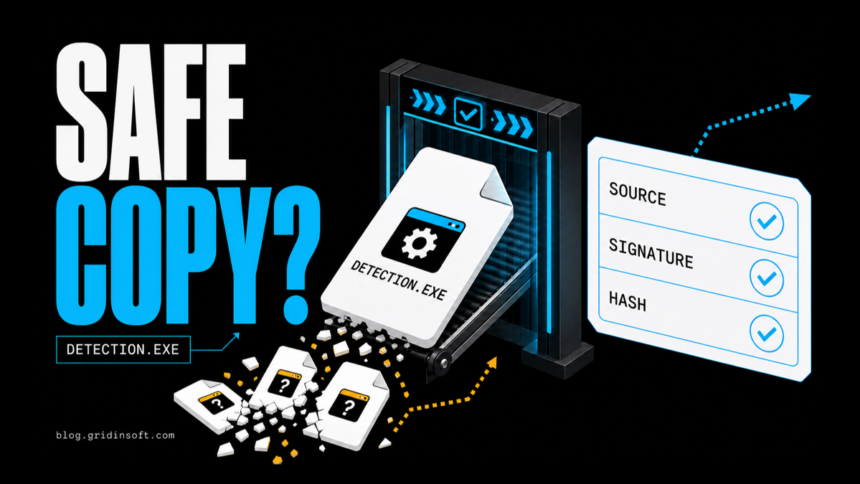
A filename is only a label. Malware can be renamed to Detection.exe, and browsers can add parentheses or random suffixes when a file with the same name already exists. Use the following checks before opening the download:
- Confirm the source. Start from
systemrequirementslab.com, not an advertisement, mirror, shortened link, forum attachment, or “driver update” page. Check the complete address, not only the words shown in a search result. - Check the stored path. A fresh browser download should normally be in your Downloads folder. A copy appearing in
AppData,Temp, Startup, or another unrelated program folder needs investigation. - Inspect the digital signature. Right-click the file, open Properties, and look for a Digital Signatures tab. The signature should be valid and its signer should match the publisher named by the official site, Husdawg, LLC. A missing or invalid signature is a reason not to run the file; a valid signature confirms publisher identity but is not a substitute for the other checks.
- Calculate a SHA-256 hash. A hash identifies the file’s exact bytes, unlike its changeable name. Compare it only with a trustworthy report for the same version. Do not assume an old hash proves a newly downloaded copy is safe.
- Check reputation without exposing private files. For a public installer, a multi-engine reputation check can add context. For confidential or personal files, read our file-upload privacy guide before submitting anything to a public scanning service.
Windows PowerShell can show the Authenticode status and calculate a SHA-256 hash without opening the program:
Get-AuthenticodeSignature -LiteralPath "$env:USERPROFILE\Downloads\Detection.exe" | Format-List Status,StatusMessage,SignerCertificate
Get-FileHash -LiteralPath "$env:USERPROFILE\Downloads\Detection.exe" -Algorithm SHA256
If you are not comfortable interpreting the result, keep the file unopened and follow the broader EXE safety checklist. Do not disable SmartScreen or antivirus protection merely to make the scanner run.
Downloading Detection.exe does not usually run it
A browser completing a download normally writes the file to disk; it does not execute the program by itself. Opening the browser’s Downloads panel, selecting the file once, or deleting it is different from double-clicking it, choosing Open, or approving a Windows security prompt. If you only downloaded and deleted an unopened file, the risk is much lower.
When the sequence is unclear, check the browser download history, Windows Security Protection History, and Task Manager. A running Detection.exe process, a recent application entry in reliability or event history, or a security prompt you approved is stronger execution evidence than the filename appearing in Downloads.
What to do in each situation
| Situation | Risk and what to do |
|---|---|
| Downloaded from the official site but never opened | Delete it if you do not want the scan, empty the Recycle Bin, and run a normal security scan if the source is still uncertain. A completed download alone is not proof of execution. |
| Ran a validly signed official copy | Let the compatibility check finish, close it, then delete the applet if you no longer need it. Confirm that no Detection.exe process remains. |
| Wrong domain, unusual path, missing signature, or mismatched hash | Do not run or restore it. Quarantine or delete the file and run a full scan. Review other downloads from the same source. |
| An unexpected app, network, camera, remote-access, or administrator prompt appeared | Deny the prompt, disconnect from the network if activity continues, preserve the file path and alert details, and scan the PC. Do not attribute the prompt to Detection.exe without process or log evidence. |
| The file or alert returns after deletion or reboot | Treat recurrence as possible persistence or a bundled component. Check Startup apps, scheduled tasks, services, browser extensions, and recently installed software, then scan again. |
Why antivirus software may flag System Requirements Lab
Microsoft publishes the detection name PUA:Win32/SystemRequirementsLab. PUA means potentially unwanted application: the warning can reflect software behavior or policy rather than a claim that every official copy is a trojan. Do not ignore it automatically, but do not decide that a file is counterfeit from the label alone. Source, signature, path, hash, and behavior still matter.
If Windows blocked the file and you are considering an allow or restore action, use the same cautious process described in our guide to the “file contains a virus or potentially unwanted software” error. Restoring before identity checks removes a useful safety barrier.
If the file ran or keeps returning
- Disconnect from the network if you see unexplained remote-access, browser, camera, or account activity.
- Record the file’s full path, signature status, SHA-256 hash, alert name, and the time the prompt appeared.
- Quarantine the suspicious copy and run a full security scan.
- Review Startup apps, Task Scheduler, services, recent installations, and browser extensions for items created at the same time.
- Reboot and scan again. A returning file or alert suggests that deleting the visible executable did not remove its source.
A security tool may quarantine the visible file while a scheduled task, startup entry, bundled application, or browser change remains and recreates it. Gridinsoft Anti-Malware can check for those related files and persistence points. Use a scan as evidence, not as a promise that an unrelated account or identity event was caused by Detection.exe.
A false positive is possible, but restore only after checking that the system has no companion detections, startup entries, scheduled tasks, or hidden files tied to the same source.
Scan before trusting this copyChange passwords only when there is evidence that an unknown program ran, a session was accessed, or credentials were entered into a suspicious prompt. Use a clean device and start with email, password-manager, gaming, and financial accounts. Our account recovery checklist covers session revocation and recovery order.
FAQ
Is Detection.exe always safe?
No. Detection.exe is the expected name of the official Can You Run It detector, but any executable can be renamed. Verify the source, signature, path, hash, and behavior of the exact copy you downloaded.
Does downloading Detection.exe mean it ran?
Usually no. A normal browser download saves the file without executing it. Double-clicking, choosing Open, or approving a Windows prompt can run it; check process and security history when the sequence is uncertain.
Why does antivirus call it a PUA?
A potentially unwanted application label can reflect system-information collection or security policy. It is a review signal, not automatic proof that every official copy is malware and not permission to ignore a wrong-source file.
Can I delete Detection.exe after using Can You Run It?
Yes. System Requirements Lab’s FAQ says the detector can be deleted after the scan completes. If it returns after deletion or reboot, investigate the source and persistence instead of repeatedly deleting only the visible file.
References
- System Requirements Lab. “Can You RUN It – FAQ.” Husdawg, LLC, accessed August 10, 2026. https://www.systemrequirementslab.com/cyri/support/faq
- Husdawg, LLC. “Privacy Policy.” System Requirements Lab, accessed August 10, 2026. https://www.systemrequirementslab.com/marketing/privacyn.html
- Microsoft. “PUA:Win32/SystemRequirementsLab threat description.” Microsoft Security Intelligence, accessed August 10, 2026. https://www.microsoft.com/en-us/wdsi/threats/malware-encyclopedia-description
- Microsoft. “Get-AuthenticodeSignature.” Microsoft Learn, accessed August 10, 2026. https://learn.microsoft.com/en-us/powershell/module/microsoft.powershell.security/get-authenticodesignature