
AGSService.exe is normally the legitimate Adobe Genuine Service process, not a virus. It can briefly use CPU while Adobe validates installed apps, but sustained high CPU while the PC is idle or an application-error dialog that returns after every restart points to a damaged or stuck Adobe component. Verify the file’s folder and signature first. Repair the signed Adobe copy through Creative Cloud; investigate a wrong-path or unsigned copy as a possible lookalike.
AGSService.exe quick checks
- Normal role: Adobe Genuine Service periodically checks whether installed Adobe apps are genuine and can display licensing notifications.
- Expected context: an Adobe folder under
C:\Program Files (x86)\Common Files\Adobewith a valid Adobe digital signature. - Repair signal: CPU remains high after Adobe work finishes, or the same AGSService.exe application error returns after reboot.
- Removal boundary: Adobe says AGS removes itself after all Adobe apps are uninstalled. Removing only the service is a licensing decision, not a normal high-CPU fix.
- Suspicious signal: a copy under
AppData,Temp, Downloads, Startup, or an unrelated program folder, especially without a valid Adobe signature.
What is AGSService.exe?
Adobe Genuine Service, or AGS, periodically verifies the integrity and licensing state of Adobe applications and can notify the user when it identifies non-genuine software.[1] Depending on the installed Adobe generation, Windows may show names such as Adobe Genuine Service or Adobe Genuine Software Integrity Service around the same validation role.
The process is part of Adobe’s background stack, but it is not the same component as every other Adobe executable:
AGSService.exeperforms the Genuine Service validation work covered by this guide.AdobeGCClient.execan appear as a client component in the Adobe Genuine folder.AGMService.exemay appear with other Adobe Genuine components, but it should be verified by its own path and signature rather than treated as an alias.- Adobe Desktop Service.exe coordinates other Creative Cloud desktop functions, while CoreSync.exe handles synchronized Adobe assets.
This distinction matters because deleting one visible process does not repair the Adobe package that installed it. It can also remove a licensing control while leaving the actual Creative Cloud problem untouched.
Is AGSService.exe safe or malware?
High CPU alone is not a malware verdict. A legitimate service can malfunction, and a malicious copy can stay quiet. Use the file’s full context.
- Open the file location. In Task Manager, right-click AGSService.exe and choose Open file location. Current Adobe documentation places the AGSService file inside an
AdobeGenuineClientfolder underC:\Program Files (x86)\Common Files\Adobe\Adobe Desktop Common.[2] Some Adobe builds also use anAdobeGCClientfolder under the same Common Files\Adobe tree. A user-writable or unrelated path needs investigation. - Check the digital signature. Open Properties → Digital Signatures and confirm Windows reports a valid Adobe signer. Do not rely on the filename or Adobe-style icon.
- Check the installed-product context. Creative Cloud, Acrobat, or another Adobe app should explain why AGS is present. A same-name file on a PC with no expected Adobe software is suspicious.
- Check the trigger. Brief use during sign-in, installation, update, or a licensing check is different from continuous load while the computer and Adobe apps are idle.
You can inspect one likely current path and the Windows service entry from an elevated PowerShell window:
$ags = "${env:ProgramFiles(x86)}\Common Files\Adobe\Adobe Desktop Common\AdobeGenuineClient\AGSService.exe"
Get-AuthenticodeSignature -LiteralPath $ags | Format-List Status,StatusMessage,SignerCertificate
Get-CimInstance Win32_Service -Filter "Name='AGSService'" | Select-Object Name,State,StartMode,PathName
If that exact path does not exist, do not download AGSService.exe from an EXE library. Use Task Manager to locate the installed copy, then apply the full EXE safety checklist to its source, signer, parent package, and persistence.
Why AGSService.exe uses high CPU or shows an application error
A short CPU burst that settles: AGS may be checking Adobe applications or responding to an installation, update, or licensing event. Let the operation finish and check again after Adobe has been idle for several minutes.
The signed file stays busy while the PC is idle: The validation component or its Creative Cloud package may be damaged or trapped in a repeated check. Update and Repair are safer than deleting the service file.
“AGSService.exe – Application Error” returns after restart: Record the exact error text, but do not chase the changing hexadecimal memory addresses in third-party fix databases. The durable question is whether Adobe’s signed component can be repaired through the supported desktop-app flow.
Several Adobe Genuine processes consume resources together: Verify every file separately. One signed Adobe process does not validate a second same-name file in a different folder.
The file is in the wrong folder or has no valid Adobe signature: Stop treating the case as ordinary Adobe troubleshooting. Preserve the path and signer evidence, contain the suspicious copy, and check its launch mechanism.
Fix a legitimate AGSService.exe high-CPU or error loop
- Save work and wait for active Adobe tasks. Finish or pause Creative Cloud installations and updates. Recheck CPU after the apps are idle.
- End the verified task once. After confirming the Adobe path and signature, end AGSService.exe in Task Manager and reopen Creative Cloud. This is a reversible diagnostic step; repeated termination is not a repair.
- Restart Windows once. A clean restart clears a stuck desktop-app session and shows whether the loop immediately returns.
- Check for Creative Cloud updates. Open Creative Cloud, select Apps, then Check for updates. Adobe’s current AGS installer guidance says updating Creative Cloud can replace a damaged AGSService file after a verification failure.[2]
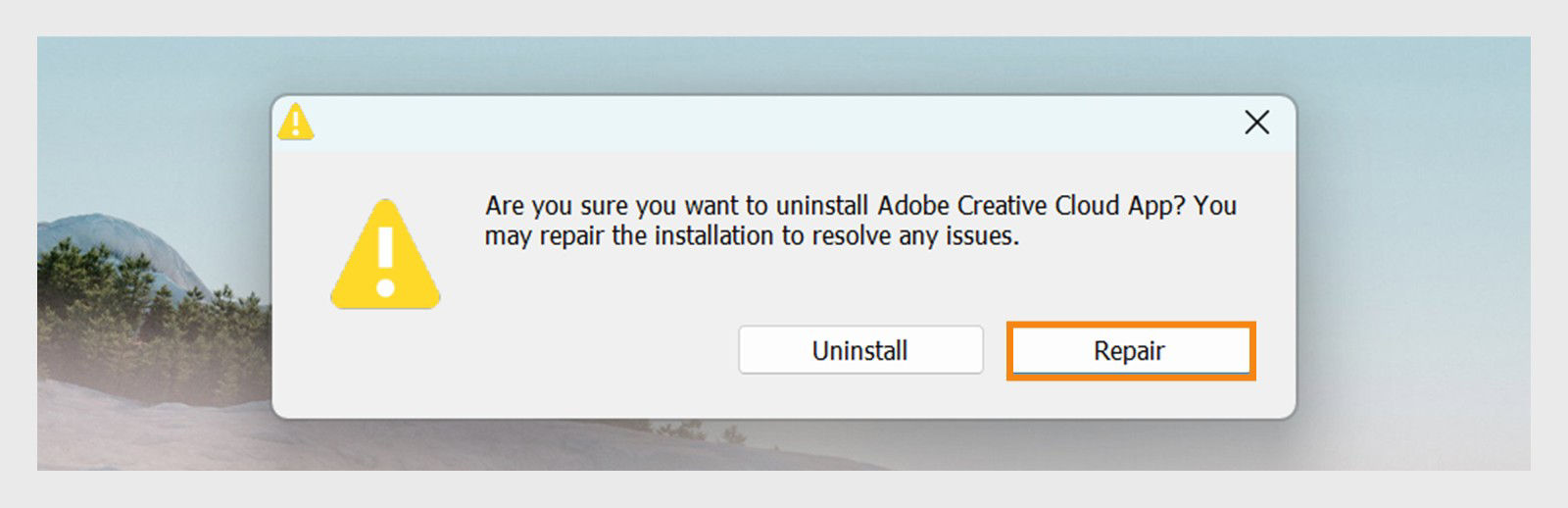
- Run Creative Cloud Repair. Download Adobe’s official Creative Cloud uninstaller for the installed Windows architecture, extract it, and choose Repair. Adobe recommends trying Repair before uninstalling the desktop app.[3]
- Recheck the exact file. Confirm that the repaired copy is back under the Adobe Common Files tree, the signature is valid, and idle CPU returns to normal.
- Escalate through Adobe support or your administrator. On a work or school PC, licensing and deployment may be centrally managed. Do not remove services or packages against organization policy.
Avoid registry cleaners, third-party DLL/EXE downloads, folder ownership changes, firewall blocks, and commands that delete the service. They can break Adobe updates or licensing without resolving the damaged package.
Can you disable or remove Adobe Genuine Service?
Ending AGSService.exe once is different from permanently disabling or deleting the service. Adobe recommends keeping AGS on systems that use Adobe apps because it verifies integrity and licensing. Adobe also says the service automatically uninstalls after every Adobe app is removed from the machine.[1]
Use this decision boundary:
- You still use licensed Adobe apps and only have high CPU or errors: update and Repair first. Removing AGS is not the least-destructive fix.
- You are removing every Adobe app: uninstall the applications through Adobe/Windows. AGS should remove itself afterward.
- You need AGS removed while an Adobe app remains: use Adobe’s linked official AGS uninstall procedure and understand that licensing reminders or other verification methods may still apply. Do not use a random script or permission takeover.
- The device is managed: contact IT. An administrator may have deployed Adobe packages and Genuine Service centrally.
- The file is suspicious: do not run an Adobe cleaner as a substitute for malware investigation. Contain the wrong-path copy and inspect its persistence.
What to do with a suspicious AGSService.exe copy
Use this branch when evidence supports it: the executable runs from AppData, Temp, Downloads, Startup, or an unrelated folder; the signature is invalid or absent; Adobe software is not expected; an unknown installer launched it; or the process returns through an unfamiliar service, scheduled task, or startup entry.
- Record the full path, signature status, service path, parent process, and any antivirus detection name.
- Quarantine the suspicious copy. Do not delete the signed Adobe file from the Common Files tree.
- Inspect Services, Task Scheduler, and Startup apps for the mechanism that relaunches it. The suspicious startup-app guide covers reversible checks before deletion.
- Run a full malware scan, reboot, and scan again if the process or security warning returns.
A scan matters here because removing one visible executable may leave a service, scheduled task, startup entry, hidden file, or bundled application that recreates it. Gridinsoft Anti-Malware can check those persistence locations; it cannot prove that no data or account was exposed.
FAQ
Why is AGSService.exe running when Adobe apps are closed?
Adobe Genuine Service performs background integrity and licensing checks, so it can run without Photoshop, Acrobat, or another visible Adobe app open. Judge it by path, signature, trigger, and whether resource use settles.
Is AGSService.exe high CPU a virus?
Not by itself. Sustained high CPU can come from a damaged legitimate Adobe component. A wrong path, invalid signature, unknown installer, or suspicious persistence is stronger malware evidence.
Can I end AGSService.exe in Task Manager?
You can end a verified Adobe instance once as a diagnostic step after saving work. The service may restart, and repeated termination does not repair the underlying Creative Cloud or Genuine Service package.
Will Adobe Genuine Service uninstall itself?
Adobe says AGS automatically uninstalls after all Adobe applications are removed from the computer. If Adobe apps remain, use Adobe’s supported guidance rather than deleting files or services manually.
Are AdobeGCClient.exe and AGMService.exe the same as AGSService.exe?
No. They can appear in the same Adobe background stack, but each executable should be verified by its own path, signature, and role. One genuine Adobe component does not prove that every same-folder or same-name process is safe.
References
- Adobe. “Adobe Genuine Service.” Adobe Help Center, updated September 30, 2021; accessed August 14, 2026. helpx.adobe.com.
- Adobe. “Error 3 causes installation failure.” Adobe Help Center, updated February 13, 2026; accessed August 14, 2026. helpx.adobe.com.
- Adobe. “Uninstall Creative Cloud desktop app.” Adobe Help Center, updated March 27, 2026; accessed August 14, 2026. helpx.adobe.com.