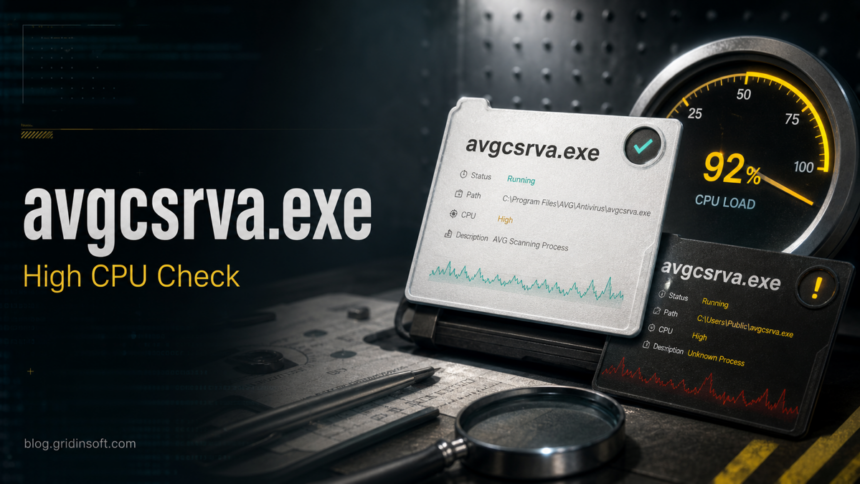
avgcsrva.exe is usually part of AVG antivirus, not a Windows system file. Treat it as a verification problem first: check whether it is running from an AVG installation folder, whether the publisher/signature matches AVG, and whether high CPU happens during a scan or update. It becomes suspicious when the same name runs from a user-writable folder, has no trusted signature, appears without AVG installed, or returns with pop-ups, redirects, unknown startup entries, or other malware symptoms.
What is avgcsrva.exe?
avgcsrva.exe is commonly shown as an AVG Scanning Core Module or server-part process in older AVG products and logs. Its job is tied to antivirus scanning, so short CPU spikes can happen while AVG checks files, updates definitions, scans downloads, or performs a scheduled scan.
Do not delete the file just because Task Manager shows high usage. Antivirus components often protect their own files and services, and manually deleting them can break protection or leave a damaged installation. First verify the process, then decide whether to wait, repair AVG, uninstall AVG cleanly, or scan for a suspicious copy.
Quick decision: keep, repair, or scan?
| What you see | What it usually means |
|---|---|
avgcsrva.exe is under an AVG program folder and signed by AVG/Gen Digital/Avast |
Likely legitimate AVG activity. Update AVG, wait for the scan to finish, or repair the installation if CPU stays high. |
| CPU rises only during a manual or scheduled scan | Usually expected scanning load. Reduce scan priority or schedule scans for idle time if AVG offers that setting. |
The file is in %TEMP%, %APPDATA%, C:\Users\Public, Downloads, or a random startup folder |
Treat it as suspicious. Do not add an antivirus exception; scan the system and inspect the startup launcher. |
AVG was uninstalled, but avgcsrva.exe keeps returning |
Could be leftover AVG repair/uninstall damage, or a same-name copy. Check services, scheduled tasks, and Autoruns entries. |
| High CPU appears with redirects, fake alerts, unknown extensions, or new startup items | Handle the AVG process and the other symptoms together. A separate unwanted app or malware loader may be present. |
Check the path and signature
- Open Task Manager, right-click
avgcsrva.exe, and choose Open file location. If that option is missing, use Microsoft Sysinternals Autoruns or Process Explorer to inspect the launcher. - Look for an AVG installation path, such as a folder under
C:\Program Files\AVG\,C:\Program Files (x86)\AVG\, or an older AVG version folder. The exact folder can vary by product generation. - Open Properties -> Digital Signatures. A normal antivirus component should have a trusted vendor signature. An unsigned copy in a user folder is not enough to trust.
- Check the command line and startup source. Look at Run keys, services, scheduled tasks, and Startup-folder shortcuts if the process starts every boot.
- Compare the date. If the file appeared the same day as a crack, fake update, browser extension, driver updater, or unknown installer, treat it as part of a broader cleanup case.
Why avgcsrva.exe may use high CPU
AVG scanning can use more CPU while it reads many new files, scans archives, updates engine components, or runs after a large software install. That does not automatically mean the process is malicious. Watch the pattern instead of one screenshot:
- Does CPU drop after the scan finishes?
- Does the process spike again after every reboot even when no scan is visible?
- Does disk usage also stay high because AVG is reading many files?
- Did the issue start right after an AVG update or after another security tool was installed?
- Do redirects, pop-ups, unknown extensions, or suspicious startup entries appear at the same time?
If the path and signature are normal but CPU stays high, update AVG first. If that does not help, use AVG’s repair option or cleanly uninstall/reinstall AVG rather than deleting individual executable files. If the same symptom appears under Avast Service, follow the AvastSvc.exe high-CPU troubleshooting guide; its Repair and reinstall controls are product-specific.
When an avgcsrva.exe copy is suspicious
Malware can borrow the name of a known antivirus process to look harmless in Task Manager. The name alone is not proof. The strongest warning signs are the folder, signature, launcher, and surrounding symptoms:
- the file runs from
%APPDATA%,%LOCALAPPDATA%,%TEMP%,C:\Users\Public, Downloads, or a browser profile folder; - the signature is missing, broken, or unrelated to AVG/Avast/Gen Digital;
- the command line points to a script, random folder, or packed executable;
- an Autoruns entry recreates the process after you disable it;
- high CPU appears with adware, fake update prompts, browser redirects, or a recently installed bundle.
What to do if avgcsrva.exe looks suspicious
- Do not end or delete the file blindly. Record the full path, signature, command line, and startup source first.
- If the file is in a normal AVG folder, update AVG and try the repair workflow. Reboot and check whether CPU settles.
- If you no longer use AVG, uninstall it through Windows Settings or AVG’s normal uninstaller path. Reboot before judging leftovers.
- If the file is outside AVG folders or unsigned, disconnect from risky websites, keep suspicious downloads quarantined, and scan the PC.
- After cleanup, recheck Autoruns, Task Scheduler, services, browser extensions, and Startup Apps to confirm the entry does not return.
A suspicious copy may be only the visible process. The installer, scheduled task, service, browser change, or bundled module that launches it can remain after you end the process. Scan after checking the path when avgcsrva.exe sits outside AVG folders, has no trusted signature, or appears with other startup/browser symptoms.
If the process path is wrong, the name imitates a Windows component, or high CPU started after an unknown installer, scan for hidden miners, services, startup entries, and bundled components.
Scan this AVG-looking processRelated checks
If the issue is mainly unknown Startup Apps or no-publisher entries, use the Suspicious Startup Apps and Autoruns safety guide. If the whole PC is slow, start with the safe Windows cleanup checklist before removing programs. For another process lookup example, compare the ALCMTR.EXE startup process check.
FAQ
Is avgcsrva.exe a virus?
Not usually. It is commonly associated with AVG’s scanning engine. It should be treated as suspicious only when the path, signature, startup source, or surrounding symptoms do not match a normal AVG installation.
Can I disable avgcsrva.exe?
Do not disable or delete the executable directly. If it is legitimate AVG, use AVG settings, repair, update, or uninstall options. If it is a suspicious copy, identify the launcher and scan instead of deleting one visible file.
Why are there multiple avgcsrva.exe processes?
Antivirus products can run multiple helper processes during scanning or updates. Multiple copies are more concerning when one runs from a user-writable folder, has a different signature, or starts from an unrelated task or Run key.
Should I add avgcsrva.exe to exclusions?
No. Excluding a suspicious executable is the wrong direction. Verify the path and signature first. If the file is legitimate AVG, repair or update AVG; if it is not, remove the launcher and scan the system.
References
- AVG Community. “Scanning Core Module – Server Part High CPU.” AVG Community, accessed July 7, 2026. https://community.avg.com/t/scanning-core-module-server-part-high-cpu/245799
- AVG Business Help. “Repairing Antivirus.” AVG Business Help, accessed July 7, 2026. https://businesshelp.avg.com/Content/Products/AVG_Antivirus/AntivirusManagement/RepairingAV.htm
- Mark Russinovich. “Autoruns for Windows.” Microsoft Sysinternals, accessed July 7, 2026. https://learn.microsoft.com/en-us/sysinternals/downloads/autoruns