Audiveris.com is not the official Audiveris website. The open-source Audiveris project warns that the .com domain has nothing to do with the project and appears fraudulent. If you downloaded or ran an EXE from that site, treat the file as untrusted, but do not assume a specific malware family without an exact hash and reliable analysis. The safest response depends on whether you only visited, downloaded, extracted, ran the file, or entered account details.
Is Audiveris.com the official Audiveris site?
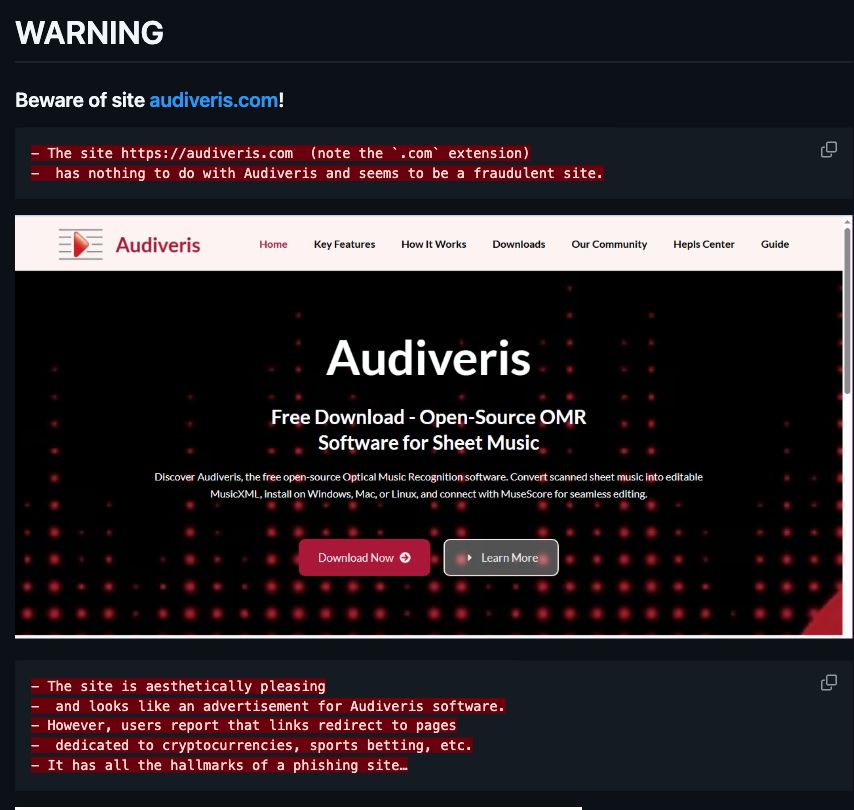
No. The official project is hosted in the Audiveris GitHub repository, where its maintainers publish source code, documentation, and release assets. The repository warns users specifically about audiveris.com and says the domain appears to have the hallmarks of a phishing site. Official release assets use predictable platform formats: Windows installers are .msi files, Linux installers are .deb files, and macOS installers are .dmg files.[1]
| What you found | What it means and what to do |
|---|---|
| GitHub repository or GitHub Releases | This is the project’s official release path. Confirm that the repository owner is Audiveris before choosing an asset. |
audiveris.com |
This is not the official project domain. Do not use its download buttons, commands, guides, or installers. |
| A Windows ZIP containing an EXE | This does not match the project’s normal Windows release format. Do not reopen it; follow the exposure checklist below. |
| An installer with the right product name or version | A convincing name is not proof of origin. Verify the download came directly from the official GitHub Releases page. |
The distinction matters because the domain’s download behavior has changed over time. In one project discussion, a maintainer found an older Windows MSI wrapped inside RAR and ZIP archives whose hash matched an official release. Other reports described misleading redirects, suspicious packages, and malicious command behavior on another platform.[2][3] The domain verdict is firm: it is unrelated to the project and should not be trusted. The behavior of any particular downloaded file still depends on its date, platform, version, and SHA-256 hash.
What to do based on what happened
Choose the row that matches the furthest action you took. Do not reopen the page or file to gather more information.
| Your exposure | Recommended response |
|---|---|
| You only visited the site | Close the tab. If you did not download anything, allow notifications, enter data, or follow a command, a malware cleanup is usually unnecessary. Remove any notification permission you granted. |
| You downloaded a ZIP or EXE but did not open it | Delete the file from %USERPROFILE%\Downloads, empty the Recycle Bin, and run a security scan. Do not extract or upload private documents with it. |
| You extracted the archive but did not run the file | Delete both the archive and extracted folder, then scan the Downloads folder and the PC. Extraction alone normally does not execute a standard EXE, but it can expose additional files you might open accidentally. |
| You ran the EXE or a command | Treat the computer as potentially exposed. Disconnect it from the network, record the filename and time, run updated scans, and check startup, scheduled-task, browser, and account changes. |
| You entered a password, payment data, or recovery code | From a different clean device, change the affected password, revoke active sessions, enable MFA, and contact the payment provider when financial data was involved. |
What to do after you ran the Audiveris.com file
An EXE that shows no window may have failed, exited, or run silently. The missing installer screen does not prove that nothing happened. Use this evidence-first sequence:
- Disconnect the PC from Wi-Fi or Ethernet. This limits new downloads and outbound traffic while you check the system. Do not sign in to sensitive accounts from this PC yet.
- Write down what you know. Record the filename, approximate download and run time, source URL, archive name, and any Windows Security alert. If the file still exists, do not reopen it.
- Check Windows Security Protection History. Open Windows Security → Virus & threat protection → Protection history. Note detections, affected paths, and actions. Keep suspicious items quarantined.
- Run updated scans. Update Microsoft Defender and run a Full scan. Then run a full Gridinsoft Anti-Malware scan to check for hidden files, bundled apps, startup entries, scheduled tasks, browser changes, and other persistence that may remain after the visible download is removed.
- Review recent persistence changes. Check Task Manager → Startup apps, Settings → Apps → Installed apps sorted by install date, browser extensions, and Task Scheduler Library. Disable or remove an item only when its name, publisher, path, or creation time connects it to the incident.
- Check accounts from a clean device. If the file ran while browsers, password managers, email, Discord, Steam, or financial accounts were signed in, review active sessions and sign-in history. Change important passwords if you see an unknown session or if the scan finds an information stealer.
- Reconnect only after the checks are clean. Reboot, scan again, and watch for the same alert, process, extension, task, or outbound connection returning.
Deleting the download removes only the visible file. A silent installer can also create a scheduled task, startup entry, service, browser extension, or bundled application. That is why the scan and persistence checks come before assuming cleanup is complete.
If the page or email made you download an invoice, coupon, tracking app, browser extension, or support tool, scan the PC before opening it again or logging into sensitive accounts.
Scan after running the downloadFor a broader checklist, use the Windows security audit after malware. It covers sessions, startup, scheduled tasks, exclusions, and recovery evidence without assuming that every suspicious download caused the same infection.
How to preserve useful evidence safely
Evidence is useful when a detection returns, an account is accessed, or a technician needs to identify the file. You do not need to keep a runnable copy on the desktop.
- Save the filename, archive name, URL, download time, and file size as text.
- Record the SHA-256 hash if your security tool exposes it. A hash identifies the exact file without relying on a changeable filename.
- Screenshot Windows Security detections and sign-in alerts, but hide personal paths, email addresses, and tokens before sharing them.
- Do not send the file to strangers or re-download it for analysis.
- If the file contains personal or confidential data, do not upload it to a public scanner.
You can check a non-private suspicious file with the Gridinsoft Online Virus Scanner. Use the exact hash and detection details when asking for help; a name such as Audiveris.exe alone is not enough to identify the payload.
When should you reinstall Windows?
A reinstall is not automatically required just because the EXE ran. Consider a clean reinstall when one or more of these conditions remain after scans and manual checks:
- detections return after reboot or after removal;
- an unknown administrator account, service, scheduled task, or security exclusion reappears;
- the computer contacts suspicious servers again;
- security tools cannot start, update, or complete scans;
- important accounts show theft and the PC contained active browser sessions;
- a qualified analyst confirms credential-stealing or remote-access malware.
Back up documents, photos, and other non-executable personal files before reinstalling. Do not carry over the suspicious archive, EXE, cracks, unknown installers, or browser profiles that may contain the original change.
How to avoid fake software download sites
- Start from the project’s repository or publisher documentation, not a look-alike domain.
- Check the repository owner, release history, and asset format before downloading.
- Be cautious when a download is wrapped in several archive layers or changes from the documented installer type.
- Do not paste Terminal, PowerShell, or Run-dialog commands supplied by an unrelated download page.
- Learn how typosquatting and look-alike domains exploit familiar product names.
- Remember that fake software pages can distribute different payloads over time; a past clean sample does not validate the domain today.
The Audiveris.com case follows the same trust problem seen in other fake software download campaigns: a polished page and familiar product name can hide an unrelated delivery path. Verify the source before you trust the file.
FAQ
Is Audiveris itself malware?
No. Audiveris is a legitimate open-source optical music recognition project. The warning concerns the unrelated audiveris.com domain, not software obtained from the official Audiveris GitHub repository.
Is Audiveris.com safe for downloads?
No. The official project says the domain is unrelated and appears fraudulent. Do not rely on its buttons, archive names, or claims even if the page looks professional.
Does a clean Defender scan prove the EXE was harmless?
No. A clean scan lowers concern but does not prove what the file did. Check persistence, browser changes, security exclusions, and account sessions, then rescan after reboot if the executable ran.
Should I trust the file if its name and version match Audiveris?
No. Filenames and version strings are easy to copy. Trust the release source and exact hash, not the label displayed by an unrelated site.
Do I need to change every password?
Not if you only visited or downloaded without running anything. If the file ran, prioritize email, password-manager, financial, and other high-value accounts when scans find a stealer, an unknown session appears, or the browser was signed in during the incident. Make changes from a clean device.
References
- Audiveris project. “Audiveris — Latest Generation of the Audiveris OMR Engine,” GitHub repository, current warning and release-format documentation, accessed August 1, 2026. github.com/Audiveris/audiveris
- Audiveris community. “Fake Audiveris Website Scam,” GitHub Discussion #853, opened October 24, 2025; ongoing reports through 2026, accessed August 1, 2026. github.com/Audiveris/audiveris/discussions/853
- BretCameron. “Strengthening Warning About audiveris.com (Malicious Shell Payloads),” Audiveris GitHub Issue #934, April 22, 2026, accessed August 1, 2026. github.com/Audiveris/audiveris/issues/934