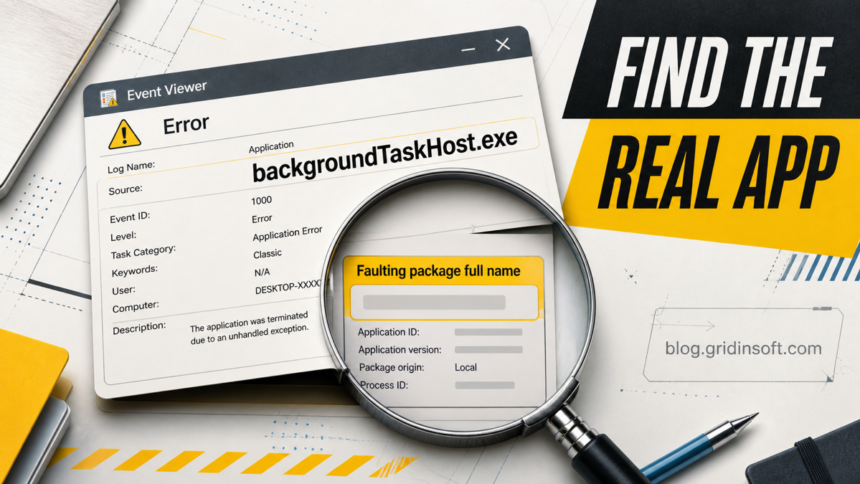
backgroundTaskHost.exe is a legitimate Windows host for background work from packaged apps. When the Microsoft-signed file runs from C:\Windows\System32, an Application Error usually does not mean the host itself is malware. In Event Viewer, the Faulting package full name normally points to the app or Windows component that actually needs attention. Repair that owner first instead of deleting the host or starting with broad system changes.
A copy outside the Windows system folders, without a valid Microsoft signature, or launched by an unrelated program is a separate security question. Verify the complete path and signer before deciding whether to keep, repair, or scan it.
What is backgroundTaskHost.exe?
Windows uses background tasks so packaged apps can sync data, update tiles, deliver notifications, or react to system events without keeping their main window open. Microsoft documents that out-of-process app tasks run in BackgroundTaskHost.exe by default. Apps can also place task groups in separate host instances, which is why seeing more than one short-lived process is not automatically a problem.[1]
| What you find | What it means and what to do |
|---|---|
C:\Windows\System32\backgroundTaskHost.exe with a valid Microsoft Windows signature |
This is the expected 64-bit Windows host. Identify the package using it before repairing anything. |
| A signed Windows copy appears briefly or several copies appear for different tasks | This can be normal. Investigate only if one instance stays busy, crashes repeatedly, or has an unexpected command line. |
| Event Viewer names one faulting package | Update, repair, reset, or reinstall that package first. Do not delete the host. |
| Several built-in Windows packages fail | Install Windows updates, restart, then use DISM and SFC if the failures continue. |
The EXE is in AppData, Temp, Downloads, or an unrelated program folder |
Treat it as a lookalike until the signer, parent process, hash, and persistence source are verified. |
Some 64-bit Windows installations can also contain a legitimate 32-bit system copy under C:\Windows\SysWOW64. Do not judge a file by one universal size or hash: Windows servicing changes builds. Check Properties → Digital Signatures, confirm the Microsoft Windows signer, and compare the file with the operating-system context. The EXE safety checklist explains how to combine path, signer, parent, and behavior without trusting a filename alone.
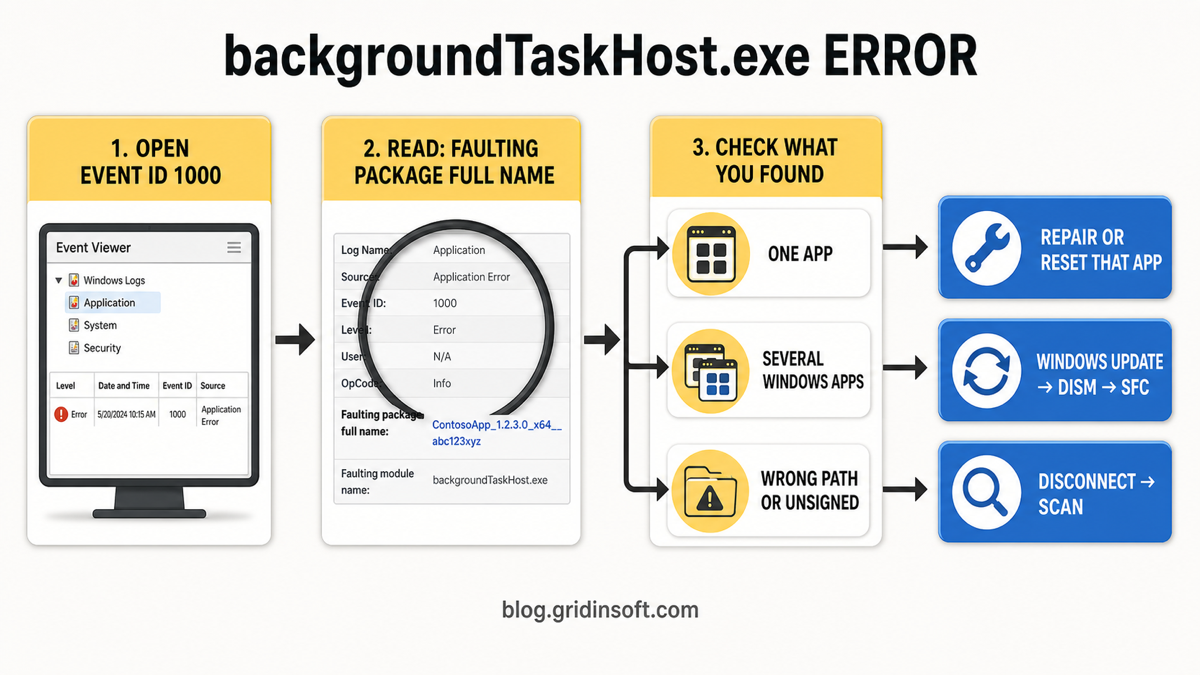
Find the app behind a backgroundTaskHost.exe error
The filename in the Faulting application name field tells you which process crashed. It does not always tell you which app supplied the task. The most useful clue is usually farther down in the same Event ID 1000 record.
- Note the time of the visible problem. Record which app, notification, sign-in action, or Alt+Tab switch happened just before the error.
- Open Event Viewer. Press Win + R, enter
eventvwr.msc, and open Windows Logs → Application. - Open the matching Application Error. Look for Event ID
1000at the same time, withbackgroundTaskHost.exeas the faulting application. - Read “Faulting package full name.” The publisher/app name at the start of that package string usually identifies the owner. The version, architecture, and publisher ID that follow help distinguish package builds.
- Record the package-relative application ID. This can identify the component inside a package when one package provides several apps or background entry points.
- Record the faulting module and exception code. These help confirm the failure pattern, but a generic module such as
KERNELBASE.dllis not the app owner by itself.
If Faulting package full name is blank, open Reliability Monitor by pressing Win + R and entering perfmon /rel. Select the failure at the matching time and compare it with the app you were using. Also check whether the error returns after a clean restart or only after one particular app launches.
If Event Viewer names one app or package
Start with the narrow owner. Microsoft provides Repair and Reset options for supported Windows apps under Settings → Apps → Installed apps → Advanced options.[2] Repair tries to fix the app without removing its data. Reset can clear app data and sign-in state, so save work and note account settings first.
- Update the owning app. For Microsoft Store apps, open the Store library and check for updates. For another packaged app, use its official update channel.
- Restart Windows and reproduce once. A one-time task failure after an update is different from a crash that returns on every sign-in or action.
- Use Repair when available. Recheck Event Viewer after the test.
- Use Reset only when needed. Expect local app settings, cached data, or sign-in state to be removed.
- Reinstall the package from its official source. Do not download
backgroundTaskHost.exeor a loose DLL from a file repository.
If the package belongs to a work or school account, Microsoft Store, Windows Shell, or another managed Windows component, do not remove registry permissions or re-register every app from an unverified script. A managed device may need its administrator, and a package-specific Microsoft support procedure is safer than a broad registry change.
If several Windows apps fail
Broader repair is justified when multiple built-in packages stop opening, several unrelated Event ID 1000 records appear, Windows Update reports component errors, or system features fail outside one app. Install pending Windows updates and restart first.
If failures continue, open Terminal (Admin) or Command Prompt (Admin) and run DISM.exe /Online /Cleanup-Image /RestoreHealth. After DISM completes successfully, run sfc /scannow. Microsoft recommends this order because DISM repairs the Windows image that SFC uses to replace damaged protected files.[3]
Do not close the SFC window before verification reaches 100%. Restart and retest the same action. The DISM Host Servicing Process guide explains what normal DISM activity looks like if the repair temporarily uses CPU or disk.
An in-place Windows repair install is a later option when updates, app repair, DISM, and SFC do not fix failures across several Windows components. Back up important files first and use Microsoft installation media that matches the installed edition and language.
What if backgroundTaskHost.exe uses high CPU?
Brief activity while an app synchronizes or handles a trigger can be normal. Sustained CPU, memory, or disk use means you should identify the task owner before ending or disabling anything.
- In Task Manager, right-click the busy process and choose Open file location. Confirm the Windows path and Microsoft signature.
- Note which app action starts the spike. Close that app, wait, and test again.
- Check Event Viewer and Reliability Monitor for the same time window.
- Update or repair the package named in the event. If no package is named, use a clean boot or app-by-app test rather than disabling the host permanently.
Ending a legitimate instance is only a temporary diagnostic test; Windows can launch it again for another registered task. For the foreground window counterpart, use the ApplicationFrameHost.exe guide to identify the open app before repairing Windows. A similar Windows host process can require the same context-first approach—see the AggregatorHost.exe safety guide.
If the copy is outside the Windows folder or unsigned
A malware author can reuse a familiar Windows filename, so the wrong path matters more than the name. Disconnect the PC from sensitive accounts or work resources if the file runs from a user-writable folder, has no valid Microsoft signature, launches from an unknown scheduled task or startup entry, or appeared after an untrusted installer.
Gridinsoft has an Online Virus Scanner report for one signed backgroundTaskHost.exe build. It is a useful example of Microsoft version and certificate fields, but its hash and size do not prove that a different build is safe. Upload the exact suspicious file to the Gridinsoft Online Virus Scanner instead of comparing only the filename.
If the suspicious file already ran or reappears after deletion, the visible EXE may not be the only component. A loader, scheduled task, service, startup entry, or bundled module can recreate it. Run a full Gridinsoft Anti-Malware scan, remove detected persistence, restart, and scan again if the activity returns. A clean result lowers suspicion but cannot prove that no compromise occurred.
If the process path is wrong, the name imitates a Windows component, or high CPU started after an unknown installer, scan for hidden miners, services, startup entries, and bundled components.
Check a suspicious copyFAQ
Is backgroundTaskHost.exe a virus?
The Microsoft-signed copy in the Windows system folder is legitimate. A same-name file in AppData, Temp, Downloads, or an unrelated program folder needs separate path, signature, parent, and persistence checks.
Can I disable backgroundTaskHost.exe?
Do not disable or delete the Windows host. Identify the package using it, then repair, reset, update, or remove that app if necessary. Windows may launch another instance for a different registered task.
Why are there several backgroundTaskHost.exe processes?
Packaged apps can place background tasks in separate resource groups, and Windows can host those groups in separate processes. Multiple signed system-folder instances can therefore be normal; investigate sustained activity, crashes, or unusual paths.
Does KERNELBASE.dll mean Windows itself is broken?
Not necessarily. KERNELBASE.dll is a common Windows module where many app exceptions surface. The faulting package and the user action at the same time are usually more useful for identifying the owner.
Should I run SFC for every backgroundTaskHost.exe error?
No. Repair the single package named in Event Viewer first. Use DISM and SFC when several built-in apps or Windows components fail, or when app-specific repair does not resolve broader system symptoms.
References
- Microsoft. “Declare background tasks in the application manifest.” Microsoft Learn, last updated October 27, 2022, accessed August 4, 2026. https://learn.microsoft.com/en-us/windows/uwp/launch-resume/declare-background-tasks-in-the-application-manifest
- Microsoft Support. “Repair apps and programs in Windows.” Microsoft, accessed August 4, 2026. https://support.microsoft.com/en-US/Windows/Apps/repair-apps-and-programs-in-windows
- Microsoft Support. “Use the System File Checker tool to repair missing or corrupted system files.” Microsoft, accessed August 4, 2026. https://support.microsoft.com/en-us/windows/experience/backup-recovery/use-the-system-file-checker-tool-to-repair-missing-or-corrupted-system-files