LG Monitor App Installer is not automatically malware when it is the Microsoft Store package published by LG Electronics Inc. However, Windows can download a manufacturer-linked app after a monitor is connected, and the current Store listing includes a McAfee offer. That can feel like a silent install or bloatware even when the package is legitimate. Verify the publisher, package location, and behavior before removing anything.
If the app appeared after you connected an LG monitor or after Windows Update, the likely explanation is device metadata—not a hacked monitor. Microsoft documents that a hardware manufacturer can associate a Store app with a device so Windows downloads it automatically when the peripheral is connected. The mechanism can work without a separate installer dialog.
| What you find | What it means and what to do |
|---|---|
| Microsoft Store package, publisher LG Electronics Inc., expected WindowsApps location | Likely the legitimate LG companion installer. Keep it only if you use its monitor tools. |
| McAfee is listed inside LG Monitor App Installer | The Store listing currently describes McAfee as an additional app with a 30-day trial. An offer is not proof that McAfee was installed; check Installed apps separately. |
| Unknown publisher, loose EXE in Downloads, Temp, or AppData | Do not assume it is LG software. Check the signature and scan the file before running or deleting it. |
| The app returns after you uninstall it and reconnect the monitor | Windows may be downloading the device-associated app again. Use the prevention options below. |
| Browser redirects, unrelated ads, disabled security tools, or a mismatched filename | Those are not expected companion-app behavior. Disconnect from risky pages and run a full malware scan. |
Why LG Monitor App Installer Appeared
Windows supports automatic delivery of Universal Windows Platform device apps. A device maker supplies metadata that identifies a compatible app in Microsoft Store. When Windows detects the matching hardware, it can request that app from the Store. Microsoft says this download can happen without a notification to the user.
That explains why LG Monitor App Installer may appear even if you never visited LG’s website or clicked a conventional setup wizard. It also explains why uninstalling the app does not remove the monitor driver. Microsoft treats the device app, driver, and device metadata as separate pieces.
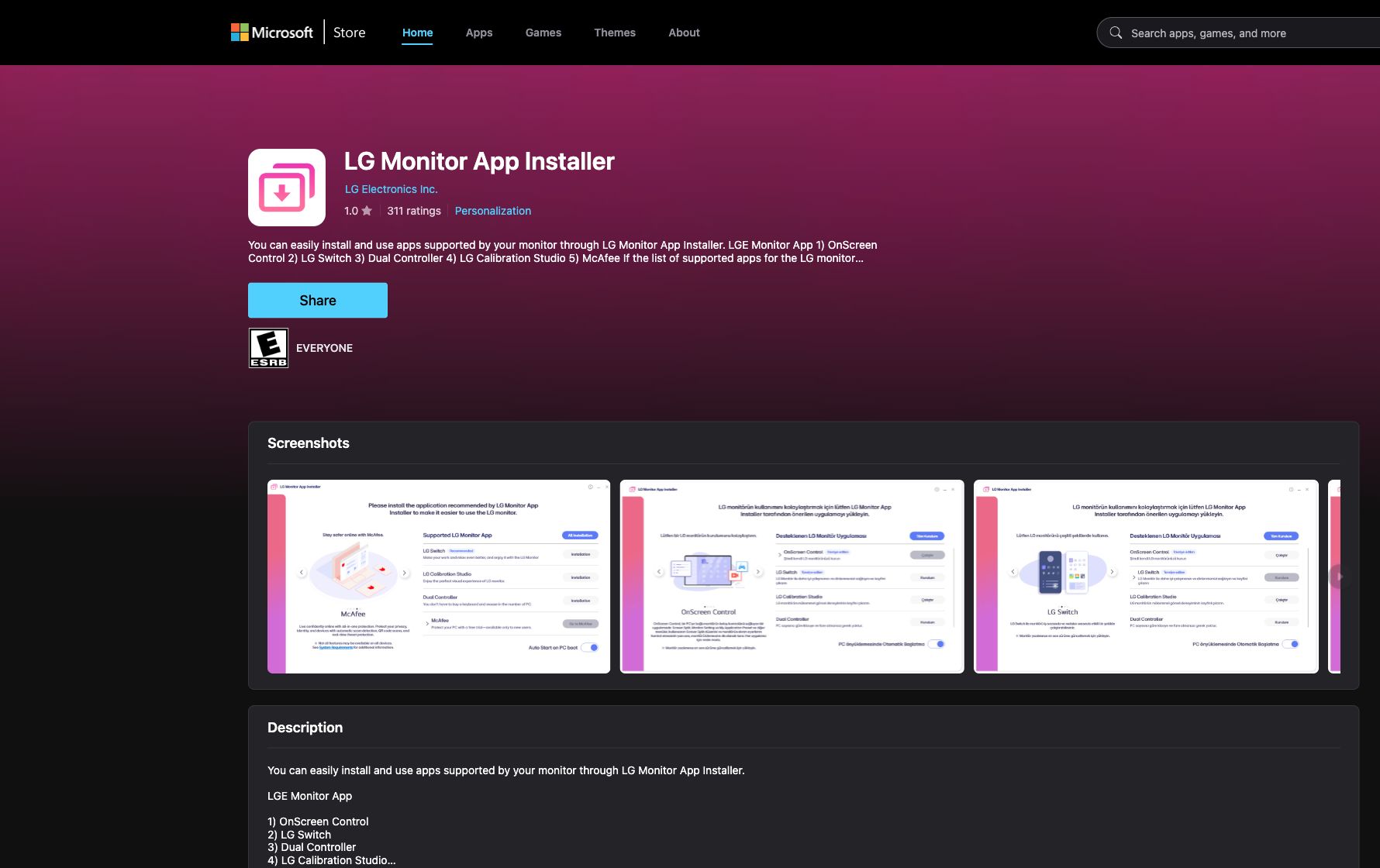
The official Store page names LG Electronics Inc. as the publisher. Its description says the installer can offer LG utilities such as OnScreen Control, LG Switch, Dual Controller, and LG Calibration Studio. The listing also names McAfee. Its “What’s new” section describes a separate McAfee 30-day trial that the user can choose to install. That is a promotional offer, not evidence that the monitor itself is malicious.
Is LGMonitorAppManager.exe Safe?
The filename alone cannot answer that. A malicious file can copy a legitimate-looking name, while a genuine helper may look unfamiliar. Treat LGMonitorAppManager.exe as likely legitimate only when its package and publisher line up with the Store app and its path belongs to the installed package.
Start with Settings → Apps → Installed apps. Search for LG Monitor App Installer, open its advanced details if available, and note when it was installed. Then use PowerShell to identify a matching Store package:
Get-AppxPackage | Where-Object {
    $_.Name -like "*LG*Monitor*" -or
    $_.PackageFamilyName -like "*LG*Monitor*"
} | Select-Object Name, Publisher, InstallLocation, PackageFullName
A Store app normally resides below C:\Program Files\WindowsApps\, a protected folder. Do not change ownership of WindowsApps just to delete files. If the executable instead runs from %TEMP%, Downloads, a random folder below %APPDATA%, or an unrelated startup location, investigate it as a separate file.
Right-click the file only when Windows provides an accessible path, open Properties → Digital Signatures, and check that the signer matches LG Electronics. Compare the path, signature, and install time with the day the monitor was connected. The same method helps with other suspicious startup apps: a familiar filename is weaker evidence than its publisher and location.
An audio-app manager needs the same source test. The MuseHub malware and removal check compares the current official signer with unknown copies, explains expected background behavior, and uses the documented Windows Settings removal path.
How to Remove LG Monitor App Installer Safely
- Close LG monitor utilities that are running.
- Open Settings → Apps → Installed apps.
- Find LG Monitor App Installer, select the menu beside it, and choose Uninstall.
- Check the same list for any LG utility you do not use. Remove each one through Settings instead of deleting its files.
- Search Installed apps for McAfee. Remove it separately only if it is installed and you do not want it. The mention inside the LG app does not prove the trial is present.
- Restart Windows and confirm that the monitor still works. Display output usually depends on the graphics and monitor driver, not this optional Store app.
Do not uninstall the graphics driver, disable Windows Update, or remove generic Plug and Play devices as a first step. The companion app and driver are different components. If you are deciding whether an optional manufacturer package is necessary, use the same source-and-feature test described in our Plug and Play driver safety guide.
How to Stop It From Reinstalling
First, uninstall the app and reconnect the monitor once. If it does not return, no additional change is needed. Also check the Microsoft Store settings and turn off automatic app updates if you want more control, but remember that this affects other Store apps too.
Windows Pro, Enterprise, Education, and IoT editions offer a targeted device-metadata policy. Open Local Group Policy Editor and go to Computer Configuration → Administrative Templates → System → Device Installation. Enable Prevent device metadata retrieval from the Internet, then restart Windows.
This is a broad device-metadata setting, not an LG-only switch. Microsoft notes that enabling it stops Windows from retrieving device metadata and associated apps. As a tradeoff, Windows may also stop downloading enhanced device icons or companion apps for printers, cameras, and other hardware.
Windows Home usually does not include Local Group Policy Editor. For a home PC, the least disruptive choice is to uninstall the LG app and decline the optional utilities when they appear. Avoid copying registry commands from random forums: an undocumented tweak may block useful drivers or Store components and be harder to reverse.
When You Should Scan the PC
Scan when the publisher or path does not match, the executable arrived through a browser download, or the app is accompanied by redirects, fake warnings, new extensions, unknown scheduled tasks, or security settings you did not change. Those symptoms point beyond the legitimate Store package.
Repeated McAfee-branded alerts need separate triage. A real installed trial, an LG offer, WebAdvisor, browser-notification spam, and a fake alert page are different sources. Our guide to stopping McAfee pop-ups shows how to identify which one is producing the notification.
If the LG package verifies correctly but unwanted pop-ups or suspicious startup items continue after uninstalling it, run a full system scan. That checks for a separate adware component without treating every LG monitor utility as malicious.
Browser reset can remove visible symptoms, but adware may keep a desktop app, extension source, notification permission, or startup task that brings pop-ups and redirects back.
Scan if the pop-up returnsFrequently Asked Questions
Did my LG monitor install malware?
Probably not. Windows can automatically retrieve an app associated with connected hardware. Verify that Microsoft Store lists LG Electronics Inc. as the publisher and that the installed package matches that source.
Why did LG Monitor App Installer install without asking?
Microsoft’s device-app mechanism lets Windows request a manufacturer-linked Store app when it detects compatible hardware. Microsoft documents that the download can occur without a separate notification.
Does LG Monitor App Installer automatically install McAfee?
The current Store listing includes McAfee as an additional app and describes a 30-day trial, but an offer is not the same as an installed product. Check Settings → Apps for a separate McAfee entry.
Can I uninstall the app without breaking my monitor?
Usually yes. The optional companion app is separate from the monitor and graphics drivers. Basic display output should continue, though LG-specific controls may no longer be available.
Why does LG Monitor App Installer keep coming back?
The device metadata associated with the monitor may trigger another Store download. On supported Windows editions, the device-installation policy described above can stop metadata and associated app retrieval.
References
- Microsoft. “LG Monitor App Installer.” Microsoft Store, published by LG Electronics Inc., last updated June 28, 2026, accessed July 22, 2026. Microsoft Store listing.
- Microsoft Learn. “Auto-install for UWP Device Apps.” Windows Drivers documentation, updated July 21, 2025, accessed July 22, 2026. Microsoft Learn documentation.
- Microsoft Learn. “DeviceInstallation Policy CSP: PreventDeviceMetadataFromNetwork.” Windows client management documentation, accessed July 22, 2026. Microsoft Learn policy reference.