IAStorIcon.exe is normally the notification-area interface from older Intel Rapid Storage Technology (RST) packages, while IAStorIconLaunch.exe starts that interface after sign-in. They are not the storage driver itself. You can usually disable only the tray startup item as a reversible test, but first check whether Intel RST manages a RAID or Optane volume on the PC. Do not delete Intel storage drivers, disable services at random, or change AHCI, RAID, or VMD settings in BIOS. A copy deserves a security check when its path or Intel signature is wrong, it launches from a user-writable folder, or it returns with unexplained CPU or network activity.
What are IAStorIcon.exe and IAStorIconLaunch.exe?
Older Intel RST software separated the storage stack from its Windows user interface. IAStorIcon.exe displayed the tray icon and storage notifications. IAStorIconLaunch.exe was a delayed launcher that started the interface after Windows sign-in. Related names such as IAStorUI.exe may appear in the same legacy package.
This distinction matters: closing or disabling the tray interface is not the same as removing the Intel RST driver, changing the storage controller mode, or dismantling a RAID array. Intel says the legacy RST user interface reached end of life; RST 17.8 was the last driver package to include it, while newer supported platforms use the Intel Optane Memory and Storage Management app.[1]
Is IAStorIcon.exe safe?
It is likely legitimate when the PC has a compatible Intel RST or OEM storage package, the file sits inside an Intel program folder, and Windows reports a valid Intel digital signature. The filename alone cannot prove safety.
| What you find | Risk and what to do |
|---|---|
| Intel program folder, valid Intel signature, RST or Optane configuration present | Usually legitimate. Keep it, or test disabling only the tray startup item if you do not need the icon at sign-in. |
| Correct-looking file but startup or application errors appear | Repair or reinstall the PC maker’s compatible RST package. Do not replace the EXE with a download from a file library. |
AppData, Temp, Downloads, a random folder, or a misspelled filename |
Suspicious. Check the signature, startup trigger, parent process, and scan the file and system. |
| Unsigned copy, invalid signature, high CPU, or unexpected network activity | Do not allow it merely because the name looks familiar. Isolate the copy and investigate persistence. |
Check IAStorIcon.exe before disabling or removing it
- Open the file location. In Task Manager, right-click the process and choose Open file location. A common legacy location is
C:\Program Files\Intel\Intel(R) Rapid Storage Technology\IAStorIcon.exe; some OEM or 32-bit packages may useProgram Files (x86). Treat these as clues, not a universal allowlist. - Check the digital signature. Open Properties → Digital Signatures. The signature should be valid and identify Intel Corporation. If no Digital Signatures tab exists or validation fails, continue as suspicious.
- Confirm that RST is actually used. Open Device Manager and expand Disk drives. Intel’s current guidance says a combined RAID volume or an Intel Optane volume indicates that RST is managing storage.[2]
- Inspect the startup entry. Task Manager’s Startup apps page can reveal the publisher and startup impact. For a deeper check, use Microsoft Autoruns or inspect the referenced path under locations such as
HKLM\Software\Microsoft\Windows\CurrentVersion\Run. The entry should point to the same signed Intel file. - Check the behavior. A tray helper should not sustain high CPU, create copies in user folders, inject ads, or make unexplained outbound connections. Those symptoms change the decision from optional startup cleanup to security investigation.
How to tell whether RAID or Optane is active
These official Intel examples show the Device Manager evidence to look for before uninstalling the legacy application or changing its startup behavior.
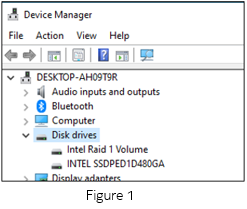
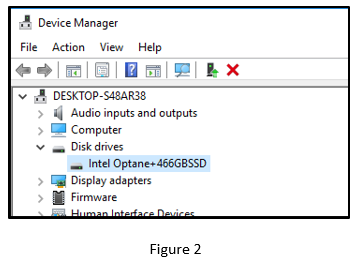
If neither kind of volume is present, Intel says the management application may be removable, but an OEM-specific storage driver can still be installed. Check the laptop or motherboard support page before uninstalling a package.
Can I disable IAStorIcon at startup?
Usually, yes—if you disable only the legacy tray UI and first confirm you do not depend on its alerts. Microsoft supports turning startup apps off through Settings → Apps → Startup or Task Manager’s Startup apps tab.[3]
- Note whether the Intel tray icon currently reports a warning, degraded array, or Optane issue.
- In Task Manager, disable the Intel RST/Delayed Launcher startup item. Do not disable an Intel storage service or driver.
- Restart Windows and verify that every disk and volume is present, normal applications open, and no storage warning appears in Event Viewer or the OEM management app.
- If you lose a notification or management function you rely on, re-enable the startup item. This test is reversible.
Disabling the tray icon normally affects the interface and notifications, not the underlying driver. RAID and Optane users should still keep a supported way to monitor storage health. Never use this startup decision as a reason to switch the BIOS controller between AHCI, RAID, RST Premium, or VMD; that can make Windows unbootable.
Fix an IAStorIcon.exe application error
Startup errors often come from a damaged or incompatible legacy UI, a partial driver update, or an old OEM package that no longer matches Windows. Use this order:
- Disable only the tray startup item temporarily so the error does not interrupt every sign-in.
- Check Windows Update, including optional driver updates, and then check the PC or motherboard maker’s support page for the exact model.
- If RAID or Optane is active, back up important data before changing the management software. Install the OEM-recommended RST package or the supported Intel management app for that platform.
- If the PC no longer uses Intel RST, uninstall the legacy management application through Settings → Apps instead of deleting individual executables.
- Restart and confirm the volumes, Device Manager state, and startup list again.
Avoid registry cleaners and sites offering a standalone IAStorIcon.exe download. An executable copied from another RST version can create a signature, dependency, or compatibility problem even when it is not malware.
If Reliability Monitor or Event Viewer names the related management service instead of the tray icon, use the IAStorDataMgrSvc.exe crash and high-CPU guide for Event ID 1000, service, and OEM-driver checks.
When IAStorIcon.exe may be a malware copy
Investigate the process when it runs from %LOCALAPPDATA%, %TEMP%, Downloads, a browser profile, or another user-writable location; lacks a valid Intel signature; uses a lookalike spelling; starts on a PC with no matching Intel package; or returns through an unrelated task, service, or Run entry. See the broader EXE safety checklist before opening or allowing an unknown copy.
Deleting one suspicious file may not remove the startup task, loader, service, or bundled application that recreated it. Keep the file quarantined, run a full Gridinsoft Anti-Malware scan, remove confirmed detections, restart, and scan again if the process returns. A broader post-malware Windows audit can help check startup entries and persistence after cleanup.
If the process path is wrong, the name imitates a Windows component, or high CPU started after an unknown installer, scan for hidden miners, services, startup entries, and bundled components.
Scan a suspicious IAStorIcon.exe copyKeep, disable, repair, or scan?
- Keep it: the file is signed by Intel, belongs to the installed OEM/RST package, and its notifications are useful.
- Disable startup: only the tray UI is optional, the storage configuration is healthy, and you have confirmed what monitoring function you may lose.
- Repair or migrate: the signed Intel file throws errors, duplicates tray icons, or belongs to an end-of-life UI on a platform with a supported replacement.
- Scan: the path, signature, spelling, startup trigger, or behavior does not match the legitimate Intel component.
If several unfamiliar entries appear at once, use the suspicious startup apps guide to verify publisher, path, and persistence before removing anything.
Intel Management Engine packages can also install LMS.exe, the Local Manageability Service. Check that service separately by its Intel signature, package path, managed-device role, and service command before disabling it.
FAQ
Is IAStorIcon.exe a Windows system file?
No. It is an Intel RST user-interface component supplied by Intel or the PC manufacturer, not a core Windows executable.
Is IAStorIconLaunch.exe the same as the storage driver?
No. It launches the legacy tray interface after sign-in. Intel storage drivers use different filenames and operate below the tray UI.
Will disabling IAStorIcon break RAID?
Disabling only the tray startup item should not dismantle a RAID volume, but it can remove notifications or quick access to management. Verify the exact entry and storage state first; do not disable the RST driver or change BIOS storage mode.
Why is IAStorIcon.exe missing on a newer Intel PC?
That can be normal. Intel retired the legacy RST UI and moved supported newer platforms to a newer installer and the Intel Optane Memory and Storage Management application.
References
- Intel. “Announcement: End Of Life (EOL) for the Intel Rapid Storage Technology and Intel Optane Memory Applications.” Intel Support, last reviewed March 31, 2025; accessed July 13, 2026. Intel Support article 000055419.
- Intel. “How to Confirm If Intel Rapid Storage Technology/Intel Optane Memory Is Being Used in My System.” Intel Support, last reviewed March 31, 2025; accessed July 13, 2026. Intel Support article 000091187.
- Microsoft. “Configure Startup applications in Windows.” Microsoft Support, accessed July 13, 2026. Microsoft Support.