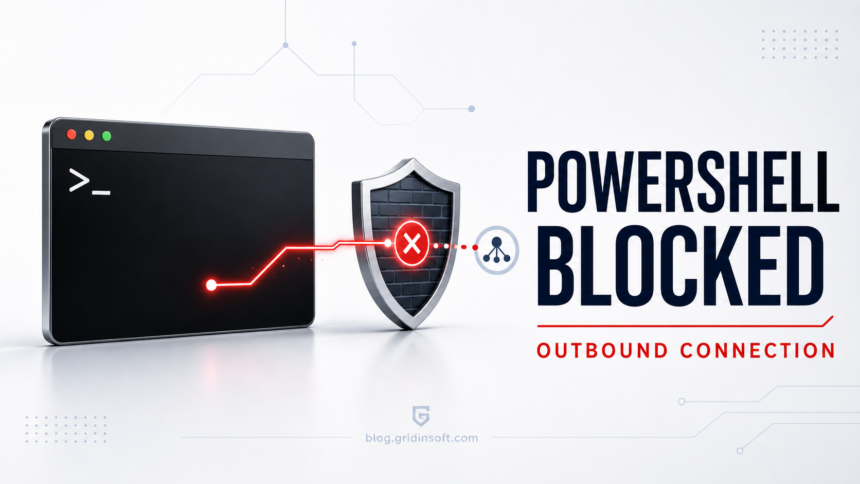
If powershell.exe opens at startup or a security tool keeps blocking its outbound connection, the risk is usually the launcher behind it: a scheduled task, startup entry, fake CAPTCHA command, installer, or malware component. PowerShell is a legitimate Windows tool, and the Microsoft-signed C:\Windows\System32\WindowsPowerShell\v1.0\powershell.exe should not be deleted. The important question is what launched it, what command it ran or downloaded, and why it keeps coming back.
The same investigation pattern applies when MSBuild.exe keeps opening or making outbound connections, or when rundll32.exe uses high CPU while loading an unknown DLL: verify the path and command line, then find the task, script, app, or installer that launched the trusted binary.
If Defender names the activity directly as Trojan:PowerShell/Barys, use the exact-detection guide for quarantine, exclusions, scheduled tasks, and account-safety decisions.
A similar check matters when a suspicious file starts hidden PowerShell activity: see the sysupdate.jpeg malware cleanup guide for fake-image and ScreenConnect persistence artifacts. sysupdate.jpeg malware cleanup guide.
When the blocked PowerShell command is trying to add Defender exclusions with Add-MpPreference, especially for Startup .scr files, the related PowExcScr.HB!MTB guide covers that exact Defender alert pattern.
First checks when powershell.exe connects out
- Do not allow the connection just to stop the alert. Keep the block in place while you investigate.
- Look for the launcher. Check the alert details, parent process, command line, scheduled tasks, startup entries, and the file path that triggered PowerShell. When the hidden launcher is
pythonw.exe, compare it with the pythonw.exe malware checklist. - Scan the PC. Use Gridinsoft Anti-Malware to remove the script, loader, bundled app, or persistence point that keeps relaunching PowerShell.
- Protect accounts if anything executed. If the alert followed a crack, mod, fake update, or email attachment, secure exposed accounts immediately from a separate clean device, revoke sessions and change exposed passwords.
If the alert returns after reboot, appears from a user-writable folder, or followed a pasted command, remove the launcher first and then scan for leftovers. A loader can leave scheduled tasks, startup entries, browser changes, or bundled files that relaunch PowerShell after the visible process is closed.
If the process path is wrong, the name imitates a Windows component, or high CPU started after an unknown installer, scan for hidden miners, services, startup entries, and bundled components.
Scan for PowerShell persistence| Alert | powershell.exe outbound connection blocked |
| What it means | A PowerShell process tried to contact an external server and a firewall or security tool blocked it. |
| Common source | Scheduled task, startup script, fake update page, cracked installer, loader, or bundled unwanted app. |
| Best first action | Keep the block, find what launched PowerShell, scan the system, and remove persistence. |
If the same incident also shows mshta.exe blank windows or scheduled-task actions, check the companion mshta.exe malware removal guide; both symptoms often point to the same launcher/persistence problem.
Why malware uses PowerShell
PowerShell is built into Windows and can run scripts, download content, inspect the system, and launch other processes. That makes it useful for administrators, but also attractive to malware operators. A malicious chain may use PowerShell only as a launcher while the real payload sits in another folder, archive, browser cache, or scheduled task.
One blocked connection does not prove the entire PC is compromised, but repeated outbound attempts are a strong signal that something is still active. Treat the alert as a lead: the process name tells you the tool being abused, while the parent process and command line usually point to the source.
If the alert says Trojan Downloader or PowerShell downloader
A PowerShell downloader alert usually means a script or command tried to fetch another file or run a second stage. Historical Paste.tc malware cases show that a paste service may host that stage or only return the next C2 address. The Windows executable can still be genuine: the risky evidence is the command line, its parent process, the remote URL, the destination file, and the task or service that launches it again. Keep the network block in place and do not delete the signed Windows binary.
For an exact domain-and-task example, Gridinsoft Labs found plushiefun.xyz in an irm-to-iex PowerShell chain observed under HP Diagnostics task identities; the case shows why the task action, parent process, and destination are stronger evidence than deleting an unverified binary by name or hash.
| Evidence to check | What it changes |
| File path and signature | C:\Windows\System32\WindowsPowerShell\v1.0\powershell.exe with a valid Microsoft signature is normally the real tool. A lookalike elsewhere is suspicious, but a legitimate path does not make the command safe. |
| Parent process and command line | An expected admin console or managed deployment is different from a browser, Office file, unknown installer, wscript.exe, mshta.exe, or a task launching hidden or encoded content. |
| URL and downloaded file | Record the blocked host and destination without opening them. Check files created at the same time in %Temp%, %AppData%, %ProgramData%, Downloads, and browser-cache folders. |
| Task, service, or Run key | A repeating alert after reboot points to persistence. Match its timestamp and command with Task Scheduler, Startup Apps, Run keys, and recently created services instead of deleting entries only because their names look unfamiliar. |
| Follow-on behavior | Unexpected remote-control software belongs in the ScreenConnect cleanup branch. A Microsoft-looking service that relaunches PowerShell or consumes CPU belongs in the suspicious service and miner check. |
- Preserve the alert details. Save the detection name, full command line, parent process, URL, file path, and time before clearing history.
- Contain the chain. Keep the outbound connection blocked. If the command ran or a payload appeared, disconnect the PC from unneeded networks while you inspect it.
- Quarantine the detected script or payload. Do not remove
powershell.exeitself. If ownership of a task, service, or script is unclear on a managed PC, ask the administrator before deleting it. - Remove the launcher and persistence. Check the matching scheduled task, startup entry, Run key, service, browser action, installer, or remote-access tool that invoked the command.
- Scan, reboot, and scan again. A second clean pass matters because the first-stage downloader and the downloaded payload can produce different detection names or recreate each other.
- Protect accounts in parallel from a clean device. If an infostealer or remote-access payload ran, revoke active sessions and change exposed passwords immediately. Keep the affected PC isolated during cleanup.
What to do when outbound blocks repeat
- Keep the connection blocked. Do not add an allow rule until you know what launched PowerShell.
- Open the security alert details. Note the command line, parent process, path, username, and time of the event.
- Check Task Scheduler and Startup Apps. Recently created tasks, random names, encoded PowerShell, hidden scripts, and user-profile paths deserve attention.
- Scan with Gridinsoft Anti-Malware. Remove detected scripts, loaders, bundled apps, and startup entries, then reboot and scan again. If Task Manager also shows a busy COM Surrogate process, verify it with the dllhost.exe high CPU and lookalike checklist.
- Protect exposed accounts from a separate clean device. If an unknown payload executed, change exposed passwords and revoke sessions while the affected PC remains isolated.
Some fake extension cleanups also expose JavaScript loaders or Google-like scheduled tasks. If the related detection is Trojan.FakeGoogleJS, see our FakeGoogleJS alert guide before deciding whether the case is browser-only or a deeper persistence chain.
PowerShell malware keeps returning after a full or offline scan
A user in a Reddit Powershell malware discussion reported that full and offline scans had not resolved the problem, Chrome could not browse despite Wi-Fi being enabled, and two entries named PC Monitor ALL appeared in startup. These are useful symptoms to investigate, but the report does not establish a malware family, how it arrived, or whether those startup entries caused the infection. Comments claiming a confirmed session stealer go beyond the available evidence. [2]
- Check whether the detection is new. Open Windows Security → Protection history and expand the card. Save the detection name, affected items, time and action status. A retained card marked removed or quarantined is not, by itself, a new infection; a new timestamp, failed remediation or another launch after reboot needs investigation. Do not clear history merely to make the warning disappear. [3]
- Match the new event to its launcher. Compare the alert time with Task Scheduler triggers and actions, Startup Apps, services and recent files. A scan may stop one script while a different task or helper launches it again. An
amsi:entry involving the genuine PowerShell host can describe inspected script activity; it is not an instruction to delete Windows PowerShell. [1] - Inspect “PC Monitor ALL” by its target, not its name. Record each entry’s location, publisher and full command line. Two identical labels can point to different files or startup locations. If Task Manager does not reveal the target, Microsoft Autoruns can show the entry and its properties. Save the details before disabling a suspicious entry; unchecking an entry in Autoruns disables its automatic start, whereas deleting it removes the configuration. Disabling startup alone does not remove a running payload. On a managed PC, have IT verify ownership. [5]
- Check the cleanup result after reboot. Keep detected items quarantined, check for unfamiliar security exclusions, and scan with updated Gridinsoft Anti-Malware for associated files and persistence. Look for new alert timestamps and recreated entries. Repeating the same scan without investigating a recurring launcher can leave the cause unresolved.
“I did not download anything” does not settle the entry point. A command pasted into Windows Run or PowerShell can fetch a payload without a conventional browser download. Review recent verification prompts, attachments and installers, but do not assume the Reddit user ran a fake CAPTCHA command without evidence.
Chrome has no internet while Wi-Fi is on
A Wi-Fi switch being on does not prove the PC has internet access. Record Chrome’s exact error, such as ERR_PROXY_CONNECTION_FAILED, rather than treating every browser failure as a malware symptom. If malicious activity is still recurring, keep the PC isolated and use a clean device for downloads and account recovery.
- Separate the affected scope. Check whether another clean device can browse on the same network. After containment and cleanup, compare Chrome with another browser on the affected PC without signing into sensitive accounts. Chrome-only failure points toward its profile, extensions or settings; failure across apps also calls for Windows network checks. Neither result alone proves or excludes malware.
- Inspect proxy settings. In Windows Settings → Network & internet → Proxy, record any manual proxy or setup-script address. Remove an unexpected setting only after establishing that you or your organization did not configure it. Do not disable a required work proxy or erase all network settings. A broken or unwanted proxy is one possible cause, not a diagnosis from the Reddit report. [4]
- Review Chrome extensions and network changes. Remove confirmed unwanted extensions and check any DNS, VPN or security-tool changes made around the incident. Keep protection and malicious-connection blocks enabled; allowing the blocked PowerShell destination is not a Chrome repair.
Protect accounts now; reinstall if cleanup cannot be trusted
If an unknown script executed and credential theft is plausible, use a separate clean device immediately to secure your primary email, change exposed or reused passwords, revoke active sessions and review recovery methods. Enable multifactor authentication. Do not wait for a long scan to finish before protecting accounts from the clean device, and do not sign back in on the affected PC while its condition is unresolved. Removing malware cannot revoke a session already stolen.
A clean Windows installation from official installation media is a reasonable escalation when fresh detections or malicious startup entries continue after remediation, remote access is confirmed, or you cannot establish what executed. It is not automatically required because PowerShell appeared or an old history card remains. Save needed personal documents carefully, avoid carrying over unknown executables, scripts or a potentially compromised browser profile, and reinstall applications from their official sources. If you cannot confidently separate wanted files from suspicious ones, get help before restoring the backup.
Where the hidden launcher usually is
| Task Scheduler | Tasks with random names, encoded commands, PowerShell actions, or triggers at logon and every few minutes. |
| Startup folders | Shortcuts or scripts in the user Startup folder, often pointing into AppData, Temp, or Downloads. |
| Registry Run keys | Entries that launch PowerShell, wscript, mshta, or a suspicious helper executable. |
| Browser leftovers | Extensions, notification permissions, or fake update pages that push the user back into running a command. |
| Bundled installers | Free tools, cracks, ROM packs, game mods, and repacks that create scheduled tasks or download extra payloads. |
If PowerShell opens on startup or after a fake CAPTCHA
Startup pop-ups and outbound blocks often come from the same persistence chain. Fake CAPTCHA and ClickFix pages may tell you to press Win+R, paste a command, and run it; that command can create a task or drop a script that launches PowerShell again at logon. Legitimate CAPTCHA pages never ask you to run PowerShell, cmd, or Windows Run commands.
| Place to check | What suspicious evidence looks like |
| Task Scheduler | Logon triggers, every-few-minutes triggers, random task names, hidden PowerShell actions, or commands that call remote URLs. |
| Startup Apps and Startup folders | Shortcuts or scripts that point to %AppData%, %Temp%, %ProgramData%, Downloads, or an unknown helper file. |
| Registry Run keys | Entries under HKCU\Software\Microsoft\Windows\CurrentVersion\Run or HKLM\Software\Microsoft\Windows\CurrentVersion\Run that start PowerShell, wscript, mshta, or a suspicious executable. |
| Recent files | New scripts or payloads in C:\ProgramData, %LocalAppData%, %Temp%, browser cache folders, or installer folders created around the alert time. |
If the incident started from a browser verification page, use the fake CAPTCHA ClickFix cleanup guide for the Run-prompt and stealer-risk branch. If it was a generic “verify you are human” page, the Verify You Are Human scam guide explains the social-engineering pattern. Keep one-off domains as investigation clues unless they repeat in alerts or Search Console data; do not build cleanup decisions from the domain name alone.
If it started after a free tool, crack, or mod
That context raises the risk. Many fake installers do not rely on a visible program window; they create a background task, drop a script, or use PowerShell to fetch the next stage. If the same alert appears after reboot, focus on persistence rather than the original downloaded file.
For game and mod incidents, see the related guide on infostealer signs after downloading a game or mod. If the browser was involved, also check fake update and notification-permission cleanup steps.
Commands that are suspicious in PowerShell alerts
Do not copy or rerun suspicious commands from alerts. As triage clues, encoded commands, hidden window flags, remote URL downloads, unusual execution policy changes, and scripts launched from user-writable folders are all worth investigating. The exact command line should be reviewed as evidence, not treated as instructions.
Legitimate IT scripts can also use PowerShell. The difference is context: a managed device, signed internal script, known software deployment tool, and documented admin action are lower risk than a command launched after a random download or browser pop-up.
What if outbound blocks return?
If outbound blocks return after cleanup, treat the case as persistence. Run Gridinsoft Anti-Malware again after reboot, then review scheduled tasks, Startup Apps, services, browser extensions, and recent files in AppData or Temp. If credential theft is plausible, secure exposed accounts immediately from a separate clean device while the affected PC stays isolated.
If the blocked outbound alert names a Windows-like service instead of PowerShell, compare the same evidence chain. For WSL-related alerts, our wslservice.exe guide explains how to check whether the process is the real Windows Subsystem for Linux service or a suspicious copy.
If Defender is naming a specific JavaScript threat instead of only reporting outbound PowerShell traffic, see our Trojan:JS/Obfuse.NF!MTB PowerShell alert guide before you clear the command-line evidence.
When PowerShell is only one part of a wider startup mystery, check the surrounding entries with the suspicious startup apps checklist. The same path, publisher, Run-key, scheduled-task, and Autoruns checks help explain why a trusted Windows tool keeps launching.
FAQ
Is powershell.exe itself a virus?
No. powershell.exe is a legitimate Windows component. The risk comes from the script, command, task, or malware component that launched it.
Should I allow the outbound connection?
No, not until you know what created it. Allowing the connection can let a malicious script download payloads or send data.
Why does the alert come back every few seconds?
A scheduled task, startup entry, service, or helper process may be relaunching PowerShell. Remove the persistence point, not only the visible process.
Can this steal passwords?
It can if the PowerShell activity belongs to a stealer or loader. If theft is plausible, revoke active sessions and change exposed passwords immediately from a separate clean device. Do not resume account use on the affected PC until remediation is complete.
A recent FortiClient EMS campaign shows the same PowerShell triage problem at scale: attackers used managed endpoint configuration to launch PowerShell and deliver EKZ Infostealer. See the FortiClient EMS CVE-2026-35616 checklist at FortiClient EMS CVE-2026-35616 Patch Trap.
If Defender names the blocked PowerShell activity as Trojan:PowerShell/Asyncrat!rfn, treat it as a higher-risk AsyncRAT loader and check scheduled tasks, Run keys, and suspicious .NET process network activity before assuming the block is resolved.
If the blocked activity is named by Defender as Trojan:MSIL/ValleyRAT.GZD!MTB, treat the recurring CMD symptom as possible RAT persistence and check tasks, startup entries, and account exposure before assuming the block is complete.
References
- Microsoft Learn. “PowerShell security features.” Accessed September 6, 2026. PowerShell security features
- Reddit, r/computerviruses. “Powershell malware (user report; unverified incident attribution).” Accessed September 6, 2026. Powershell malware
- Microsoft Support. “Protection History in the Windows Security App.” Accessed September 6, 2026. Protection History in the Windows Security App
- Microsoft Support. “Use a proxy server in Windows.” Accessed September 6, 2026. Use a proxy server in Windows
- Microsoft Sysinternals. “Autoruns.” Accessed September 6, 2026. Autoruns