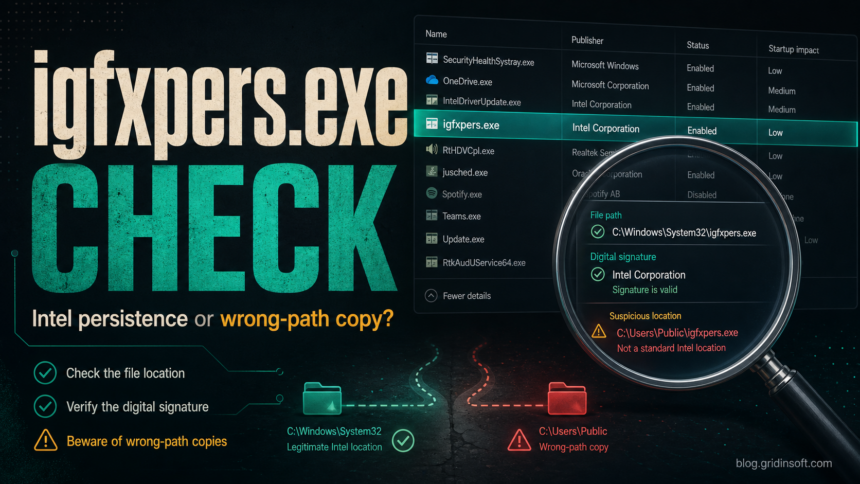
igfxpers.exe is usually an older Intel graphics helper called the Persistence Module, not malware by itself. Treat it as normal only when Intel graphics software is installed, the startup command points to a trusted Windows or Intel driver location such as C:\Windows\System32\igfxpers.exe, and the file has a valid Intel or Microsoft-trusted signature. Treat it as suspicious when the same name appears in Downloads, Temp, AppData, or another user-writable folder, especially if it comes back after you disable it.
The practical decision is simple: do not delete every file named igfxpers.exe. First confirm what file is launching, whether it belongs to Intel graphics, whether you need display-setting persistence at startup, and whether a wrong-path copy or other persistence item is involved.
What igfxpers.exe does
The name stands for Intel graphics persistence. On legacy Intel graphics driver packages, the helper can preserve display-related settings such as resolution or external-monitor behavior between sessions. It is commonly discussed with other Intel graphics startup names such as igfxtray.exe and hkcmd.exe.
Modern Intel Graphics Command Center and OEM driver packages may handle settings differently, so the absence of igfxpers.exe is also normal on many current PCs. A Windows update, driver update, or OEM cleanup can remove the entry while graphics still work. That is why the file name alone is not enough to prove either safety or infection.
Safe vs suspicious igfxpers.exe
| What you see | Risk and what to do |
|---|---|
Intel graphics software is installed, and the startup command points to C:\Windows\System32\igfxpers.exe or a trusted Intel driver location. |
Usually normal. If you do not need display-setting persistence, disabling startup is usually safer than deleting the file. |
| The file has a valid Intel or Microsoft-trusted signature. | Good sign, but still check whether the startup entry is useful and whether the path matches the installed driver context. |
The file is under %USERPROFILE%\Downloads, %LOCALAPPDATA%\Temp, %APPDATA%, Desktop, or a random app folder. |
Suspicious. Do not run it; scan the file and check what created the startup entry. |
The startup command launches through cmd.exe, PowerShell, a script, a scheduled task, or a hidden folder. |
Suspicious. A normal Intel helper should not need a script wrapper or evasive launch chain. |
| Browser redirects, pop-ups, blocked outbound traffic, repeated security warnings, or other startup entries appeared at the same time. | Higher risk. Check the whole persistence chain instead of only disabling igfxpers.exe. |
Should you disable igfxpers.exe at startup?
You can usually disable igfxpers.exe from startup if you do not rely on older Intel display persistence behavior, especially on a desktop with one monitor and stable resolution settings. Disabling the startup entry is reversible and less risky than deleting driver files. If display settings, docking behavior, or external monitor behavior becomes annoying after disabling it, re-enable the startup entry or repair the Intel graphics driver package.
On laptops, docking stations, projectors, and older systems with fragile display settings, the helper may be more useful. In that case, keep the legitimate signed copy and focus on updating or repairing Intel graphics software rather than removing individual files.
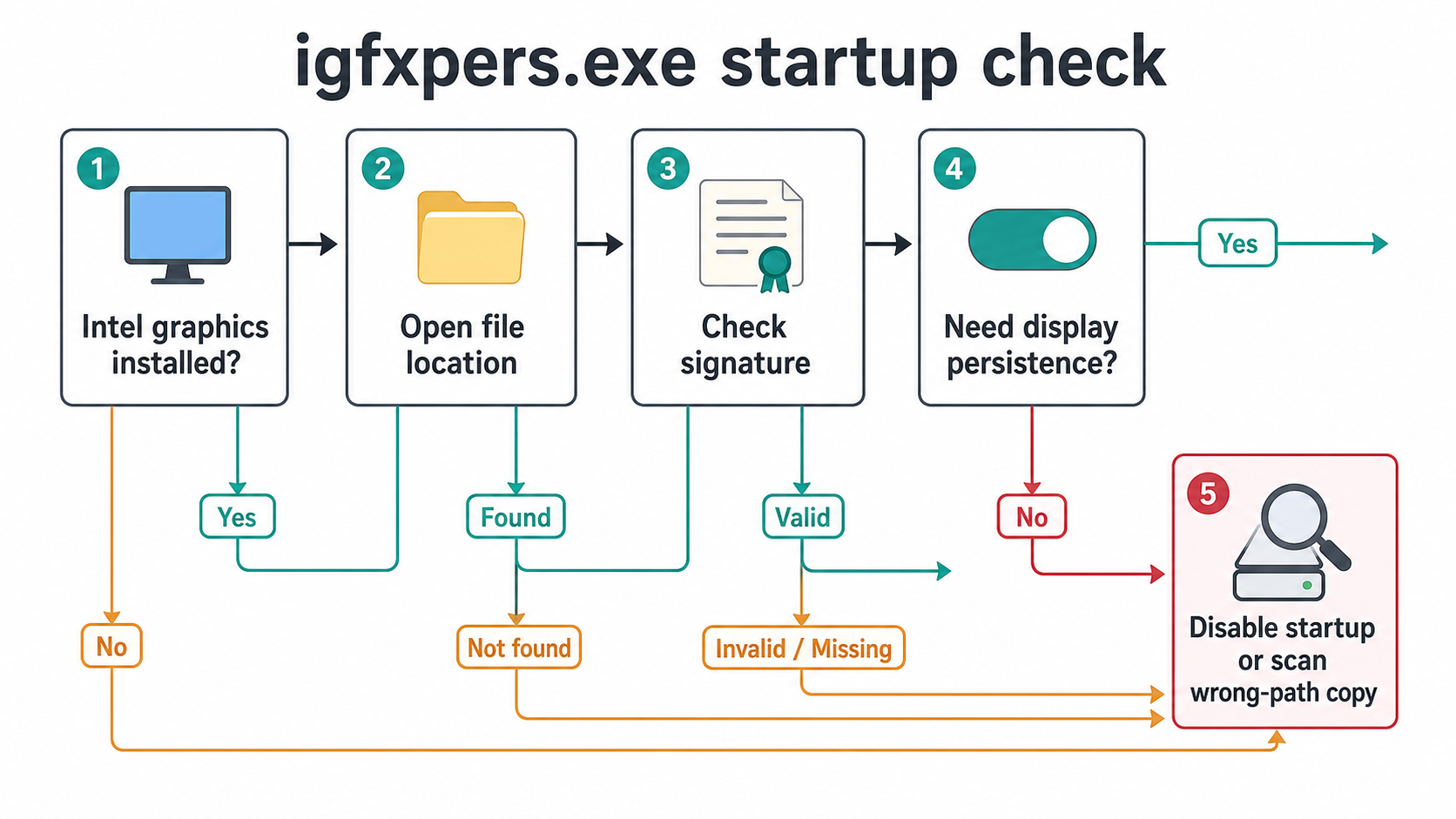
How to check igfxpers.exe safely
- Open the startup entry. Check Task Manager, Settings > Apps > Startup, or Microsoft Autoruns to find the actual command path.
- Check the folder before the name. A trusted Windows system folder or Intel driver folder fits the legitimate helper story. A user-writable folder is a red flag.
- Verify the digital signature. Right-click the file, open Properties, and inspect Digital Signatures. A valid Intel signature is expected for a legitimate Intel helper.
- Match the PC context. If the computer has no Intel graphics driver or recently installed display package, be more skeptical of the entry.
- Disable before deleting. If the entry is legitimate but unnecessary, disable it from startup and reboot. Do not manually delete system or driver files just to tidy the startup list.
- Scan suspicious copies. If the path, signature, parent process, or symptoms do not fit, scan the file and review related startup entries, scheduled tasks, services, and recently installed apps.
If you are reviewing several unknown startup entries at once, start with the Suspicious Startup Apps checklist. If you only have a downloaded executable and do not know whether it is safe to run, use the EXE file safety guide before launching it.
What to do if igfxpers.exe looks suspicious
Keep the suspicious file long enough to preserve evidence, then disconnect from the risky download, installer, or web page that led to it. Scan the file when it appears from a temporary folder, comes back after you disable it, launches through a script, or arrived after a fake driver updater, cracked installer, suspicious archive, browser pop-up, or remote-support session.
A wrong-path igfxpers.exe can be only the visible part of a persistence chain. Malware can leave a scheduled task, service, browser extension, Defender exclusion, bundled app, or downloader that recreates the file after reboot. Gridinsoft Anti-Malware can help check hidden files, startup entries, scheduled tasks, bundled apps, browser changes, and persistence after you remove or quarantine the obvious copy.
After cleanup, reboot and check Startup apps again. If the entry is gone and no warnings return, leave legitimate Intel graphics software alone. If a wrong-path copy returns, investigate the parent startup item or recently installed app instead of deleting the same file repeatedly.
Related Intel startup checks
Intel graphics packages can expose several helper names. If you see igfxtray.exe, check whether it is the Intel Graphics Tray component or a copy using the same name. If you see hkcmd.exe, verify whether it belongs to Intel hotkey support. Use the same path, publisher, and behavior logic before trusting or removing any Intel-looking startup entry.
If Task Manager shows igfxEM.exe, use the Intel Graphics Executable Main Module safety guide to verify its path and signature, test whether ending it is reversible, and repair display-driver errors without deleting the file.
If the unfamiliar entry is IntelGraphicsSoftware.Service.exe, use the newer service guide for its Intel-documented folder, crash/high-CPU branches, app-startup decision, and malware-copy checks.
FAQ
Is igfxpers.exe a virus?
No, not by default. igfxpers.exe is commonly associated with older Intel graphics persistence support. It becomes suspicious when a copy uses the same name from the wrong folder, lacks a trustworthy signature, or behaves like unwanted persistence rather than a normal display helper.
Where should igfxpers.exe be located?
Legacy references commonly point to C:\Windows\System32\igfxpers.exe or an Intel driver context. A copy in Downloads, Temp, AppData, Desktop, or another user-writable folder should be scanned before you trust it.
Can I disable Intel Persistence Module?
Usually yes, if display settings keep working and you do not rely on older Intel persistence behavior. Disable the startup entry first, then reboot and verify monitor, resolution, and docking behavior. Re-enable it or repair the Intel graphics driver if needed.
Why does igfxpers.exe keep coming back?
A legitimate Intel driver package can restore the helper after a driver repair or update. A suspicious copy that returns from a user-writable folder may be recreated by another startup entry, scheduled task, service, or bundled app and should be investigated.
References
- Intel Community. “Details on driver services/processes (igfx*)?” Intel Community, 2013, accessed July 7, 2026. https://community.intel.com/t5/Graphics/Details-on-driver-services-processes-igfx/td-p/317055
- Intel. “How to Open the Intel® Graphics Command Center in Windows* 10/11.” Intel Support, accessed July 7, 2026. https://www.intel.com/content/www/us/en/support/articles/000058396/graphics.html