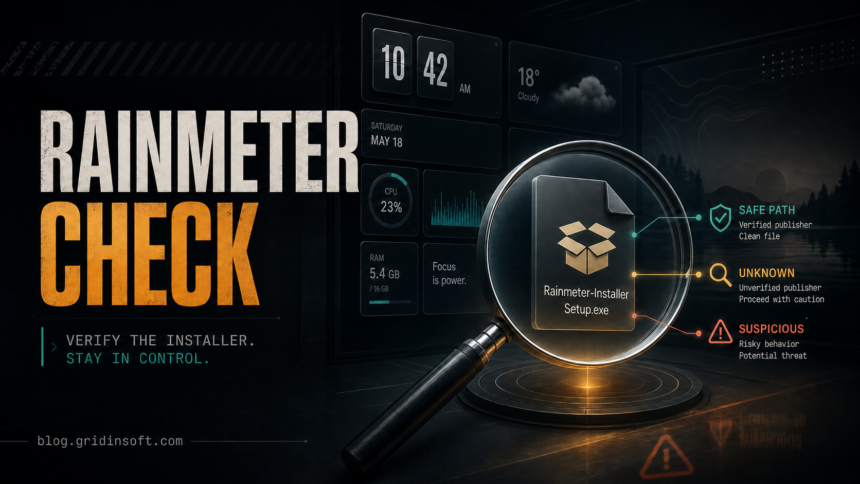
Rainmeter is not a virus when you download the official installer from the Rainmeter project, but the name can still appear in risky situations. Fake download pages, bundled wrappers, modified skins, suspicious plugins, and wrong-path copies of Rainmeter.exe can make an antivirus warning worth investigating before you restore or run the file.
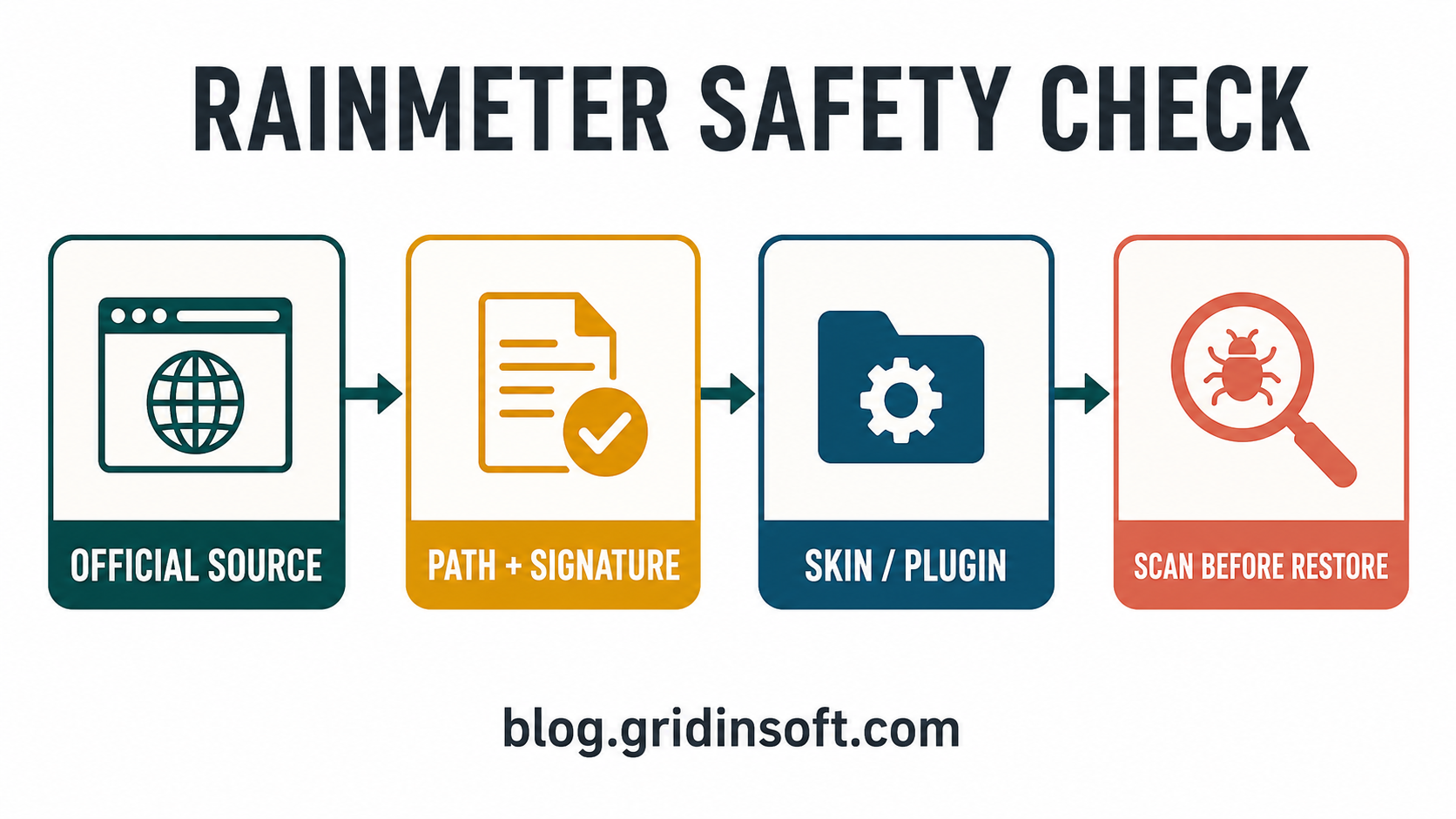
The safe order is simple: confirm the download source, check the file path and digital signature, review any third-party skin or plugin you installed, and scan the file if the warning came from a strange folder or returned after reboot.
Is Rainmeter a Virus?
Rainmeter is a legitimate Windows desktop customization tool. The official project describes it as software for displaying customizable desktop skins, and the documentation says the installer is intended for Windows systems. That does not mean every file named Rainmeter is safe. Attackers and unwanted-software bundles can copy a trusted name, and community skins can add scripts, plugins, web requests, or packaged components that deserve their own check.
Use the filename as a starting clue, not as proof. A normal install usually points to a Rainmeter folder under C:\Program Files\Rainmeter\ or a portable folder you deliberately created. A copy running from %USERPROFILE%\Downloads, %LOCALAPPDATA%\Temp, %APPDATA%, Startup, or an unknown installer folder needs more caution.
Quick Decision: Safe Install or Suspicious Copy?
| What you see | Risk and what to do |
|---|---|
| You downloaded Rainmeter from the official project site or its GitHub release page, and the installer name/version matches the release. | Usually legitimate. Keep the file quarantined only while you verify the source, signature, and whether the detection is a known false-positive pattern. |
| The file came from a mirror, ad-heavy download page, bundled installer, Discord link, YouTube description, crack/repack page, or random search ad. | Suspicious. Delete that copy and download only from the official source if you still want Rainmeter. |
Rainmeter.exe runs from C:\Program Files\Rainmeter\ or your chosen portable Rainmeter folder. |
Expected location. If an alert appears, check the signature, version, and recently installed skins before restoring anything. |
A Rainmeter-named file runs from %TEMP%, %APPDATA%, %LOCALAPPDATA%, Startup, or a random user folder. |
Do not trust it by name. Scan the file and inspect startup entries before running or allowing it. |
A warning appears right after installing a new skin, plugin, weather widget, visualizer, or packaged .rmskin file. |
Check the skin package separately. The main app can be legitimate while the add-on is unsafe or simply too obscure for reputation systems. |
1. Check Where the Installer Came From
Download Rainmeter from the official Rainmeter site or the project’s release history. Avoid pages that wrap the installer in a downloader, ask you to install a browser extension first, or present several fake Download buttons around the real file.
If you already downloaded a suspicious copy, do not double-click it just to see what happens. Delete the untrusted installer, clear the browser download, and fetch a fresh copy from the official source. If a site pushed a ZIP, password-protected archive, crack, or “portable mod” instead of the normal installer, treat that as a separate risk.
2. Check the File Path and Signature
For an installed copy, open Task Manager, right-click Rainmeter.exe, and choose Open file location. Then right-click the file, open Properties, and check the Digital Signatures tab when it is present.
- Confirm the folder is expected:
C:\Program Files\Rainmeter\for a normal install, or a portable folder you knowingly created. - Look for a version and publisher that match the official release instead of a random modified installer.
- Check whether the file appeared immediately after a fake update, game mod, macro tool, browser pop-up, or bundled download.
- If Windows says the file came from the Internet, keep that in mind when deciding whether to restore it from quarantine.
When the path is the main question, use the same habits you would use for any executable. Our guide on checking whether an EXE file is safe before you run it covers source, signature, reputation, and behavior checks in more detail.
3. Treat Skins and Plugins as Separate Trust Decisions
Rainmeter’s appeal is that it can load desktop skins and community packages. That is also why a warning may appear after the app itself was already installed safely. A skin may include configuration files, scripts, web requests, plugins, or packaged components that behave differently from the official Rainmeter installer.
Be stricter with skins that come from file-sharing links, abandoned forum posts, “best desktop setup” packs, or ZIP archives with extra executables. If a skin package asks you to run a separate installer, add a browser component, disable protection, or allow a file from %TEMP%, stop and scan that package before using it.
What If Antivirus Flags Rainmeter?
A single antivirus warning against a fresh official Rainmeter installer can be a false positive, especially around new releases when reputation systems have not caught up. Do not assume that every detection is wrong, though. The decision depends on source, path, signer, number of detections, and what changed on the PC.
Do not disable antivirus just to finish the install. Keep the file quarantined, check whether the alert names the official installer or a separate skin/plugin file, and compare the file against a clean official download. If the detection points to a temporary folder, bundled downloader, script, browser cache, or unknown companion executable, treat it as suspicious even if the Rainmeter name appears somewhere in the path.
If you are comparing scan results, avoid uploading private documents or personal files to public multi-scanner services. Our VirusTotal privacy guide explains why private uploads need extra care. For a suspicious installer or executable, you can also use a dedicated file scan workflow and then keep or delete the file based on the source and behavior, not on the filename alone.
When Not to Restore a Quarantined Rainmeter File
- The file came from a mirror, ad, bundled installer, crack page, Discord/YouTube download, or unknown archive.
- The path is under
%TEMP%,%APPDATA%,%LOCALAPPDATA%, Startup, or a random user folder. - The warning started after a new skin, plugin, weather widget, visualizer, or packaged theme.
- The file is unsigned, has a broken signature, or uses a misleading name such as
Rainmeter_Update.exefrom an unknown source. - Browser redirects, pop-ups, new startup entries, or unknown apps appeared after the download.
If You Ran a Suspicious Rainmeter Copy
First close Rainmeter and uninstall the suspicious copy from Windows Settings or the original uninstaller when it is available. Then remove the downloaded installer, check Startup apps, and review recently installed apps, browser extensions, scheduled tasks, and folders under %APPDATA% and %LOCALAPPDATA%. If the file ran from a temporary or user-writable folder, do not rely on uninstalling the visible app alone.
A security warning may quarantine the visible installer while a helper task, bundled app, startup entry, browser change, or leftover executable remains. After the manual checks, run a full Gridinsoft Anti-Malware scan, remove detections, reboot, and scan again if pop-ups, startup entries, or security warnings return.
If the process path is wrong, the name imitates a Windows component, or high CPU started after an unknown installer, scan for hidden miners, services, startup entries, and bundled components.
Scan the suspicious copyIf the suspicious copy touched startup locations, compare what you see with our suspicious startup apps checklist. If you already ran several unknown downloads and want a broader post-cleanup review, use the Windows security audit after malware guide as the follow-up.
How to Keep Rainmeter Safe
- Bookmark the official Rainmeter download page instead of searching for a new download each time.
- Avoid “portable mod,” “premium theme pack,” and ad-heavy mirror pages.
- Install one skin at a time so you can tell which package caused an alert.
- Keep the original installer and skin files only when you know where they came from.
- Do not add blanket antivirus exclusions for the whole Rainmeter folder. Exclusions hide future problems.
- Before restoring a quarantined file, repeat the source, path, signature, and scan checks.
FAQ
Is Rainmeter safe to install?
Rainmeter is generally safe when downloaded from the official project source. The risk comes from fake download pages, bundled wrappers, suspicious skins or plugins, and files that only pretend to be Rainmeter.
Is Rainmeter.exe malware?
Rainmeter.exe is normally the legitimate Rainmeter process. Treat it as suspicious when it runs from a temporary, AppData, Downloads, Startup, or random user folder, or when it appeared after an unknown installer.
Can Rainmeter skins contain malware?
A skin is not automatically malware, but third-party packages can include scripts, plugins, web requests, or extra files. Install skins from trusted communities, avoid bundled executables, and scan packages that trigger security warnings.
Should I restore Rainmeter from quarantine?
Restore only after the file source, path, signature, and behavior make sense. Do not restore a Rainmeter-named file from a mirror, temporary folder, bundled installer, or unknown skin package just because the name looks familiar.
Why does antivirus flag Rainmeter?
Possible reasons include a false positive on a new official build, low reputation for a freshly downloaded file, a suspicious skin or plugin, or a fake/bundled copy that uses the Rainmeter name. The alert details and file path decide which case fits.
Where should I download Rainmeter?
Use the official Rainmeter site or official release history. Avoid search ads, mirror pages, wrappers, archives with passwords, and “modded” installers.
References
- Rainmeter Project. “Rainmeter, desktop customization tool.” Rainmeter.net, accessed July 8, 2026. https://www.rainmeter.net/
- Rainmeter Documentation. “Setting Up.” Rainmeter Docs, accessed July 8, 2026. https://docs.rainmeter.net/manual/getting-started/setting-up/
- Rainmeter Project. “Rainmeter Releases.” GitHub, accessed July 8, 2026. https://github.com/rainmeter/rainmeter/releases