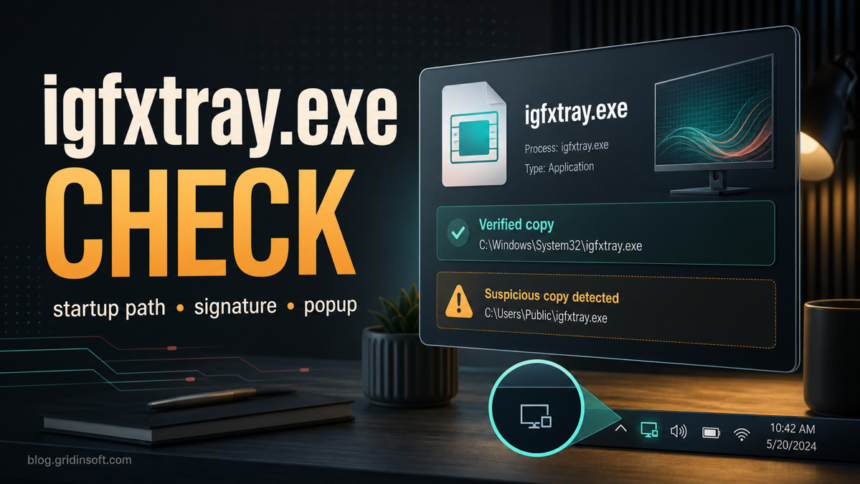
igfxtray.exe is usually an Intel graphics tray helper from older Intel display-driver packages. Startup Apps may show it as IgfxTray Module or Intel Common User Interface. Current Intel Graphics Software packages can work without this legacy tray executable, so a missing igfxtray.exe is not a driver failure by itself. Treat a copy as normal only when it sits in a trusted Windows or Intel driver location, has a valid Intel or Microsoft-trusted signature, and matches a real Intel graphics installation. A copy in Downloads, Temp, or a user profile folder needs investigation.
What igfxtray.exe does
The legitimate igfxtray.exe process belongs to Intel graphics software. On systems that still include it, the helper can load a tray icon or provide quick access to display settings. It is most common on older Windows installations, OEM driver packages, and machines that have been upgraded across several Intel graphics driver generations.
That history matters because a missing or unexpected igfxtray.exe entry is not automatically malware. A Windows update, Intel driver update, OEM cleanup utility, or manual Startup-app change can remove or disable the tray helper while the graphics driver itself keeps working. The right decision is to verify the file and behavior, not to delete every Intel-looking process on sight.
Safe vs suspicious igfxtray.exe
- Trusted path: A normal copy is commonly under
C:\Windows\System32\igfxtray.exeon older packages or inside a legitimate Intel/OEM graphics driver folder. A copy in%USERPROFILE%\Downloads,%TEMP%,%APPDATA%, or a random subfolder is suspicious. - Digital signature: Properties should show a valid Intel Corporation or Microsoft-trusted driver signature. An unsigned file, broken signature, or unrelated publisher is a strong warning sign.
- Startup name: A normal startup entry should clearly point to igfxtray.exe or Intel graphics software. A misspelled name, random command, script wrapper, or hidden scheduled task needs investigation.
- Behavior: One tray helper at sign-in is normal on some systems. Repeated security warnings, browser redirects, new unknown apps, or a file that reappears after removal are not normal Intel behavior.
How to check the file safely
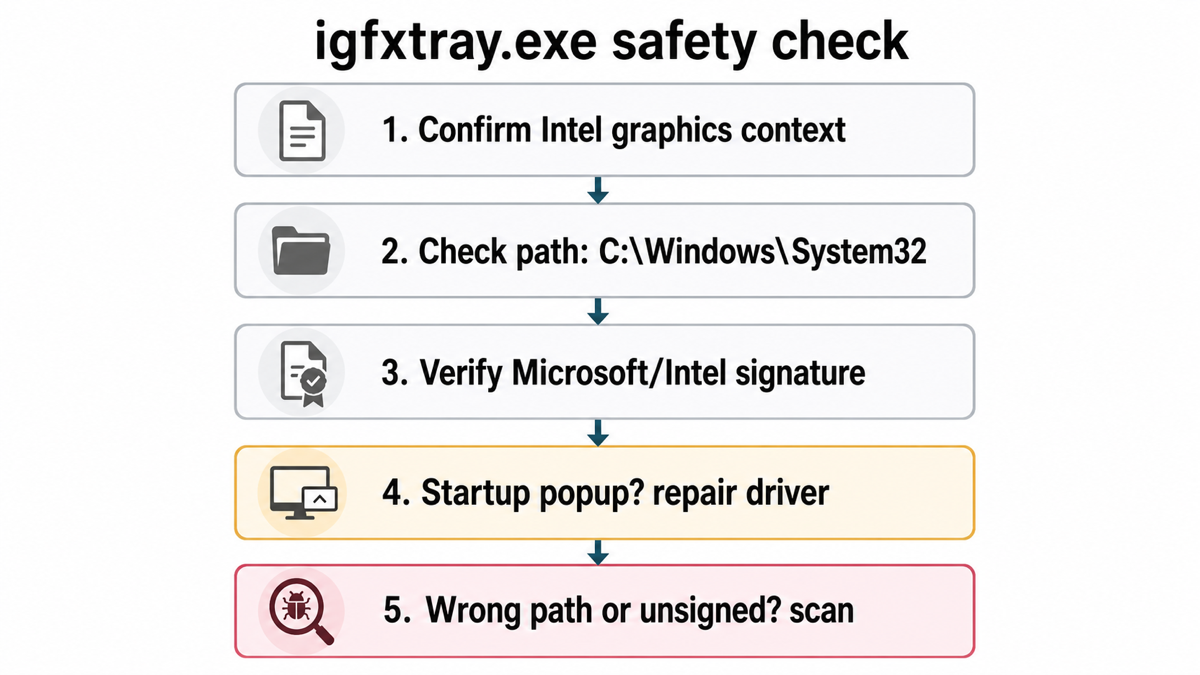
- Open Task Manager, right-click igfxtray.exe, and choose Open file location. If Windows cannot show a location, search the full startup command in Task Manager or Autoruns-style startup tools before deleting anything.
- Check the folder. A trusted Windows or Intel driver folder is expected; a user-writable folder is not.
- Right-click the file, open Properties, and check the Digital Signatures tab. If the signature is missing or invalid, do not allow the startup item until the file is scanned.
- Compare the file date with your recent driver updates. A new igfxtray.exe that appeared after a fake driver installer, cracked utility, or bundled app deserves extra caution.
- If the file looks legitimate but a popup appears at every startup, repair or update the Intel/OEM graphics driver instead of deleting the executable.
Should you disable igfxtray.exe at startup?
Disabling the legitimate tray helper is usually safe if you do not use its quick display menu. It does not uninstall the Intel graphics driver. Make the change reversible and verify the display features you actually use:
- Open Settings > Apps > Startup. Look for IgfxTray Module, Intel Common User Interface, or an entry whose command points to the verified Intel file, then switch it off.
- If it is not listed there, open Task Manager. Choose Startup apps in Windows 11 or the Startup tab in Windows 10, select the verified Intel entry, and choose Disable.
- Restart Windows. Confirm that resolution, brightness, external displays, rotation, and any Intel hotkeys you use still work.
- If a needed feature stops working, re-enable the same entry. If everything works, leave only the tray helper disabled.
Do not disable it as a substitute for malware cleanup. If the path is wrong, the signature is bad, or the entry returns with a different command after reboot, you are no longer troubleshooting a normal Intel tray helper. You are checking a suspicious startup persistence item.
What to do if igfxtray.exe looks suspicious
Keep the file in place long enough to preserve evidence, then disconnect from risky downloads or installers that led to it. Upload the file only to a trusted scanner if it does not contain private data, or run a local malware scan when the machine has recurring startup entries, alerts, browser changes, or unknown scheduled tasks.
If a suspicious igfxtray.exe copy already ran, check more than the visible file. Malware often leaves a loader, scheduled task, service, browser change, Defender exclusion, or another startup item that recreates the visible executable after reboot. Gridinsoft Anti-Malware can help check for hidden files, startup entries, scheduled tasks, bundled apps, browser changes, and persistence after you remove or quarantine the obvious copy.
How to fix igfxtray startup errors or a missing tray icon
Repair only after the file passes the path and signature checks. A legitimate legacy helper can fail because its startup command survived a driver change, not because the graphics hardware is infected.
Windows cannot find igfxtray.exe
Open the startup entry and inspect its full command. If it points to a file that no longer exists after a legitimate Intel or OEM driver update, disable that stale entry and restart. Do not download a replacement igfxtray.exe from a file library. If display features are also failing, install the graphics package for your exact PC model from the computer manufacturer; use Intel Support only when the OEM package is unavailable or Intel specifically supports the hardware.
igfxTray has stopped working or shows an application error
Update or reinstall the correct graphics package, then restart before judging the result. Preserve OEM customizations when the PC maker supplies the driver. Avoid registry cleaners, standalone DLL downloads, and third-party driver updaters: they can leave a mismatched tray helper beside a different driver generation.
The Intel tray icon disappeared
First confirm that resolution, brightness, external displays, and the installed Intel graphics app still work. Current systems may use Intel Graphics Software instead of the old tray executable, so there may be nothing to restore. Reinstall only when a feature is broken or the correct Intel/OEM package is actually missing.
Related checks
If the crashing process is igfxCUIService.exe, use the service-specific checks to distinguish a graphics-package failure from a suspicious same-name copy. It is a separate component from the tray helper.
If you are reviewing several startup entries at once, start with our guide to suspicious Startup apps. For a general file-verification workflow, use how to check whether an EXE file is safe. If the confusing entry is part of Windows Security rather than Intel graphics, compare it with SecurityHealthSystray.exe.
If the Intel-looking entry is igfxpers.exe, check it as the older Intel Persistence Module: verify the path, signature, and whether disabling it affects display settings before you remove anything.
If your Intel startup list also includes hkcmd.exe, check it separately as the Intel hotkey helper rather than assuming every Intel-looking process has the same role.
If the process is igfxEM.exe, check it as a separate Intel display-configuration helper. A crash or high-CPU symptom there does not prove that igfxtray.exe is damaged.
On current Intel Graphics Software packages, check IntelGraphicsSoftware.Service.exe separately: it supports the newer graphics app and has its own documented crash, CPU, path, and signature checks.
FAQ
Is igfxtray.exe a virus?
Not by default. igfxtray.exe is usually an Intel graphics tray helper, but a malicious file can reuse the same name. The path, signature, startup command, and behavior decide whether it is safe.
Where should igfxtray.exe be located?
On many older systems, the expected location is C:\Windows\System32\igfxtray.exe or a legitimate Intel/OEM graphics driver folder. Copies under Downloads, Temp, AppData, or random user-profile folders should be treated as suspicious.
Do I need the IgfxTray Module on startup?
Usually not. You can disable the verified Intel tray helper in Settings or Task Manager without uninstalling the graphics driver. Re-enable it if a display shortcut or tray feature you use stops working. If the file is unsigned, in the wrong folder, or keeps returning after reboot, scan the PC instead of only disabling the entry.
Why did igfxtray.exe suddenly appear?
It can appear after an Intel/OEM graphics driver install, Windows update, or old startup entry restoration. It is more concerning when it appears after a fake driver updater, cracked tool, bundled installer, or security alert.
Why did igfxtray.exe disappear?
Newer Intel graphics packages may not use the old tray helper. A driver update, OEM cleanup, or Startup-app change can remove it while graphics still work normally.
References
- Intel Corporation. “What Are the Minimum Requirements to Install Intel Graphics Software?” Intel Support, last reviewed July 17, 2026; accessed July 28, 2026. Intel Graphics Software requirements
- Intel Corporation. “Frequently Asked Questions about Intel Graphics Drivers.” Intel Support, last reviewed February 7, 2025; accessed July 28, 2026. Intel Graphics Drivers FAQ
- Microsoft Support. “Configure Startup Applications in Windows.” Microsoft, accessed July 28, 2026. Windows startup application settings