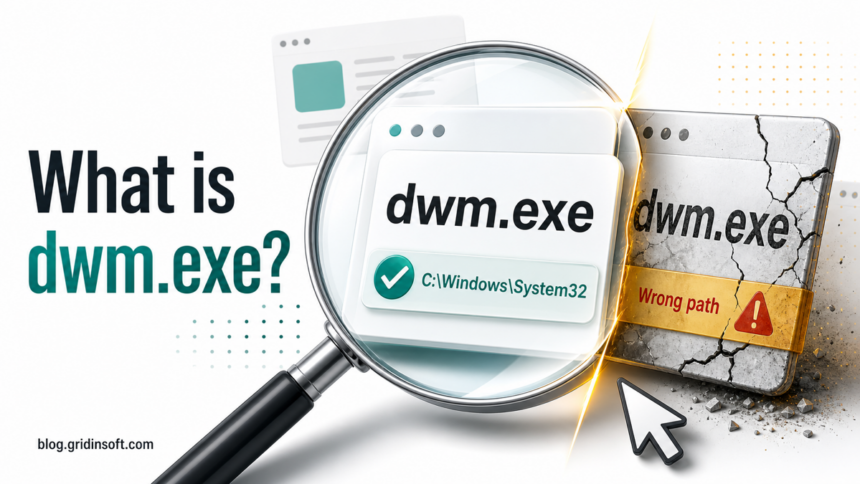
dwm.exe is normally the Windows Desktop Window Manager process. It is safe when the file is Microsoft-signed and located in C:\Windows\System32\dwm.exe. Treat it as suspicious when the same name appears in AppData, Temp, Downloads, a browser folder, or a startup task. High memory or GPU use is usually a graphics-driver, display, overlay, or hardware-acceleration problem, not proof of malware by itself.
| Process name | dwm.exe |
| Windows name | Desktop Window Manager |
| Normal path | C:\Windows\System32\dwm.exe |
| Normal publisher | Microsoft Windows / Microsoft Corporation |
| Main job | Composes windows, transparency, thumbnails, scaling, animation, and the final desktop image. |
| Scan when | The file is unsigned, in a user-writable folder, launched from startup, or paired with other malware symptoms. |
What is dwm.exe?
dwm.exe stands for Desktop Window Manager. Windows uses it to draw the desktop through composition: each window is rendered to an off-screen surface, then Windows presents the final desktop image on your monitor. That is why DWM is involved in transparency effects, window previews, high-DPI scaling, animations, multi-monitor composition, and some GPU work.
Seeing dwm.exe in Task Manager is expected. It usually runs all the time while you are signed in. It may use more memory or GPU when you have many windows open, multiple monitors, 4K or 5K displays, HDR, animated wallpapers, screen recording, browser video playback, or hardware-accelerated apps.
Is dwm.exe safe or a virus?
dwm.exe is safe when it is the real Microsoft file in C:\Windows\System32. Malware can copy the name to look like a Windows process, but it cannot make a random file in a user folder become the legitimate Desktop Window Manager.
| Likely normal | Suspicious |
|---|---|
File location is C:\Windows\System32\dwm.exe. |
File location is under AppData, Temp, Downloads, Desktop, ProgramData, or a browser folder. |
| Properties show a valid Microsoft signature. | The file is unsigned, has an invalid signature, or shows an unknown publisher. |
| Resource use rises during games, video, many windows, or display changes. | Resource use stays high at idle and another suspicious process keeps launching it. |
| There is one normal Desktop Window Manager process for the active session. | A second dwm.exe copy appears from a startup folder, scheduled task, archive, crack, or fake installer. |
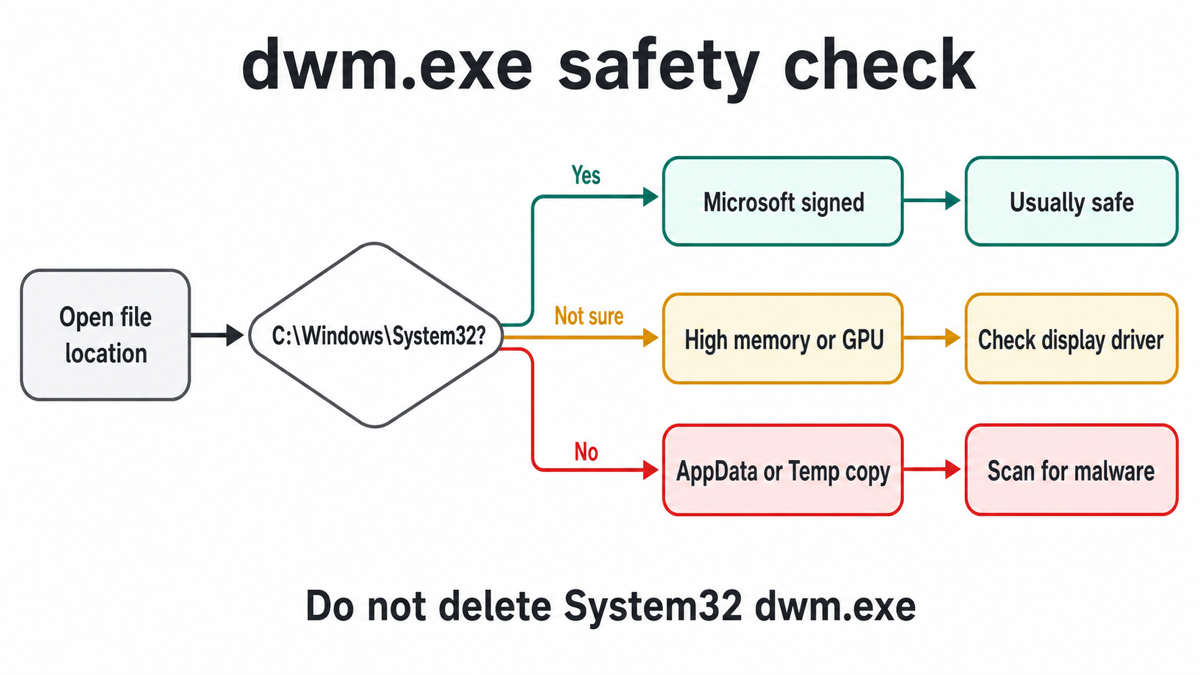
How to check the dwm.exe file location
- Press Ctrl + Shift + Esc to open Task Manager.
- Find Desktop Window Manager. If you see only the friendly name, right-click the header and enable the process name column, or use the Details tab.
- Right-click the process and choose Open file location.
- Confirm that the folder is
C:\Windows\System32. - Right-click
dwm.exe, open Properties, then check the Digital Signatures tab. The signer should be Microsoft.
If Task Manager opens a user folder, a temporary folder, a browser download folder, or an archive extraction path, do not restore or allow the file. Treat that copy as suspicious and check the startup points that may be launching it.
Why dwm.exe uses high memory or GPU
High DWM memory or GPU use usually means the desktop compositor is doing more work or a graphics component is misbehaving. Common causes include:
- many open windows, browser tabs, video players, or screen-sharing apps;
- high-resolution or mixed-refresh monitors;
- HDR, variable refresh rate, transparency effects, animated wallpapers, or custom scaling;
- GPU driver bugs or driver updates that introduced a memory leak;
- overlays from Discord, Steam, Xbox Game Bar, GeForce Experience, AMD Adrenalin, MSI Afterburner, RivaTuner, screen recorders, or FPS counters;
- apps using WebView2, hardware acceleration, or desktop capture.
Close graphics-heavy apps first, then disable overlays and update or roll back the GPU driver. If DWM crashes, logs you off, or throws display-driver errors in Event Viewer, use the deeper DWM crash and high-memory troubleshooting guide.
What not to do with dwm.exe
Do not delete C:\Windows\System32\dwm.exe. Do not rename it, replace it from a random download, or use a process-killer tool as a permanent fix. Ending Desktop Window Manager can make the desktop flicker, freeze, or log you out, and deleting the real system file can damage Windows.
If the real file is in System32 but DWM uses too many resources, troubleshoot the display stack. If a different file named dwm.exe appears outside System32, handle the suspicious copy and its persistence mechanism, not the legitimate Windows component.
When to scan for malware
A scan is useful when the evidence points away from the normal Windows file. That includes a wrong path, missing Microsoft signature, a copy that returns after deletion, a startup task that points to a user folder, recent cracks or fake installers, browser redirects, new unknown extensions, or other security warnings.
In that situation, Gridinsoft Anti-Malware is easier than checking every startup folder, scheduled task, service, browser policy, and hidden file by hand. Keep the suspicious copy quarantined, run a full scan, remove detected leftovers, reboot, and scan again if the process or warning returns.
If the process path is wrong, the name imitates a Windows component, or high CPU started after an unknown installer, scan for hidden miners, services, startup entries, and bundled components.
Scan suspicious startup entriesIf the scan finds only the legitimate System32 file and no suspicious startup points, go back to graphics troubleshooting: driver update or rollback, overlay cleanup, display setting tests, Windows repair commands, and Event Viewer review.
Driver issue or malware lookalike?
The fastest split is path first, behavior second.
- Correct path, Microsoft signature, high use during video or games: likely driver, overlay, monitor, or hardware-acceleration troubleshooting.
- Correct path, repeated crashes or forced logoff: check Event Viewer and use the DWM crash guide.
- Wrong path or unsigned file: scan before restoring, allowing, or deleting random files.
- Wrong path plus outbound connections, browser changes, or new scheduled tasks: treat it as possible malware persistence and check accounts if you ran the file.
Related Windows process checks
If you are checking several Windows-looking processes, these guides use the same path-and-signature approach:
- DWM crashed or logged you off: driver and display troubleshooting
- SearchHost.exe high CPU, memory, or GPU usage
- AMDRSServ.exe high GPU, CPU, or RAM when Radeon recording or Instant Replay keeps the AMD host service busy
- csrss.exe safe Windows process or malware?
- AppHelperCap.exe safety check for HP laptops
FAQ
Is dwm.exe a virus?
The real dwm.exe in C:\Windows\System32 with a valid Microsoft signature is not a virus. A file with the same name in AppData, Temp, Downloads, or another user folder is suspicious and should be scanned.
Why is Desktop Window Manager using so much memory?
DWM memory can rise because of high-resolution monitors, many windows, HDR, overlays, video playback, hardware acceleration, or a graphics-driver issue. High memory alone does not prove malware.
Can I disable Desktop Window Manager?
No. Modern Windows relies on Desktop Window Manager for the desktop. Disabling or deleting it is not a safe fix. Troubleshoot drivers, overlays, display settings, or suspicious wrong-path copies instead.
Why are there multiple dwm.exe processes?
On normal systems you usually see the Desktop Window Manager for the active session. Multiple entries are suspicious only when one points outside C:\Windows\System32, lacks a Microsoft signature, or is launched from a startup task or user folder.
Should I scan if dwm.exe is in System32?
Not just because it is using resources. Scan when there are other suspicious signs: wrong path, invalid signature, recurring security warnings, new startup tasks, fake installers, browser hijacks, or an unknown file that keeps returning.
References
- Microsoft Learn. “Desktop Window Manager.” Microsoft, accessed July 3, 2026. https://learn.microsoft.com/en-us/windows/win32/dwm/dwm-overview
- Microsoft Learn. “Process Explorer.” Microsoft Sysinternals, accessed July 3, 2026. https://learn.microsoft.com/en-us/sysinternals/downloads/process-explorer
- Microsoft Learn. “Sigcheck.” Microsoft Sysinternals, accessed July 3, 2026. https://learn.microsoft.com/en-us/sysinternals/downloads/sigcheck