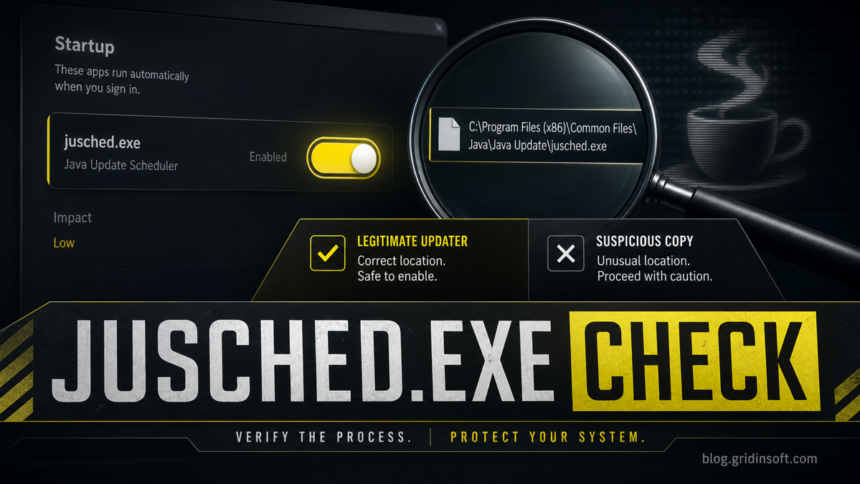
jusched.exe is normally the Java Update Scheduler, a small Oracle Java component that checks whether an installed Java Runtime Environment needs an update. Seeing it in Task Manager or Startup Apps is not automatically a malware sign, but the file still deserves a quick path and publisher check before you disable, allow, or remove it.
The safe decision is usually simple: keep Java updated if you still need Java, disable the scheduler only if you will update Java manually, and scan the file if jusched.exe runs from a user folder, Temp, Downloads, or another unexpected location. Disabling its startup entry does not stop installed Java applications from running; it only stops the scheduled update check, so you must update Java another way. Oracle documents jusched.exe as the scheduler process for Java Update, while jucheck.exe performs the update check itself.[1]
What is jusched.exe?
jusched.exe belongs to Java Update on Windows. It can appear after installing Oracle Java because the updater periodically checks for newer Java releases and can show an update notification. Oracle’s Java help explains that Java Auto Update checks for newer versions and asks for permission before installing an update.[2]
On a normal Windows installation, the file is usually found under one of these folders:
C:\Program Files\Common Files\Java\Java Update\jusched.exeC:\Program Files (x86)\Common Files\Java\Java Update\jusched.exe
It is not a core Windows system file. Windows does not need jusched.exe to boot. The important question is whether your copy really belongs to Oracle Java and whether Java is still needed on that PC.
Quick safety decision
- Normal Oracle updater:
jusched.exeis inCommon Files\Java\Java Update, signed by Oracle, and Java was installed intentionally. Keep updates enabled or change the schedule in Java Control Panel. - Java is no longer used: uninstall Java from Installed apps or Programs and Features. Do not delete updater files by hand as the first step.
- Wrong path: a copy in
Downloads,AppData,Temp, a browser cache, or a misspelled Java folder should be quarantined or scanned together with its startup entry. - Recurring or abnormal behavior: if the entry returns after Java removal, uses sustained CPU, or appears with pop-ups, redirects, or unknown startup items, check it with Autoruns and a malware scan.
How to verify the file
- Open the file location. In Task Manager, right-click
jusched.exeand choose Open file location. From Startup Apps, open the entry details if Windows exposes them, or inspect it with Autoruns. - Check the folder. The legitimate updater should be under
Common Files\Java\Java Update. A copy in%USERPROFILE%\Downloads,%LOCALAPPDATA%\Temp, or an unknown subfolder is a red flag. - Check the digital signature. Right-click the file, open Properties, and inspect the Digital Signatures tab. A legitimate Java updater should be signed by Oracle or the current Java publisher. Missing or invalid signatures are not proof of malware by themselves, but they are enough reason to scan before allowing the file.
- Confirm the launcher. Microsoft Sysinternals Autoruns shows startup entries, Run keys, services, scheduled tasks, and other autostart locations. Its Hide Signed Microsoft Entries option helps focus on third-party entries, and it includes a command-line companion for CSV output.[3]
- Look for persistence after cleanup. If Java was uninstalled but
jusched.exestill launches, check Startup Apps, Task Scheduler, Autoruns Logon tab, and Run keys such asHKCU\Software\Microsoft\Windows\CurrentVersion\RunandHKLM\Software\Microsoft\Windows\CurrentVersion\Run. Export a registry backup before changing entries manually.
How to disable jusched.exe safely
You can remove Java Update Scheduler from startup without disabling the Java runtime or the applications that depend on it. If you still need Java, changing the update schedule is safer than turning checks off. On a work-managed PC, follow the administrator’s update policy instead of changing the setting yourself.
- Open Java Control Panel. Open Start, search for Configure Java, and launch it.
- Choose the update behavior. On the Update tab, use Advanced to pick a schedule, or clear Check for Updates Automatically if you will check manually. Select Apply and OK. Oracle notes that update settings can be unavailable when an administrator or organizational policy controls them.[2]
- Disable only the startup item if needed. Press
Ctrl + Shift + Esc, open Startup apps, select Java Update Scheduler, and choose Disable. This does not uninstall Java. - Keep a manual update plan. Check through Java Control Panel or go directly to Java.com on a schedule. Do not use update pop-ups, download mirrors, or driver-updater bundles.
If you do not use Java anymore, uninstall Java from Settings > Apps > Installed apps instead of deleting jusched.exe by hand. That removes the runtime and updater together. If an old business app requires Java, keep the version supported by that application’s vendor.
Why jusched.exe uses high CPU or appears many times
The legitimate scheduler should spend most of its time idle. A brief increase while it checks for an update can be normal, but sustained CPU use, dozens of copies, repeated launch errors, or new instances after you end the task need investigation. The process name alone cannot tell you whether this is a damaged Java installation or a malicious copy.
- Open the location of every visible instance and compare the paths. Legitimate copies should point to the same Oracle Java Update folder, not separate files in
AppData,Temp,Downloads, orWindows\System32. - Check the Oracle digital signature and the startup launcher. If all copies are legitimate, disable the startup entry temporarily, reboot, and repair or uninstall the obsolete Java installation.
- If the path or signature is wrong, Java is no longer installed, or the process returns with pop-ups, redirects, or unknown startup entries, keep the file quarantined and follow the malware-check steps below.
What to do if jusched.exe looks suspicious
A suspicious jusched.exe is usually suspicious because of its context, not because of the name alone. Wrong folder, unsigned file, odd startup launcher, high CPU when Java is not updating, or reappearance after Java removal all point to a possible name-copying trick. Attackers often reuse familiar process names because users are less likely to question them.
When the path or startup source looks wrong, first disconnect from questionable downloads and keep the file quarantined if your security tool already flagged it. Then run a full system scan. Gridinsoft Anti-Malware can help check for hidden files, startup entries, scheduled tasks, browser changes, bundled apps, and persistence that may recreate a visible process after reboot.
If the scan finds only the legitimate Java updater in the normal folder, you can decide whether to keep Java, change the update schedule, or uninstall Java cleanly. If the scan finds other detections or the same entry returns after reboot, treat it as a broader cleanup case rather than a simple Java preference.
Related startup symptoms to check
If jusched.exe appeared after a fake installer, browser warning, or strange terminal window, the Java updater may only be one item in the startup list. Review these related Gridinsoft guides when the symptoms match:
- Fake Chrome Update Virus: Terminal Opened for fake update pages that lead to scripts and startup persistence.
- PowerShell Opens on Startup or Connects Out when a command window or outbound connection appears after sign-in.
- mshta.exe Malware Removal when suspicious scripts or scheduled tasks launch at startup.
- Speed Up and Clean Your PC Safely for safe cleanup decisions that avoid registry-cleaner damage.
FAQ
Is jusched.exe a virus?
Usually no. A legitimate jusched.exe file is Java Update Scheduler from Oracle Java. It becomes suspicious when the file is outside the normal Java update folder, unsigned, renamed, launched by an odd startup entry, or paired with other malware symptoms.
What is the difference between jusched.exe and jucheck.exe?
Oracle describes jusched.exe as the scheduler process for Java Update and jucheck.exe as the process that checks or performs Java updates. Seeing either process can be normal on a PC with Oracle Java installed.
Should I delete jusched.exe from my computer?
Do not delete it manually as the first fix. If it is legitimate and you do not need Java, uninstall Java through Windows Apps & Features or Programs and Features. If the file is in a suspicious location, scan or quarantine it before deleting anything.
Why does jusched.exe come back after I disable it?
Java update settings, scheduled tasks, a remaining startup entry, or a third-party updater may re-enable it. If Java was removed and a same-name file still returns from AppData, Temp, or another user-writable folder, check for malware persistence.
References
- Oracle. “Windows Online Installation and Java Update FAQ.” Java SE 8 Documentation, Oracle, accessed July 7, 2026. https://docs.oracle.com/javase/8/docs/technotes/guides/install/windows_install_faq.html
- Oracle Java Help Center. “What is Java Update and how do I change the update schedule?” Java.com, accessed July 7, 2026. https://www.java.com/en/download/help/java_update.html
- Microsoft Sysinternals. “Autoruns for Windows.” Microsoft Learn, accessed July 7, 2026. https://learn.microsoft.com/en-us/sysinternals/downloads/autoruns