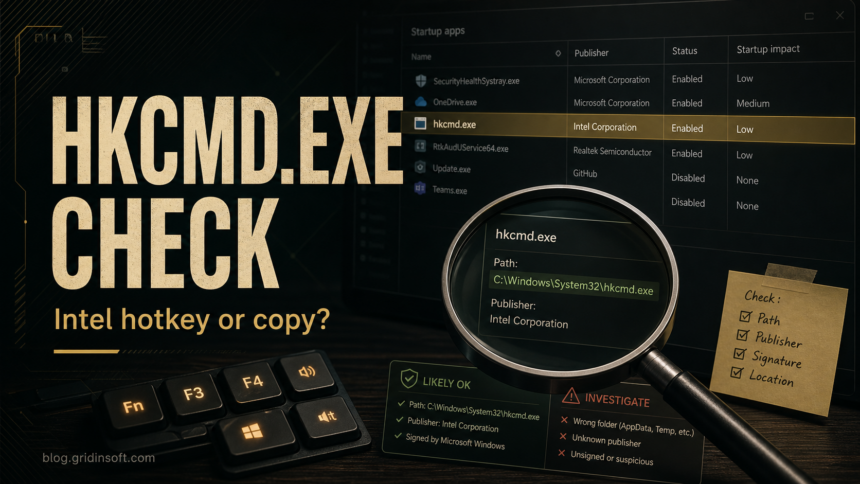
The hkcmd Module startup item is usually Intel’s legacy hotkey helper, stored as hkcmd.exe and sometimes shown as HotKeysCmds. It is not malware by itself. Treat it as normal only when it belongs to an installed Intel graphics driver, runs from a trusted Intel or Windows system location, and has a valid Intel or Microsoft-trusted signature. Treat it as suspicious when the same filename appears in Downloads, Temp, AppData, or another user-writable folder, especially if it returns after you disable the startup entry.
If you do not use Intel display hotkeys, you can disable the startup item without deleting the file. Windows display output keeps working, although legacy Intel graphics or rotation shortcuts may stop. If the path or publisher looks wrong, identify the file that is actually launching and scan that copy instead of trusting or deleting it by name alone.
What hkcmd.exe does
The legitimate hkcmd.exe process is associated with older Intel graphics driver packages and Intel hotkey support. On systems that still include it, the helper can listen for display-related keyboard shortcuts, such as rotation or graphics-control hotkeys. Newer Intel Graphics Command Center installations may handle hotkeys differently, so the absence of hkcmd.exe is also normal on many current PCs.
That legacy context explains why hkcmd.exe often appears in startup lists after a driver update, OEM restore, or Windows upgrade. A startup entry with a familiar system-looking name is still worth checking, but the filename alone is not enough to call it a virus.
On a current PC, Intel graphics settings may be handled by Intel Graphics Command Center or newer Intel Graphics Software, so a legitimate system may not use hkcmd.exe at all. Do not merge those components: if Task Manager shows IntelGraphicsSoftware.Service.exe, check that separate current-service owner instead.
Safe vs suspicious hkcmd.exe
- Expected context: Intel graphics software is installed, and the entry is tied to display hotkeys or an Intel driver package.
- Path: A trusted Intel driver folder or a Windows system location is more plausible. A copy under
%USERPROFILE%\Downloads,%LOCALAPPDATA%\Temp,AppData, or a random folder is a red flag. - Publisher: Properties should show a valid signer that matches Intel or a Microsoft-trusted driver package. No signature is not automatic proof, but it means you need stronger evidence before trusting the file.
- Startup behavior: Optional hotkey support can usually be disabled. A suspicious entry may recreate itself, launch from a strange command line, or return with other unknown startup items.
- Symptoms: Normal hkcmd.exe should not trigger browser redirects, pop-ups, blocked outbound connections, or repeated security warnings.
How to check hkcmd.exe safely
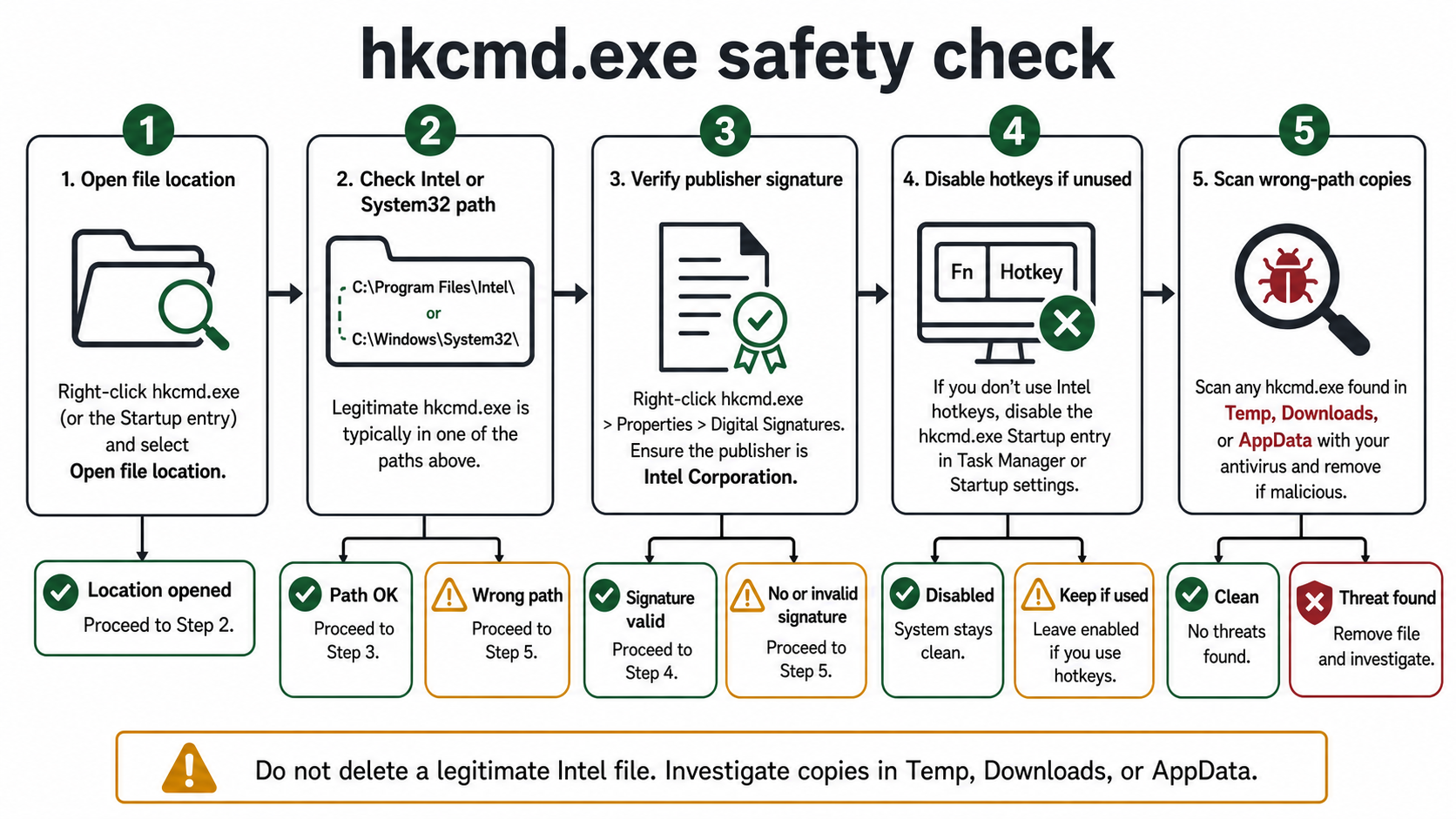
- Open the real file location. In Task Manager or Startup apps, right-click the entry and choose the option that opens the file location when available. If the startup list only shows a name, use Autoruns or the command line field to see the exact path.
- Check the folder before the filename. A system-looking name in a user-writable folder is more important than the name itself. Malware often borrows names like hkcmd.exe because they look technical and easy to ignore.
- Check Properties and Digital Signatures. Right-click the file, open Properties, and inspect the publisher/signature tab if it is present. A valid Intel signature fits the legitimate helper story; an unknown signer, missing signature, or mismatched product name needs more caution.
- Compare the startup command. A normal entry should point directly to the expected executable. Be careful with commands that launch hkcmd.exe through
cmd.exe, PowerShell, a script, a scheduled task, or a hidden folder. - Disable before deleting when the context is unclear. If hotkeys are not needed, disable the startup entry and reboot. If the file is legitimate, Windows and graphics functions should remain usable, although display hotkeys may stop working.
If you are checking several unknown startup entries at once, use the broader Suspicious Startup Apps checklist first. If you only have a downloaded file and do not know whether it is safe to run, use the EXE safety checklist before launching it.
Should you disable hkcmd Module at startup?
Yes, you can usually disable hkcmd Module from startup if you do not use Intel display hotkeys. Disabling the startup entry is safer than deleting the file because it is reversible and does not damage the driver package. If a needed rotation, display, or graphics shortcut stops working, re-enable the entry or manage hotkeys inside the installed Intel graphics app.
Do not remove hkcmd.exe manually from a system or Intel driver folder just to clean the Startup list. A legitimate disabled copy can remain on disk as part of the graphics driver package.
How to disable hkcmd Module in Windows 11 or 10
- Confirm the item first. Look for
hkcmd Module,hkcmd.exe, orHotKeysCmdsand verify that it belongs to the installed Intel graphics package. - Use Windows Settings. Open Settings > Apps > Startup and switch the verified Intel entry off. If it is not listed there, continue with Task Manager.
- Use Task Manager when needed. Right-click Start, open Task Manager, select Startup apps, choose the verified entry, and select Disable.
- Restart and test only the affected feature. Normal display output should continue. Test the Intel hotkey or rotation shortcut you actually use; re-enable the entry if that shortcut is required.
What if hkcmd Module stops working?
If Windows and the display work normally and you do not use the old Intel hotkeys, a stopped or missing hkcmd Module does not need repair. Do not download a standalone hkcmd.exe from a file library.
If you still need the hotkeys, identify the Intel graphics device and driver version in Device Manager, then check the PC manufacturer’s driver first because an OEM package may include model-specific controls. If the manufacturer no longer provides a suitable package, use Intel Driver & Support Assistant or Intel’s official driver installer. Reinstall the graphics package rather than copying one executable into a system folder.
What to do if hkcmd.exe looks suspicious
Scan the file when the path, signer, or behavior does not match a normal Intel helper. This is especially important if hkcmd.exe appears from a temporary folder, returns after you disable it, launches with a script, or arrived after a fake driver updater, cracked installer, suspicious archive, or browser pop-up.
Before the scan, disconnect from risky downloads, keep the file quarantined if a security tool already blocked it, and avoid restoring it just because the name looks familiar. A lookalike startup file can be only one part of the persistence chain: another launcher, scheduled task, service, browser change, or bundled app may recreate the visible file after reboot.
After cleanup, reboot and check Startup apps again. If the entry is gone and no related warnings return, leave the legitimate Intel graphics software alone. If the entry comes back from the same wrong folder, investigate scheduled tasks, services, browser extensions, and recently installed apps rather than deleting the file repeatedly.
Related Intel startup checks
Intel graphics packages can expose more than one helper in Startup. If you see igfxtray.exe, check whether it is the older Intel Graphics Tray component or a copy using the same name. If you see unfamiliar process names outside the Intel cluster, use the same path, publisher, and behavior logic before you trust or remove them.
The same cluster can include igfxpers.exe, the Intel Persistence Module. Treat it as optional only after the path and Intel signature check out; scan it if the copy sits in a user or temporary folder.
FAQ
Is hkcmd.exe a virus?
No, not by default. hkcmd.exe is commonly associated with Intel graphics hotkey support. It becomes suspicious when a copy uses the same name from a wrong folder, lacks a trustworthy signature, or behaves like persistence rather than a normal driver helper.
Where should hkcmd.exe be located?
On systems that still use it, hkcmd.exe should be tied to an Intel graphics driver or trusted Windows driver context. A copy in Downloads, Temp, AppData, or another user-writable folder should be treated as suspicious until scanned.
Can I disable hkcmd.exe?
Usually yes. Disabling the startup entry can stop Intel graphics hotkeys from loading, but it is safer and easier to reverse than deleting a driver file. If you use Intel display hotkeys, manage them inside Intel graphics settings instead.
Why did hkcmd.exe appear after a driver update?
An OEM or Intel graphics driver package can add or restore helper startup entries after an update, repair, or Windows upgrade. Check the path and signer before assuming the new entry is malicious.
What if hkcmd.exe keeps coming back?
If the entry returns from a legitimate Intel location, repair or update the graphics driver and disable hotkeys through normal settings. If it returns from a wrong folder, scan the system and check for another startup item, scheduled task, service, or recently installed app that recreates it.
References
- Intel. “How to Change Hot Keys for Intel® Graphics.” Intel Support, last reviewed September 4, 2024; accessed July 28, 2026. Intel hotkey settings
- Microsoft. “Configure Startup applications in Windows.” Microsoft Support, accessed July 28, 2026. Windows startup application settings
- Intel. “How to Install an Intel® Graphics Driver in Windows® 10 & Windows 11*.” Intel Support, last reviewed January 23, 2025; accessed July 28, 2026. Intel graphics driver installation