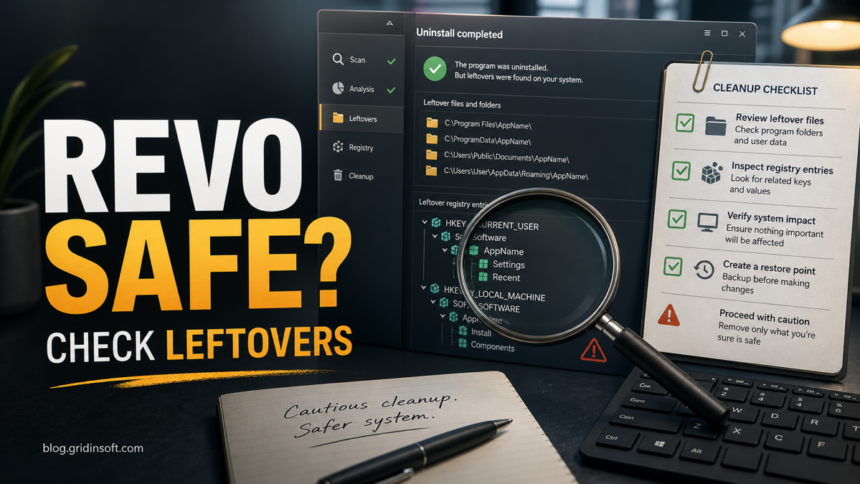
Revo Uninstaller is a legitimate Windows uninstaller utility, not malware by itself. The real safety question is narrower: did you download it from a trustworthy source, and are you about to delete leftover Registry entries or files that you do not understand? Use Revo as a cleanup helper for unwanted or stubborn programs, keep its backup options enabled, review the leftovers before deleting them, and run a malware scan only when pop-ups, browser changes, startup entries, or security alerts return after uninstall.
What to check first
- Source: avoid repacked Revo installers, cracks, fake download buttons, and “portable” builds from unknown sites.
- Purpose: use Revo to remove a program you recognize, not to clean random Windows Registry branches for speed.
- Backups: keep the restore point and Registry backup options enabled before deleting leftovers.
- Leftovers: delete only entries and folders that clearly belong to the removed app.
- Security scan: scan after cleanup if the unwanted app came from a bundle, redirects continue, or alerts return after reboot.
| Topic | Revo Uninstaller safety and leftover cleanup |
| Best use | Removing stubborn normal apps, failed uninstallers, and visible leftover folders |
| Main risk | Deleting unrelated Registry keys, shared components, or user data because a cleanup list looks automatic |
| Not enough for | Browser hijackers, adware that reinstalls itself, fake driver updaters, trojans, or persistent startup tasks |
| Safe next step | Uninstall, review leftovers, reboot, then scan if symptoms return |
Is Revo Uninstaller Safe?
Revo Uninstaller can be safe when it is obtained from a trustworthy source and used as intended: uninstalling a known program and cleaning clearly related leftovers. The reason people search this question is practical: user threads ask whether Revo is safe, what exactly should be selected, and whether a normal Windows uninstall leaves important traces behind.1, 2 That is useful intent, but it is not the same as a malware-removal guarantee.
The risk rises when the installer came from a download portal, torrent, crack site, fake ad, or “free pro” page. In that case, the Revo name on the file is not enough. Check the file’s digital signature, scan the installer, and avoid running it if the source is not clear. Also remember that Revo is not an antivirus. It can remove a visible application, but it cannot prove that a bundled updater, browser extension, scheduled task, or stealer is gone.
Does Anyone Search for Leftovers?
Yes, but usually inside longer queries: leftovers after uninstall, uninstall leftovers, remove program leftovers, registry leftovers, and Revo Uninstaller cleanup leftovers. The word matters because it matches the exact moment where users hesitate: the normal uninstall has finished, but the tool still shows Registry keys, folders, shortcuts, browser data, or app traces.
That long-tail intent is stronger than a broad “Revo Uninstaller” page. A user searching only the product name likely wants the official site or a download. A user searching about leftovers wants a safety decision: what can be deleted, what should be left alone, and what to do if the same pop-ups or security warnings return.
Problems Users Run Into
| User problem | What it usually means |
| Revo shows thousands of Registry leftovers | Some may be real app traces, but parent branches and shared vendor keys can appear in the tree. Review before deletion. |
| The program is not listed in Settings or Revo | The uninstall entry may be broken, hidden, already removed, or never registered correctly. Forced Uninstall can help only if you know the exact name or folder. |
| Pop-ups continue after uninstall | The source may be a browser notification permission, extension, startup task, service, or a different bundled app. |
| A security tool flags the Revo installer | Check the source, signature, and file reputation. Treat cracked or repacked installers as unsafe even if they use a familiar product name. |
| Revo finds files in user folders | Do not delete documents, saves, profiles, or shared plugin folders unless you know they belong only to the removed app. |
| The PC is still slow after cleanup | Uninstall leftovers rarely explain everything. Check startup apps, browser extensions, disk space, drivers, and malware symptoms. |
What Revo Means by Leftovers
After a program’s own uninstaller finishes, Revo can scan for remaining Registry entries and files. This is the exact moment where users get nervous: public threads describe Revo showing tens of thousands of leftover Registry items, parent folders such as MuiCache, or entries that look related to Windows and other installed software.2, 3, 4 Safe or Moderate mode is the better default for normal users; Advanced mode can be useful for stubborn software, but it also increases the chance that you will see entries you do not understand.
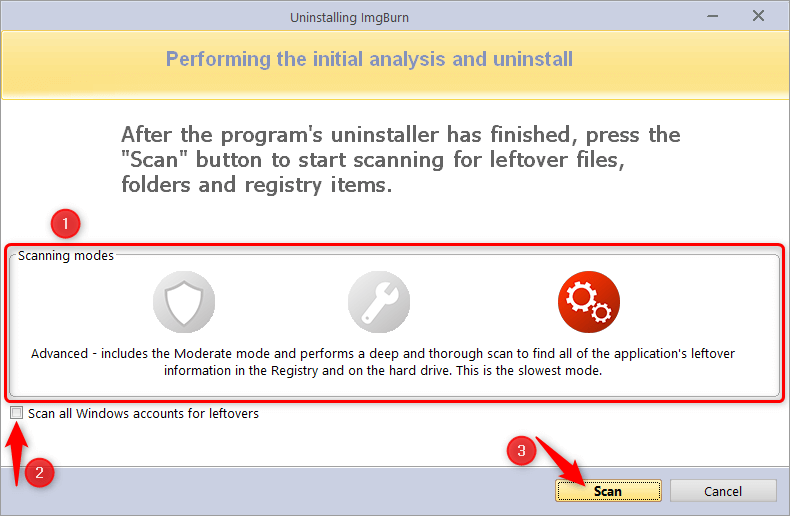
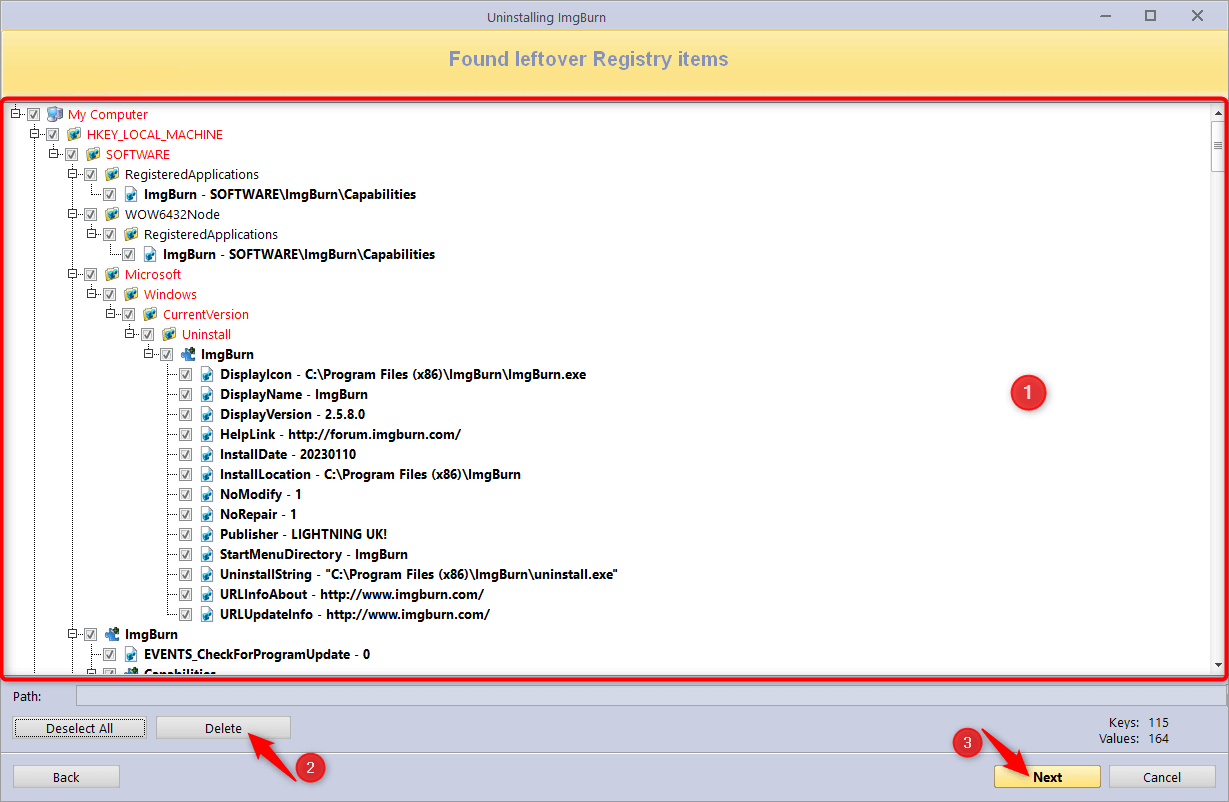
The important part is the review step. The user complaints are remarkably consistent: the scary part is not that Revo found leftovers, but that the tree can show broad parent branches, Windows-related names, Office-related entries, or a “Select All” path that looks wider than the removed program.2, 3, 4 That distinction matters because Registry screens can show parent branches such as Microsoft, Windows, or shared vendor locations. Seeing a branch on the screen does not mean every visible parent node is safe to remove.
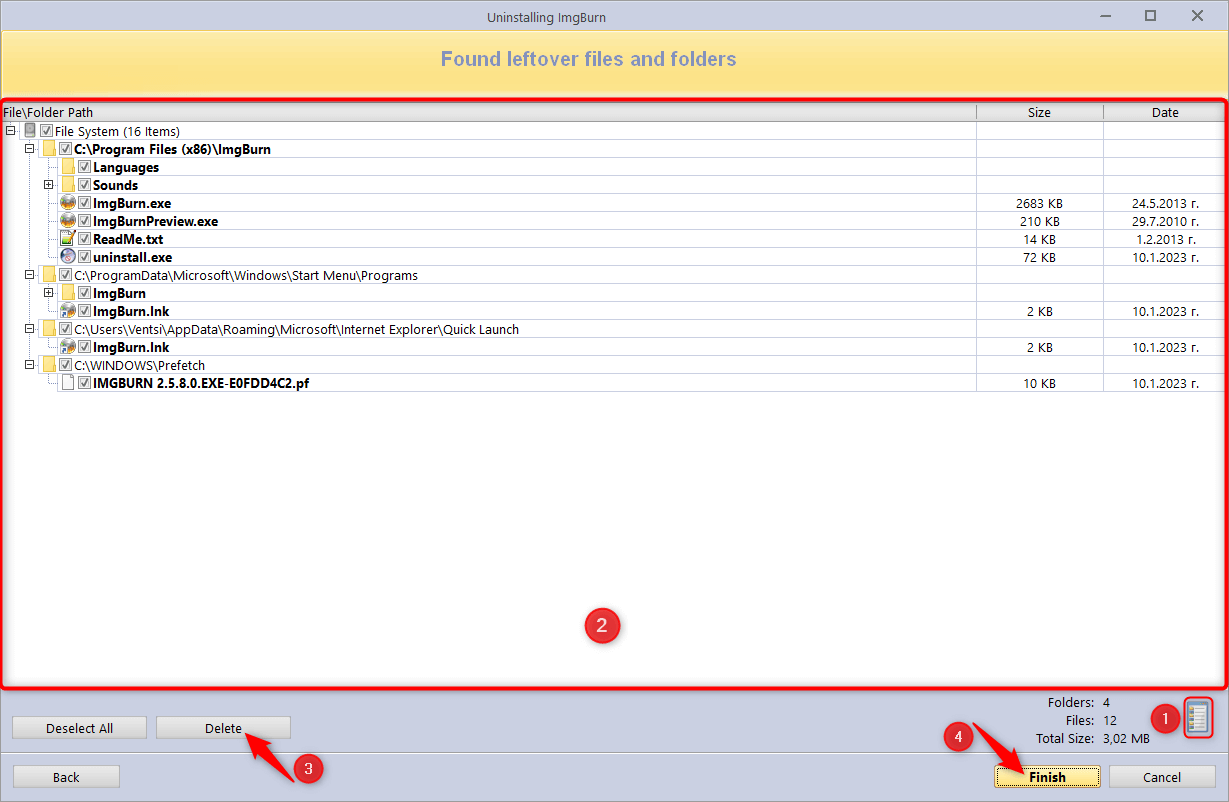
File leftovers are easier to understand, but they can still be risky. A folder inside C:\Program Files\AppName\ is usually safer to remove than a folder in Documents, a shared plugin location, a game save folder, or a runtime used by several apps.
Safe Cleanup Order
- Start with Windows uninstall. Use the normal Windows removal path first unless the app is broken, missing, or clearly stubborn. If the stubborn app is WPS Office, follow the WPS Office verification and complete-removal sequence before deleting leftovers.
- Close the app and related processes. Do not uninstall while the program, launcher, updater, browser extension, or tray icon is still active.
- Create a restore point and backup. Keep Revo’s restore point and Registry backup options enabled. If a business app or old driver is involved, make a normal file backup too.
- Use Safe or Moderate scan first. Reserve Advanced mode for cases where you understand the app name, publisher, install folder, and what is safe to remove.
- Review Registry entries by path. Prefer entries that clearly name the removed program or its publisher. Skip broad parent keys, unrelated Microsoft/Windows branches, and anything tied to another app you still use.
- Review file leftovers by location. Remove obvious app folders, shortcuts, and updater folders. Keep personal documents, saves, browser profiles, shared runtimes, and unknown folders until you verify them.
- Reboot before judging the result. A reboot exposes whether a service, startup item, scheduled task, or browser extension still recreates the problem.
When Revo Is Not Enough
Revo can remove an application entry, but it does not replace security triage. If you used Revo on a fake cleaner, fake driver updater, cracked installer, suspicious browser, or app that arrived in a bundle, the visible uninstall may be only one part of the cleanup.
Check these places when symptoms continue:
- Startup Apps: unknown entries that run when Windows starts.
- Task Scheduler: vague updater, scan, browser, driver, or random-name tasks.
- Services: same-day services pointing into
%APPDATA%,%LOCALAPPDATA%,ProgramData, or a deleted app folder. - Browsers: extensions, notification permissions, homepage/search changes, managed policies, and synced profiles.
- Downloads and installers: the original wrapper that installed the unwanted app may still be present.
- Security exclusions: suspicious exclusions can let the same item return after cleanup.
For exact workflows, use the Gridinsoft guides for checking suspicious startup apps, removing fake driver updater leftovers, and cleaning browser hijackers.
What If the Program Is Not Listed?
A forced uninstall workflow can help when a program remains on the PC but is not listed correctly among installed programs, or when you are scanning leftovers from a program that was already removed. It can work well when you know the exact program name or folder. For a legacy SpeedBit or DAP install, follow the SpeedBit Video Accelerator removal guide before deleting SBLSP.dll, because the DLL may still be registered in Winsock.
Be careful with malware-like cases. If you only point Forced Uninstall at one folder, you may miss a browser extension, scheduled task, service, or companion app. For unwanted software, sort Installed Apps by date and look for the whole install batch, not only the first name you noticed.
When to Scan After Using Revo
Use a malware scan when the problem behaves like more than a normal uninstall. That includes browser redirects after reboot, recurring pop-ups, security-tool alerts from Temp or AppData, a startup entry that returns, unknown scheduled tasks, or a program that arrived from a bundle. Gridinsoft Anti-Malware can check for detections, hidden files, scheduled tasks, startup entries, bundled apps, browser changes, and persistence that a normal uninstaller can miss.
What Not to Delete Blindly
- Broad Registry branches: do not delete a whole Microsoft, Windows, Classes, Installer, or shared publisher branch because one removed app appears under it.
- Shared runtimes: Visual C++ Redistributables, .NET components, Java runtimes, browser engines, game launchers, and printer/scanner components can be shared.
- User data: keep documents, saves, profiles, templates, projects, wallets, password-manager exports, and browser profiles unless you are intentionally wiping them.
- Unknown security entries: investigate security exclusions, certificates, drivers, and services before deletion. Removing the wrong item can break protection or connectivity.
- Anything you cannot map: if a path or Registry key does not clearly point to the removed app, leave it until you can verify it.
FAQ
Is Revo Uninstaller a virus?
No, Revo Uninstaller is a legitimate uninstaller utility. Treat a file as suspicious if it came from a crack, torrent, fake ad, repack site, or unknown download page instead of a trustworthy source.
Is it safe to delete all Revo leftovers?
Not automatically. Delete leftovers that clearly belong to the removed app, keep backups enabled, and avoid broad Registry branches or folders tied to other software. If you are not sure, skip the item.
Should I use Revo instead of Windows uninstall?
Start with Windows uninstall for normal apps. Use Revo when the normal uninstall fails, leaves obvious program folders, or the app is stubborn. For suspicious apps, follow with startup, browser, and malware checks.
Why do pop-ups continue after uninstalling a program with Revo?
The pop-up may come from a browser notification, extension, scheduled task, service, startup entry, or a different bundled app. Reboot, check those persistence points, and scan if the behavior returns.
Can Revo remove malware?
Revo can remove visible program entries and some leftovers, but it is not a malware scanner. Use a security scan when the app came from a suspicious source, alerts return, or browser/startup changes persist.
References
- Microsoft Q&A user thread. “Is Revo uninstaller safe?” Microsoft Learn, accessed July 7, 2026. https://learn.microsoft.com/en-us/answers/questions/4161813/is-revo-uninstaller-safe
- Tom’s Hardware forum thread. “Revo Uninstaller ques.” Tom’s Hardware, April 2024, accessed July 7, 2026. https://forums.tomshardware.com/threads/revo-uninstaller-ques.3841721/
- Microsoft Q&A user thread. “Revo Uninstaller uninstalled Microsoft Silverlight but then found over 47,000 leftover files – do I delete them using Revo?” Microsoft Learn, accessed July 7, 2026. https://learn.microsoft.com/en-us/answers/questions/4293822/revo-uninstaller-uninstalled-microsoft-silverlight
- Super User community thread. “When is it safe to let Revo Uninstaller cleanup leftovers?” Stack Exchange, accessed July 7, 2026. https://superuser.com/questions/137266/when-is-it-safe-to-let-revo-uninstaller-cleanup-leftovers