AMDRSServ.exe is normally the legitimate Radeon Settings: Host Service installed with AMD Software: Adrenalin Edition. High GPU use often points to Record Desktop, Instant Replay, streaming, or another capture feature that is still active or stuck. Test those features before resetting or reinstalling AMD Software; do not delete the executable. A copy in an unrelated folder, without a valid AMD signature, or launched by unknown persistence needs a separate malware check.
Use Task Manager to identify the exact busy process and note when the load begins. A brief spike after opening AMD Software, starting a recording, or updating a driver is different from 30-100% GPU use while the desktop is idle, memory that grows without releasing, or unexplained traffic that continues after capture features are disabled.
| What you see | Best first test |
|---|---|
| High GPU use or maximum clocks at idle | Turn off Record Desktop and Instant Replay, then close and reopen AMD Software. |
| High CPU during or after a game | Stop recording, streaming, metrics, and overlays one at a time; note which change releases the load. |
| RAM keeps growing | Restart AMD Software once, reset its settings if the leak returns, then update or reinstall the package. |
| Heavy disk or network use | Check whether recording files, updates, streaming, or media uploads explain it; verify the process path and signer if they do not. |
| PC will not sleep | Run powercfg /requests, then disable active replay, recording, streaming, and audio capture before retesting sleep. |
| Wrong path, invalid signer, or unknown startup entry | Do not trust the AMD-looking name. Preserve the path and investigate the copy and its launcher. |
What does AMDRSServ.exe do?
AMDRSServ.exe supports background functions used by AMD Software, especially recording, replay, streaming, and related host work. A common installed location is:
C:\Program Files\AMD\CNext\CNext\AMDRSServ.exe
AMD can change package layouts between releases, so treat the path as a strong clue rather than the only verdict. The file should belong to the installed AMD package and carry a valid digital signature from Advanced Micro Devices. If the unfamiliar AMD process is Atieclxx.exe rather than the Radeon capture host, check its External Events role, path, signature, and driver-error branch separately.
RadeonSoftware.exe is the user-facing AMD Software application, while AMDRSServ.exe can continue host work in the background. Closing the visible window therefore may not stop recording, replay, streaming, or another feature that remains enabled. This is also why deleting AMDRSServ.exe is a poor fix: it can break optional Radeon features and will not repair the setting or package fault that created the load.
Why Radeon Settings: Host Service uses high GPU
Record Desktop and Instant Replay are the first settings to test. Instant Replay continuously keeps recent gameplay available for saving, and Record Desktop allows capture outside a game. That ongoing work can keep the capture path active even when the user is looking only at the desktop.
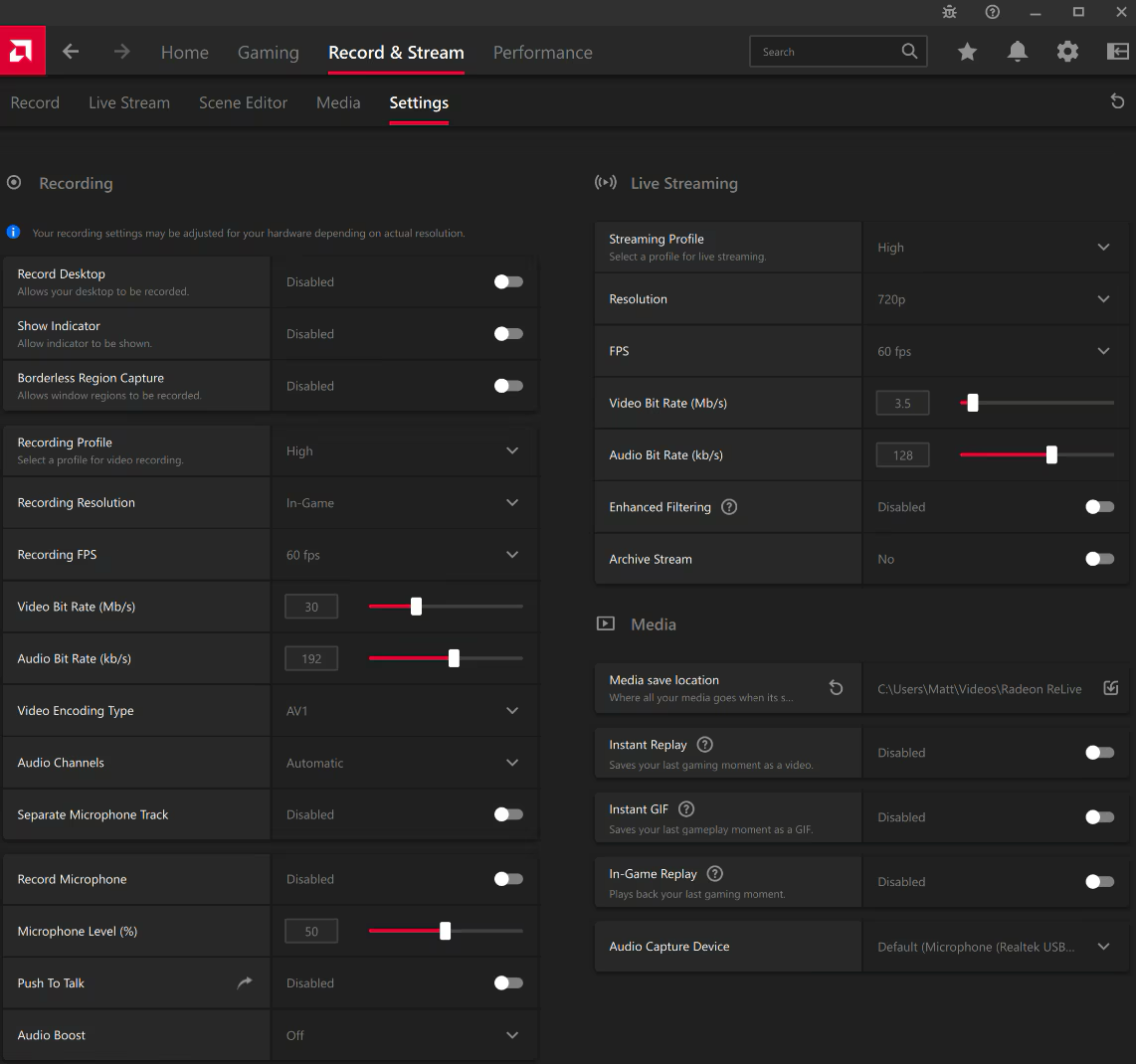
Open AMD Software, search for Record, and open Record & Stream Settings. Turn off Record Desktop and Instant Replay, then wait long enough to see whether the same AMDRSServ.exe PID releases GPU use. If you need one feature, re-enable settings one at a time so the exact trigger becomes clear.
Also test active recording, streaming, In-Game Replay, Instant GIF, microphone capture, metrics, and overlays. Do not disable everything permanently before identifying the owner: one setting may be responsible, and keeping the others is often harmless.
High clocks after a game closes
If Task Manager shows modest percentage use but the GPU clock, temperature, or fan remains high, close the game and all capture or overlay sessions, then toggle the recording feature off. A stale session can keep work attached to AMDRSServ.exe after the game itself exits. Restarting the host process is a useful confirmation, but the feature setting or damaged package still needs the lasting fix.
High CPU, memory, disk, or network use
CPU and memory
Short CPU bursts are expected when AMD Software starts, enumerates hardware, or applies a profile. Sustained CPU at idle or memory that climbs for hours is more consistent with a stuck feature or software fault. Turn off capture and overlays, restart AMD Software, and observe whether the problem returns under the same action. For a broader check when several unrelated processes are busy, use the Windows high-CPU troubleshooting guide.
Disk and network
Recording can write large video files, and streaming or updates can use the network. Check the Media Save Location, recent file timestamps, and AMD Software’s active record/stream state. Continuous traffic after recording, streaming, and updates are stopped deserves closer inspection: confirm that the connection belongs to the signed AMD copy rather than a same-name file elsewhere.
Do not use the filename as a firewall allow rule. Match the PID, executable path, signature, and destination. An official process can be busy because of a bug, while an unsigned copy in a user-writable folder is a different security decision.
AMDRSServ.exe prevents sleep
Recording and audio capture can keep power requests active. Open Terminal or Command Prompt as administrator and run:
powercfg /requests
If an audio, display, or execution request lines up with AMD recording, stop Record Desktop, Instant Replay, streaming, and microphone capture, then run the command again. Reboot once before changing power policy. Do not add a permanent request override until you know which feature is keeping the system awake; an override can hide a real active recording or audio session.
How to fix AMDRSServ.exe safely
- Record the evidence. Note the PID, path, signature, resource type, and the action that starts the load. This separates a recording feature from a general driver or malware problem.
- Disable capture features one at a time. Start with Record Desktop and Instant Replay, then test recording, streaming, replay, metrics, and overlays. Recheck the same process after each change.
- Restart AMD Software. End the busy AMDRSServ.exe once only after recording its path and PID, then reopen AMD Software. The task may return; the point is to confirm whether the host owns the symptom, not to use Task Manager as a permanent fix.
- Reset AMD Software settings. If the problem returns with features disabled, export any profiles you need and use the supported Factory Reset option in AMD Software. A settings reset is less destructive than removing the whole graphics package.
- Install the current supported AMD package. Update AMD Software for the installed GPU and reboot. Avoid EXE or DLL download sites and generic driver-updater tools.
- Use AMD Cleanup Utility only when reinstalling is necessary. If the official package remains broken, follow AMD’s cleanup instructions, reboot, and install the correct AMD Software package again. This is an escalation step, not the first response to a single high-usage event.
If the visible high-GPU row is dwm.exe rather than AMDRSServ.exe, follow the Desktop Window Manager path and overlay checks. DWM may reflect work requested by recording, browser video, display settings, or another graphics component, so ending the wrong process can obscure the owner.
How to verify whether AMDRSServ.exe is safe
- In Task Manager, right-click Radeon Settings: Host Service and choose Open file location.
- Open the file’s Properties and inspect Digital Signatures. The signature should be valid and identify Advanced Micro Devices.
- Compare the path with the installed AMD Software package. A random copy in Downloads, Temp, AppData, Startup, or an unrelated program folder is not explained by the normal AMD install.
- Check what launched it and whether an unknown task, service, Run entry, or startup app points to that exact path.
PowerShell can check the common installed copy without launching it:
Get-AuthenticodeSignature 'C:\Program Files\AMD\CNext\CNext\AMDRSServ.exe' |
  Format-List Status, StatusMessage, SignerCertificate
Look for Status : Valid and an AMD signer. If your file is elsewhere, use the exact path you opened from Task Manager. A valid signature on the expected package strongly supports legitimacy, but abnormal behavior can still mean the AMD installation needs repair.
For a general path, signer, hash, origin, and behavior workflow, use the EXE file safety checklist.
When to check for a malware copy
High GPU or CPU use by itself does not prove infection. A security check becomes important when the file is outside the AMD package, unsigned or signed by an unrelated publisher, started by an unknown task or service, paired with browser changes or security warnings, or recreated after you remove the wrong-path copy.
Preserve the path and launcher before deleting anything. Review Startup Apps, Task Scheduler, services, and Run entries that point to the suspicious copy. The suspicious startup-app checklist can help separate an expected vendor component from persistence left by an unknown installer.
If the suspicious copy already ran, deleting one visible EXE may leave its loader, scheduled task, service, bundled app, or other persistence behind. Gridinsoft Anti-Malware can check the file and those related startup points; remove confirmed detections, reboot, and scan again if the process or traffic returns.
Can you stop or disable AMDRSServ.exe?
Ending it once is a reversible diagnostic test. AMD Software or Windows may start it again, and recording, replay, streaming, or overlay features may stop until the host returns. The display driver can continue working, but that does not make file deletion safe or useful.
For a lasting fix, turn off only the feature you do not use, reset AMD Software, or reinstall the supported package. Do not rename or delete the executable from an AMD folder, and do not disable an AMD service simply because its resource column spiked once.
FAQ
Is AMDRSServ.exe a virus?
Usually no. The valid AMD-signed copy installed with AMD Software is legitimate. A same-name file in an unrelated folder, with an invalid signer or unknown persistence, should be investigated before it is allowed or removed.
Why does AMDRSServ.exe use so much GPU?
Record Desktop, Instant Replay, recording, streaming, or a stuck capture session are common explanations. Disable those features one at a time and recheck the same PID before resetting or reinstalling AMD Software.
Is it safe to end Radeon Settings: Host Service?
Ending it once for diagnosis is generally reversible, but AMD Software may restart it and capture, replay, streaming, or overlay functions may stop. Do not delete the executable as a permanent fix.
Why is AMDRSServ.exe using the network?
Streaming, updates, or other AMD Software functions can explain temporary network use. Verify the signed path and active feature. Continuous unexplained traffic from a wrong-path or unsigned copy needs a security review.
Can AMDRSServ.exe keep the PC awake?
Recording, replay, streaming, or audio capture can create power requests. Use powercfg /requests, stop those features, and retest before adding any permanent power-request override.
References
- Advanced Micro Devices, Inc. “Configure Record Settings to Capture Desktop and Gameplay Content.” AMD Support, updated November 11, 2024, accessed August 14, 2026. https://www.amd.com/en/resources/support-articles/faqs/DH3-023.html.
- Advanced Micro Devices, Inc. “Save, Restore, and Reset User Settings & Profiles with AMD Software.” AMD Support, updated June 9, 2025, accessed August 14, 2026. https://www.amd.com/en/resources/support-articles/faqs/DH3-003.html.
- Advanced Micro Devices, Inc. “AMD Cleanup Utility.” AMD Support, accessed August 14, 2026. https://www.amd.com/en/resources/support-articles/faqs/GPU-601.html.