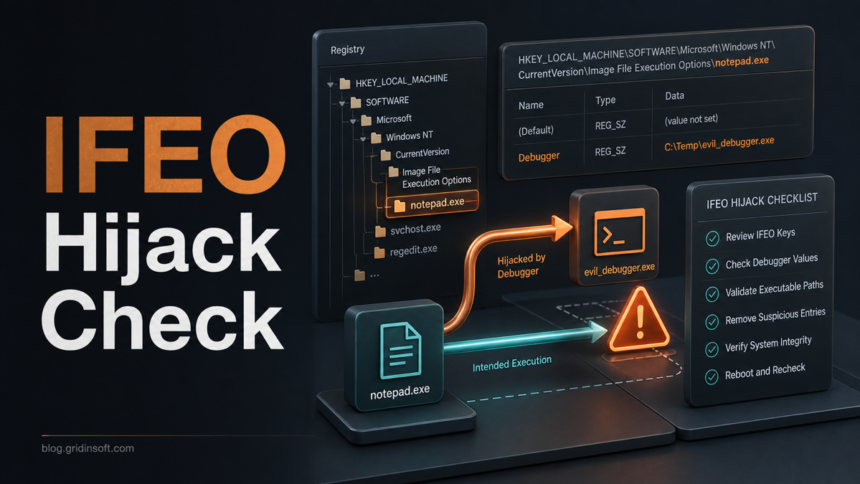
An Image File Execution Options hijack is a Windows registry setting that makes one program start through another program. The feature is legitimate when a developer intentionally attaches a debugger, but it becomes suspicious when the Debugger value points to taskkill.exe, cmd.exe, PowerShell, or an unknown file in a writable folder. That setup can stop security tools from opening, launch malware when a trusted app starts, or leave a broken entry that makes an app fail with a missing-file error.
If Autoruns shows Image Hijacks, do not bulk-delete every entry. Check the target executable, the debugger path, the file signature, and whether you or a support tool intentionally created the setting. Remove only the suspicious IFEO value or target key after you export it, then reboot and scan for the file or persistence mechanism that created it.
What an IFEO Hijack Means
Image File Execution Options, usually shortened to IFEO, lives under Windows registry paths such as HKLM\SOFTWARE\Microsoft\Windows NT\CurrentVersion\Image File Execution Options\<target.exe>. A Debugger value under a target executable tells Windows to start the debugger first when that executable is launched.
Microsoft describes the feature as a debugging mechanism, and MITRE tracks malicious abuse as Image File Execution Options Injection. The important point for home users is context: the key itself is not proof of malware, but an unexpected debugger value can redirect a normal program, block it, or give malware a reliable trigger.
Normal IFEO Entry or Suspicious Hijack?
| What you see | Risk and what to do |
|---|---|
| A known debugger or developer tool you installed points to a project app you are testing. | Usually expected. Keep it only while you need it, and remove the entry when debugging is finished. |
taskmgr.exe is intentionally replaced by a trusted tool such as Process Explorer and you remember enabling that setting. |
Often legitimate. Confirm the path and signature before leaving it enabled. |
A security tool, browser, installer, or common Windows app has Debugger set to taskkill.exe, cmd.exe, powershell.exe, or an unknown executable. |
Suspicious. Export the key, disable or remove that specific entry, and scan the debugger file and startup locations. |
The debugger path starts from %TEMP%, %APPDATA%, %LOCALAPPDATA%, Downloads, a public user folder, or a random-looking directory. |
High risk. Treat it like possible persistence or defense evasion, especially if alerts return after reboot. |
| The target app fails to open, closes instantly, or Windows says the debugger file cannot be found. | Could be a stale IFEO entry or a malicious block. Check Autoruns Image Hijacks and remove only the confirmed bad target entry. |
You see SilentProcessExit, GlobalFlag, or MonitorProcess values tied to an unknown executable. |
Investigate carefully. These settings can be used for diagnostics, but attackers can also abuse process-exit monitoring. |
How to Check Image Hijacks with Autoruns
Microsoft Sysinternals Autoruns is useful because it lists many autostart and hijack locations that Task Manager does not show. The official documentation says Autoruns includes image hijacks among the locations it displays, and the command-line version can filter specifically for them with autorunsc -a h.
- Download Autoruns from Microsoft Sysinternals and run it as administrator.
- Open Options and enable signature verification. Hide Microsoft-signed entries only after you understand what you are filtering out.
- Switch to the Image Hijacks tab, or use
autorunsc -a h -m -sfor a compact command-line view. - For each entry, write down the target executable, registry path, debugger value, publisher, and file location.
- Right-click a suspicious entry and use Jump to Entry before deleting anything. Confirm you are looking at the exact target key, not the whole IFEO branch.
If the suspicious debugger is attached to a security program, browser, installer, or common Windows executable, check whether that program closes immediately when launched. That behavior makes the IFEO entry more important than a harmless leftover.
Registry Paths to Verify
Most user-facing IFEO checks start with these locations:
HKLM\SOFTWARE\Microsoft\Windows NT\CurrentVersion\Image File Execution Options\<target.exe>HKLM\SOFTWARE\Wow6432Node\Microsoft\Windows NT\CurrentVersion\Image File Execution Options\<target.exe>HKLM\SOFTWARE\Microsoft\Windows NT\CurrentVersion\SilentProcessExit\<target.exe>
Look for values named Debugger, GlobalFlag, or MonitorProcess. A normal IFEO branch can contain many subkeys, so the goal is not to delete Image File Execution Options itself. The goal is to identify the one target executable and the one debugger or monitor path that does not belong.
How to Remove a Suspicious IFEO Hijack Safely
- Create a restore point if System Protection is available, or at least export the exact IFEO target key from Registry Editor.
- Copy the target executable name and the full debugger path into a note. This gives you evidence if the entry returns.
- If the debugger file exists, check its properties, signature, creation date, and folder. Do not run it to test it.
- In Autoruns, uncheck the suspicious entry first when you want to test the effect. Delete it only after you confirm the app opens normally and the debugger path is not a legitimate tool.
- If using Registry Editor, delete the suspicious
Debuggervalue or the exact target key. Do not delete the parent IFEO branch. - Reboot, open the previously blocked app, and check Autoruns again. If the entry returns, another startup task, service, script, or installer is recreating it.
After the visible IFEO entry is gone, scan for the source that created it. A hijack tied to taskkill.exe, a wrong-path executable, or blocked security software often comes with another persistence point such as a scheduled task, startup value, service, browser extension, or downloaded installer. If the target is svchost.exe, check the exact path and hosted service with the svchost.exe real-versus-fake guide before changing the IFEO entry. Run a full Gridinsoft Anti-Malware scan, remove detections, reboot, and recheck Autoruns if the same target app closes again.
If the process path is wrong, the name imitates a Windows component, or high CPU started after an unknown installer, scan for hidden miners, services, startup entries, and bundled components.
Scan after checking IFEO entriesCommon IFEO Hijack Cases
Debugger points to taskkill.exe
A Debugger value that runs taskkill.exe is often meant to terminate the target program instead of opening it. That is especially suspicious when the target is an antivirus, browser, installer, updater, or recovery tool. Remove the specific target entry after exporting it, then look for what created it.
A security tool closes immediately
If a scanner, cleanup tool, or Windows utility flashes and disappears, check IFEO before reinstalling the app repeatedly. Malware and unwanted tools can use IFEO to block defensive programs without modifying the program file itself.
Autoruns shows Image Hijacks, but nothing looks malicious
Some entries are legitimate debugging or replacement settings. Confirm the path, publisher, and reason. If you intentionally configured a developer debugger or trusted replacement tool, it is not automatically malware. If you cannot explain the entry and the debugger file is unsigned or missing, export and disable it for testing.
The entry comes back after deletion
That usually means IFEO is only the visible symptom. Check startup apps, scheduled tasks, services, Run keys, recently installed programs, and files in user-writable folders. The broader checklist in Suspicious Startup Apps can help you trace the recreating launcher.
What Not to Do
- Do not delete the entire
Image File Execution Optionsbranch. - Do not assume every Autoruns Image Hijacks entry is malicious.
- Do not run the debugger executable just to see what it does.
- Do not restore a quarantined file until you know why the IFEO entry existed.
- Do not ignore a returning entry after reboot; treat recurrence as a persistence clue.
For adjacent checks, use How to Check if an EXE File Is Safe for the debugger file itself, Remove Malware in Safe Mode when cleanup tools are blocked, and Microsoft Defender Detection Names when a security alert names the file that created the hijack.
FAQ
Is Image File Execution Options always malware?
No. IFEO is a legitimate Windows debugging feature. It becomes risky when an unexpected Debugger or monitor value redirects a normal app to an unknown executable, a script host, taskkill.exe, or a file in a writable folder.
Why does Autoruns call it Image Hijacks?
Autoruns groups IFEO-style redirections under Image Hijacks because these settings can change what happens when a program image starts. The label is a warning category, not a verdict that every entry is malicious.
Should I delete the IFEO key for a program?
Export it first, then remove only the suspicious target key or Debugger value after you confirm it is not a legitimate debugger or replacement tool. Do not delete the parent IFEO branch.
Can IFEO block antivirus tools?
Yes. A malicious or unwanted entry can point a security-tool executable to taskkill.exe or another program so the tool closes instead of opening. If that happens, remove the exact hijack and scan for the persistence that created it.
What if the IFEO entry returns?
Look for a recreating task, service, startup value, installer, or script. A returning IFEO entry means the registry value was probably a symptom, not the root cause.
References
- MITRE ATT&CK. “Event Triggered Execution: Image File Execution Options Injection (T1546.012).” MITRE, last modified May 12, 2026; accessed July 8, 2026. https://attack.mitre.org/techniques/T1546/012/
- Microsoft Sysinternals. “Autoruns for Windows.” Microsoft Learn, published June 17, 2026; accessed July 8, 2026. https://learn.microsoft.com/en-us/sysinternals/downloads/autoruns
- Raymond Chen. “Beware the Image File Execution Options key.” The Old New Thing, Microsoft DevBlogs, December 19, 2005; accessed July 8, 2026. https://devblogs.microsoft.com/oldnewthing/20051219-11/?p=32923