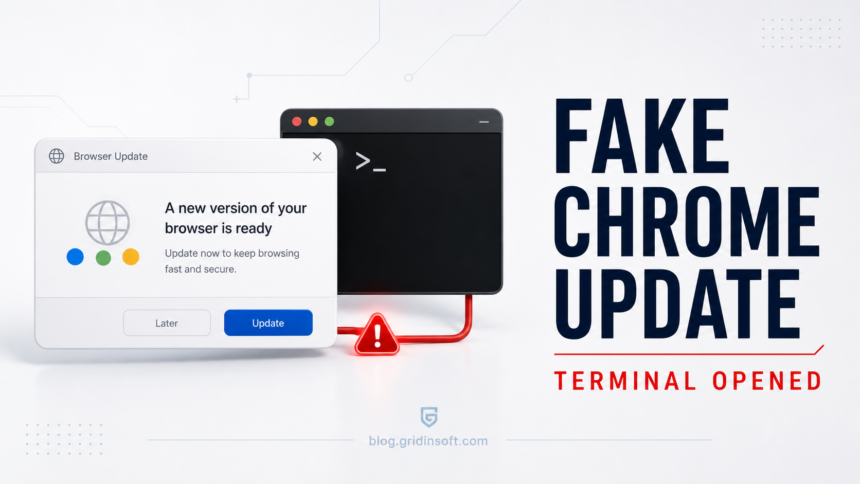
A fake Chrome update virus is a scam page that pretends Chrome needs an urgent update, then pushes you toward running a command, downloading a file, or allowing a fake fix. If a browser page opened Terminal, Command Prompt, PowerShell, or typed something by itself, treat it as a malware incident, not as a normal Chrome update.
Fake update lures can also deliver files that are not what they appear to be; the sysupdate.jpeg malware guide explains one fake-image chain that installs remote access through ScreenConnect. sysupdate.jpeg malware cleanup guide.
First checks after a fake Chrome update opened Terminal
- Disconnect from the internet if a command is still running or new windows keep appearing.
- Do not copy, paste, or rerun the command. Do not close the evidence before noting what happened.
- Scan the PC fully and check startup entries, scheduled tasks, browser extensions, and recent downloads.
- Change passwords from a clean device if any script, installer, or command executed.
| Threat type | Fake update / ClickFix-style social engineering / script malware |
| Common signs | Fake Chrome relaunch/update message, loud alert, terminal opened, command typed, PowerShell or CMD activity |
| Main risk | Infostealer, remote script, browser hijacker, token theft, account compromise |
| Safe action | Stop the command, scan the device, secure accounts from a clean device, and remove persistence. |
What probably happened?
Chrome updates do not require a random website to open Windows Terminal, PowerShell, Command Prompt, or Run. Real Chrome updates happen through Chrome’s own updater or through your managed company software. A recipe site, download page, streaming page, or pop-up cannot legitimately update Chrome by typing commands into your system.
Microsoft has documented ClickFix-style attacks where a page convinces users to paste or run commands in Windows tools [1]. Some fake-fix pages also try to place a command on the clipboard or guide the user through a keyboard sequence. The visible story may be “Chrome update”, “browser crash”, “verification”, or “fix this error”; the real goal is to run attacker-controlled code.
First steps if the command ran
- Disconnect from Wi-Fi or unplug Ethernet if the script is still active.
- Take a photo of any visible command, file path, domain, or error message.
- Close the browser and Terminal/PowerShell windows.
- Do not restore the same browser session.
- Run a full scan with GridinSoft Anti-Malware, then reboot and scan again if the terminal, browser pop-up, or alert returns.
- Check Task Scheduler, Startup Apps, Services, browser extensions, and recently downloaded files. If a same-name Windows process appears from a user folder, compare it with the dllhost.exe COM Surrogate safety guide.
- Change email, Microsoft/Google, banking, crypto, Discord, and work passwords from a clean device if the command executed.
Fake update and ClickFix chains may call mshta.exe as the next-stage host. If blank mshta.exe windows keep appearing after the browser is closed, follow the mshta.exe blank-window cleanup steps as well.
If the command ran, the browser page may be only the visible launcher. A loader can leave a scheduled task, service, startup entry, browser policy, extension, or downloaded script that reopens PowerShell or Command Prompt after reboot. After the manual checks above, use a Gridinsoft Anti-Malware scan to look for hidden files, persistence entries, browser changes, and bundled payloads instead of assuming the closed tab was the whole incident.
If the process path is wrong, the name imitates a Windows component, or high CPU started after an unknown installer, scan for hidden miners, services, startup entries, and bundled components.
Scan for fake update leftoversSome fake update pages do not start with a command at all; they push a ZIP first. If the page automatically saved an archive such as Updater_v3.3.zip, use the Itchupd.pages.dev fake updater ZIP cleanup guide before opening or extracting the file.
If the page looked more like a fake verification or CAPTCHA than a Chrome updater, use the fake CAPTCHA ClickFix cleanup guide for that exact “I ran the command” path. If PowerShell opens again on startup or your firewall reports outbound PowerShell traffic later, compare the persistence checks with the PowerShell startup and outbound-connection guide.
What to check after a fake update command
| PowerShell history | Recent commands that downloaded or executed remote content. |
| Downloads and Temp | Unknown EXE, MSI, JS, VBS, BAT, CMD, PS1, ZIP, or random-name files. |
| Task Scheduler | New tasks that launch PowerShell, CMD, mshta, wscript, browser, or unknown files. |
| Browser | New extensions, notification permissions, changed search/homepage, managed policies. |
| Accounts | New sign-ins, recovery changes, Discord spam, email forwarding rules, OAuth apps. |
If this happened on a company laptop
Stop using the device for work accounts and tell your IT/security team as soon as possible. Do not try to hide the event by deleting logs. The useful details are the website, time, command window, files created, and any alerts. If the company uses endpoint protection, they may need to isolate the device and collect logs.
How real Chrome updates work
Real Chrome updates do not ask you to install a random file from an unrelated website. Google documents Chrome updates through Chrome settings and normal update prompts [2]. If a page outside Chrome settings says “Chrome update required” and then asks you to run a command, close it.
Related recovery guides
- Can Malware Activate Later? What to Do
- Infostealer After Downloading a Game or Mod
- Fake Virus Alert: How to Stop Scareware Pop-Ups
- SocGholish Malware: Fake Update Removal Guide
FAQ
Can a website really open PowerShell by itself?
A normal website should not silently control PowerShell, but social-engineering pages can trick users into running commands or abuse browser/system prompts. Treat unexpected terminal activity as suspicious.
Is turning off the laptop enough?
No. It may stop the current command, but dropped files, scheduled tasks, or stolen sessions may remain. Scan and secure accounts.
Should I change passwords immediately?
Use a clean device first. Changing passwords on a still-infected PC can expose the new credentials.
Was Chrome itself infected?
Usually the page is fake, not Chrome. Still check extensions, notification permissions, and managed policies after cleanup.
References
- Microsoft Security. “Think before you Click(Fix): analyzing the ClickFix social engineering technique.” Microsoft Security Blog, August 21, 2025. https://www.microsoft.com/en-us/security/blog/2025/08/21/think-before-you-clickfix-analyzing-the-clickfix-social-engineering-technique/
- Google Chrome Help. “Update Google Chrome.” Google, accessed July 7, 2026. https://support.google.com/chrome/answer/95414?co=GENIE.Platform%3DDesktop&hl=en