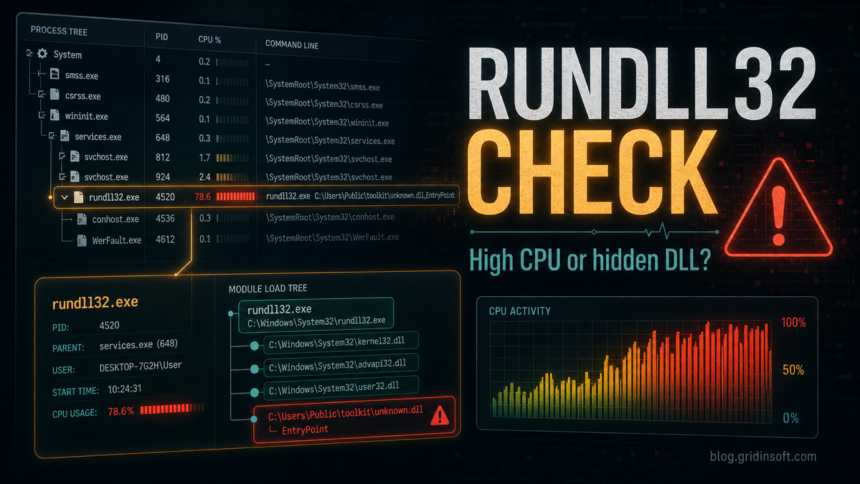
Rundll32.exe is usually a legitimate Windows process, not something you should delete. It exists to load and run functions from DLL files. The warning sign is not the filename by itself; it is a rundll32.exe high CPU spike, hundreds of copies in Task Manager, or a command line that points to an unknown DLL under AppData, Temp, ProgramData, Downloads, or another user-writable folder. Check the command line and the DLL first, then remove the app, task, or file that launched it.
This guide is for Windows users who see Windows host process (Rundll32) using CPU, memory, or disk, or who wonder whether a rundll32.exe entry is a virus. If your security tool names a specific threat, keep that alert quarantined and use the exact detection name too; the rundll32.exe process may only be the loader.
What Is Rundll32.exe?
Rundll32.exe is a Microsoft Windows utility that loads dynamic-link libraries. In plain language, it lets Windows or an installed program call a function stored inside a .dll file. That is why the command line matters: a normal-looking rundll32.exe process can be harmless, broken, or malicious depending on which DLL and function it was asked to run.
The legitimate Windows files normally live here:
C:\Windows\System32\rundll32.exeC:\Windows\SysWOW64\rundll32.exe
Do not delete either file from the Windows folder. If a bad DLL, startup entry, browser helper, driver utility, or malware task is abusing rundll32.exe, deleting the Windows copy does not remove the real cause and can break normal Windows behavior.
Why Rundll32.exe Uses High CPU
A short CPU spike can be normal when a control-panel item, driver utility, thumbnail handler, printer tool, graphics utility, or legacy app calls a DLL. A problem starts when the process stays busy, duplicates rapidly, opens after every reboot, or points to a DLL you do not recognize.
| What you see | Risk and what to check |
|---|---|
One rundll32.exe process from System32 or SysWOW64 with a clear vendor DLL |
Often normal. Check which app owns the DLL, then update or repair that app if CPU stays high. |
| Many rundll32.exe copies or CPU that climbs after hours of use | Find the parent process and command line. A buggy driver utility, scheduled task, or updater can spawn copies repeatedly. |
Command line points to AppData, Temp, Downloads, a random folder, or a random DLL name |
Suspicious. Treat it as a possible loader or persistence case and scan before trusting the DLL. |
| Rundll32 error says a DLL is missing after a scan removed malware | The payload may be gone but a startup entry remains. Remove the leftover task, Run key, or startup shortcut. |
| Network activity, browser redirects, new extensions, or security-tool exclusions appear at the same time | High risk. The rundll32.exe entry may be part of a broader malware or unwanted-app chain. |
How to Check the Command Line and DLL
Start with the process that is actually running. In Task Manager, right-click the header row on the Details tab, enable Command line, and look for the rundll32.exe row that is using CPU. If Task Manager does not show enough detail, use Microsoft Sysinternals Process Explorer to inspect the process tree, parent process, image path, command line, and loaded modules.
A useful rundll32 command line usually has this shape:
rundll32.exe C:\Path\To\File.dll,FunctionNameFocus on the DLL path and function name. Ask these questions:
- Where is rundll32.exe? The Windows copy should be under
C:\Windows\System32\orC:\Windows\SysWOW64\. A same-name file under a user folder is suspicious. - Where is the DLL? A vendor folder under
Program Filesis usually less worrying than a random DLL under%APPDATA%,%LOCALAPPDATA%,C:\Users\Public\,C:\Windows\Temp\, or Downloads. - Who launched it? Check the parent process. A graphics utility, printer tool, or control-panel item is different from a random script, fake updater, cracked installer, or scheduled task.
- Does it return after reboot? Recurrence points to Startup Apps, Task Scheduler, a service, a browser extension, or a registry Run key such as
HKCU\Software\Microsoft\Windows\CurrentVersion\Run. - Did a security tool remove only the DLL? If the DLL is gone but the RunDLL error remains, remove the startup entry that still calls the missing file.
When Rundll32.exe Is Suspicious
Attackers like rundll32.exe because it is a signed Windows binary and can proxy execution of malicious DLL code. That does not make every rundll32.exe process bad, but it does mean the command line deserves attention when the PC also shows malware symptoms.
Treat the case as suspicious when one or more of these are true:
- The DLL path is under
AppData,Temp,ProgramData, Downloads,C:\Users\Public\, or another folder a normal user can write to. - The DLL has a random name, no clear vendor, or was created around the time a fake update, crack, driver tool, game mod, or suspicious email attachment ran.
- Task Scheduler, Startup Apps, Startup folders, or Run keys launch rundll32.exe after every reboot.
- The command line includes odd script-like behavior, unknown control-panel items, or network-facing parameters you did not configure.
- You see new browser extensions, redirects, notification spam, proxy/DNS changes, or security-tool exclusions at the same time.
- Ending the process only helps for a moment and a new rundll32.exe process appears again.
If the suspicious rundll32.exe chain follows hidden PowerShell, fake update pages, or script-based activity, compare it with our PowerShell outbound connection cleanup and script-based malware guides. If a trusted binary keeps opening in the same way, the MSBuild.exe safety guide uses a similar parent-process and task-check workflow.
How to Fix Rundll32.exe High CPU Safely
- Reboot once and check pending updates. If the process was tied to a one-time Windows or driver task, it may stop after updates finish.
- Record the command line. Before ending the process, copy the full command line, DLL path, parent process, and creation time. This is the evidence that tells you what to remove.
- Identify the owner. If the DLL belongs to NVIDIA, Intel, a printer suite, Lenovo/HP utilities, a media codec, or another legitimate app, update or repair that app first.
- Uninstall suspicious same-day apps. Sort Installed Apps by date and remove unknown cleaners, driver tools, browser helpers, game mods, cracks, fake updates, or bundles installed around the same time.
- Check persistence. Review Startup Apps, Task Scheduler, Startup folders, services, and Run keys for commands that call rundll32.exe with the same DLL path.
- Remove the launcher, not the Windows file. Delete or quarantine the suspicious DLL only after you know what launched it. Remove the related task, Run key, service, or app so it cannot recreate the process.
- Scan when the path or behavior is suspicious. A full Gridinsoft Anti-Malware scan is useful when rundll32.exe points to a user-writable folder, keeps returning after reboot, appears after a fake installer, or arrives with redirects, unknown extensions, or security-tool exclusions.
- Reboot and scan again if symptoms return. A second check catches startup entries and hidden payloads that only appear after Windows restarts.
Rundll32.exe is only the visible loader. If the DLL sits in a random folder, if a scheduled task launches it, or if the process comes back after you end it, a manual delete can miss the rest of the chain. Gridinsoft Anti-Malware can check for the file, startup entries, scheduled tasks, services, browser changes, bundled apps, and persistence that often sit behind a suspicious process.
If the process path is wrong, the name imitates a Windows component, or high CPU started after an unknown installer, scan for hidden miners, services, startup entries, and bundled components.
Scan for suspicious process leftoversIf You See a Rundll32 Application Error
A RunDLL or rundll32.exe application error often means Windows is trying to call a DLL that is missing, corrupt, or blocked. After malware cleanup, that error can be a good sign and a cleanup clue: the dangerous DLL may be gone, but a leftover startup command still tries to load it.
Do not download a replacement DLL from a random website. Instead, copy the DLL name and path from the error, then check Startup Apps, Task Scheduler, and Run keys for the matching command. If the path points into AppData, Temp, Downloads, or an unknown vendor folder, remove the leftover launcher and run a scan.
What Not to Do
- Do not delete
C:\Windows\System32\rundll32.exeorC:\Windows\SysWOW64\rundll32.exe. - Do not whitelist an unknown DLL just because the process name is signed by Microsoft.
- Do not disable random Windows services to make the CPU graph drop.
- Do not install DLLs from download sites to fix a RunDLL error.
- Do not ignore the case if rundll32.exe returns after reboot with the same suspicious path.
How to Prevent the Same Problem
- Keep Windows, graphics drivers, printer utilities, and browser components updated.
- Avoid cracks, unofficial driver packs, fake codec installers, and “one-click optimizer” tools.
- Show file extensions in File Explorer so
.dll,.js, and.scrfiles are easier to spot. - Review Startup Apps and Task Scheduler after removing malware or unwanted software.
- Use a full scan after a fake update, script, archive, or unknown installer runs, even if the visible rundll32.exe process has stopped.
If Task Manager shows conhost.exe high CPU next to the DLL host, compare it with the dedicated Conhost.exe high CPU checklist; the parent process tells you whether the console window belongs to the same script chain or a separate command-line task.
FAQ
Is rundll32.exe a virus?
Usually no. Rundll32.exe is a legitimate Windows utility. It becomes suspicious when the command line loads an unknown DLL from a user-writable folder, appears from the wrong path, runs through a startup task you did not create, or returns after cleanup.
Why are there many rundll32.exe processes?
Several copies can appear when multiple apps call DLL functions. Hundreds or thousands of copies are not normal. Check the parent process and command line to find whether a buggy driver utility, scheduled task, or malicious launcher is spawning them.
Can I end rundll32.exe in Task Manager?
You can end a stuck instance temporarily, but that does not fix the cause. Copy the command line first. If a task, service, or app launches it again, the process will return after reboot or after the parent app runs.
Where should the real rundll32.exe be located?
The normal Windows copies are under C:\Windows\System32\ and C:\Windows\SysWOW64\. A file named rundll32.exe under AppData, Temp, Downloads, or another user folder should be treated as suspicious.
Why does Windows say a RunDLL file is missing?
A startup entry may still point to a DLL that was removed, quarantined, or damaged. Search for the exact missing DLL path in Startup Apps, Task Scheduler, services, and Run keys, then remove the leftover launcher instead of downloading a replacement DLL.
References
- Microsoft Learn. “rundll32.” Microsoft, updated February 16, 2026, accessed July 2, 2026. https://learn.microsoft.com/en-us/windows-server/administration/windows-commands/rundll32
- Microsoft Learn. “Process Explorer.” Microsoft Sysinternals, updated May 7, 2026, accessed July 2, 2026. https://learn.microsoft.com/en-us/sysinternals/downloads/process-explorer
- MITRE ATT&CK. “System Binary Proxy Execution: Rundll32, T1218.011.” MITRE, accessed July 2, 2026. https://attack.mitre.org/techniques/T1218/011/