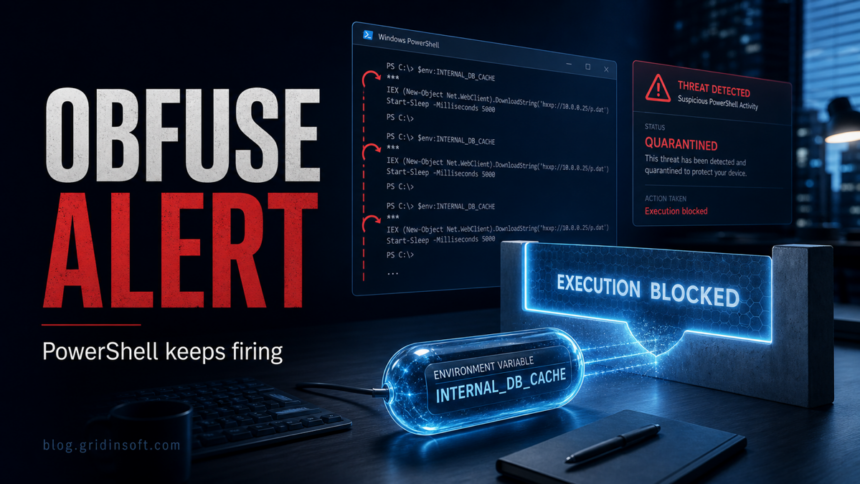
Trojan:JS/Obfuse.NF!MTB is a severe Microsoft Defender detection for obfuscated JavaScript behavior. If it keeps returning with powershell.exe in the affected item, treat it as an active cleanup problem first, not as a harmless browser-cache warning. The important clue is the command line: hidden PowerShell, ExecutionPolicy Bypass, IEX, or an environment variable such as INTERNAL_DB_CACHE means something may still be launching the script after Defender quarantines it.
Do not clear Defender history before you copy the evidence. Keep the detection quarantined, disconnect from untrusted networks if the same alert fires every minute, and record the affected item, command line, time, and source account. Then work through persistence, environment variables, startup entries, scheduled tasks, and a full malware scan.
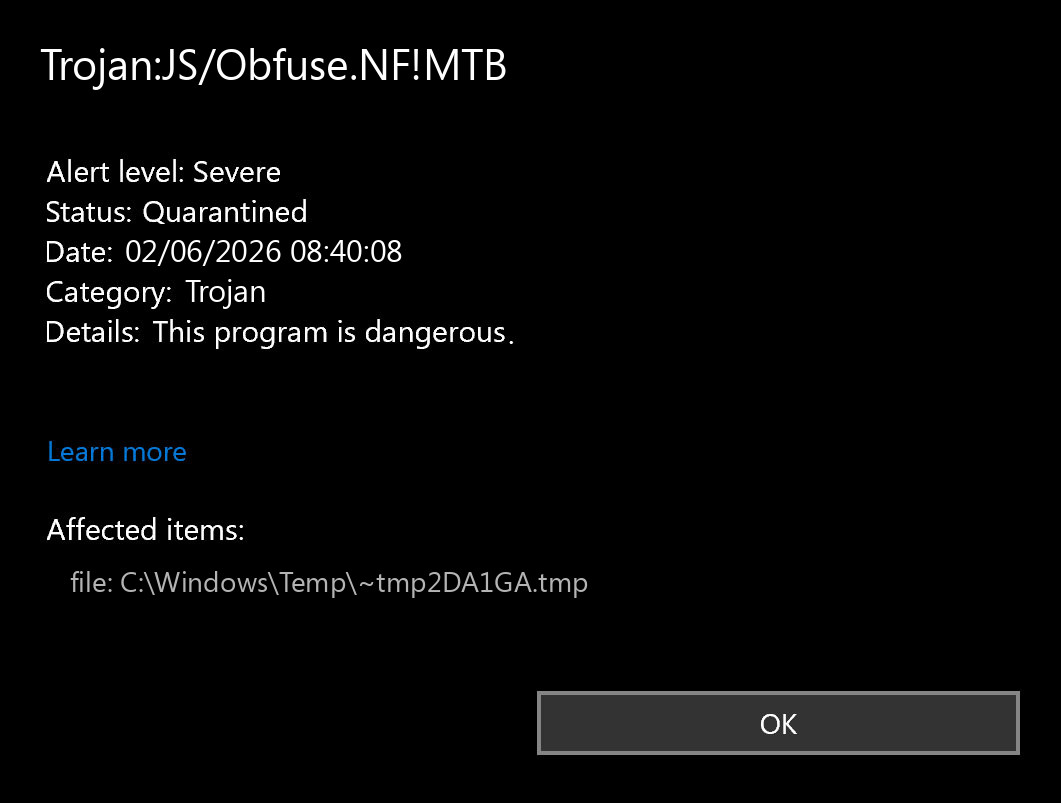
What Trojan:JS/Obfuse.NF!MTB Means
Microsoft lists Trojan:JS/Obfuse.NF!MTB as a severe JavaScript Obfuse detection in its threat search results, and a current Microsoft Q&A case shows the same label recurring in a hidden PowerShell command line. The exact detection name can vary by signature update, but the pattern matters: obfuscated script code is being executed or staged in a way Defender considers dangerous.
When the affected item is a browser cache file, the first step is usually cache cleanup and follow-up scans. When the affected item is powershell.exe, the risk is higher because PowerShell can run commands, download scripts, and execute code from variables or memory. MITRE ATT&CK tracks PowerShell as a common command-and-scripting technique used by attackers.
What To Check First
- Open Protection history. Copy the full detection name, affected item, and command line before deleting history or restoring anything.
- Look for hidden PowerShell. Red flags include
-ExecutionPolicy Bypass,-NoProfile,-WindowStyle Hidden,IEX, encoded commands, or download strings. - Check environment variables. A command that reads
$env:INTERNAL_DB_CACHEor calls[Environment]::SetEnvironmentVariable()may be using a user-level variable as temporary script storage. - Search persistence by time. Inspect Task Scheduler, Startup folders, Run keys, services, recently installed apps, and browser extensions created around the first alert.
- Scan before trusting the machine. Run a full Defender scan, consider Microsoft Defender Offline, and use a second-opinion malware scan before entering passwords again.
How To Check INTERNAL_DB_CACHE Safely
The name INTERNAL_DB_CACHE is not a standard Windows variable. It may be used as disposable storage for a script or command fragment. Open PowerShell as a normal user first and check whether the variable exists:
Get-ChildItem Env: | Where-Object Name -like '*INTERNAL*'
[Environment]::GetEnvironmentVariable('INTERNAL_DB_CACHE','User')
[Environment]::GetEnvironmentVariable('INTERNAL_DB_CACHE','Machine')
If it contains a script, URL, base64 blob, or unreadable payload, save a screenshot or copy a short redacted sample for investigation, then remove it only after you have recorded the evidence:
[Environment]::SetEnvironmentVariable('INTERNAL_DB_CACHE', $null, 'User')Do not run the value, paste it into a browser, or decode it on the infected computer unless you know what you are doing. If the value returns after reboot, the real problem is a scheduled task, startup entry, service, app, or browser extension that recreates it.
Remove The Recurring PowerShell Trigger
Use the alert time as your timeline. In Task Scheduler, sort by creation or last run time and look for tasks that call powershell.exe, cmd.exe, wscript.exe, mshta.exe, rundll32.exe, or a suspicious script path. In Startup Apps and the Startup folders, remove entries you did not install. In the Registry, review only the usual autostart locations and export a backup before deleting values:
HKCU\Software\Microsoft\Windows\CurrentVersion\RunHKLM\Software\Microsoft\Windows\CurrentVersion\RunHKCU\Software\Microsoft\Windows\CurrentVersion\RunOnceHKLM\Software\Microsoft\Windows\CurrentVersion\RunOnce
Also check what happened before the first detection. This style of PowerShell alert often follows a copied command from a fake CAPTCHA, fake update, cracked software page, malicious ad, or suspicious download. If you remember pasting a command into Terminal, PowerShell, or Run, assume the original exposure was real and secure your accounts from a clean device.
Scan And Confirm Cleanup
After removing the obvious trigger, update Microsoft Defender security intelligence and run a full scan. If the alert keeps returning, run Microsoft Defender Offline; Microsoft documents it as a scan that restarts into an offline environment and can be launched from Windows Security or PowerShell. You can also run Gridinsoft Anti-Malware as a second-opinion cleanup scan when Defender keeps blocking activity but does not show the persistence source clearly.
After uninstalling the suspicious app or deleting the visible threat, use Gridinsoft Anti-Malware to check hidden files, startup entries, scheduled tasks, bundled apps, browser changes, and other persistence points that can restore malware.
Download Anti-MalwareAfter cleanup, reboot and watch Protection history for at least one normal work session. If the same detection returns with the same PowerShell command, do not whitelist it. Re-check scheduled tasks, services, startup entries, environment variables, and browser extensions. If passwords, cookies, or browser sessions may have been exposed, change important passwords and revoke sessions from a clean device.
Could It Be A False Positive?
It is possible, but the recurring PowerShell version is not the same as a one-time cache detection. A false-positive explanation becomes more credible only when the affected item is a known trusted script, the source is verified, the command line is explainable, the variable does not return, and multiple follow-up scans are clean. A hidden PowerShell command that repeatedly reads script content from an environment variable should be treated as suspicious until proven otherwise.
How To Avoid This Alert Again
- Do not paste commands from CAPTCHA, “verify you are human,” game-mod, or cracked-software pages.
- Keep PowerShell script execution restricted unless you intentionally manage scripts.
- Remove browser extensions you did not install and review extension permissions after a fake update or redirect.
- Keep Defender and Windows updated, and leave real-time protection on.
- Use a separate clean device for password changes after any hidden PowerShell or downloader alert.
FAQ
Is Trojan:JS/Obfuse.NF!MTB always malware?
No detection name can prove the whole story by itself, but this one should be treated seriously. If Defender reports hidden PowerShell, IEX, or INTERNAL_DB_CACHE, the safer assumption is active malicious script execution until cleanup proves otherwise.
Why does Defender keep detecting it every minute?
Something may be relaunching the command after Defender blocks it. The usual suspects are scheduled tasks, startup entries, services, browser extensions, or a leftover app that recreates the environment variable or script.
Should I restore the quarantined item?
No. Do not restore or exclude Trojan:JS/Obfuse.NF!MTB while the source is unknown. Copy the evidence from Protection history, clean persistence, update signatures, and rescan.
Do I need to change passwords?
Change important passwords from a clean device if the command ran, if you pasted a suspicious command, or if the alert followed a fake update, fake CAPTCHA, cracked download, or unknown browser extension.
References
- Microsoft Q&A. “Windows Defender keeps discovering Trojan:JS/Obfuse.NF!MTB in affected item powershell.exe.” Microsoft Learn, published May 22, 2026, accessed June 2, 2026. https://learn.microsoft.com/en-za/answers/questions/5898980/windows-defender-keeps-discovering-trojan-js-obfus
- Microsoft Security Intelligence. “Threat search results for Trojan:JS/Obfuse.” Microsoft, accessed June 2, 2026. https://www.microsoft.com/en-us/wdsi/threats/threat-search?page=9&query=Trojan%3AJS%2FObfuse
- MITRE ATT&CK. “Command and Scripting Interpreter: PowerShell (T1059.001).” MITRE, accessed June 2, 2026. https://attack.mitre.org/techniques/T1059/001
- Microsoft Learn. “about_Environment_Variables.” PowerShell documentation, updated 2025, accessed June 2, 2026. https://learn.microsoft.com/en-us/powershell/module/microsoft.powershell.core/about/about_environment_variables?view=powershell-7.6
- Microsoft Learn. “Microsoft Defender Offline scan in Windows.” Microsoft Defender for Endpoint documentation, accessed June 2, 2026. https://learn.microsoft.com/defender-endpoint/microsoft-defender-offline