Trojan:PowerShell/Asyncrat!rfn is a Microsoft Defender detection for an obfuscated PowerShell loader that can install AsyncRAT, a remote access trojan. Treat it as high risk: keep the item quarantined, disconnect the PC if the alert keeps returning or you see network activity, then check persistence before signing back in to sensitive accounts.
For a related PowerShell trojan label without AsyncRAT-specific wording, see Trojan:PowerShell/Barys, which covers repeated Defender alerts and PowerShell persistence cleanup.
This guide explains what the alert means, why it may involve trusted-looking Windows processes, what to check first, and when a false positive is realistic.
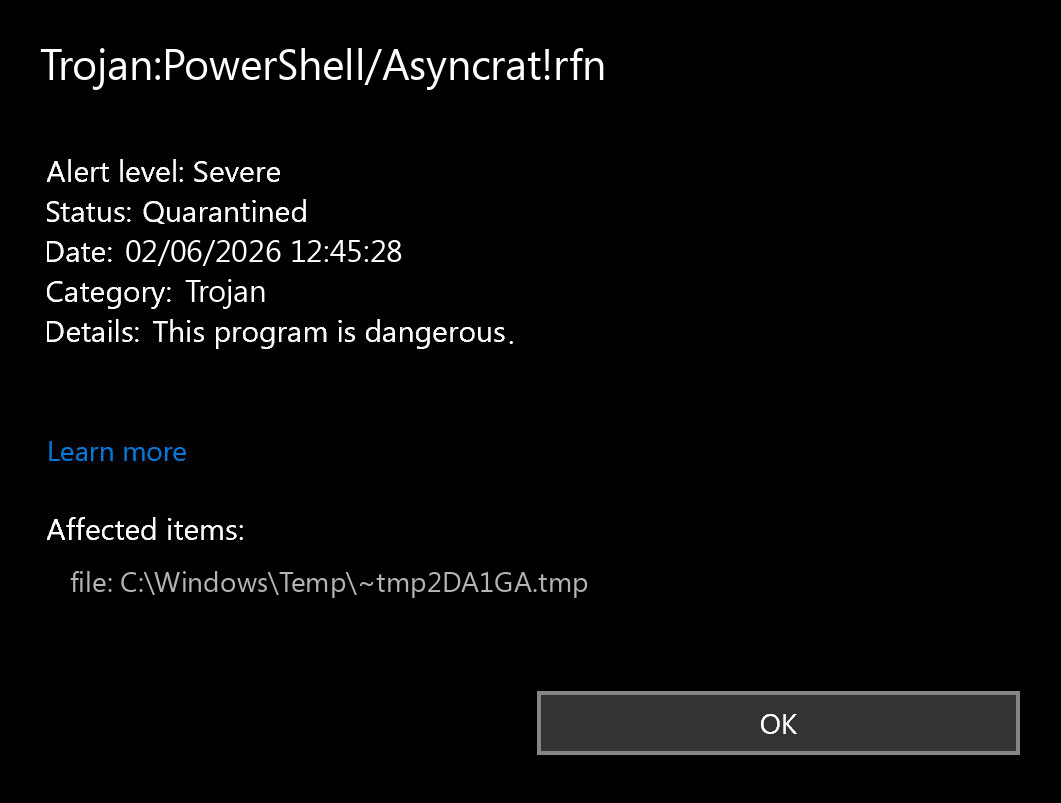
What Trojan:PowerShell/Asyncrat!rfn Means
Microsoft describes this detection as a PowerShell-based loader for AsyncRAT. The PowerShell stage is the delivery and launch component: it can retrieve a later payload, run obfuscated commands, and place the RAT where it can survive a reboot.
AsyncRAT itself is a remote access tool that has been used in malicious campaigns. MITRE tracks it as Windows software with behaviors such as command execution, scheduled-task persistence, keylogging, screen capture, and file transfer. That is why this alert deserves more than a quick cache cleanup.
If Defender shows the affected item in a browser cache or a temporary folder and no follow-up scan finds anything else, the incident may be limited. If the alert returns, or if powershell.exe, wscript.exe, RegSvcs.exe, or aspnet_compiler.exe is making unusual outbound connections, assume persistence until proven otherwise. For a broader explanation of Defender labels, see our Microsoft Defender detection names guide.
What To Do First
- Do not restore the quarantined item. Open the Defender alert, copy the affected path, detection name, and time, then leave the action as quarantined or removed.
- Disconnect if the warning is active. If the alert repeats, CMD/PowerShell windows flash, or unknown processes are connecting out, disconnect Wi-Fi/Ethernet and VPN until cleanup is complete.
- Update Defender and run a full scan. A quick scan may miss remnants. Run a full scan after signature updates, then scan again after reboot.
- Check startup and scheduled tasks. Look for recently created entries with vague updater names, encoded PowerShell, script hosts, or paths under
%Temp%,C:\Users\Public, andC:\ProgramData. - Scan with a second tool. Use Gridinsoft Anti-Malware to check for leftover scripts, startup entries, and RAT components that Defender may have interrupted but not fully cleaned.
- Change passwords from a clean device. If the alert reached the RAT stage, browser sessions, saved passwords, crypto wallets, game accounts, and email accounts may be exposed.
Where To Check For Persistence
The exact path in your alert matters. A single quarantined temporary file is less concerning than a recurring task or an injected process that keeps reaching the internet.
| Place to inspect | Why it matters |
|---|---|
| Task Scheduler | AsyncRAT campaigns often use deceptive updater-style task names to relaunch after sign-in. |
HKCU\Software\Microsoft\Windows\CurrentVersion\Run |
A Run key can start the payload without needing admin rights. |
| Startup folders | Shortcut, VBS, WSF, or PowerShell launchers may be dropped for simple persistence. |
%Temp%, C:\Users\Public, C:\ProgramData |
These writable locations are common places for staged scripts and payload files. |
RegSvcs.exe or aspnet_compiler.exe network activity |
Microsoft notes that AsyncRAT payloads may hide inside trusted .NET-related processes. |
If PowerShell itself is what your firewall or security tool keeps blocking, use our PowerShell outbound connection cleanup guide alongside this detection-specific checklist.
Removal Checklist
- Save the Defender details and any suspicious command line before deleting entries. This helps you avoid removing the wrong legitimate task.
- Sort Task Scheduler by creation or modification time. Disable suspicious tasks first, reboot, and confirm whether the alert stops returning.
- Open startup locations and remove launchers that point to temporary folders, public folders, random filenames, or encoded PowerShell commands.
- Check the Run key and remove values that launch unknown scripts or files from user-writable paths.
- Review recent downloads, phishing emails, fake document attachments, fake update prompts, cracked software, and eBook/PDF lures. Gridinsoft previously covered an AsyncRAT fake eBook campaign, and similar social-engineering lures remain common.
- Run Gridinsoft Anti-Malware and remove detected remnants. Reboot, update Windows and browsers, then run one more full scan.
- After the PC is clean, rotate passwords from another trusted device and revoke suspicious sessions. Use the account checklist in our post-infostealer recovery guide if saved browser credentials may have been exposed.
After uninstalling the suspicious app or deleting the visible threat, use Gridinsoft Anti-Malware to check hidden files, startup entries, scheduled tasks, bundled apps, browser changes, and other persistence points that can restore malware.
Download Anti-MalwareCould It Be A False Positive?
A false positive is possible but should not be your first assumption. It is more plausible when the alert points to a known clean script, a developer build folder, or a browser cache file, the file came from a trusted source, it is digitally signed where expected, and repeated scans from updated security tools stay clean.
It is less plausible when the detection returns after reboot, the affected item is in %Temp% or a public folder, a scheduled task was created recently, or trusted-looking .NET processes start making outbound connections. In those cases, treat Trojan:PowerShell/Asyncrat!rfn as an active infection until persistence checks are clean.
How To Reduce The Risk Next Time
- Keep Microsoft Defender and browser protection enabled, and avoid restoring quarantined scripts unless you can verify the source.
- Block unsigned scripts from user-writable folders where possible.
- Do not open unexpected OneNote, HTML, VHD, LNK, or archive attachments just because they look like invoices, eBooks, or job documents.
- Use a standard Windows account for everyday work and keep admin elevation separate.
- Check suspicious domains or files with Gridinsoft tools before running them.
Remote shell follow-up: Some command-line malware investigations involve helper tools such as Netcat. If you see an nc.exe or nc64.exe alert, use the HackTool:Win32/NetCat cleanup checklist before restoring or excluding the file.
Remote-access follow-up: If the investigation also shows HackTool:Win32/RemoteAdmin!MSR, follow the RemoteAdmin!MSR persistence and cleanup checklist before restoring or excluding any remote-control tool.
FAQ
Is Trojan:PowerShell/Asyncrat!rfn the same as AsyncRAT?
Not exactly. The Defender label points to a PowerShell loader associated with AsyncRAT. The loader may be only the first stage, but it can lead to the RAT payload if it was not stopped.
Why does Defender mention PowerShell?
PowerShell is a legitimate Windows automation tool. Attackers abuse it because it can run scripts, download payloads, and hide commands in encoded or obfuscated form.
Should I disconnect the computer?
Yes, if the alert keeps returning, if you see unknown outbound connections, or if the PC shows signs of remote-control activity. A one-time quarantined cache file is less urgent, but recurring activity should be isolated.
Do I need to change passwords?
Change important passwords from a clean device if you suspect the RAT payload ran. Remote access malware can expose browser sessions, email, banking, gaming, and work accounts.
Can I just delete the file from the Defender alert?
Deleting the file is only the first step. You also need to check scheduled tasks, Run keys, startup folders, and suspicious network activity, because the alert may be one stage of a larger infection.
References
- Microsoft Security Intelligence. “Trojan:PowerShell/Asyncrat!rfn threat description.” Microsoft, published May 20, 2025, updated Nov. 26, 2025, accessed June 2, 2026. https://www.microsoft.com/en-us/wdsi/threats/malware-encyclopedia-description?Name=Trojan%3APowerShell%2FAsyncrat%21rfn&ThreatID=2147930594
- MITRE ATT&CK. “AsyncRAT, Software S1087.” MITRE, last modified May 12, 2026, accessed June 2, 2026. https://attack.mitre.org/software/S1087/