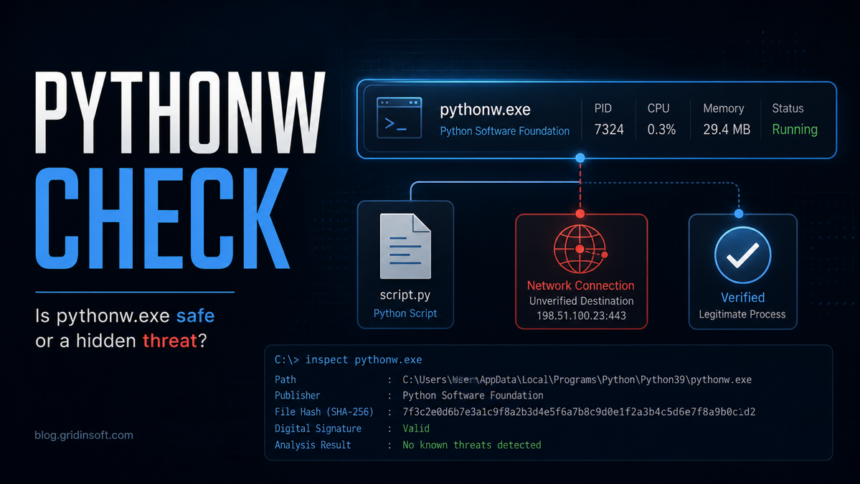
pythonw.exe is not automatically malware. It is the windowless Python launcher used by legitimate Python apps and scripts on Windows. It becomes suspicious when it appears without a known Python app, runs from AppData, Temp, a game/mod folder, a random browser-extension folder, or keeps returning through Startup, Task Scheduler, or a security alert. The safest answer is to check the path, command line, parent process, script file, and network behavior before deleting anything. For another Windows startup item where the filename is often legitimate but wrong-path copies are suspicious, use this SecurityHealthSystray.exe safety check.
The confusing part is that both sides can be true. Python documentation describes Windows launchers for scripts and GUI apps, while malware and unwanted apps can also use pythonw.exe because it runs without opening a console window. That makes the process quiet, not magically malicious.
What is pythonw.exe?
pythonw.exe is a Python executable for running scripts without a visible console window. A normal copy may live inside a Python installation, a developer tool, a data app, a game launcher, or an application that bundles Python. If you installed Python from python.org, Microsoft Store, Anaconda, Blender, GIMP, a mod manager, or another trusted app, seeing pythonw.exe can be normal.
It is not a core Windows system file. That matters because a random pythonw.exe in an unexpected folder should be treated like any other executable that can run code, connect to the network, and start with Windows.
When pythonw.exe is suspicious
Do not judge the process by the name alone. Judge the full execution chain. These signs deserve investigation:
pythonw.exeruns from%AppData%,%LocalAppData%,%Temp%,Downloads, a cracked-game folder, a mod-manager folder, or a random subfolder with meaningless letters.- The command line includes a strange
.pyor.pywscript, especially from Roaming, Temp, Startup, or a browser-extension-like folder. - It starts every time Windows opens, but you did not configure a Python app to start automatically.
- Task Scheduler, Registry Run keys, or Startup apps point to
pythonw.exewith hidden or unfamiliar script arguments. - A security tool reports a blocked outbound connection, suspicious behavior, or a Defender behavior name such as
Behavior:Win32/SuspEtherRpcConn.B. - You also see account symptoms: Telegram, Discord, Steam, browser sessions, email, or crypto accounts sending messages or showing sign-in alerts.
A legitimate process can still trigger a false positive, but persistence plus an unknown script plus network traffic is a strong reason to scan and clean before using that PC for passwords.
Quick check: safe or risky?
Use this triage before removing files. It separates normal Python use from malware-like abuse.
| What you see | Risk and what to do |
|---|---|
Installed Python path such as C:\Users\You\AppData\Local\Programs\Python\Python3x\pythonw.exe and a known app/script |
Usually normal. Confirm the app, update Python if needed, and leave it alone. |
| Bundled app path under a known vendor or app folder | Likely normal if the app is trusted. Check the publisher and whether the app actually needs Python. |
| Random AppData/Roaming/Temp folder, unknown script, or startup entry | Suspicious. Disable the startup entry, preserve the path for investigation, and scan the system. |
Security alert or blocked outbound connection from pythonw.exe |
Treat as potentially malicious until proven otherwise. Check the command line, script, and network destination. |
| Account hijack symptoms after a game, mod, crack, or unknown installer | Handle it as a possible infostealer incident. Clean the device first, then rotate passwords from a clean device. |
How to inspect pythonw.exe on Windows
- Open Task Manager. Right-click the process, choose Open file location, and write down the full path. If you cannot find the process, add the Command line column in Task Manager’s Details tab.
- Check the command line. Look for a script path after
pythonw.exe, such assomething.py,ml.py,gamelan.py, or a random file name. The script is often more important than the launcher. - Check the parent app. If the parent is a known app you opened, that is different from a process launched by Task Scheduler, a Run key, or a hidden startup item.
- Inspect Startup apps. Open Settings -> Apps -> Startup and disable unknown entries that point to Python folders you do not recognize.
- Inspect Task Scheduler. In Task Scheduler Library, look for tasks that run
pythonw.exe,python.exe, a.py/.pywscript, or a command hidden in AppData. - Check Registry Run keys only if you are comfortable. Review
HKCU\Software\Microsoft\Windows\CurrentVersion\RunandHKLM\Software\Microsoft\Windows\CurrentVersion\Run. Export a backup before changing anything. - Look at network activity. If
pythonw.exeis connecting to an unknown host, note the destination and scan the machine before logging in to important accounts.
Microsoft Sysinternals Process Explorer is useful for this because it can show the process tree, command line, verified signer, loaded modules, and path in one place. A missing verified signer is not proof of malware, but it is another reason to check the surrounding folder and startup source.
What to remove and what to keep
Do not delete every Python folder because one alert mentioned pythonw.exe. That can break legitimate apps and still leave the malicious startup entry behind. Remove the suspicious chain instead:
- unknown Startup entries that launch
pythonw.exeor a script; - scheduled tasks that relaunch the same script;
- the suspicious script and companion files in the same random folder;
- browser extensions or apps that created the folder;
- downloaded installers, archives, cracks, and mod packages tied to the first alert.
If the case started after a game/mod/crack installer, read our infostealer after downloading a game or mod guide before changing passwords. If the folder looks like a fake game or Ren’Py package and Defender mentioned Behavior:Win32/SuspEtherRpcConn.B, our RenPy fake game installer cleanup guide explains the account-safety side.
Scan and cleanup flow
After you collect the path and command line, scan the suspicious folder and the full system. Gridinsoft Anti-Malware can help validate whether the launcher, companion script, scheduled task, or bundled app is part of adware, a Trojan, an infostealer, or a false alarm. Use a full scan when the process appeared from AppData, ran at startup, or made blocked outbound connections.
After uninstalling the suspicious app or deleting the visible threat, use Gridinsoft Anti-Malware to check hidden files, startup entries, scheduled tasks, bundled apps, browser changes, and other persistence points that can restore malware.
Download Anti-MalwareIf you remove a confirmed infection, reboot and check that the same pythonw.exe command line does not return. Then rotate passwords from a clean device, starting with email, Microsoft/Google accounts, password manager, banking, Discord, Telegram, Steam, and any crypto accounts. Do not reuse a backup copy of AppData unless you are sure it does not contain the same startup entry or script.
How to prevent the same issue
- Install Python and Python-based apps only from official project pages or trusted vendors.
- Do not run unknown
.py,.pyw,.bat,.cmd, or.ps1files from game mods, cracks, or “fix” archives. - Keep Startup apps and Task Scheduler clean; unknown entries are often the first clue.
- Keep browser sync, extension lists, and saved sessions under control after any suspected stealer incident.
- Use a security tool alert as a signal to inspect the path and script, not as a reason to delete random files blindly. The same rule applies to Windows-looking names such as UserOOBEBroker.exe, where the path and signature decide the risk.
The same path-and-signature logic applies to other trusted-looking process names. If your alert mentions WSL instead of Python, check our wslservice.exe malware masquerade guide before deleting the real Windows Subsystem for Linux service.
FAQ
Is pythonw.exe a virus?
No, not by itself. pythonw.exe is a legitimate Python launcher, but malware can abuse it to run hidden scripts. The path, command line, startup source, and network behavior decide the risk.
Why does pythonw.exe run in the background?
It runs without a console window, so GUI apps and background scripts can use it quietly. That is normal for some software, but suspicious when you do not recognize the app or script.
Should I delete pythonw.exe?
Usually no. First identify which app or script launched it. If the file is part of a trusted Python installation, deleting it may break legitimate programs. If it runs from a random AppData or Temp folder, remove the whole suspicious startup chain after scanning.
What if Defender says Behavior:Win32/SuspEtherRpcConn.B for pythonw.exe?
Treat it seriously because that alert means Defender saw suspicious behavior, often a network connection pattern. Check the script path, startup persistence, and account symptoms, then run a full cleanup before changing passwords on that device.
References
- Python Software Foundation. “Using Python on Windows.” Python documentation, accessed June 2, 2026. https://docs.python.org/3/using/windows.html
- Microsoft. “Behavior:Win32/SuspEtherRpcConn.B.” Microsoft Security Intelligence malware encyclopedia, accessed June 2, 2026. https://www.microsoft.com/en-us/wdsi/threats/malware-encyclopedia-description?Name=Behavior%3AWin32%2FSuspEtherRpcConn.B
- Microsoft Sysinternals. “Process Explorer.” Microsoft Learn, accessed June 2, 2026. https://learn.microsoft.com/en-us/sysinternals/downloads/process-explorer
- Gridinsoft ThreatInfo. “pythonw.exe file reputation examples.” ThreatInfo, accessed June 2, 2026. https://threatinfo.net/files/pythonw.exe-c3516b6d9babbae7bcbe3505c56cbd7c