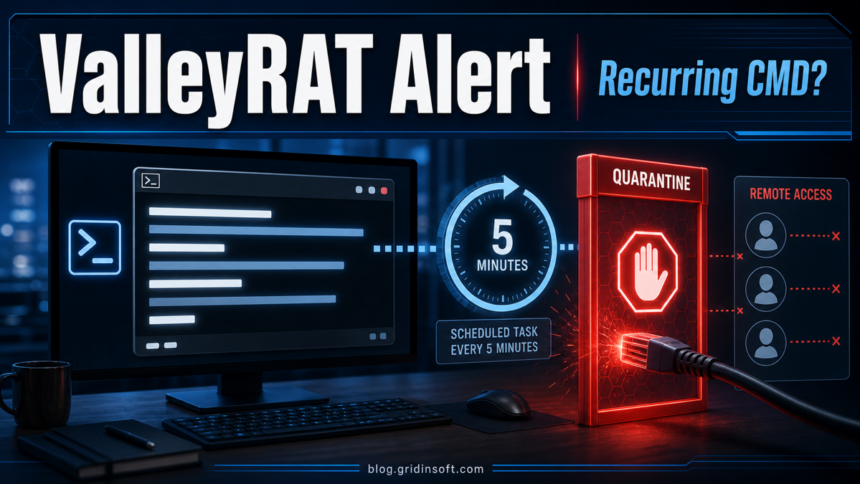
Trojan:MSIL/ValleyRAT.GZD!MTB is a Microsoft Defender detection that should be treated as a possible remote-access-trojan incident, especially when a Command Prompt window keeps appearing after quarantine. Keep the detection quarantined, copy the affected path and time from Protection history, then check what is relaunching cmd.exe, PowerShell, Python, Java, or a task every few minutes before you sign back in to important accounts.
The exact file may be different on each PC. The cleanup logic is the same: confirm the detection name, remove the original lure or downloaded file, find persistence, run a full scan, and secure accounts from a clean device if the suspicious command actually ran.
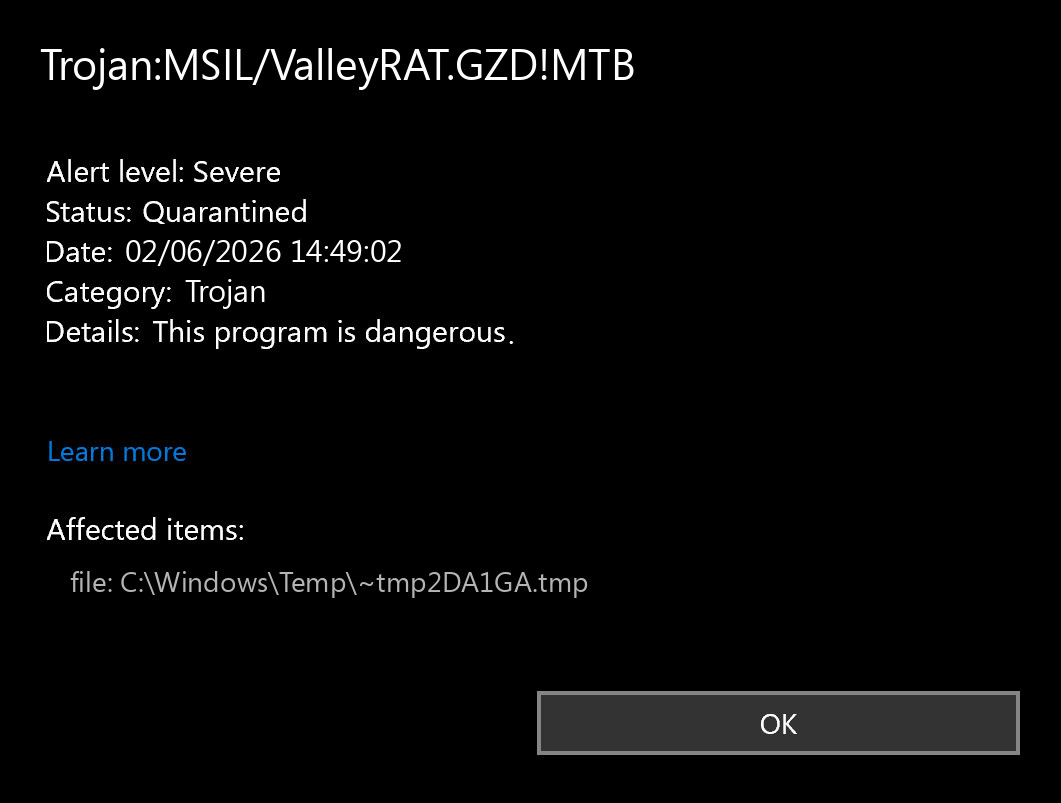
What Trojan:MSIL/ValleyRAT.GZD!MTB Means
Microsoft Defender uses the Trojan:MSIL/ValleyRAT.GZD!MTB label when its signatures match a .NET-style ValleyRAT detection. Current user reports around this exact name describe a suspicious link or download followed by repeating Defender blocks and a CMD window opening every few minutes. That combination is more serious than a one-time browser-cache script because a remote access trojan can expose files, sessions, passwords, screenshots, and account activity if it reaches the payload stage.
ValleyRAT is a remote access trojan family discussed in malware-research reporting. Splunk describes ValleyRAT campaigns with phishing-style delivery, persistence, command execution, and remote-control behavior. Even if Defender quarantined the first file, you still need to verify that no scheduled task, startup entry, or companion script is recreating the event.
If you are trying to understand the broader naming scheme, our Microsoft Defender detection names guide explains why the family, platform, and suffix in the alert matter.
What To Do First
- Do not restore the item. Leave the Defender action as quarantined or removed. Restoring it can restart the infection chain.
- Record the evidence. Copy the detection name, affected item, source path, process, and alert time from Protection history.
- Disconnect if it repeats. If CMD flashes every few minutes or Defender catches the same item repeatedly, disconnect Wi-Fi/Ethernet until persistence checks are done.
- Remove the original lure. Delete the LinkedIn/message attachment, downloaded archive, fake document, installer, or shortcut that appeared before the first alert.
- Run updated scans. Update Defender, run a full scan, then use Gridinsoft Anti-Malware as a second-opinion cleanup scan if Defender blocks activity but does not show the launcher clearly.
Why CMD Keeps Opening
A repeating command window usually means something is scheduled or autostarted. It may call cmd.exe directly, or use powershell.exe, python.exe, java_agent.exe, wscript.exe, mshta.exe, or another helper process to launch a hidden script. Focus on entries created near the first alert.
| Where to check | What looks suspicious |
|---|---|
| Task Scheduler | New updater-style tasks that run every few minutes, call CMD/PowerShell, or point to a user-writable folder. |
| Startup Apps and Startup folders | Unknown shortcuts, scripts, or apps created around the same time as the Defender alert. |
| Run and RunOnce keys | Values under HKCU\Software\Microsoft\Windows\CurrentVersion\Run or HKLM\Software\Microsoft\Windows\CurrentVersion\Run that launch temporary files, scripts, or random names. |
| User-writable folders | Recent files in %Temp%, Downloads, C:\Users\Public, C:\ProgramData, or WindowsApps-related paths that match the alert time. |
| Browser and chat apps | Suspicious extensions, copied commands, downloaded archives, or links from LinkedIn, Discord, Telegram, email, or fake job/interview messages. |
If PowerShell is part of the alert, use our PowerShell outbound connection cleanup guide with this detection-specific checklist. If the incident started from a job or recruiter message, the practical exposure path is close to our fake job interview malware cleanup guide.
Cleanup Checklist
- Open Windows Security, go to Protection history, and confirm the exact
Trojan:MSIL/ValleyRAT.GZD!MTBentry is quarantined or removed. - Sort Task Scheduler by recent activity. Disable suspicious tasks first; delete only after you capture the name, trigger, action, and file path.
- Review Startup Apps and both Startup folders for unknown shortcuts or scripts.
- Check the Run keys listed above. Export the key before deleting suspicious values.
- Search recent Downloads, Temp, Public, and ProgramData files around the alert time. Remove the original archive, installer, shortcut, or script after evidence is recorded.
- Update Defender and run a full scan. If the detection returns, run Microsoft Defender Offline, which Microsoft documents as a restart-based offline scan for harder-to-remove malware.
- Run Gridinsoft Anti-Malware to look for leftover loaders, scheduled tasks, suspicious startup entries, and RAT components.
- Reboot and work normally for one session. If the same alert or CMD window returns, do not whitelist it; repeat the persistence checks and consider isolating the PC for deeper review.
After uninstalling the suspicious app or deleting the visible threat, use Gridinsoft Anti-Malware to check hidden files, startup entries, scheduled tasks, bundled apps, browser changes, and other persistence points that can restore malware.
Download Anti-MalwareWhen To Secure Accounts
ValleyRAT-style detections deserve account cleanup when there is any sign that the command ran before Defender stopped it. Change passwords from another clean device, start with email and password-manager accounts, revoke active sessions, and review browser-synced extensions. If you used the same PC for gaming, crypto, banking, work, or social accounts, treat saved browser sessions as potentially exposed until scans are clean.
For a broader RAT risk explanation, see our remote access trojan guide. For campaign context, Gridinsoft previously covered fake Google Chrome sites distributing ValleyRAT; this new article is narrower and focuses on the Defender exact detection and recurring CMD symptom.
Could It Be A False Positive?
A false positive is possible when the affected file is a known internal tool, the source is trusted, the file hash is explainable, and repeated scans stay clean after Defender updates. It is less plausible when CMD opens repeatedly, a task runs every few minutes, the item sits in Temp or Downloads, or the alert followed a suspicious link or downloaded attachment.
Do not create Defender exclusions for Trojan:MSIL/ValleyRAT.GZD!MTB just because a forum comment says it is safe. Exclusions hide future alerts and make cleanup harder if persistence is still present.
How To Avoid A Repeat
- Do not open archives, shortcuts, or documents from recruiter, LinkedIn, Discord, or Telegram messages unless you can verify the sender out of band.
- Avoid running commands copied from websites or chat messages, especially when they promise account verification, CAPTCHA bypass, updates, or job-test setup.
- Keep Defender, browsers, and Windows updated, and leave real-time protection enabled.
- Use a standard Windows account for daily work and keep admin approval separate.
- Scan suspicious files or domains before opening them, especially when the file came from a shortened link or cloud-share invitation.
FAQ
Is Trojan:MSIL/ValleyRAT.GZD!MTB dangerous?
Yes, treat it as dangerous until cleanup proves otherwise. The ValleyRAT family is associated with remote access behavior, and a recurring CMD window suggests something may still be trying to launch.
Why does the alert come back after Defender quarantines it?
A scheduled task, startup entry, script, extension, or companion app may be recreating the file or command. Quarantine stops the detected item, but it may not remove the launcher.
Should I delete java_agent.exe if it appears in the alert?
Do not delete random files blindly. First confirm the path, signature, creation time, and whether a task or startup entry launches it. If it is in a temporary or suspicious user folder and scans flag it, remove it through security tools.
Do I need to reinstall Windows?
Usually not as the first step. Reinstall becomes reasonable if the alert keeps returning after persistence cleanup and offline scans, or if you cannot trust the machine because account theft or remote control is evident.
Can I keep using the PC after one quarantine event?
If the alert happened once, the file is quarantined, full scans are clean, and there are no repeating tasks or CMD windows, you can continue after monitoring. If it repeats, isolate the PC and complete the persistence checks.
References
- Microsoft Q&A. “Trojan:MSIL/ValleyRAT.GZD!MTB.” Microsoft Learn Q&A, published Jan. 9, 2026, accessed June 2, 2026. https://learn.microsoft.com/en-us/answers/questions/5701515/trojan-msil-valleyrat-gzd-mtb
- Splunk Threat Research Team. “ValleyRAT Insights: Tactics, Techniques, and Detection Methods.” Splunk, published Sept. 11, 2024, accessed June 2, 2026. https://www.splunk.com/en-us/blog/security/valleyrat-insights-tactics-techniques-and-detection-methods.html
- MITRE ATT&CK. “Scheduled Task/Job: Scheduled Task (T1053.005).” MITRE, accessed June 2, 2026. https://attack.mitre.org/techniques/T1053/005/
- Microsoft Learn. “Microsoft Defender Offline scan in Windows.” Microsoft Defender for Endpoint documentation, accessed June 2, 2026. https://learn.microsoft.com/defender-endpoint/microsoft-defender-offline