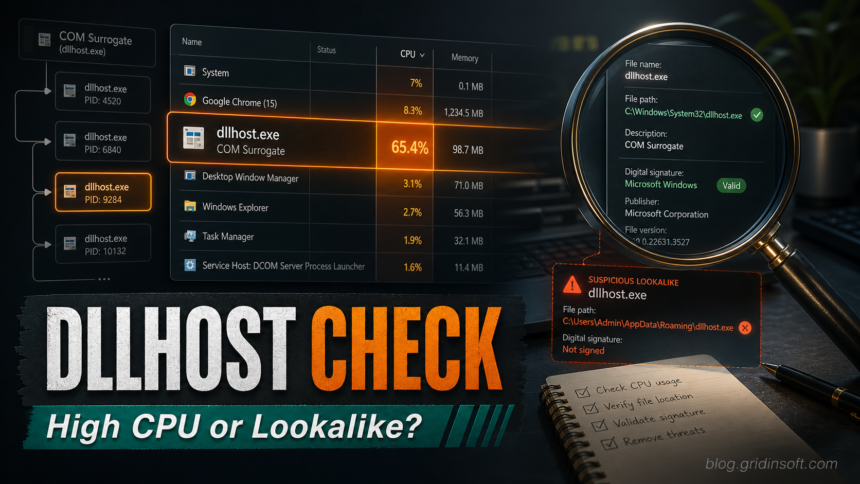
dllhost.exe high CPU usually means the Windows COM Surrogate process is stuck handling thumbnails, media metadata, shell extensions, or another COM object. The legitimate process is a Microsoft Windows component, but a same-name file running from AppData, Temp, a user profile folder, or an unsigned location should be treated as a possible malware lookalike until you check its path, signature, parent process, and persistence.
Do not delete C:\Windows\ or C:\Windows\. Start by confirming which copy is running, then decide whether you are troubleshooting a normal COM Surrogate loop or cleaning up a suspicious impostor.
What dllhost.exe Does in Windows
dllhost.exe is the executable Windows uses for COM Surrogate. In simple terms, Windows can load certain shell and media components inside this separate process instead of directly inside File Explorer. If a codec, thumbnail handler, or other COM component crashes, the surrogate can fail without taking the whole desktop with it. Microsoft has described COM Surrogate as a helper process used to host COM objects outside the original process [1].
That design also explains why users often notice several dllhost.exe processes in Task Manager. Multiple instances can be normal, especially when File Explorer is generating thumbnails, indexing media folders, opening Properties dialogs, or working with cloud-synced files. The risk starts when the process is in the wrong place, has no valid Microsoft signature, launches from a strange parent, or returns after you remove an unrelated suspicious file. If the CPU spike is coming from WmiPrvSE.exe rather than COM Surrogate, follow the WMI Provider Host high CPU triage to identify the WMI caller first.
Normal vs Suspicious dllhost.exe
| Looks normal | Needs investigation |
|---|---|
Runs from C:\Windows\ on 64-bit Windows. |
Runs from %AppData%\, %LocalAppData%\, Downloads, a hidden folder, or a random subfolder. |
| Digital signature says Microsoft Windows or Microsoft Corporation. | Unsigned, signed by an unknown publisher, or the signature check fails. |
| High CPU appears while browsing a folder with videos, photos, PDFs, or broken media files. | High CPU appears immediately after a crack, fake update, archive, browser extension, or unknown installer ran. |
| CPU drops after closing File Explorer, changing folder view, or moving a corrupt media file. | The process relaunches after reboot, recreates files, adds exclusions, or has a scheduled task/startup entry. |
| Parent process is a normal Windows component such as Explorer during thumbnail work. | Parent process is a script host, PowerShell, a suspicious service, or an unknown file from user-writable folders. |
Why COM Surrogate Uses High CPU
The most common benign cause is a file or shell extension that keeps COM Surrogate busy. Video codecs, damaged media, large photo folders, network folders, old preview handlers, and cloud-sync overlays can all trigger repeated thumbnail or metadata work. If the spike happens only when one folder is open, the folder contents are the first place to look.
A suspicious case looks different. Malware sometimes uses a familiar Windows process name to blend into Task Manager. It may name a file dllhost.exe, place it under a user-writable path, and create persistence through Startup, Task Scheduler, services, browser policy, or registry Run keys such as HKCU\Software\. The name alone proves nothing; the file path and behavior matter.
Check the Running File Path and Signature
- Open Task Manager, expand the process list, right-click the busy
dllhost.exe, and choose Open file location. - If the path is
C:\Windows\orSystem32\ dllhost.exe C:\Windows\, do not delete it. Continue with the troubleshooting checks below.SysWOW64\ dllhost.exe - If the path is under
AppData,Temp,Downloads, a browser profile, or a folder with a random name, disconnect from risky sites/downloads and treat it as suspicious. - Open the file properties and check the Digital Signatures tab. The legitimate Windows file should have a valid Microsoft signature.
- For a deeper check, use Microsoft Sysinternals Process Explorer to view the process tree, command line, verified signer, loaded DLLs, and parent process [2]. Sysinternals Sigcheck can also verify signatures and hashes from the command line [3].
In Process Explorer, look at what is hosting or touching the process. If a known media folder, Explorer window, or preview handler is involved, you are probably debugging a Windows shell problem. If PowerShell, wscript.exe, a random service, a browser extension folder, or a recent installer is nearby in the process tree, switch to cleanup mode.
The same parent-first method also applies to shared application helpers. If the unfamiliar process is crashpad_handler.exe rather than a Windows file, use the Crashpad parent-app and error guide to identify the owning browser, desktop app, launcher, or game before repairing or scanning it.
Fix Benign COM Surrogate High CPU
- Close File Explorer windows and see whether the CPU spike stops.
- Reopen the last folder in Details view instead of thumbnail view. If CPU jumps again, move recent videos, photos, PDFs, or archives to a temporary folder and re-test in smaller batches.
- Clear thumbnail cache through Windows Disk Cleanup or Storage settings, then reboot.
- Update or remove old codec packs, video tools, shell extensions, PDF preview handlers, or cloud-sync tools that started around the same time as the issue.
- Run
sfc /scannowand thenDISM /Online /Cleanup-Image /RestoreHealthfrom an elevated Command Prompt if Windows components are crashing repeatedly. - If the problem only happens inside one folder, avoid deleting system files. The trigger is usually a file, preview handler, or shell extension, not the Windows
dllhost.exebinary.
For related Windows desktop crashes and high-memory symptoms, see Gridinsoft’s guide to DWM high memory and desktop instability. If command prompts or scripts open by themselves, also review the PowerShell outbound connection cleanup guide.
Clean Up a Suspicious dllhost.exe Lookalike
If the running file is not the signed Windows copy, use containment first. Disconnect the PC from risky downloads or active remote sessions, close browsers, and avoid signing in to important accounts until the source is checked.
- In Task Manager or Process Explorer, record the full path, parent process, command line, and any linked folder names.
- End the suspicious process only after saving the path. Do not terminate the legitimate System32 or SysWOW64 file just because the name matches.
- Check Startup Apps, Task Scheduler, Services, and registry Run keys for entries that point to the same folder.
- Look for paired files in
%AppData%,%LocalAppData%,%ProgramData%, browser extension folders, and recent archive extraction folders. - Remove the suspicious startup entry and quarantine the file with a security tool. Reboot and check whether it returns.
- If it came from a fake update, crack, game mod, invoice, or archive, assume there may be a loader or bundled module. Review Gridinsoft’s fake Chrome update terminal cleanup and Trojan removal workflow for related persistence checks.
A repeated or wrong-path dllhost.exe alert is a good case for a full system scan because the visible process may be only the last stage. A loader, scheduled task, service, browser policy, or Defender exclusion can recreate the file after a simple deletion. Run Gridinsoft Anti-Malware, remove detections, reboot, and scan again if the process or CPU spike returns.
If the process path is wrong, the name imitates a Windows component, or high CPU started after an unknown installer, scan for hidden miners, services, startup entries, and bundled components.
Scan suspicious dllhost.exe leftoversWhat Not to Do
- Do not delete
C:\Windows\orSystem32\ dllhost.exe C:\Windows\.SysWOW64\ dllhost.exe - Do not trust a process only because its name is familiar.
- Do not restore or allow an unsigned same-name file before checking its origin.
- Do not use random “DLL fixer” or “process remover” downloads. They often create more risk than the original symptom.
- Do not ignore account safety if the suspicious file already ran after a crack, fake update, or phishing download. Change important passwords from a clean device if you suspect stealer activity.
When COM Surrogate and Console Window Host appear together, do not troubleshoot by filename alone. Use the Conhost.exe high CPU guide to check the parent process and command line before deciding whether a script, installer, or malware loader is involved.
FAQ
Is dllhost.exe a virus?
The legitimate dllhost.exe is a Windows COM Surrogate process. A file with the same name can still be malware if it runs from a user folder, has no valid Microsoft signature, or keeps returning through startup or scheduled tasks.
Why are there many dllhost.exe processes?
Several COM Surrogate processes can be normal when Windows is generating thumbnails, reading file metadata, or hosting separate COM objects. Investigate the path and signer instead of judging by the process count alone.
Can I end COM Surrogate in Task Manager?
You can end a stuck COM Surrogate instance, but it may restart if Windows still needs it. Ending the process is not the same as fixing the trigger. If the file is the signed Windows copy, troubleshoot the folder, codec, preview handler, or shell extension that causes the spike.
Where should the real dllhost.exe be located?
On typical Windows systems, the legitimate copies are under C:\Windows\ and C:\Windows\. Treat copies in AppData, Temp, Downloads, or random hidden folders as suspicious until verified.
Should I scan if dllhost.exe high CPU stopped by itself?
If the spike happened only while browsing a media folder and the file path/signature are normal, a scan is optional. If the process ran from the wrong path, followed an unknown installer, or returned after reboot, scan and check startup/persistence entries.
References
- Microsoft, Raymond Chen. “What does the COM Surrogate do and why does it always stop working?” The Old New Thing, Microsoft DevBlogs, February 12, 2009; accessed July 2, 2026. https://devblogs.microsoft.com/oldnewthing/20090212-00/?p=19173
- Microsoft Sysinternals. “Process Explorer.” Microsoft Learn, accessed July 2, 2026. https://learn.microsoft.com/en-us/sysinternals/downloads/process-explorer
- Microsoft Sysinternals. “Sigcheck.” Microsoft Learn, accessed July 2, 2026. https://learn.microsoft.com/en-us/sysinternals/downloads/sigcheck