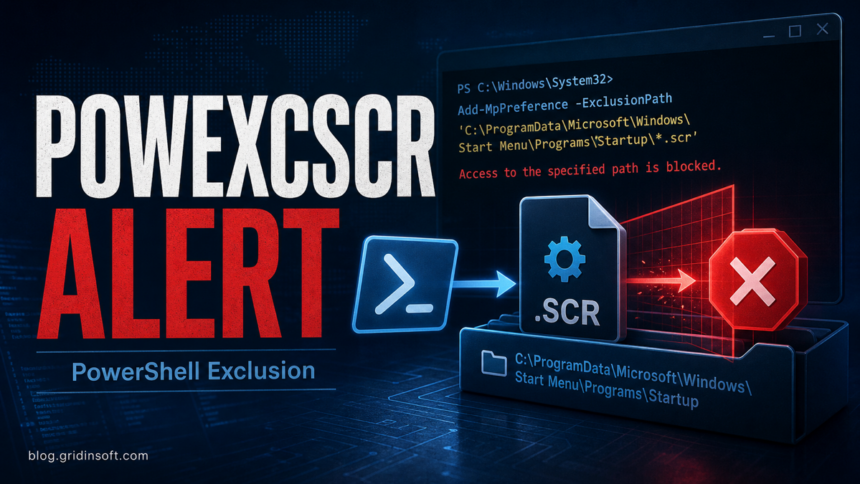
Trojan:Win32/PowExcScr.HB!MTB is a severe Microsoft Defender detection that usually means a script or dropped file tried to weaken protection through PowerShell. In the reported case, Defender showed a command like cmd.exe /c powershell -Command Add-MpPreference -ExclusionPath ... Startup*.scr, which is a strong warning sign: malware is trying to add a Defender exclusion for a screen-saver file in the Windows Startup path.
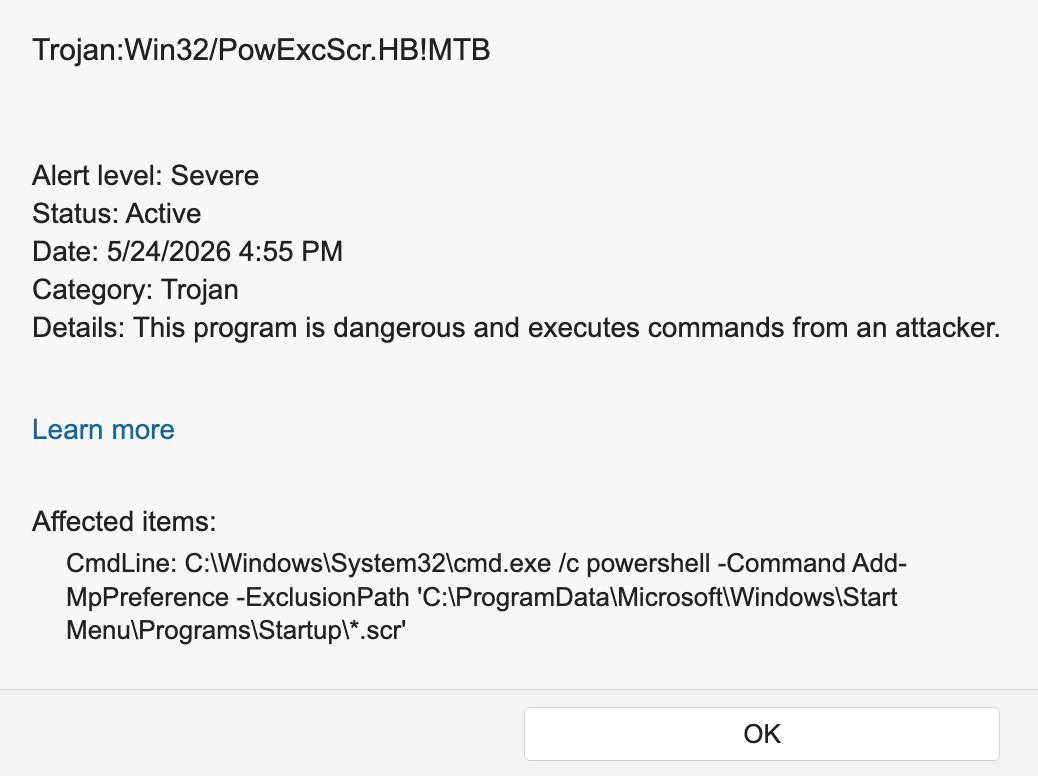
If you see this alert, do not allow or restore the item. Keep Defender quarantine enabled, disconnect the PC from sensitive accounts, and check both Defender exclusions and Startup persistence before changing passwords.
Why Defender Flags PowExcScr.HB!MTB
The name appears to describe a PowerShell-exclusion script behavior rather than a normal application file. Add-MpPreference is a legitimate Microsoft Defender PowerShell cmdlet, but attackers abuse the -ExclusionPath option to make Defender skip a folder or file pattern [1]. Microsoft also documents Defender exclusions as a feature that can leave selected files or folders unscanned when misused [2].
A suspicious affected item may look like this:
cmd.exe /c powershell -Command Add-MpPreference -ExclusionPath "C:\\ProgramData\\Microsoft\\Windows\\Start Menu\\Programs\\Startup\\*.scr"That pattern combines three risky signals:
cmd.exe /c powershelllaunches PowerShell indirectly, a common way to run script commands from installers, droppers, or batch files.Add-MpPreference -ExclusionPathattempts to change Defender settings so a path is ignored.Startup*.scrpoints at screen-saver files in a Startup folder. A real.scrfile is executable, so this can be used for persistence after reboot.
What To Do First
- Leave the detection quarantined. Do not click Allow, Restore, or add a manual exclusion for the file.
- Disconnect from risky sessions. If the file came from a Roblox executor, game mod, crack, or unofficial installer, stop logging in from that PC until it is checked.
- Remove suspicious Defender exclusions. Open Windows Security, go to Virus & threat protection settings, then Exclusions. Remove entries that point to Startup, Temp, ProgramData, Downloads, or the folder where the suspicious file ran.
- Check Startup folders. Press
Win + R, runshell:startup, and remove unknown.scr,.cmd,.bat,.vbs, or shortcut files. Also checkC:\\ProgramData\\Microsoft\\Windows\\Start Menu\\Programs\\Startup. - Check Task Scheduler. Look for newly created tasks that launch PowerShell,
cmd.exe,wscript.exe,mshta.exe, or a file from Temp, ProgramData, Downloads, or AppData. - Run a full cleanup scan. Use Microsoft Defender full scan, then run a second-opinion scan with Gridinsoft Anti-Malware to check startup entries, scripts, droppers, and related malware traces.
- Change passwords from a clean device. If the original download was a game mod, Roblox executor, fake installer, or crack, treat it like possible stealer exposure and rotate important accounts after the PC is clean.
After uninstalling the suspicious app or deleting the visible threat, use Gridinsoft Anti-Malware to check hidden files, startup entries, scheduled tasks, bundled apps, browser changes, and other persistence points that can restore malware.
Download Anti-MalwareHow To Check Defender Exclusions With PowerShell
If you are comfortable using an elevated PowerShell window, you can list exclusions before removing anything:
Get-MpPreference | Select-Object -ExpandProperty ExclusionPathRemove only entries you recognize as suspicious. For example, if Defender shows an exclusion for the exact Startup .scr path, remove that exact value rather than deleting unrelated exclusions used by trusted business software:
Remove-MpPreference -ExclusionPath "C:\ProgramData\Microsoft\Windows\Start MenuProgramsStartup*.scr"If PowerShell reports access denied, tamper protection, policy settings, or the exclusion returns after removal, assume something persistent is still active and scan from a safer state, such as Windows Safe Mode or Microsoft Defender Offline.
Why A Startup .scr File Is Dangerous
Windows screen-saver files use the .scr extension, but they are executable programs. A malicious .scr file in a Startup folder can run when Windows starts. If malware also adds a Defender exclusion for that path, the startup file may be harder to catch during routine scanning.
This behavior maps to two well-known attacker techniques: command execution through PowerShell [3] and defense impairment by modifying security tools or their settings [4]. That does not prove every PowExcScr alert is an infostealer, but it is enough to treat the machine as unsafe until the exclusion and startup items are checked.
If This Started After Downloading Xeno Or Another Roblox Executor
Unofficial Roblox executors and script packs are high-risk downloads because they ask users to disable protection, run unsigned files, or trust repacked archives. If PowExcScr.HB!MTB appeared after downloading Xeno or a similar tool, focus on both device cleanup and account safety:
Because Xeno-labeled packages can differ by source and hash, use the Xeno Executor safety and Salat Stealer guide to compare the exact bundle before treating the alert as a false positive.
- remove the downloaded archive, extracted folder, and any startup entries it created;
- revoke active Roblox sessions and secure the email account tied to Roblox;
- change passwords from a clean phone or another trusted computer, not from the infected Windows session;
- read the broader infostealer after downloading a game or mod checklist if you logged in to Discord, Roblox, Microsoft, Google, Steam, or payment accounts after running the file.
Could PowExcScr.HB!MTB Be A False Positive?
A false positive is possible with many antivirus detections, but this specific affected-item pattern is not normal for ordinary software. A legitimate app rarely needs to add a Defender exclusion for *.scr files inside Startup. If you believe the file is safe, do not whitelist it immediately. Update Defender definitions, upload the original file to a trusted file-checking workflow, and ask the vendor why it modifies Defender exclusions.
Signs The Infection Is Not Fully Removed
- the same PowExcScr.HB!MTB alert returns after reboot;
- the Defender exclusion reappears after you remove it;
- Task Scheduler has a new task that launches PowerShell or a file from Temp/AppData/ProgramData;
- unknown
.scr,.cmd,.ps1, or shortcut files appear in Startup; - your browser, Discord, Roblox, Microsoft, or email sessions show unknown logins.
FAQ
Is Trojan:Win32/PowExcScr.HB!MTB a real trojan?
Yes, treat it as a real threat unless you can prove the file and command are legitimate. The Defender alert is severe, and a command that adds exclusions for Startup .scr files is not normal behavior for safe consumer software.
Should I delete PowerShell?
No. PowerShell is a normal Windows component. Remove the malicious command, suspicious exclusions, startup files, and scheduled tasks instead of trying to delete PowerShell itself.
Does changing my password remove PowExcScr.HB!MTB?
No. Password changes protect accounts, but they do not remove malware from Windows. Clean the PC first, then rotate passwords and revoke sessions from a trusted device.
Why did Defender mention Add-MpPreference?
Add-MpPreference is a Microsoft Defender configuration cmdlet. Malware can abuse it to add exclusions so Defender skips a path where the malicious file is stored.
What if the alert came from a Roblox executor?
Delete the executor and treat the device as potentially compromised. After cleanup, secure Roblox, email, Discord, and other accounts you used on the same Windows profile.
References
- Microsoft Learn. “Add-MpPreference.” Microsoft, accessed May 28, 2026. https://learn.microsoft.com/en-us/powershell/module/defender/add-mppreference
- Microsoft Support. “Virus & threat protection in the Windows Security app.” Microsoft, accessed May 28, 2026. https://support.microsoft.com/en-us/windows/virus-and-threat-protection-in-the-windows-security-app-1362f4cd-d71a-b52a-0b66-c2820032b65e
- MITRE ATT&CK. “Command and Scripting Interpreter: PowerShell (T1059.001).” MITRE, accessed May 28, 2026. https://attack.mitre.org/techniques/T1059/001/
- MITRE ATT&CK. “Impair Defenses: Disable or Modify Tools (T1562.001).” MITRE, accessed May 28, 2026. https://attack.mitre.org/techniques/T1562/001/