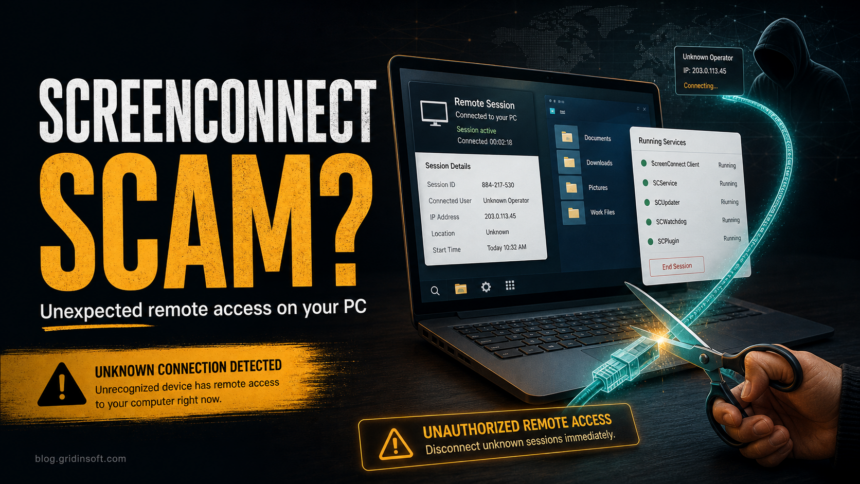
ScreenConnect is legitimate remote support software, but ScreenConnect Client on a PC you did not authorize is a remote-access incident. If it appeared after a phone call, fake support page, email attachment, PDF download, or fake Adobe/update prompt, assume someone may have been able to view the screen, move the mouse, run commands, and install more tools.
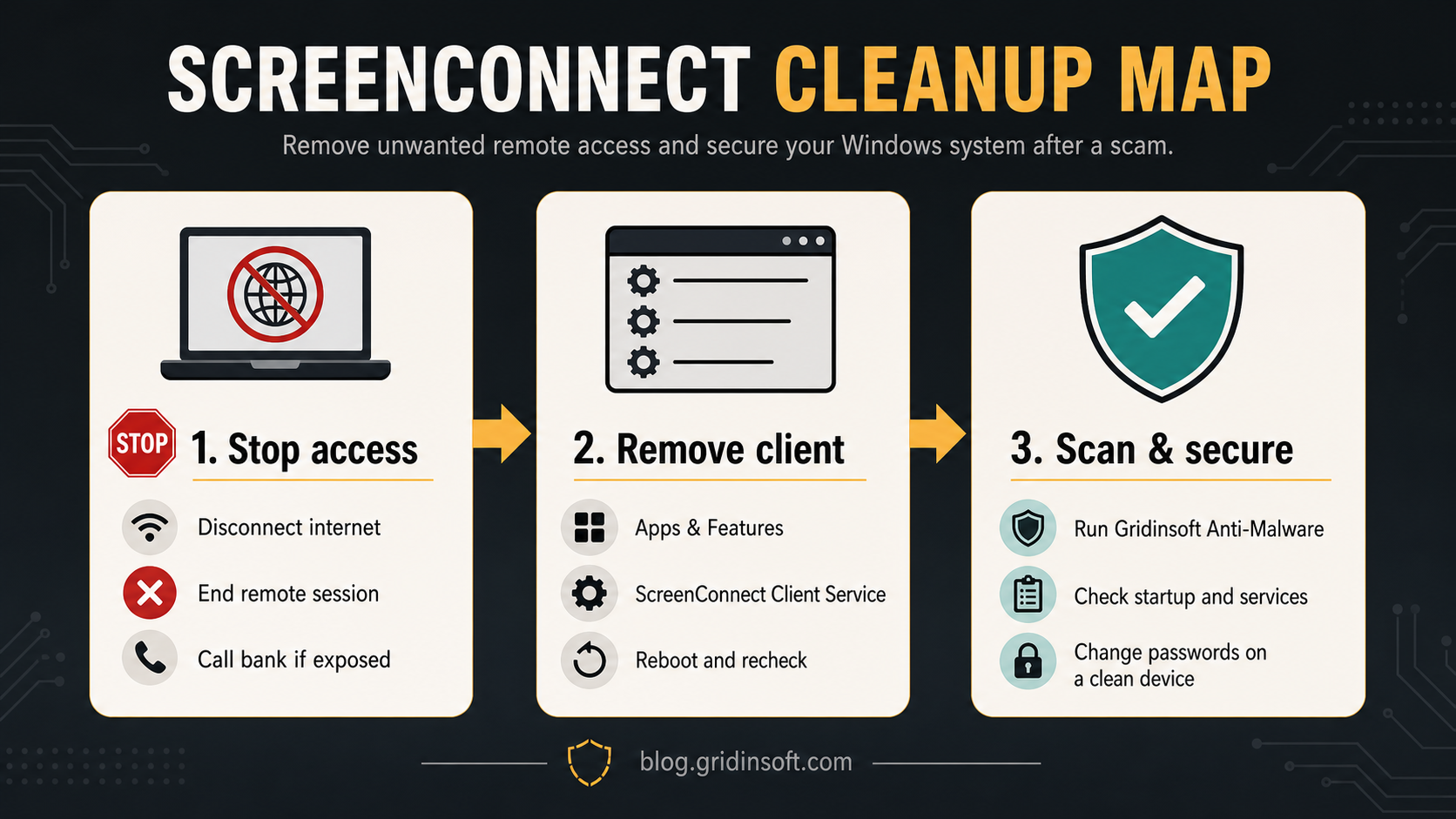
The safe response is not just deleting ScreenConnect.ClientSetup.exe. The installer is usually only the delivery file. After installation, the client may leave a background service such as ScreenConnect Client Service, an executable such as ScreenConnect.ClientService.exe, and a session component such as ScreenConnect.WindowsClient.exe. Stop the connection first, remove the client, then scan for the scam payloads that came with it.
- Expected installation: if your employer, managed-service provider, or a technician you contacted opened a support ticket and installed the client, verify the ticket and technician through a known phone number before removing it.
- Unexpected installation: if there is no known ticket, the controlling company or host is unfamiliar, or ScreenConnect appeared after a download, script, email, pop-up, or unsolicited call, disconnect the PC and treat it as unauthorized access.
Why unexpected ScreenConnect is risky
ConnectWise ScreenConnect, formerly ConnectWise Control, is built for remote support and unattended access. That is useful when your IT provider installs it with permission. It is dangerous when a scammer convinces a victim to install it during a fake bank, Microsoft, Adobe, Social Security, invoice, refund, or tech-support scenario.
In that situation, the question is not whether ScreenConnect itself is malware. The real question is whether the person controlling the session had permission and what they did while connected. Remote access can be used to open banking pages, collect documents, run scripts, disable security settings, add startup items, install password stealers, or create persistence that survives a reboot.
Signs the install was part of a scam
- You downloaded
ScreenConnect.ClientSetup.exefrom a random website, short link, fake document portal, or browser pop-up. - A caller or chat agent told you to install a “viewer”, “security update”, “PDF update”, “support tool”, or “verification app”.
- Apps & Features shows ScreenConnect Client, ConnectWise Control Client, or a similar remote support entry you do not recognize.
- Services shows ScreenConnect Client Service or a ScreenConnect service with an instance ID in parentheses.
- Task Manager shows
ScreenConnect.ClientService.exe,ScreenConnect.WindowsClient.exe, or related ConnectWise/ScreenConnect processes while nobody from your trusted IT team is supporting the PC. - A browser page claimed a protected PDF or shared document needed an update before it could open.
AccountGuardSetup: fake Bank of America “Account Guard” campaign
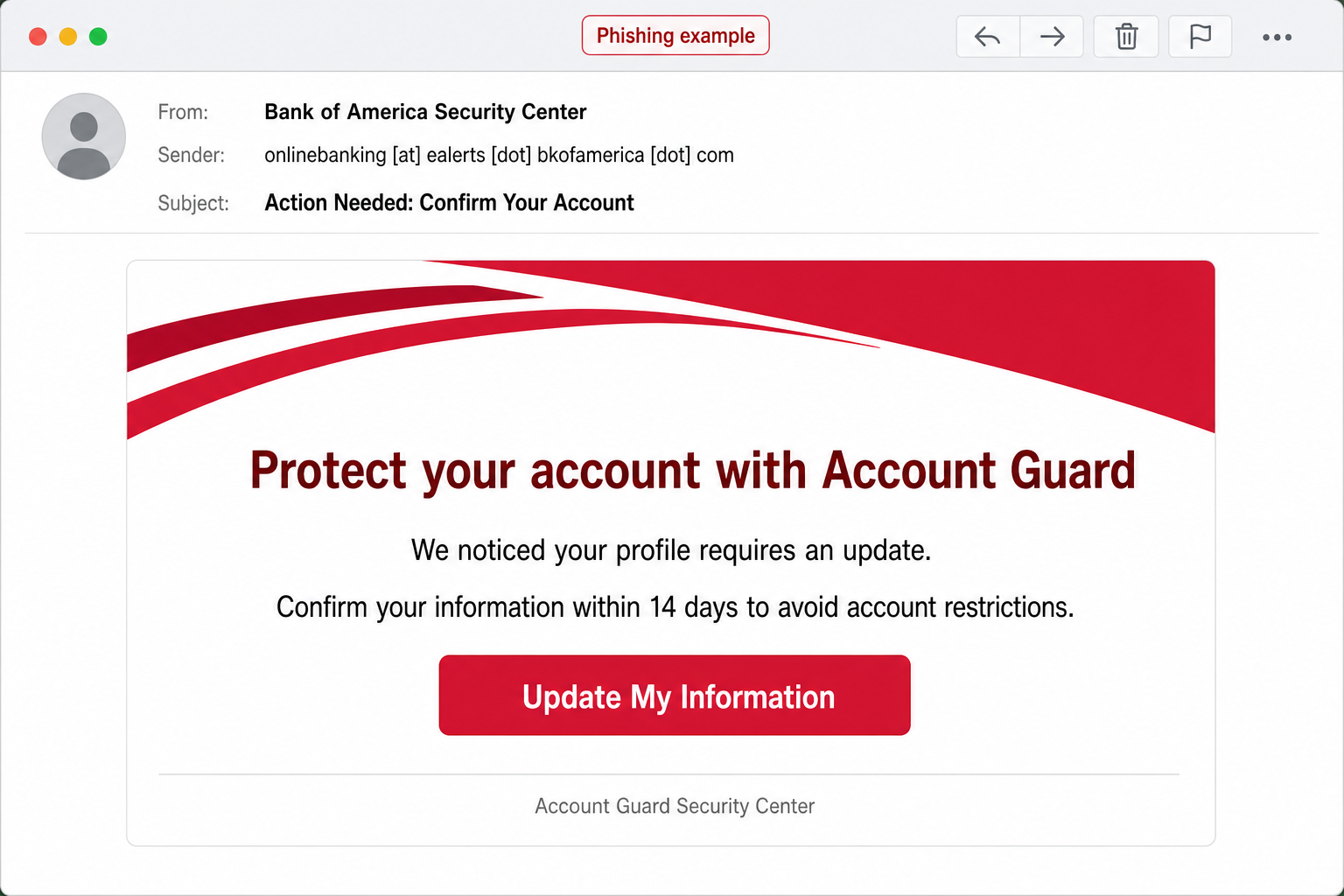
Huntress analyzed a July 28 phishing message that copied Bank of America styling and sent Windows visitors toward a fake “Account Guard” download. The bank did not distribute AccountGuardSetup.zip or AccountGuardSetup.vbs; those names are campaign warning signs. The script chain installed an attacker-configured ScreenConnect client and tried to make the client harder to notice or remove. [2]
Check the real sender domain before trusting the display name. In this campaign, the lookalike address used bkofamerica, not the bank’s real domain. A familiar color scheme, a “Security Center” label, or a deadline does not authenticate the message. Use the phishing-email verification checklist, then contact the bank through a bookmark, its official app, or the number printed on your card.
Example
From: Bank of America Security Center <onlinebanking [at] ealerts [dot] bkofamerica [dot] com>
Subject: Action Needed: Confirm Your Account
We noticed your profile requires an update. Confirm your information within 14 days to avoid account restrictions.
Button: Update My Information
Windows: AccountGuardSetup leads to remote access
On Windows, the fake update page offered AccountGuardSetup.zip, which contained AccountGuardSetup.vbs. Running the script could install ScreenConnect with elevated access and register the rogue client under the misleading service name Windows Security. It could also hide the normal uninstall entry. Do not delete the legitimate Microsoft Windows Security components by name; verify the service path, publisher, and ScreenConnect instance before removing anything.
If the script ran, disconnect the PC from the network and preserve quick notes about the message, file name, time, and any bank activity before cleanup. Then follow this page’s ScreenConnect removal steps, scan for the scripts and persistence that arrived with it, reboot, and scan again. If the client or service cannot be removed normally, do not copy ACL or service-permission commands from the lure or random forum posts; use a clean-device recovery plan or trusted incident-response help.
macOS: the same lure targets credentials and identity data
The campaign used a different path for macOS visitors. Instead of the Windows ScreenConnect payload, it showed a fake banking sign-in and requested the password twice, followed by identity and payment-card details. If you entered anything, use a clean device to change the bank and email passwords, enable multi-factor authentication, review recovery details and active sessions, call the bank from the card or official app, and monitor or freeze credit when Social Security or identity-document data was exposed.
What to do based on what happened
- You only read the email: do not use its reply address or button. Report it as phishing and verify any real account notice through the bank’s official app or bookmarked site.
- You opened the page but downloaded nothing: close it, clear any notification permission it requested, and verify the account independently. A page visit alone is not proof that ScreenConnect was installed.
- You downloaded the ZIP but did not run the VBS: delete or quarantine both files and scan the download location. Do not extract or preview the script to “check” it.
- You ran
AccountGuardSetup.vbson Windows: isolate the PC, remove unauthorized ScreenConnect and its service, run a full malware scan, reboot, scan again, and secure every account that was open during the session. - You entered bank, email, card, or identity details: change credentials from a clean device, contact the bank through a known channel, review transfers and new payees, replace the exposed card if advised, and watch for follow-up recovery scams.
Unexpected Faronics Deploy Agent before ScreenConnect
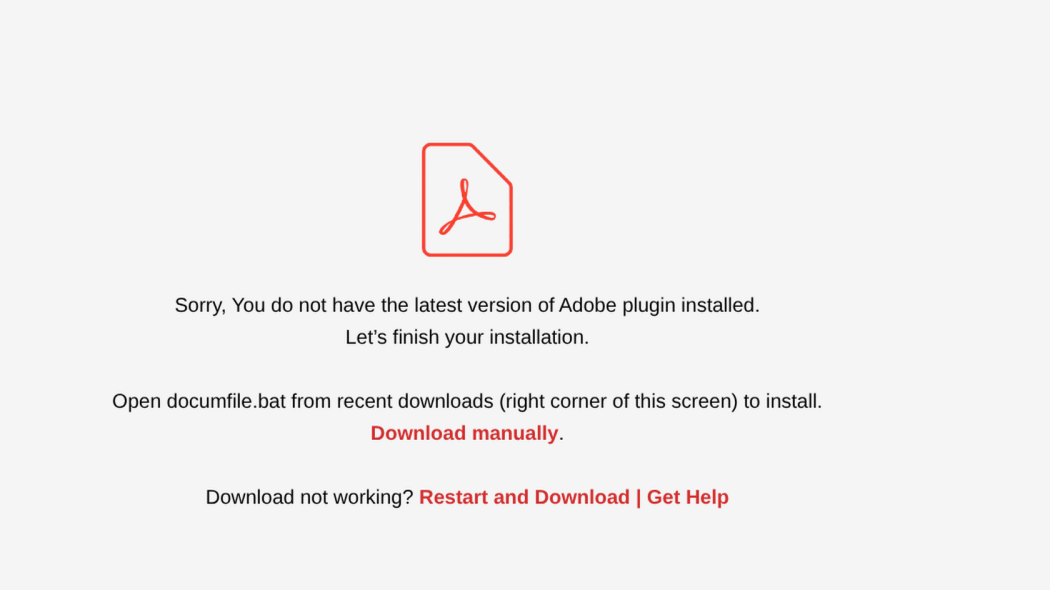
Faronics Deploy is legitimate software for managing computers. A valid signature does not establish that you authorized its installation. Huntress documented fake document and Adobe-plugin lures that enrolled Windows PCs into attacker-controlled Faronics deployments; remote scripts then installed ScreenConnect as another access path. Its July 21–August 20 observation window covered more than 457 endpoints encountering lures, not 457 confirmed compromises. Reported activity dropped after vendor measures began around August 21. [4]
- Email or page only: close the lure and verify the document with its sender through a known channel. Do not install a viewer to investigate.
- Downloaded but not run: quarantine or delete the installer; check Downloads with your security tool. Finding the file alone does not mean the agent was installed.
- Agent installed unexpectedly: disconnect the affected PC. On a managed computer, contact IT from another device and verify the deployment before removal.
- Scripts executed: preserve
C:\ProgramData\Faronics\Logs\, particularlyScriptRunner.log, before uninstalling. Investigators can review script URLs, secondary tooling and theckdeployment identifier in configuration activity. Do not open or run URLs copied from those logs. - ScreenConnect also present: inventory both agents; removing one can leave the other access path. After evidence capture, remove unauthorized installations, follow the cleanup and full-scan steps below, reboot and recheck. If removal is blocked, ask trusted IT or incident responders instead of guessing service names or protection passwords.
If someone used the remote session or accounts were exposed, continue with the clean-device account-recovery section below. Keep the incident time, affected accounts and saved logs together so the responder can connect the installation to later activity.
What may remain after the installer runs
| Place to check | What you may see | What it means |
|---|---|---|
| Downloads | ScreenConnect.ClientSetup.exe |
The installer. It may be gone after setup, so absence here does not prove the PC is clean. |
| Apps & Features | ScreenConnect Client or ConnectWise Control Client | The installed remote access client. |
| Services | ScreenConnect Client Service |
Background service that can keep the client available after reboot. |
| Task Manager | ScreenConnect.ClientService.exe, ScreenConnect.WindowsClient.exe |
Service and interactive session components. |
| Program folders | C:\Program Files (x86)\ScreenConnect Client (...) |
Common client installation folder. The exact suffix varies by instance. |
| Security tools | Exclusions, disabled protection, new scheduled tasks | Possible follow-on activity from the scammer or a bundled payload. |
If a scanner flags ScreenConnect DLLs as RemoteAdmin
A detection such as Risk.Win32.RemoteAdmin.cl on ScreenConnect.Windows.dll or ScreenConnect.Core.dll does not prove that ConnectWise ScreenConnect is fake. Those files can belong to the legitimate ScreenConnect client. The risk comes from context: a remote administration tool found after a support scam, fake update, document lure, or unknown install may give someone else unattended access to the PC.
Treat the alert as urgent when the files sit under C:\Program Files (x86)\ScreenConnect Client (...) and you did not approve remote support. Disconnect the PC first, then remove the client, check the ScreenConnect service, scan for bundled payloads, and review accounts that were open during the session. If Microsoft Defender shows the broader HackTool:Win32/RemoteAdmin!MSR label, use that page for Defender-specific wording while keeping ScreenConnect cleanup here.
Do this first if ScreenConnect appeared unexpectedly
- Disconnect the PC from the internet. Unplug Ethernet or turn off Wi-Fi. If the session is still open, this breaks the attacker’s control while you investigate.
- End the call or chat. Do not let the same person guide the cleanup. Scammers often tell victims that removal will “damage the account” or “cancel the refund”.
- Use a different clean device for passwords. If you typed banking, email, Microsoft, Google, PayPal, crypto, or work credentials while the session was active, change those passwords from another device.
- Call your bank from the number on the card or official website. Do this immediately if the scammer saw account pages, asked for card details, initiated transfers, or mentioned refunds.
- Take quick evidence notes. Save the phone number, website, downloaded file name, time, and any payment/account actions. This helps with bank fraud reports and later cleanup.
How to remove ScreenConnect Client from Windows
If this is a work computer, confirm with your IT department before removal. On a personal PC, remove unexpected ScreenConnect as soon as the internet connection is off.
- Open Settings > Apps > Installed apps or Apps & Features.
- Search for ScreenConnect and ConnectWise Control.
- Select the client entry and choose Uninstall.
- Restart Windows.
- Open Services with
services.mscand look again for ScreenConnect Client Service or a ConnectWise/ScreenConnect service. - Open Task Manager and check whether
ScreenConnect.ClientService.exeorScreenConnect.WindowsClient.exereturned after reboot.
If the normal uninstaller is missing or fails, open PowerShell as administrator and identify the service before deleting anything:
Get-CimInstance Win32_Service |
  Where-Object { $_.DisplayName -match 'ScreenConnect|ConnectWise' } |
  Select-Object Name, DisplayName, State, PathName
Only after you have confirmed the service belongs to the unwanted client, stop it and remove it by service Name, not by guessing from the display name:
sc.exe stop "SERVICE_NAME_FROM_THE_LIST"
sc.exe delete "SERVICE_NAME_FROM_THE_LIST"
Then restart again and re-check Apps, Services, Task Manager, and C:\Program Files (x86)\ for leftover ScreenConnect or ConnectWise client folders. Do not delete random folders with similar names if this is a managed work PC.
If ScreenConnect appears with PowerShell, a miner, or a scheduled task
Do not assume several alerts are unrelated. Microsoft documented a 2026 campaign in which attackers silently installed ScreenConnect, used the remote session to deliver more malware, and added persistence that included scheduled tasks and a crypto miner. [3] In a home-user incident, the safe approach is to remove the unauthorized access path and the follow-on activity as one cleanup sequence.
- If PowerShell opened unexpectedly, downloaded files, or keeps launching at startup, inspect the command and parent process instead of deleting the legitimate
powershell.exe; use the PowerShell downloader and persistence checklist. - If CPU or GPU use stays high or an unfamiliar service or task returns after reboot, follow the Windows service and scheduled-task miner checks.
- After removing the visible client and detections, run a full scan, reboot, and scan again. Then use the post-malware Windows security audit to check Startup, services, tasks, exclusions, accounts, and the clean-install decision.
Why scan after manual removal
Manual removal can close the obvious remote-access door, but it does not answer what the scammer installed before you noticed. Fake update pages and support scams often deliver more than one component: downloaders, startup entries, scheduled tasks, browser changes, security exclusions, or credential-stealing tools.
This is where Gridinsoft Anti-Malware makes the cleanup easier. After the connection is stopped and the visible client is removed, run a full scan to check for hidden files, unwanted apps, startup entries, scheduled tasks, browser leftovers, and companion malware that may have arrived during the same session. The scan cannot prove that no human saw your screen, but it can help remove the technical leftovers that keep a PC exposed.
If the process path is wrong, the name imitates a Windows component, or high CPU started after an unknown installer, scan for hidden miners, services, startup entries, and bundled components.
Scan for remote-access leftoversIf a scammer had remote access
Treat the cleanup as both a device problem and an account problem. Removing the client is only one part of recovery.
- Change passwords for email, banking, Microsoft/Google/Apple, PayPal, crypto, shopping, cloud storage, and work accounts from a clean device.
- Turn on multi-factor authentication where possible.
- Check email forwarding rules, filters, recovery email addresses, and connected apps.
- Review browser saved passwords and payment methods.
- Check bank and card activity for transfers, new payees, gift-card purchases, and test charges.
- Tell your workplace IT team if a work account, VPN, RDP, Teams, Slack, cloud drive, or admin tool was open during the session.
- If sensitive documents, tax records, Social Security details, or identity documents were visible, consider credit freezes and official identity-theft reporting steps.
Legitimate ScreenConnect vs scam install
| Question | Legitimate support | Likely scam |
|---|---|---|
| Who asked you to install it? | Your employer, MSP, or a known vendor you contacted first. | An unsolicited caller, pop-up, email, fake document page, or refund agent. |
| Where did the download come from? | A known company support portal or a link confirmed by your IT team. | A random domain, shortened URL, fake PDF/update page, or copied chat instruction. |
| Was the session explained? | You know the technician, purpose, and expected time window. | The person creates urgency, asks for banking, tells you not to close the window, or requests payment. |
| What should you do? | Confirm with the owner before uninstalling. | Disconnect, remove the client, scan, and secure accounts. |
Recent abuse patterns to recognize
A separate MSP360 phishing campaign documented by Microsoft shows why the inventory matters: the first remote agent installed ScreenConnect as a second access channel. Removing or blocking only the first tool can leave that second client behind.
ScreenConnect abuse usually appears as part of a larger lure, not as a search for the installer name. Gridinsoft recently analyzed a fake Social Security Statement email that pushed ScreenConnect through a fake Adobe-style document page and a separate Adobe Acrobat Secure Document email that delivered ScreenConnect.ClientSetup.msi. We have also covered sysupdate.jpeg malware with ScreenConnect activity and broader remote-access malware warning signs.
Operation BlueDash is a newer two-channel example: a fake Teams update installs Level RMM and attempts ScreenConnect in parallel. The Operation BlueDash response guide explains why finding one agent is not enough and how to inventory every unauthorized remote-access path.
That is why this page focuses on the post-install problem: what to check when the installer is gone but the client, service, or remote-control risk may remain.
FAQ
Is ScreenConnect malware?
No. ScreenConnect is legitimate remote support software. It becomes a security concern when it is installed without informed permission or delivered through a scam, fake update, phishing email, or fake support call.
Does ScreenConnect.ClientSetup.exe stay running after installation?
Usually the setup file is only the installer. After installation, the more important things to check are the installed app entry, ScreenConnect Client Service, ScreenConnect.ClientService.exe, and ScreenConnect.WindowsClient.exe. The installer may remain in Downloads, but the service is what can keep access available.
Can I just delete ScreenConnect.ClientSetup.exe?
No. Deleting the downloaded installer does not remove an installed client or undo what happened during a remote session. Remove the app, check services and processes, reboot, scan the PC, and secure accounts that were visible or used.
What if my company uses ScreenConnect?
Do not remove a managed support tool from a work PC without asking IT. The warning applies to unexpected installs on personal PCs or situations where the download came from a suspicious call, email, pop-up, or fake document page.
When should I reinstall Windows?
Reinstalling may be reasonable if the scammer had admin access for a long time, installed multiple tools, disabled security, or accessed high-value work systems. For many home users, disconnecting, removing the client, scanning with a trusted anti-malware tool, and securing accounts is the first practical step before deciding on a full reset.
After cleanup, a family or caregiver can reduce the chance of another support scam by following our layered Windows remote-access lockdown guide. It explains the limits of a standard account and how to test application control without breaking legitimate updates.
References
- ConnectWise. “ScreenConnect Remote Support Software.” ConnectWise ScreenConnect, accessed June 18, 2026. https://www.screenconnect.com/
- Andrew Brandt. “Fake Bank of America “Action Needed” Phishing Email Deposits ScreenConnect Instead.” Huntress, August 4, 2026, accessed August 8, 2026. https://www.huntress.com/blog/bank-spam-rmm
- Microsoft Threat Intelligence. “From poisoned search results to GPU mining: A cryptojacking campaign abusing ScreenConnect and Microsoft .NET utilities.” Microsoft Security Blog, May 26, 2026, accessed July 10, 2026. https://www.microsoft.com/en-us/security/blog/2026/05/26/poisoned-search-results-gpu-mining-cryptojacking-campaign-abusing-screenconnect-microsoft-net-utilities/
- Huntress. “Daisy-Chaining Trust: Investigating Faronics Deploy Abuse.” August 31, 2026. Investigation and response guidance