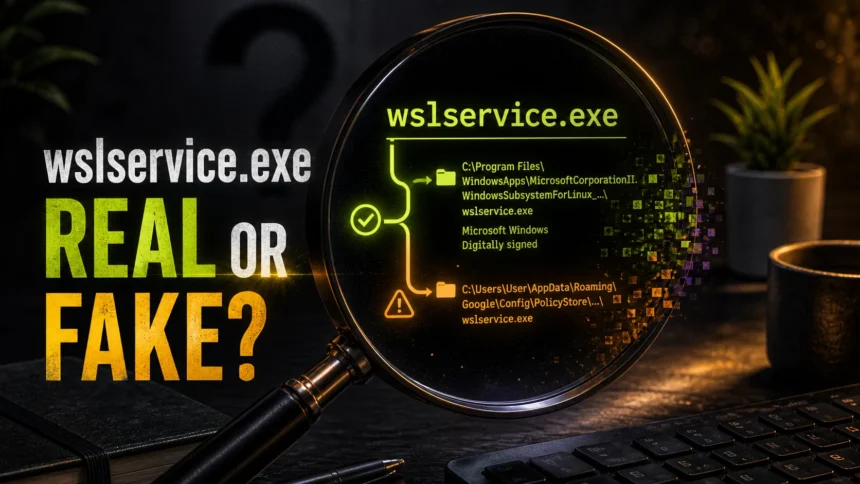
wslservice.exe is normally Microsoft’s Windows Subsystem for Linux service, not malware. The ranking problem for this topic is that users are no longer asking only whether the filename exists; they are asking whether the copy on their PC is the real WSL service or a masquerade. Treat it as suspicious when the path points to AppData\...\PolicyStore, Temp, a browser-policy folder, Downloads, or any user-writable location, especially if a security tool also reports Python/script activity or blocked outbound connections.
The safe decision is path-first: check the executable path, Microsoft signature, service name, command line, parent process, and whether WSL is actually installed or running before deleting or allowing anything. Removing the real WSL service can break Linux tools, Docker Desktop, VS Code remote workflows, and development environments. Ignoring a fake copy in a user-profile folder can leave a Trojan, downloader, or persistence task active.
What is wslservice.exe?
wslservice.exe is the service process behind Windows Subsystem for Linux. WSL technical documentation describes WslService as a session 0 service running as SYSTEM that manages WSL sessions, communicates with the WSL 2 virtual machine, and starts Linux distributions. In normal use, you may see it after opening Ubuntu, Debian, Kali, Docker Desktop, VS Code WSL, or another tool that talks to WSL.
That does not mean every file named wslservice.exe is safe. Malware often borrows trusted process names. A legitimate WSL service should align with a real WSL installation and expected activity; a random copy in a browser policy folder, startup folder, Temp directory, or user-profile cache should be treated as suspicious until verified. The same path-and-signature logic applies to SecurityHealthSystray.exe startup checks when Windows Security tray entries look duplicated or misplaced.
Quick verdict: safe or suspicious?
| What you see | Risk and what to do |
|---|---|
wslservice.exe runs only when you use WSL, Docker, VS Code WSL, or a Linux distribution |
Usually normal. Confirm the path and Microsoft signature, then leave it alone. |
The service name is WSLService, the signer is Microsoft, and the path belongs to a trusted WSL install |
Low risk. Use wsl --shutdown if you need to test whether WSL activity stops. |
A copy appears in %AppData%, %LocalAppData%, %Temp%, a browser policy/cache folder, Downloads, or a random vendor-looking folder |
Suspicious. Preserve the path, disable suspicious startup entries, and scan the system. |
A firewall, antivirus, or security tool reports outbound traffic from a strange wslservice.exe path |
Treat it as potentially malicious until you verify the executable, command line, network destination, and startup source. |
An alert says Python, PowerShell, or a script is trying to access wslservice.exe |
Suspicious unless it matches your real development workflow. Check the parent process, script path, and whether WSL is installed. |
| You do not use WSL, no Linux distribution is installed, and the process still returns after reboot | Investigate persistence: Startup apps, Task Scheduler, services, browser policies, and recent installers. |
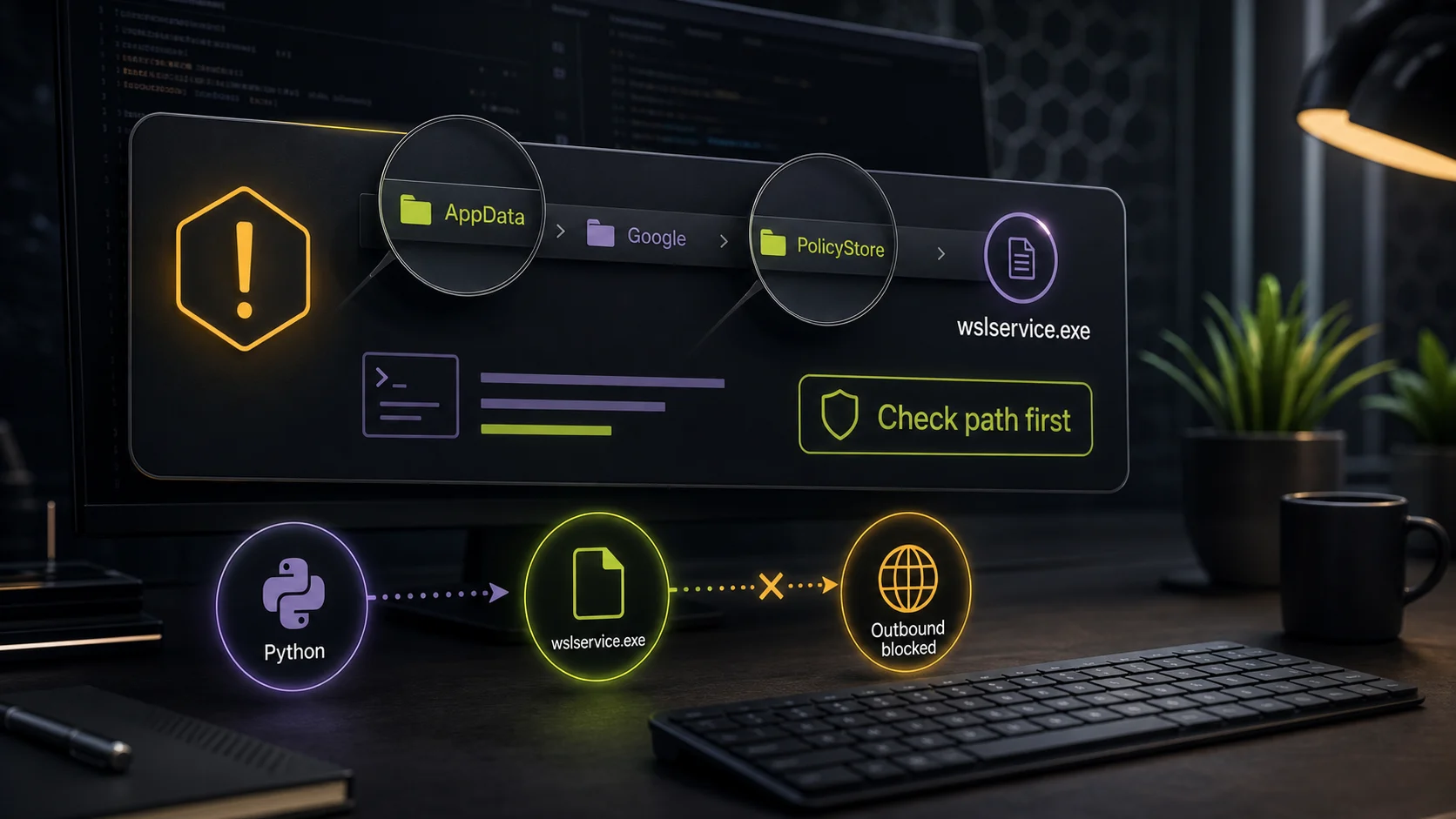
If the alert shows AppDataRoamingGoogleConfigPolicyStore
A path such as C:\Users\...\PolicyStore\...\wslservice.exe should not be treated as normal WSL just because the filename looks familiar. Recent user reports often include the same pattern: a security alert names wslservice.exe, the file is under a Google/Chrome-looking policy folder, and the alert may also mention Python, a script host, or a blocked website connection. That combination points to masquerading or persistence, not a standard Microsoft WSL install.
- Do not whitelist it: a trusted name in an untrusted folder is still an untrusted executable.
- Preserve the exact path: the parent folder, script path, and destination host help identify the infection chain.
- Check browser policies: suspicious Chrome/Edge/Google policy folders can be used to persist unwanted behavior.
- Look for script parents: Python, PowerShell,
cmd.exe,mshta.exe, or Task Scheduler launching the file is a stronger warning than the filename alone. - Scan beyond the file: check nearby scripts, scheduled tasks, startup entries, browser policy folders, and recently downloaded installers or archives.
Where should wslservice.exe be?
Modern WSL installations can vary by Windows build and Store/GitHub package state, so do not rely on one hard-coded folder as the only safe answer. Instead, combine these checks:
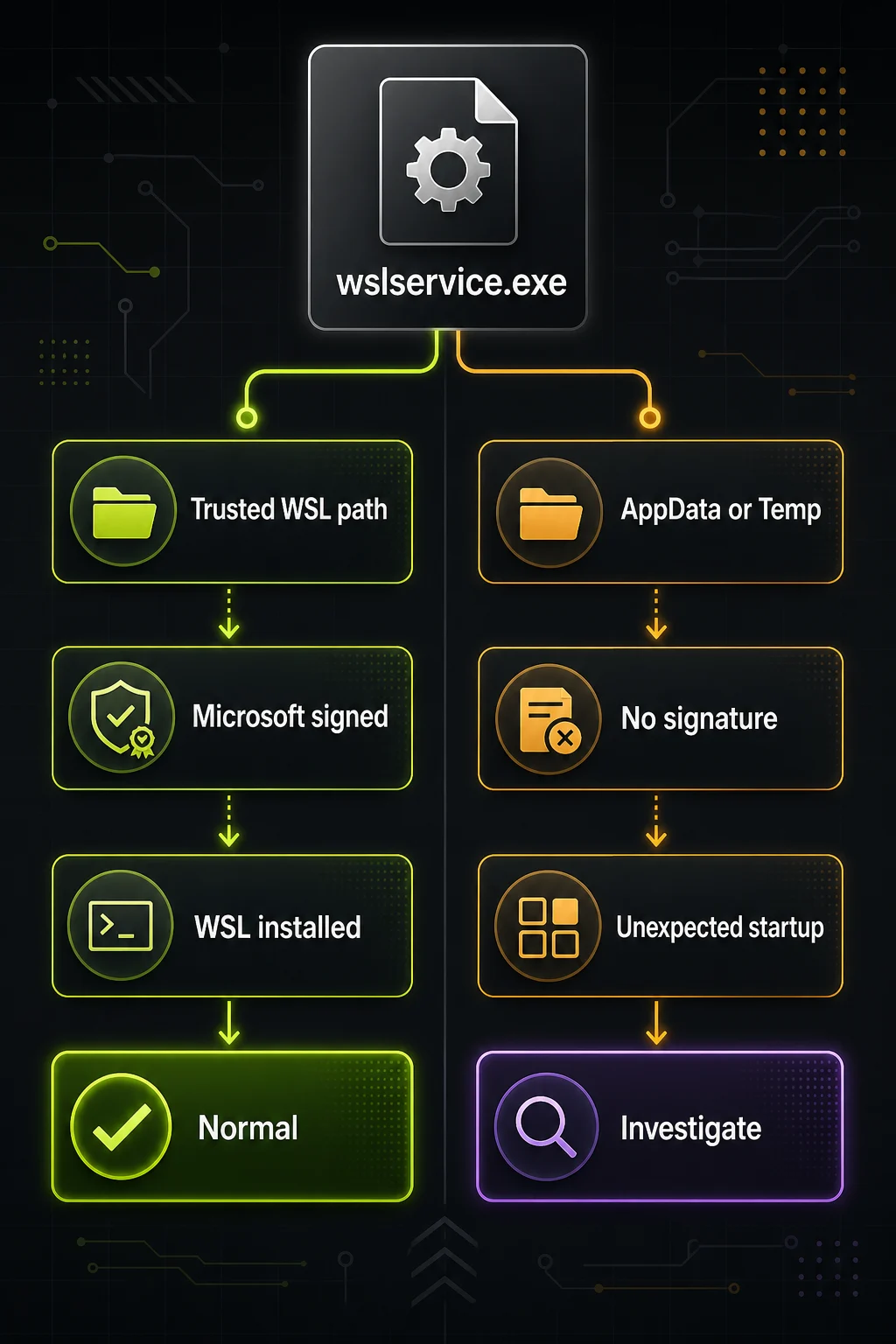
- Trusted install context: the file should belong to the installed WSL package or Windows component, not a random folder under a user profile.
- Microsoft signature: check the file properties or use a trusted tool to verify that the executable is signed by Microsoft.
- Expected service name: in Services, the service should match WSL/WSLService behavior rather than a fake display name.
- Expected trigger: it should appear around WSL, Docker, VS Code WSL, or Linux distribution use, not after a browser redirect, cracked installer, or unknown script.
- Expected network context: WSL can create network activity, but a copy in AppData making blocked connections is not normal WSL evidence.
If the alert path looks like C:\Users\You\AppData\Roaming\Google\Config\PolicyStore\...\wslservice.exe, C:\Users\You\AppData\Local\Temp\...\wslservice.exe, or another user-writable folder, treat it as a masquerade candidate. Legitimate Windows services should not need to hide in a browser-policy cache.
How to check wslservice.exe on Windows
- Open the file location. In Task Manager, right-click
wslservice.exeand choose Open file location. Write down the full path before changing anything. - Check the digital signature. Right-click the file, open Properties, then check Digital Signatures. A missing, broken, or unrelated signature is not acceptable for a supposed Microsoft WSL service.
- Check it from PowerShell. Replace the path with your real alert path and run:
Get-Process wslserviceGet-AuthenticodeSignature "C:\path\wslservice.exe"Get-Service WSLService
- Check whether WSL is installed. Open PowerShell and run
wsl --status,wsl --version, andwsl --list --verbose. If the commands fail and you do not use WSL, a returningwslservice.exedeserves more scrutiny. - Stop WSL for a test. Run
wsl --shutdown. This shuts down running WSL distributions and the WSL 2 utility VM. If the real WSL service and related processes stop, that supports a normal WSL explanation. If a suspicious copy keeps running from AppData, keep investigating. - Compare the process tree. Microsoft Sysinternals Process Explorer can show the parent process, command line, verified signer, and path. Look for launches from Task Scheduler, scripts, unknown browser folders, or a suspicious installer.
- Review startup sources. Check Startup apps, Task Scheduler, Services, and Registry Run entries for commands that launch
wslservice.exefrom a user-writable path. - Check network alerts. If the alert includes a destination IP or domain, note it. Do not whitelist the file until the path and signature are clean.
Users often confuse wslservice.exe with vmmem or VmmemWSL. If your only problem is high memory or CPU while WSL or Docker is open, use our Vmmem and VmmemWSL high memory guide. If the problem is a suspicious file path, blocked outbound traffic, or a process that returns after reboot, stay with this safety checklist.
Signs it is malware masquerading as wslservice.exe
A fake process usually gives itself away through context. Watch for these combinations:
- The file lives in AppData, Temp, a browser cache, a fake Google/Chrome policy folder, Downloads, a cracked-game folder, or a random folder name.
- The executable has no Microsoft signature or the publisher does not match Microsoft.
- The process starts with Windows even though you do not use WSL, Docker, or Linux distributions.
- A security tool blocks outbound traffic from that path, especially to unfamiliar hosts.
- You recently installed a crack, mod, fake update, browser extension, or “optimizer” and then the alert started.
- PowerShell, Python,
cmd.exe,mshta.exe, or a scheduled task launches the process chain. - The folder imitates a trusted vendor or browser policy location while the executable is still inside a writable user profile.
If PowerShell is the parent process or the alert is about a blocked outbound connection, our PowerShell outbound connection cleanup guide can help you inspect the script and persistence chain. If you also see suspicious Python scripts, compare the case with our pythonw.exe malware or safe process guide.
What to do if a security alert mentions wslservice.exe
Do not restore a quarantined file or add an exclusion just because the name looks Microsoft-like. Work from the path and evidence:
- Keep the alert quarantined. If the file was found under AppData, Temp, a browser-policy folder, or Downloads, do not restore it.
- Copy the path and destination. Save the full file path, command line, and network destination from the alert details.
- Shut down real WSL activity. Run
wsl --shutdown, close Docker/VS Code WSL, and see whether the alert source disappears. - Remove suspicious persistence. Disable unknown startup tasks, scheduled tasks, services, and Run keys that point to the suspicious path.
- Scan the full system. Use Gridinsoft Anti-Malware to check the executable, nearby files, scripts, browser-policy folders, startup entries, and the rest of the device.
- Reboot and re-check. After cleanup, confirm the same command line does not return and that WSL still works if you intentionally use it.
If the suspicious copy keeps returning after you remove its startup entry, scan the system with Gridinsoft Anti-Malware and check unknown destinations with Gridinsoft Online Virus Scanner before allowing the file again.
If the alert started after downloading a game mod, crack, fake updater, or unknown archive, treat account safety separately. Clean the device first, then rotate passwords from a clean device. Our post-infostealer recovery checklist covers the order for email, browser sessions, Discord, Steam, Telegram, and other accounts.
What about the WSLService unquoted service path issue?
A 2024 security write-up discussed an unquoted service path condition involving Microsoft WslService. That is useful background for administrators, but it is not the same as a random wslservice.exe in AppData. For home users, the more common practical question is still path, signature, startup source, and whether the process matches real WSL activity. Do not assume every WSLService finding means active malware; do not ignore a user-profile copy because WSL is a real Microsoft component.
How to avoid repeat alerts
- Keep WSL updated with official Microsoft/WSL sources, not random “WSL fix” downloads.
- Do not run scripts, installers, or cracks that ask you to disable antivirus or add exclusions.
- Review browser extensions and enterprise-style browser policies if the suspicious path includes Chrome, Edge, Google, or PolicyStore folders.
- Keep Task Scheduler and Startup apps clean; unknown startup entries are common persistence points.
- Use path, signature, and process-tree checks before trusting any file with a familiar Windows-like name.
FAQ
Is wslservice.exe a virus?
No, the legitimate wslservice.exe is part of Windows Subsystem for Linux. A file with the same name can still be malware if it runs from AppData, Temp, a browser-policy folder, or another user-writable location.
Can I delete wslservice.exe?
Do not delete the real WSL service blindly. First check the path, Microsoft signature, and whether WSL is installed. Delete or quarantine only the suspicious copy and its startup chain after scanning.
Why is wslservice.exe using network access?
WSL can create network activity when Linux distributions, Docker, development tools, package managers, or scripts are running. Network access is suspicious when the executable path is wrong, the signer is missing, or you do not use WSL.
What should I do if wslservice.exe is in AppData?
Treat it as suspicious. Copy the path, keep any security-tool quarantine, disable matching startup entries, scan the system, and check whether a recent browser extension, fake update, mod, or cracked installer created the folder.
Why does an alert say Python is trying to access wslservice.exe?
That can be normal only if you are intentionally running development tools through WSL. If the alert path is in AppData, PolicyStore, Temp, or another user-writable folder, inspect the Python script, parent process, scheduled tasks, and network destination before allowing it.
Does wsl –shutdown remove malware?
No. wsl --shutdown only stops WSL distributions and the WSL 2 virtual machine. It is useful for testing whether activity is tied to real WSL, but malware cleanup requires removing persistence and scanning the system.
References
- Microsoft WSL project. “wslservice.exe.” WSL technical documentation, accessed June 7, 2026. https://wsl.dev/technical-documentation/wslservice.exe/
- Microsoft. “Basic commands for WSL.” Microsoft Learn, accessed June 7, 2026. https://learn.microsoft.com/en-us/windows/wsl/basic-commands
- TrainSec. “Microsoft WslService Unquoted Service Path Vulnerability.” TrainSec Library, July 2024, accessed June 7, 2026. https://trainsec.net/library/malware-analysis/microsoft-wslservice-unquoted-service-path-vulnerability/