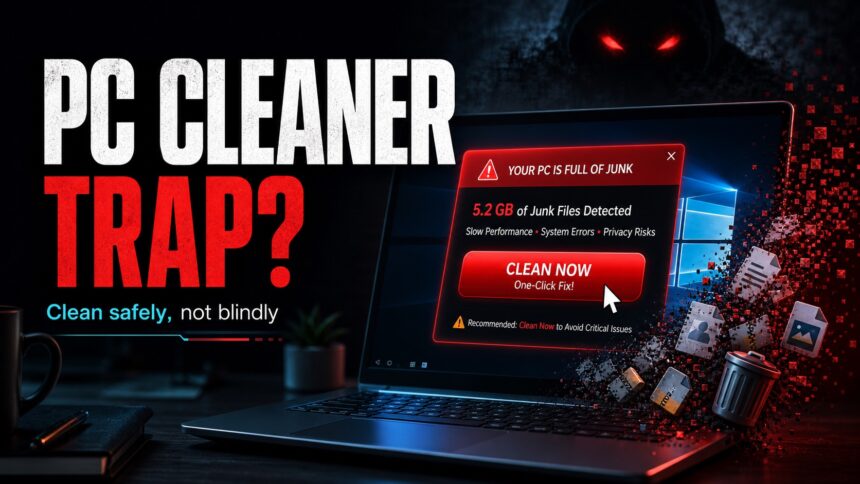
If your Windows PC is slow, you do not need to panic-click a one-click “PC cleaner” ad. Basic cleanup is safe when you use Windows tools, remove apps you recognize, and scan for malware before making deeper changes. The risky part is installing an unknown optimizer that claims to find thousands of errors, pushes a paid repair, or asks for remote access.
Treat aggressive cleaner pop-ups as a security warning, not as maintenance advice. Many unwanted apps use the same script: show frightening scan results, promise instant speed, then bundle extra software or pressure you to buy a “fix.”
When Cleaning Your PC Yourself Is Safe
Some maintenance tasks are normal and low risk. You can usually do these yourself:
- Remove temporary files with Windows Storage Sense or Disk Cleanup.
- Uninstall programs you clearly recognize and no longer use.
- Disable unnecessary startup apps in Task Manager.
- Update Windows, your browser, and security software.
- Run a trusted antivirus or anti-malware scan if the slowdown started suddenly.
For a step-by-step performance cleanup, use our separate guide on how to clean up and speed up your computer. This article is about the part that causes trouble: fake cleaners, registry fixers, and optimizer apps that turn a slow PC into a bigger security problem.
Where PC Cleaner Apps Become Dangerous
| Warning sign | Why it matters |
|---|---|
| A web page says your PC has thousands of errors. | A website cannot honestly scan your Windows registry, drivers, or private files from a browser tab. |
| The app demands payment before showing useful details. | Fake cleaners often turn vague “issues” into a sales funnel instead of explaining real symptoms. |
| It promises one-click registry repair. | Deleting registry entries blindly can break apps, drivers, or Windows features without making the PC faster. |
| It changes your browser, search engine, notifications, or startup items. | That behavior fits a potentially unwanted app or adware pattern, not a trustworthy maintenance tool. |
| Support asks for remote access after a “free scan.” | Remote access can expose files, passwords, banking sessions, and installed accounts to a scammer. |
Safe Cleanup Checklist
- Back up important files first. Do this before uninstalling security tools, deleting large folders, or resetting Windows.
- Use Windows Storage first. Open Settings, go to System > Storage, and review Temporary files and Storage Sense options.
- Uninstall suspicious “optimizer” apps. Open Settings > Apps, sort by install date, and remove cleaners you did not intentionally install.
- Check startup items. In Task Manager, disable unknown updaters, cleaner launchers, and browser helpers that do not need to start with Windows.
- Scan before deeper repairs. If the PC became slow after installing free software, cracks, browser extensions, or a “cleaner,” run a full security scan before changing more settings.
- Repair only the symptom you can prove. Free disk space, startup load, browser redirects, and malware alerts are separate problems. Do not let one generic optimizer “fix” all of them.
Example: PC_Cleaner_CRS.exe and Companion PUP Alerts
If you find a downloaded cleaner file such as PC_Cleaner_CRS.exe, do not judge it by the filename alone. Treat it as suspicious when it appears together with driver-updater prompts, WebCompanion-style browser changes, fake scan results, or repeated paid repair messages.
- Uninstall the cleaner and any recently installed driver updater from Settings > Apps. If the issue points to a known driver-updater flow, use the PCHelpSoft Driver Updater removal guide or the broader fake driver updater cleanup checklist.
- Check Startup Apps and Task Scheduler for cleaner or updater launchers that return after reboot.
- Review browser extensions and notification permissions. If a companion browser helper appears, compare it with the Web Companion PUA guide; if web pages keep claiming your PC is infected, use the fake virus alert cleanup steps.
- If pop-ups, redirects, or detections return, run a full security scan before deleting registry keys manually or paying for another repair.
This example belongs on a general PC-cleaner safety page because one filename is not enough for a standalone malware verdict. The useful decision is whether the cleaner was intentionally installed, whether it bundled other PUPs, and whether symptoms continue after uninstall.
If You Already Installed a Suspicious Cleaner
Uninstall the cleaner, restart the PC, and watch for recurring pop-ups, browser redirects, new extensions, or a changed search engine. If those symptoms remain, treat it as a PUA/adware cleanup case rather than ordinary maintenance.
Gridinsoft has separate removal guides for common unwanted-app patterns, including PC Accelerate Pro, adware symptoms, and PUA or browser hijacker removal. If a cleaner damaged system settings after malware, check the guide on fixing broken registry items after malware instead of running random registry repair utilities.
Which PC cleaner or optimizer did you install?
Use the broad checklist on this page when you do not know the product name. If you recognize the app, use its dedicated guide for exact uninstall entries, tasks, services, folders, and browser leftovers.
| Optimization suites | Advanced SystemCare, simplitec Power Suite, Ashampoo WinOptimizer, and SlimCleaner Plus |
| Driver updaters | DriverToolkit, PCHelpSoft Driver Updater, Outbyte Driver Updater, and Driver Support One |
| Security or cleaner upsell | Use the PCProtect uninstall guide when repeated scan or subscription prompts continue after removal. |
These product pages handle brand-specific details. Return to this hub when several tools appeared together, the installer name is unclear, or the same pop-ups and startup entries continue after you remove the visible app.
If the cleaner, driver updater, or browser helper keeps returning after uninstall, a loader, scheduled task, startup entry, extension, or bundled module may still be recreating the symptoms. A full Gridinsoft Anti-Malware scan can check for those leftovers before you change more Windows settings.
Browser reset can remove visible symptoms, but adware may keep a desktop app, extension source, notification permission, or startup task that brings pop-ups and redirects back.
Scan for cleaner leftoversWhat Not to Do
- Do not install a cleaner from a pop-up, push notification, torrent page, fake update page, or tech-support ad.
- Do not pay for a “full repair” when the free scan only shows generic error counts.
- Do not give remote access to someone who contacted you because your PC is “infected.”
- Do not delete system folders or registry keys from a forum post unless you understand exactly what they belong to.
- Do not use several optimizers at once; they can conflict and make diagnosis harder.
PC cleaner, PUP, or fake scan: how to decide
| What you see | Best next step |
|---|---|
| Built-in Windows cleanup You opened Storage Sense, Temporary files, Apps, or Startup Apps yourself. |
Usually safe. Review the selected files or apps, keep backups, and change only the setting tied to the real symptom. |
| Optional third-party utility You installed it deliberately, it names each item clearly, and it does not force payment or browser changes. |
It is not automatically malware, but it may be unnecessary. Keep it only if you understand and use a specific feature; avoid routine registry cleaning. |
| Aggressive optimizer or PUP It arrived in a bundle, reports vague error counts, launches at startup, adds tasks or services, or changes the browser. |
Uninstall it, restart, and check Startup Apps, Task Scheduler, services, extensions, and notification permissions. If an extension or policy returns, follow the recurring browser extension cleanup guide. |
| Fake browser scan or support warning A website claims it scanned Windows, demands payment, shows a phone number, or asks for remote access. |
Close the page without using its buttons, revoke site notifications, remove anything downloaded from it, and scan the PC if you installed or ran a file. |
The deciding evidence is behavior, not the word “cleaner.” Normal maintenance is specific and user-initiated; a PUP or scareware flow creates urgency, hides useful details, adds persistence, or keeps selling a repair after the visible app is closed.
FAQ
Are all PC cleaner apps scams?
No. Some utilities are legitimate, but most users do not need a third-party cleaner for basic Windows maintenance. Be cautious when an app exaggerates errors, pushes paid repair, bundles extra software, or changes browser settings.
Is registry cleaning worth it?
Usually no. Routine registry cleaning rarely improves performance and can break software if it removes entries that are still needed. Fix a registry problem only when you have a specific error and a trusted repair path.
What should I do if my PC is slow after installing a cleaner?
Uninstall the cleaner, restart Windows, check startup apps and browser extensions, then run a full malware scan. If pop-ups or redirects continue, handle it as PUA or adware cleanup.
Can I clean a malware-infected PC myself?
You can start with backups, trusted scans, and removal of suspicious apps. If security tools are disabled, files are encrypted, accounts are compromised, or the cleaner asked for remote access, get help before making more changes.
References
- Microsoft Support. “Protect your PC from unwanted software.” Microsoft, accessed June 6, 2026. https://support.microsoft.com/en-us/windows/protect-your-pc-from-unwanted-software-074a2d74-02db-03dd-8340-9e1822377856
- Microsoft Support. “Manage drive space with Storage Sense.” Microsoft, accessed June 6, 2026. https://support.microsoft.com/en-us/windows/manage-drive-space-with-storage-sense-654f6ada-7bfc-45e5-966b-e24aded96ad5
- Federal Trade Commission. “FTC Obtains Court Orders Temporarily Shutting Down Massive Tech Support Scams.” FTC, November 19, 2014, accessed June 6, 2026. https://www.ftc.gov/node/44933