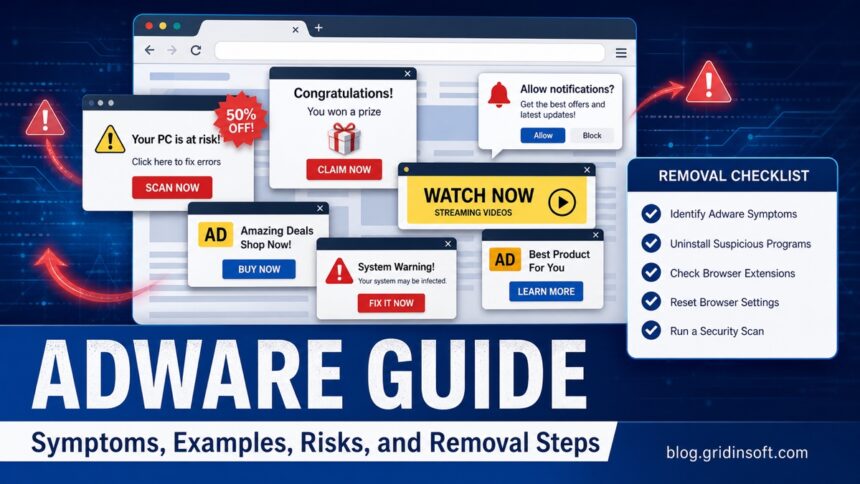
Adware is unwanted software that shows intrusive ads, redirects browsers, changes search settings, sends notification spam, or tracks browsing behavior for advertising revenue. Some ad-supported apps are legitimate when the ads are clear and optional; adware becomes unsafe when it arrives through bundled installers, hides in extensions, resists removal, or pushes users toward scams, phishing pages, fake updates, and other unwanted software.
Fast check: adware or normal ads?
- Normal ads stay inside the website or app you chose to use.
- Adware changes browser behavior, opens tabs, injects ads, or keeps returning after you close the page.
- Browser extensions, free installers, fake updates, and notification permissions are common sources.
- The safest order is browser cleanup, app uninstall, startup check, and a full security scan if redirects return.
What is adware?
Adware is software that forces advertising into places where it does not belong. It may inject banners into webpages, open pop-ups, change the default search engine, redirect searches through advertising networks, or display push notifications that look like system alerts. Microsoft classifies many adware-style programs as potentially unwanted apps when they slow the device, show unexpected ads, or install additional unwanted software [2].
The key difference is consent and control. A free app that clearly explains its ads is not the same as a hidden extension that changes Chrome, Edge, Firefox, or Safari settings and makes removal difficult.
Common symptoms of adware
- Pop-ups, banners, or new tabs appear on websites that normally do not show them.
- Your homepage, default search engine, or new-tab page changes without permission.
- Searches redirect through unknown domains before reaching Google, Bing, Yahoo, or another search page.
- Chrome or Edge says settings were changed by an unknown app, or the same extension keeps coming back.
- You see fake virus alerts, fake update prompts, prize pages, coupon pop-ups, or tech-support warnings.
- Browser notifications appear in the corner of the screen even when the browser is closed.
- The browser becomes slow, crashes, or opens advertising tabs after startup.
If you mainly want a symptom-by-symptom checklist, use the related Adware Symptoms guide. This page is the broader hub for definition, examples, risks, and cleanup order.
Adware examples and types
| Type | What it usually does |
| Browser hijacker | Changes search, homepage, new-tab settings, or startup pages to send traffic through sponsored results. |
| Ad-injecting extension | Adds banners, coupons, overlays, or tracking scripts to pages you visit. |
| Notification spam | Uses allowed site notifications to show fake alerts, adult ads, prize scams, or malware warnings. |
| Bundled installer | Installs adware alongside free software, download managers, cracks, codecs, or game mods. |
| Fake system-alert page | Shows scare messages such as a fake virus alert and pushes a phone number, download, or subscription. |
Real-world cleanup often overlaps with search hijacker removal, PUA browser hijacker cleanup, and specific unwanted-app pages such as Adaware Web Companion safety checks.
How adware gets installed
- Bundled freeware: optional offers are pre-selected or hidden behind a recommended install path.
- Fake updates: a webpage says the browser, video player, driver, or security tool must be updated.
- Extensions: coupon, PDF, search, video, weather, or privacy extensions request broad browser permissions.
- Push notifications: a site asks you to click Allow to prove you are not a robot, play a video, or download a file.
- Download portals and cracks: installers add advertising components, browser policies, scheduled tasks, or startup entries.
If the unwanted component is a whole browser rather than only an extension, use a browser-specific cleanup flow such as our Wave Browser removal guide after checking installed apps and startup entries.
The FTC warns that unwanted ads, fake security warnings, and malicious downloads can be part of broader malware and scam flows [1]. Treat repeated adware symptoms as a device-control problem, not just an annoyance.
Is adware dangerous?
Adware is not always destructive in the same way as ransomware or a password stealer, but it can still create real risk. It can weaken browser control, track browsing behavior, make scams more visible, install additional unwanted apps, or send users to phishing and fake-support pages. Microsoft notes that potentially unwanted apps can increase the risk of malware infection and make cleanup harder [3].
Be especially cautious when ads or redirects lead to login pages, crypto offers, remote-access tools, fake antivirus downloads, or payment requests.
Adware or normal ads?
| Normal advertising | Adware behavior |
| Ads appear inside the website or app you intentionally opened. | Ads appear over unrelated sites, in new tabs, or as system-like notifications. |
| Closing the page stops the ad. | Pop-ups return after restart or after opening the browser again. |
| Your search engine and extensions stay unchanged. | Search, homepage, extensions, or browser policies change without permission. |
| The source is visible and tied to the page you are visiting. | The source is unclear, hidden in an extension, app, task, or notification permission. |
How to remove adware safely
- Stop notification spam: remove suspicious sites from browser notification permissions before clicking any alert.
- Remove unknown extensions: uninstall extensions you did not choose, especially coupon, search, PDF, video, or shopping helpers.
- Restore browser settings: reset search engine, homepage, new-tab page, and startup pages.
- Uninstall recent apps: remove freeware, download managers, fake updaters, and tools installed just before the ads started.
- Check persistence: review startup apps, scheduled tasks, browser policies, and shortcuts if redirects return.
- Reset the browser if needed: save important bookmarks first, then reset only after removing the source extension or app.
- Run a full scan: use Gridinsoft Adware Remover or a full malware removal scan when symptoms affect more than one browser, return after reboot, or came from a suspicious installer.
Browser reset can remove visible symptoms, but adware may keep a desktop app, extension source, notification permission, or startup task that brings pop-ups and redirects back.
Scan if ads return after browser resetBrowser cleanup steps
Start with the browser controls that adware abuses most often: extensions, notification permissions, and managed policies. Reset the browser only after removing the source app or extension; otherwise the same search engine, homepage, or pop-up permission may return.
- Launch Chrome.
- Click the three dots (...) in the top right corner.
- Select Extensions > Manage Extensions.
- Click Remove next to the extension you want to delete.
Quick Access: Type chrome://extensions/ in the address bar.
- Open Safari.
- In the menu bar, click Safari and select Settings (or Preferences).
- Click on the Extensions tab.
- Select the extension and click Uninstall.
- Click the menu button, select Add-ons and themes.
- Go to the Extensions tab.
- Click the three dots (...) next to the extension and select Remove.
Quick Access: Type about:addons in the address bar.
- Launch Microsoft Edge.
- Click the three dots (...) in the top right corner.
- Select Extensions.
- Find the extension and click Remove.
Quick Access: Type edge://extensions/ in the address bar.
- Launch Brave browser.
- Click the menu icon > Extensions.
- Find the extension and click Remove.
Quick Access: Type brave://extensions/ in the address bar.
- Launch Opera.
- Click the Opera logo in the top left corner.
- Select Extensions > Extensions.
- Click the X or Remove button next to the extension.
Quick Access: Type opera://extensions/ in the address bar.
If a website keeps showing unwanted pop-ups, you likely granted it permission to send notifications. To stop them, you need to revoke that permission in your browser settings.
- Copy and paste this into the address bar:
chrome://settings/content/notifications - Scroll down to the Allowed to send notifications list.
- Find the suspicious site.
- Click the three dots (...) next to it and select Remove (or Block).
- Open Safari and go to Settings (or Preferences).
- Click the Websites tab and select Notifications on the left.
- Find the suspicious site in the list on the right.
- Select it and click Remove (or change "Allow" to "Deny").
- Copy and paste this into the address bar:
about:preferences#privacy - Scroll down to Permissions and click Settings... next to Notifications.
- Type the suspicious site in the search bar or find it in the list.
- Select the site and click Remove Website.
- Copy and paste this into the address bar:
edge://settings/content/notifications - Look under the Allow section.
- Find the suspicious site.
- Click the three dots (...) next to it and select Remove (or Block).
- Copy and paste this into the address bar:
brave://settings/content/notifications - Scroll to the Allowed to send notifications list.
- Find the suspicious site.
- Click the three dots (...) and select Remove (or Block).
- Copy and paste this into the address bar:
opera://settings/content/notifications - Check the Allowed to send notifications list.
- Find the suspicious site.
- Click the three dots next to it and select Remove.
- Press Win + R, type regedit, and hit Enter.
- Navigate to:
HKEY_LOCAL_MACHINE\SOFTWARE\Policies\ - Look for folders named Google, BraveSoftware, or Microsoft (under Edge).
- If you see a Policies subfolder with unknown keys inside, right-click and Delete it.
- Repeat for:
HKEY_CURRENT_USER\SOFTWARE\Policies\
Warning: Be careful when editing the registry. Deleting the wrong key can cause system issues.
- Click the Apple menu > System Settings (or System Preferences).
- Search for Profiles. If the icon isn't there, no profiles are installed.
- Select any suspicious profile (e.g., "Chrome Settings", "Admin Profile").
- Click the minus (-) button to remove it.
You can see exactly which policies are active by typing these into your address bar:
- Chrome:
chrome://policy - Brave:
brave://policy - Edge:
edge://policy
Look for policies with names like ExtensionInstallForceList or HomepageLocation.
If redirects or pop-ups return after these browser checks, remove suspicious desktop apps, review startup items, and run a full security scan before signing back into synced browser profiles.
How Gridinsoft classifies adware
Gridinsoft treats adware as an unwanted software category when a program or extension displays intrusive advertising, redirects browsing, changes settings, tracks behavior for ad targeting, or arrives through misleading installation flows. The classification depends on behavior: a clearly disclosed ad-supported app is lower risk than a hidden component that restores itself, changes search providers, or pushes scam pages.
For a second opinion, Gridinsoft Anti-Malware and Gridinsoft Anti-Malware protection can help identify adware, browser hijackers, bundled PUA components, startup entries, and leftover files after manual browser cleanup.
How to avoid adware
- Download software from official websites, trusted stores, or the vendor’s own download page.
- Use custom installation and reject optional offers, toolbars, search helpers, and notification prompts.
- Do not install updates from random webpages; update browsers and apps from their built-in settings or official sites.
- Keep browser extensions minimal and remove anything you no longer use.
- Be skeptical of fake virus alerts, prize pages, adult pop-ups, and support numbers shown inside ads.
- Keep Windows, browsers, and security software updated so PUA blocking and reputation checks can work.
FAQ
Is adware a virus?
Not always. Many adware apps are classified as potentially unwanted programs rather than traditional viruses, but they can still create security risk through redirects, tracking, scam pages, and bundled components.
Can adware steal passwords?
Basic adware focuses on advertising revenue, but malicious extensions and bundled malware can collect browsing data or redirect users to phishing pages. Change passwords from a clean device if you entered credentials after seeing suspicious redirects.
Why does adware come back after I remove an extension?
The extension may be restored by a desktop app, browser policy, scheduled task, startup item, or synced browser profile. Remove the app and persistence point before resetting the browser.
Should I reset my browser to remove adware?
A reset can help, but it should not be the first or only step. Remove suspicious extensions, notification permissions, installed apps, and startup entries first; otherwise the same settings can return.
Is Yahoo, Bing, or another search engine malware if adware redirects me there?
No. The search engine is usually not the malware. The problem is the extension, app, or redirect chain that changed your browser settings and monetizes the traffic before you reach the search results.
References
- Federal Trade Commission. “Malware: How To Protect Against, Detect, and Remove It.” Consumer Advice, accessed June 1, 2026. https://consumer.ftc.gov/articles/malware-how-protect-against-detect-and-remove-it
- Microsoft Support. “Protect your PC from unwanted software.” Microsoft, accessed June 1, 2026. https://support.microsoft.com/en-us/windows/protect-your-pc-from-unwanted-software-074a2d74-02db-03dd-8340-9e1822377856
- Microsoft Learn. “Detect and block potentially unwanted apps.” Microsoft Defender for Endpoint documentation, updated October 1, 2025, accessed June 1, 2026. https://learn.microsoft.com/en-us/defender-endpoint/detect-block-potentially-unwanted-apps-microsoft-defender-antivirus