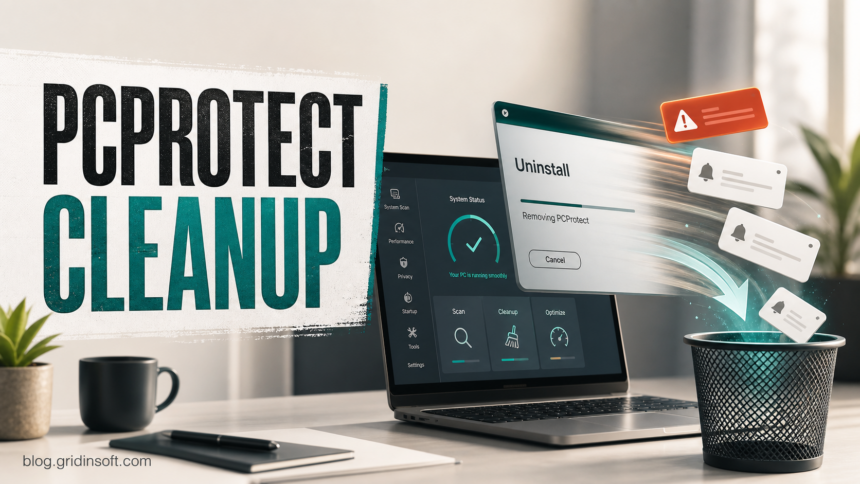
PCProtect is not a Windows component, so treat it as a third-party security and performance app that should be there only if you intentionally installed it and still want it. This guide does not claim that PCProtect itself is malicious; it focuses on uninstalling the app, checking leftovers, and separating browser alerts or billing questions from computer cleanup. If PCProtect appeared after another download, keeps showing scan or renewal prompts, is detected as PUP.Optional.PCProtect, or leaves alerts after uninstall, remove the app first and then check for startup, service, browser, and notification leftovers.
This guide avoids the usual extreme answer. A PCProtect entry in Apps & Features is not proof of an active malware infection, but it is also not something to ignore when it arrives unexpectedly or keeps returning. The safest path is to confirm the source, uninstall cleanly, separate billing questions from computer cleanup, and scan only when there are signs of bundled software or persistence. If the related unwanted app is a browser with updater services, the OneBrowser removal guide shows which services, tasks, and AppData leftovers to check.
When Should You Remove PCProtect?
Remove PCProtect when it does not match a purchase or install you recognize, when another security tool flags the install for review, or when the app creates more noise than value on the PC. Keep the decision practical rather than emotional: the question is whether this exact install is trusted, current, wanted, and under your control.
| Situation | What it usually means |
|---|---|
| You installed PCProtect from its own site and use the subscription | Use the normal uninstall and account-support path if you no longer want it. |
| PCProtect appeared after a cleaner, driver updater, PDF tool, or bundle | Treat that install as untrusted until you verify the installer source and remove related apps. |
A security tool reports PUP.Optional.PCProtect |
Do not restore the item automatically. Review the path, publisher, and whether you still want the app. |
| Pop-ups continue after uninstall | Check browser notifications, extensions, scheduled tasks, services, and startup entries. |
| You are only trying to stop billing | Uninstalling the app may not cancel a subscription. Use the account or billing support path separately. |
Is PCProtect Safe?
PCProtect is marketed as an antivirus and device performance product, but older security-vendor detection notes also document PUP.Optional.PCProtect as a review label for some PC Protect components. Those two facts can both be true: a program can have a real vendor and still be something a user wants to remove from a specific PC because of how it was installed, how it sells fixes, or how it behaves after removal.
Use these checks before deciding:
- Install path: look for
C:\Program Files (x86)\PCProtect\or a clearly named PCProtect folder. Random temporary folders or user-profile download folders are more suspicious. - Publisher and signature: right-click the main file, open Properties, and check the Digital Signatures tab when present.
- Install date: compare it with the day you installed another utility, browser extension, driver updater, or cracked installer.
- Uninstall entry: a normal entry in Windows Apps or Control Panel is better than a hidden startup-only process, but it does not prove the install is wanted.
- Symptoms: recurring scan warnings, renewal prompts, browser notification ads, changed search settings, or repeated security-tool alerts justify a deeper cleanup.
How To Remove PCProtect From Windows
- Close PCProtect. Exit the app from the system tray if it is running. If it refuses to close, restart Windows and do not reopen it.
- Uninstall it normally. Open Settings > Apps > Installed apps on Windows 11, or Apps & features on Windows 10. Search for PCProtect, choose Uninstall, and follow the prompts. The vendor support flow also points users to the standard Windows uninstall path.
- Reboot. Restart before judging whether cleanup worked. Security suites often remove drivers, services, or browser protection components only after reboot.
- Check leftover folders. After reboot, look for leftover PCProtect folders under
C:\Program Files\,C:\Program Files (x86)\, and%APPDATA%\. Do not randomly delete files while the app is still installed; uninstall first. - Review startup items. Open Task Manager > Startup apps. Disable PCProtect-related entries if the app was removed but the startup item remains.
- Check services only if needed. Press
Win+R, typeservices.msc, and look for an obvious PCProtect or security-service entry that still points to the removed folder. If you are not sure, leave it disabled and scan rather than deleting service records manually. - Clean browser notifications. If alerts keep coming from Chrome, Edge, or Firefox after PCProtect is gone, remove unknown notification permissions and extensions. Browser pop-ups often survive because the permission lives in the browser profile, not because the Windows app is still active.
If the only problem is renewal or refund handling, do not stop at uninstalling the Windows app. A subscription can continue through the vendor account or payment processor until it is cancelled through the official billing path. Save the confirmation email or support transcript so you can prove the cancellation date later.
If PCProtect Keeps Coming Back
When PCProtect returns after a reboot, or when similar scan pop-ups appear after uninstall, assume there may be a bundle or leftover persistence mechanism. The parent installer may have added another app, a browser extension, a scheduled task, or a notification permission that recreates the same user-facing problem.
If the same pattern involves simplitec or simpliclean entries, use the simplitec Power Suite removal guide to check PowerSuite.exe, ServiceProvider.exe, scheduled tasks, and browser notification permissions.
Work through this short checklist:
- Sort installed apps by date and remove unknown cleaners, driver tools, PDF utilities, browser helpers, or shopping/search extensions installed on the same day.
- Open Task Scheduler and look for recently created tasks with vague names or paths under
%LOCALAPPDATA%,%APPDATA%, or%TEMP%. - Check Chrome and Edge extensions. If an extension says it is managed by policy, follow a browser-hijacker cleanup path instead of only uninstalling PCProtect.
- Search the browser notification permissions list for unknown domains and remove anything you did not intentionally allow.
- Run a full scan if pop-ups, startup entries, or detections return after manual cleanup.
Gridinsoft Anti-Malware is useful here when the visible app is gone but something still recreates prompts, startup entries, or browser changes. A scan can check for unwanted programs, hidden files, scheduled tasks, startup entries, browser changes, and bundled modules; it cannot cancel a subscription or prove that no account was ever exposed.
If the process path is wrong, the name imitates a Windows component, or high CPU started after an unknown installer, scan for hidden miners, services, startup entries, and bundled components.
Scan for leftover startup itemsPCProtect Pop-Ups Or Browser Alerts After Uninstall
If the alert appears inside a browser tab or as a small notification in the corner of the screen, the source may not be PCProtect itself. Scam pages and notification-spam sites often use security-brand language to make a browser alert look like a local antivirus warning. For that case, use the broader fake virus alert cleanup guide and the browser hijacker removal guide after uninstalling unwanted apps.
For users who arrived here from a co-installed security suite or cleanup tool, the TotalAV pop-up removal guide explains the same split: installed app, browser notification, startup leftover, or fake web warning. If the install followed a driver utility, compare the pattern with the Driver Support One removal guide.
What Not To Do
- Do not delete random PCProtect files while the program is still installed. Use the uninstaller first.
- Do not restore a
PUP.Optional.PCProtectdetection just because the name sounds familiar. - Do not enter payment details into a pop-up that claims your PCProtect subscription is expired. Open the vendor account page manually if you need billing support.
- Do not install another unknown cleaner to remove the first cleaner. That often creates the same problem twice.
- Do not treat uninstalling the app as proof that billing is cancelled. Computer cleanup and subscription cancellation are separate tasks.
How To Avoid Repeat Installs
Download security software only from the vendor you intentionally chose, and avoid installer bundles that add several “optimizer,” “driver,” “PDF,” or “browser protection” tools at once. When an installer offers recommended extras, choose the custom option and decline add-ons you did not search for.
Keep one primary antivirus active at a time. Running several security suites together can produce conflicts, repeated prompts, and confusing warnings. If you are testing a new tool, set a reminder to uninstall the trial and cancel renewal before the billing window closes.
FAQ
Is PCProtect a virus?
Not automatically. PCProtect is a third-party security product, but some installs or older components may be treated as items to review by security tools. The important question is whether you intentionally installed and still trust the specific copy on your PC.
Why does my scanner show PUP.Optional.PCProtect?
That detection name means the scanner considers the PCProtect component potentially unwanted. Do not restore it blindly. Check the install source, path, and whether you still want the program before allowing it.
Will uninstalling PCProtect cancel my subscription?
No guarantee. Uninstalling removes the local Windows app, while renewal and refund handling usually require the vendor account, billing portal, or support channel.
Why do PCProtect-looking alerts continue after uninstall?
The alerts may come from browser notification permissions, a remaining extension, another bundled app, a startup task, or a fake web warning page. Remove browser permissions and scan for leftovers if the alerts return.
Should I use another antivirus to remove PCProtect?
Start with normal uninstall. Use a cleanup scan when PCProtect appeared unexpectedly, was flagged for review, returns after reboot, or came with other suspicious apps. Avoid installing random cleaners from ads or pop-ups.
References
- PCProtect Support. “Issues with Real-Time Protection.” PCProtect Help Centre, accessed June 23, 2026. https://help.pcprotect.com/en/tech/av/av-settings/-/av-set-issues-with-real-time-protection
- PCProtect Support. “Refunds & Money-Back Guarantee.” PCProtect Help Centre, accessed June 23, 2026. https://help.pcprotect.com/en/billing/-/refunds-and-money-back-guarantee
- Malwarebytes. “PUP.Optional.PCProtect.” Malwarebytes Threat Alert, accessed June 23, 2026. https://www.malwarebytes.com/blog/detections/pup-optional-pcprotect