Adaware Web Companion is not a classic virus, but it is often unwanted. It is promoted as a browser-protection tool, yet many users find it after installing another free program, and the usual complaint is the same: search, homepage, browser-extension, or startup changes that they did not clearly choose. If you installed it on purpose and it behaves normally, you can leave it. If it appeared unexpectedly, shows inflated warnings, changes browser settings, or arrives with other bundled apps, treat it as a potentially unwanted application and remove it.
The safest approach is calm triage: uninstall Web Companion, restore browser settings, check for leftover extensions or startup entries, and scan the PC if the bundle also installed unknown software. If Microsoft Defender shows the exact detection PUA:Win32/WebCompanion, use that alert as a stronger signal that Windows considers the install unwanted.
What Is Adaware Web Companion?
Web Companion is a program advertised as a network security tool, a makeshift firewall, which scans browser traffic and warns about suspicious sites. Adaware’s own support page describes it as browser-focused protection, not a replacement for antivirus, and says it does not analyze files or background processes on the computer.

The problem is usually not the name alone. The problem is how the program appears and what it changes after installation. Web Companion has an official website, but a common user path is bundled installation with other freeware. During our checks, Web Companion appeared through a bundled installer flow, and the program later displayed broad counters and protection claims without enough detail for a user to verify what was actually blocked.
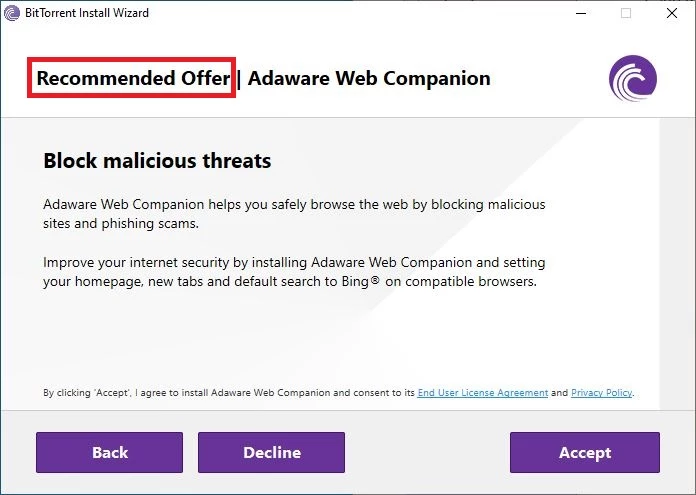
Bundling is why many security tools classify this type of software as potentially unwanted. Microsoft describes potentially unwanted applications as software that may slow a device, show unexpected ads, offer unexpected apps, or do other things users would rather avoid. That definition fits the risk pattern better than calling every Web Companion install malware.
Is Web Companion Safe?
Web Companion is not automatically malicious just because it is present on a Windows PC. It becomes a removal candidate when one or more of these signs are present:
- You do not remember installing Adaware Web Companion.
- It appeared after a torrent client, converter, game mod, cracked installer, or other free bundle.
- Your homepage, default search engine, new-tab page, or browser extension list changed.
- Windows Security or another scanner flags it as PUA/PUP or browser-hijacker related.
- The program shows warnings, counters, or premium prompts that you cannot verify.
- Other unknown apps, scheduled tasks, or startup entries appeared around the same installation date.
If none of those signs apply, the risk is lower. Still, Web Companion does not replace antivirus protection, so keeping it should be a deliberate choice, not something inherited from a bundled installer.
Web Companion Runtime Analysis
To have a proper user experience, I installed the application from a bundle. It did not take long for the installation window to appear.
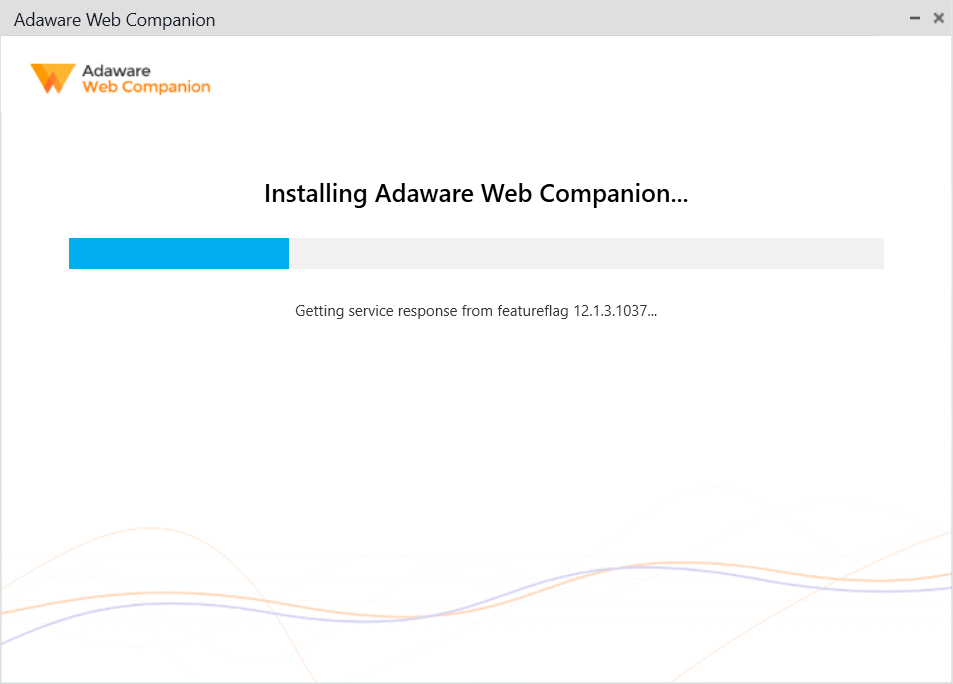
At first glance, Web Companion looks like a simple web-protection app. A few paid functions are present, and the free interface is available right away. The concern starts with the main dashboard: counters look inflated, and there is no clear list of the web requests or sites behind those numbers. After a reboot, the number of Chrome-related URLs in our test rose sharply without a clear explanation.
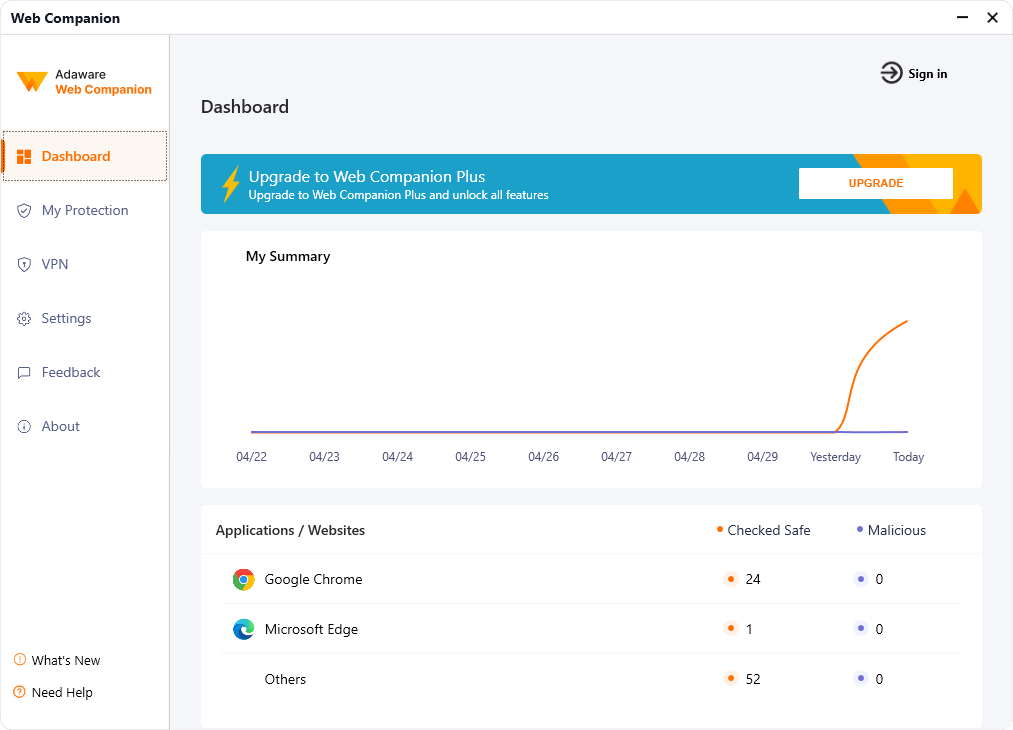 Counters at the bottom appear inflated
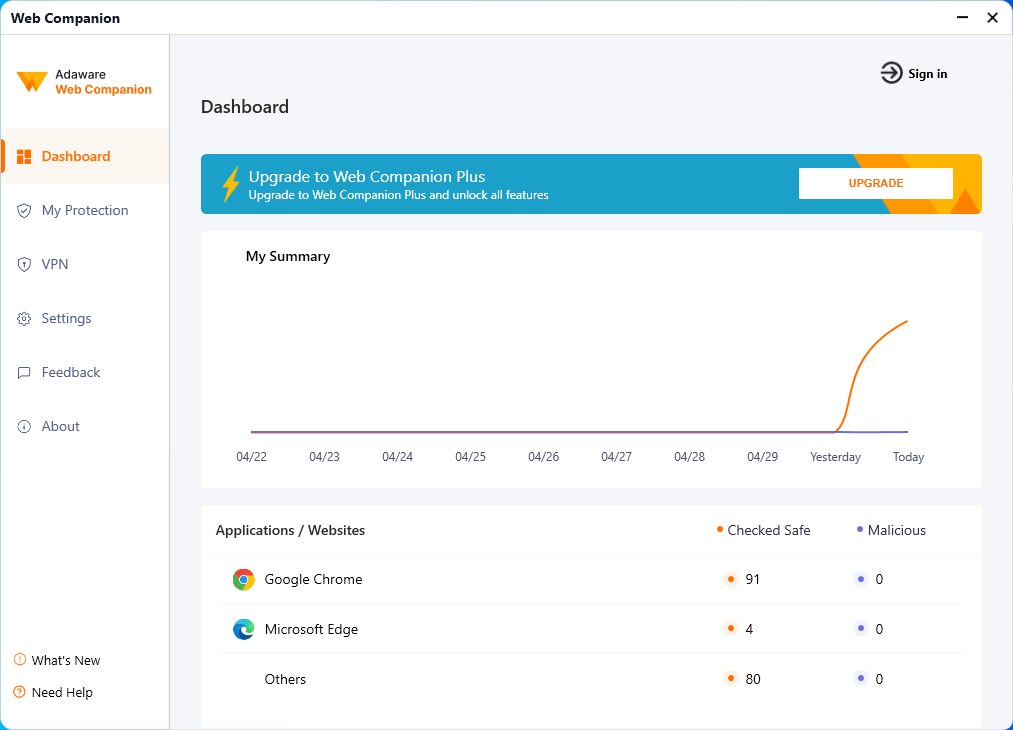 Counters at the bottom appear inflated
It can be normal for Windows and browsers to make background network requests. But a security tool should make its findings understandable. Large counters without context can make users think the computer is under active attack, even when the program is only counting ordinary browser or system traffic.
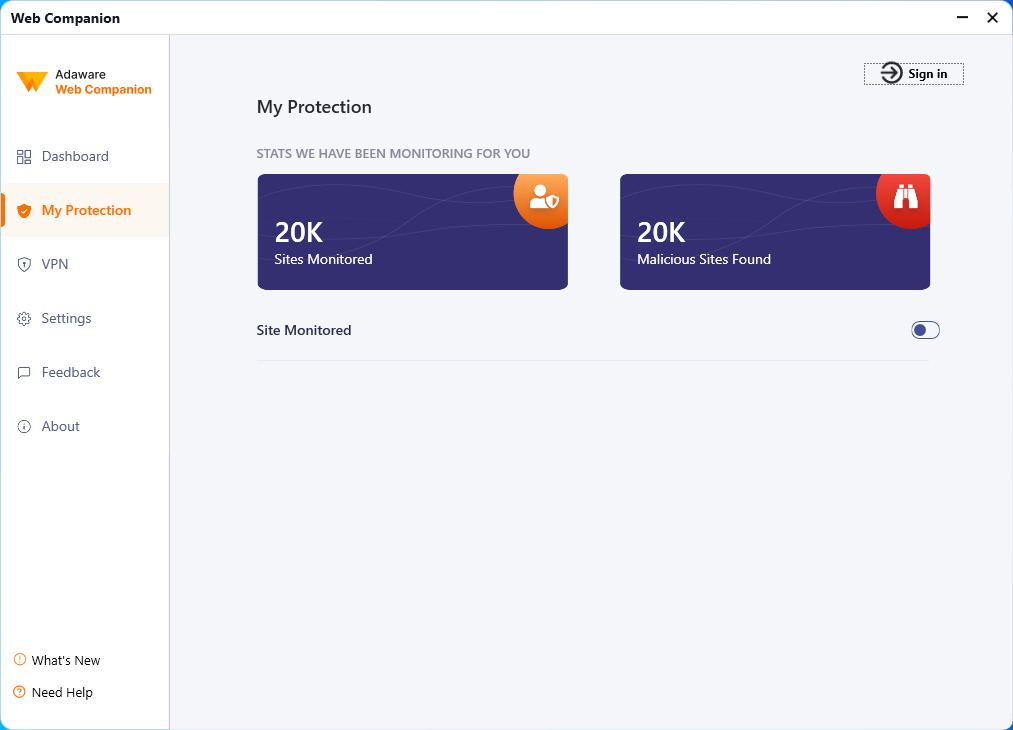
The page under the “My Protection” tab showed the same issue. A large “Sites Monitored” number may be a database count rather than detections from the local PC, but the interface does not explain that clearly enough. This is the kind of design that can push users toward paid features without helping them decide whether anything dangerous happened.
How to Remove Adaware Web Companion
Start with the normal uninstall path. On Windows 10 or Windows 11, open Settings > Apps > Installed apps, search for Web Companion or Adaware Web Companion, and uninstall it. If you are using the classic Control Panel, open Programs and Features, select Web Companion, and choose Uninstall.
After the uninstall, check the areas most often affected by bundled browser tools:
- Open each browser and verify the homepage, startup page, new-tab page, and default search engine.
- Remove extensions you do not recognize, especially search, coupon, “web safety”, or redirect-related add-ons.
- Check Windows startup apps and Task Scheduler for recently added Adaware, Lavasoft, Web Companion, or unknown entries.
- Sort installed apps by date and remove other unwanted programs that appeared at the same time.
- Run a cleanup scan if the bundle came from a risky download source or if browser changes return after removal.
Check WCAssistantService and Browser Leftovers
If Web Companion keeps showing up after the normal uninstall, check the service and browser-extension artifacts before deleting files by hand. Security vendors have documented Web Companion variants that create WCAssistantService and drop a Firefox extension file named @wcextensionff.xpi under the Lavasoft application folder, so these names are useful cleanup clues when they appear on a home PC.
| Artifact to check | What it means and what to do |
|---|---|
| WCAssistantService or wcassistantservice | Look for a Web Companion/Lavasoft service that points to Lavasoft.WCAssistant.WinService.exe. If you already uninstalled Web Companion, stop the service only through normal Windows service controls or a trusted cleanup tool, then rescan instead of deleting unrelated service entries. |
| @wcextensionff.xpi | This points to a Firefox Web Companion extension package. Remove the visible Firefox add-on first, then check whether the Lavasoft application folder remains after reboot. |
| Chrome or Edge policy/extension IDs | Open the browser extension list and chrome://policy or edge://policy. If an unknown 32-character ID such as dhkpghipgnngohhckpiadpmjoobjljim is force-installed on a personal PC, follow the unknown Chrome extension cleanup guide. On a work or school device, confirm with the administrator before removing managed policies. |
| Same-day bundled apps | Web Companion often appears with other unwanted programs. If you see apps such as AlsulicsApplication or PremierOpinion, clean the whole bundle instead of treating Web Companion as the only problem. |
Why Web Companion May Come Back After Uninstall
If Web Companion returns after you remove it, look beyond the visible app entry. Recent bundled installs can leave an installer, updater, browser change, or same-day PUA behind. In one cleanup case, Web Companion artifacts appeared under C:\Program Files (x86)\Lavasoft\Web Companion\Application\, including WebCompanionInstaller.exe, WebCompanionInstaller.resources.dll, and Newtonsoft.Json.dll, while the PC also had other unwanted components such as AlsulicsApplication/Altruistik and DealPly.
Use this return-symptom checklist before assuming the uninstall failed:
- Sort installed apps by date and remove other same-day PUA entries, driver tools, shopping helpers, or unknown browser utilities.
- Check C:\Program Files (x86)\Lavasoft\Web Companion\Application\ only after closing browsers and uninstallers; do not delete random system files outside that folder.
- Open Chrome, Edge, Firefox, and Opera extension lists and remove search, coupon, notification, or web-safety extensions you did not install deliberately.
- Check Startup Apps and Task Scheduler for recently added Lavasoft, Web Companion, update, or unknown entries that match the install date.
- If you see webcompanion.com in Windows site-permission or ZoneMap-style entries, treat it as a sign to review browser and internet-zone settings, not as proof that one file deletion is enough.
If the same browser changes or security warnings return after reboot, run a full cleanup scan before signing back into sensitive accounts. A bundled installer can remove the visible Web Companion entry while leaving another module that restores search settings, extensions, notifications, or startup tasks.
If Web Companion arrived through a bundle, the visible app may not be the component that restores browser changes. After the manual uninstall, run a Gridinsoft Anti-Malware scan to check for adware leftovers, startup entries, scheduled tasks, browser policies, and same-day PUA modules.
Browser reset can remove visible symptoms, but adware may keep a desktop app, extension source, notification permission, or startup task that brings pop-ups and redirects back.
Scan for Web Companion leftoversGridinSoft also provides network security checks for dangerous sites and suspicious redirects. We update detection databases frequently and use heuristic and AI detection systems to spot signs of risky domains, unwanted software, and recurring browser changes.
FAQ
Is Adaware Web Companion a virus?
No. It is better described as a potentially unwanted application when it appears through bundling, changes browser settings, or is flagged by security software. Treat it as malware only if you also see malicious behavior from the bundle that installed it.
Should I uninstall Web Companion?
Uninstall it if you did not choose it, if it changed your browser settings, if it came with other unknown apps, or if Windows Security flags it as PUA. If you installed it deliberately and it causes no unwanted changes, the decision is a preference rather than an emergency.
Why did Web Companion appear on my PC?
The most common reason is bundled software distribution. A free installer may include Web Companion as an optional or preselected offer, and users often miss that consent screen while installing the main program.
What should I check after removing it?
Check browser search and homepage settings, extensions, startup apps, scheduled tasks, and other programs installed on the same date. If those changes come back, scan for bundled adware or a browser hijacker.
References
- Adaware. “Help & FAQ – Web Companion by Adaware.” Adaware Web Companion, accessed June 1, 2026. https://webcompanion.com/en/help.php
- Microsoft Support. “Protect your PC from potentially unwanted applications.” Microsoft, accessed June 1, 2026. https://support.microsoft.com/en-US/security/protect-your-pc-from-potentially-unwanted-applications
- Trend Micro. “PUA.Win32.WebCompanion.BQ.” Trend Micro Threat Encyclopedia, accessed July 5, 2026. https://www.trendmicro.com/vinfo/us/threat-encyclopedia/malware/pua.win32.webcompanion.bq