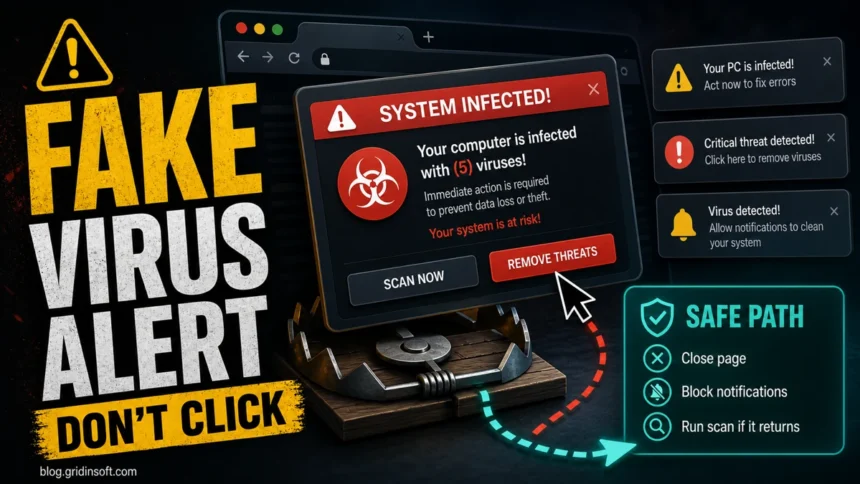
A fake virus alert is a scareware pop-up or browser notification that pretends your computer, phone, browser, or antivirus found a critical infection. Close it from the browser or operating-system controls, block the notification sender, remove suspicious extensions or apps, and run a malware scan if the alert returns after cleanup. Do not click buttons inside the warning, call the displayed number, install a “cleanup” tool from the pop-up, or give anyone remote access.
September 2026 update: a Microsoft SysScan page telling you to remove your antivirus and wait for a refund call is a scam. Do not uninstall protection. If you already acted, jump to the SysScan response checklist.
How do you remove a fake virus alert?
- Close the tab or force-close the browser. If the page blocks closing, use Task Manager on Windows, Force Quit on macOS, or swipe the browser app away on mobile.
- Do not press the pop-up buttons. Fake close buttons, “Remove threats,” “Scan now,” and “Call support” buttons can trigger redirects, downloads, or a phone scam.
- Remove suspicious site notifications. Most repeating fake antivirus alerts come from Chrome, Edge, Safari, Firefox, or Android Chrome notification permissions.
- Check extensions and recently installed apps. Remove unknown “cleaners,” “updaters,” coupon tools, PDF tools, download managers, or browser helpers.
- Run a full scan if warnings return. A scan is useful when redirects, new extensions, unknown apps, startup entries, or downloads appeared after the alert.
- Threat type: Scareware, tech support scam, malicious notification spam, or adware redirect
- Common wording: Your computer is infected, virus found, Internet Security warning, Windows locked, call support, remove threats now
- Immediate risk: Fake payment, remote access, malware download, credential theft, recurring notification spam
- Safe action: Close the browser, revoke notifications, remove unknown extensions, scan if the alert comes back
These alerts often imitate trusted names. If the warning is specifically a fake McAfee pop-up, a TotalAV pop-up, a Microsoft Security Warning scam, or a “Your iPhone has been hacked” pop-up, use the dedicated guide for that wording. If the fake alert opened Terminal, PowerShell, Command Prompt, Windows Run, or asked you to paste commands, treat it as more serious and use the fake Chrome update terminal guide. When a named website keeps sending fake security notifications, an exact-domain cleanup guide such as Recheck.co.in ads removal or Yzwtz.com notification removal is faster than a broad article.
To reduce the chance of landing on scareware pages in the first place, review our practical secure browsing checklist for suspicious links, fake updates, browser notifications, and risky downloads.
What is a fake virus alert?
A fake virus alert is not a real antivirus result. It is a web page, browser notification, advertisement, or unwanted app message designed to make you panic. The FTC describes tech support scam tactics that use pop-ups, calls, or messages claiming there is a computer problem and pushing the victim to contact fake support [1]. Google also warns Chrome users to be suspicious of virus or infected-device warnings when they have not recently used a scanner [2].
The alert may claim to be “Internet Security,” “Windows Defender,” “Apple Security,” “Google Security,” “McAfee,” “Norton,” or another familiar brand. The name is part of the pressure tactic. A legitimate security product does not need a browser page with a random phone number to remove malware.
Where do you see the alert?
- Inside a browser tab: Usually a scam page or malvertising redirect. Close the tab or force-close the browser, then reopen without restoring the session.
- Lower-right Windows notification: Usually a Chrome or Edge site notification. Remove the suspicious site under browser notification permissions.
- Android notification shade: Often Chrome site notifications. Long-press the notification, open site settings, and block the sender.
- iPhone Safari or Calendar: Usually a scareware page, calendar spam, or profile/notification abuse. Close Safari tabs and remove unknown calendars or profiles.
- Full-screen page with sound: Classic scareware. Microsoft says these scams may lock the page, play loud audio, and push fake support numbers [3].
- Alert returns after browser cleanup: Check extensions, startup apps, recent installs, and run a full malware scan.
Fake virus alert examples to recognize
Real victims usually do not search for the word “scareware.” They search the phrase they saw on the screen. These are the patterns to treat as fake until proven otherwise:
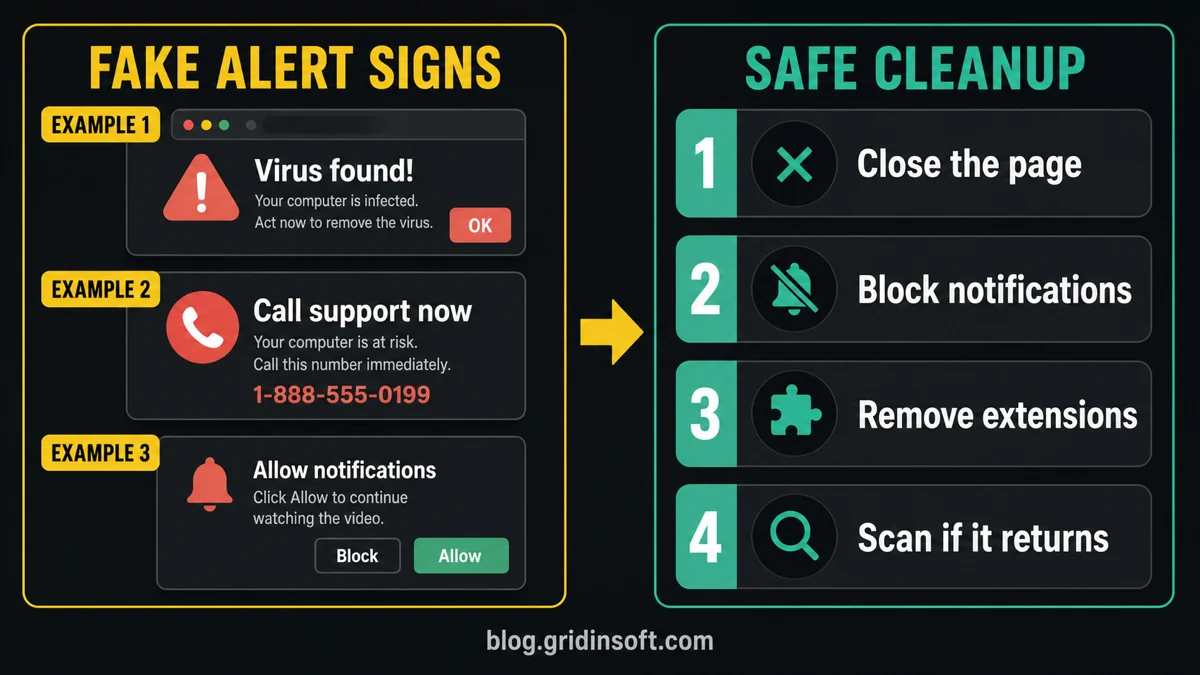
- “Your device is infected” or “Your computer is infected” inside a browser page.
- “Internet Security warning”, “Virus found”, or “Malicious threats found” with a countdown, loud sound, or flashing alert.
- “Call support now”, especially when the number appears in a browser pop-up or full-screen page.
- “Remove threats now”, “Scan now”, or “Renew protection” buttons that open from an ad or unknown site.
- Fake brand warnings that mention Microsoft, Apple, Google, McAfee, Norton, or Windows Defender but are displayed by a random website.
- “Unusual Sign-in Attempt” Windows Security pop-up with a fake IP address, country, browser, progress bar, or system-scan result. This is still a web scareware page, not a real account alert. Close it from the browser controls, block the notification sender, and check the related domain if one is visible. A current example uses redirectott.com, which Gridinsoft’s Website Reputation Checker currently classifies as Browser Notification Spam with a 1/100 trust score.
- What it looks like: Browser page says “Virus found” or “System infected” What it usually means: Scareware page or malvertising redirect. Close the tab without using page buttons.
- What it looks like: Page says “Unusual Sign-in Attempt” or “Windows Security Alert” What it usually means: Fake Microsoft/Windows scareware. Do not use page buttons; verify real account activity separately and use the Windows Defender Security Center scam guide if it asks you to call support or install a tool.
- What it looks like: Windows or Android notification says the PC is at risk What it usually means: Allowed site notification. Block the sender in browser notification settings.
- What it looks like: Full-screen warning with siren, countdown, or phone number What it usually means: Tech support scam. Force-close the browser and do not call the number.
- What it looks like: Alert appears again after reboot or browser reset What it usually means: Possible adware, extension, startup entry, or recently installed unwanted app.
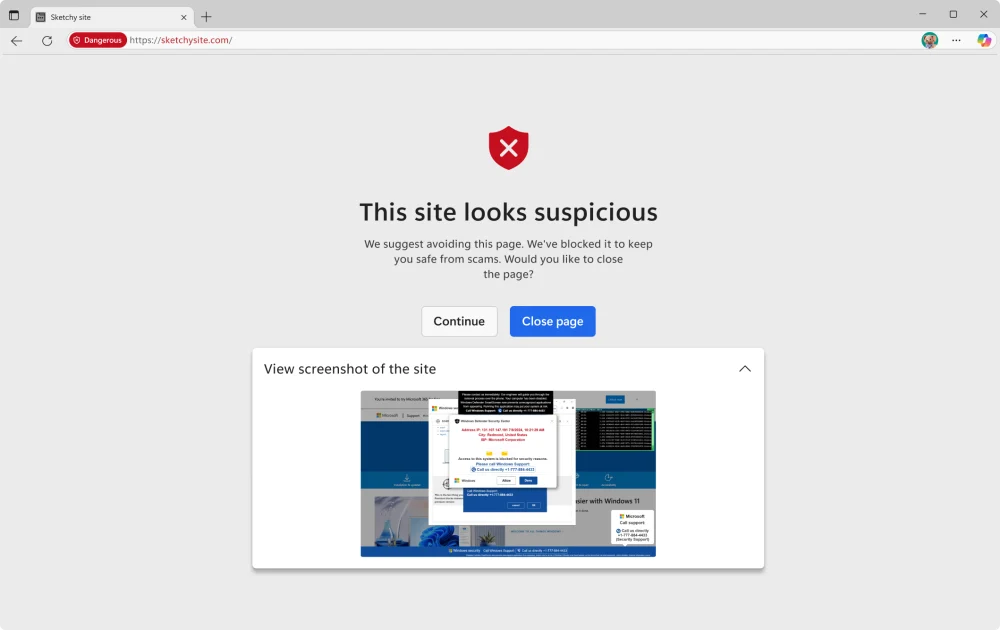
The screenshot below is useful because it shows two things at once: the browser-level warning and the kind of fake full-screen alert shown inside the blocked page preview.
Microsoft SysScan: fake security scan and refund calls
In an August 24 analysis, Malwarebytes documented eleven Microsoft-branded SysScan sites that combined real browser-visible details with invented security findings. Their score was capped at 13–30 out of 100. The flow demanded antivirus removal, collected contact, financial and remote-session details, sent submitted data through Telegram, and promised a refund-manager call. [4]
- A familiar device profile is not a malware finding. Browser data can identify screen size or operating-system details; it does not establish antivirus health, firmware problems, memory vulnerabilities or exact Windows patch status.
- A low score is not a diagnosis. This campaign’s predetermined failing range cannot establish what needs repair.
- Removing antivirus is not a refund step. Windows still supports compatible third-party protection. Do not follow a webpage’s demand to uninstall it.
This concerns an unsolicited webpage claiming to inspect the whole PC. A service that analyzes a file you deliberately upload, or a scanner you knowingly install from a verified vendor, has a different scope.
What to do after the SysScan page
Start with the furthest action you took. Several branches can apply; closing the page does not undo data already sent or access already granted.
- You only viewed it: close the tab without its buttons. Check for an unexpected download or notification permission. The displayed score alone is not evidence that the device was infected; use the browser cleanup steps below if warnings recur.
- You submitted contact or refund details: expect follow-up calls. Save the time, claimed company and information disclosed, then block the caller. Verify any real refund through the original merchant’s independently opened account or support channel; do not follow a new caller’s instructions.
- You uninstalled antivirus: open Windows Security directly and check the protection provider. Restore the legitimate product from its official vendor, or confirm Microsoft Defender is active; update it and run a full scan. If protection will not turn on, stop sensitive work on that PC. On a managed work device, contact IT before changing security software.
- You installed a remote tool or shared its session ID/password: disconnect the PC, end the session and revoke unattended access. Remove the scam-directed tool using the remote-access scam cleanup guide. A legitimate tool’s name does not make the caller legitimate. If control occurred, investigate other changes and run the full system check below before resuming sensitive work. Microsoft advises considering a reset after scammer access. [5]
- You disclosed passwords, banking or crypto details: use another trusted device to change exposed passwords and review sessions and transactions. Contact the bank, payment provider or exchange through its official channel; explain exactly what was shared. A scan cannot revoke an account session or reverse a transfer.
- You paid or saw unauthorized activity: contact the payment provider promptly to dispute or secure the payment method. Preserve receipts and transaction identifiers. Do not pay a caller who promises to recover the loss; follow the FTC’s reporting guidance. [1]
Report Microsoft impersonation through the reporting route in Microsoft’s guidance. [5] Keep a short incident record: when the call occurred, which app was installed, whether control was granted, which accounts were open and which protection setting changed. This helps your bank or IT team distinguish financial exposure from a device cleanup task.
Why fake alerts keep coming back
The most common cause is an allowed browser notification. A shady site asks you to click “Allow” to watch a video, prove you are not a robot, download a file, or continue to a page. After that, it can send fake antivirus alerts even when the original site is closed.
Some fake alerts also mix brands in the same flow: a page may imitate Microsoft Defender or Windows Security first, then send the user through an affiliate or notification-spam domain toward a McAfee-branded offer. Treat the brand switch as another warning sign, not as proof that either company found a real infection.
Other causes include adware, a malicious extension, a compromised ad on a legitimate site, or a recently installed “free” app that changes browser settings. Adult-video redirects often use the same scareware pattern with fake player updates and virus warnings. If the alert uses the exact “You May Have Viruses On After Visiting An Adult Website” wording, use the named-scam cleanup guide; for the broader risk, see our guide to porn site malware risks and safe cleanup steps.
Free-streaming redirects can also use fake player updates and virus warnings. If this started after MoviesJoy or a similar streaming page, use the MoviesJoy post-click cleanup guide after removing notification permissions.
Streaming pages can create the same notification problem. If the alerts started after opening a WCO or WatchCartoonOnline clone, follow the WCO safety and cleanup guide before you reset the whole browser.
How to stop fake virus pop-ups
- Close the page safely. Use the browser window controls or Task Manager. Avoid clicking anything inside the warning itself.
- Reopen the browser without restoring the previous session. If it offers to restore tabs, decline it.
- Remove notification permissions. In Chrome or Edge, open Settings, go to Site settings or Cookies and site permissions, then Notifications. Remove unknown or recently allowed sites.
- Block pop-ups and redirects. In Chrome or Edge, review Pop-ups and redirects and remove unknown allowed sites.
- Remove unknown extensions. Disable anything you did not install deliberately, especially coupon tools, search helpers, PDF converters, download managers, and fake security extensions.
- Clear site data for the suspicious domain. This prevents the browser from reloading the same scam page or saved permission state.
- Check installed apps. Uninstall recently added “cleaners,” “drivers,” “updates,” “security tools,” and apps installed around the time the alerts started.
- Run a full scan. Scan all drives if redirects continue, downloads started, a remote tool was installed, or the alert appears outside the browser.
Remove fake alert notifications by browser
Streaming redirects can create the same notification problem. If the alerts started after opening Flickystream.ru, follow the Flickystream.ru cleanup steps before you reset the whole browser.
- Chrome on Windows or macOS: Settings → Privacy and security → Site settings → Notifications. Remove unfamiliar sites from the allowed list, then check Pop-ups and redirects.
- Microsoft Edge: Settings → Cookies and site permissions → Notifications. Block unknown senders, then review Pop-ups and redirects.
- Firefox: Settings → Privacy & Security → Permissions → Notifications → Settings. Remove suspicious websites and save changes.
- Safari on Mac: Safari Settings → Websites → Notifications. Deny unknown sites and remove any scareware sender you do not recognize.
- Android Chrome: Long-press the fake notification or open Chrome Settings → Site settings → Notifications. Block the suspicious site and clear its site data.
- iPhone or iPad: Close the Safari tab, clear website data for the suspicious site, and remove unknown calendar subscriptions or profiles if fake alerts appear there.
Scan if fake alerts return after cleanup
If the warnings come back after you block notifications, or if a pop-up caused a download, extension, remote-access tool, or unknown app install, treat it as more than a browser annoyance. A leftover extension, startup item, scheduled task, or bundled adware module can recreate the alerts after reboot.
Gridinsoft Anti-Malware can check for detections, hidden files, suspicious startup entries, scheduled tasks, unwanted apps, browser changes, and persistence that a manual browser cleanup can miss. Run a full scan, remove detections, reboot, and scan again if the fake alerts return.
Browser reset can remove visible symptoms, but adware may keep a desktop app, extension source, notification permission, or startup task that brings pop-ups and redirects back.
Scan for adware leftoversWhat if you clicked, downloaded, or called?
- If you only saw the pop-up: close the page, revoke notifications, and watch whether it returns.
- If you clicked a button: check downloads, extensions, browser permissions, and installed apps. Run a scan before entering passwords or payment details. If the download was a fake Paint.NET installer or a lookalike editor download, use the Paint.NET fake download cleanup guide to verify the source and check lock-screen/startup leftovers.
- If you installed a program: disconnect from the internet if behavior looks suspicious, uninstall the app, scan the system, and review startup items.
- If you allowed remote access: disconnect the device, uninstall the remote tool, scan from a trusted account, and change important passwords from another device.
- If you paid or entered card details: contact your bank or card issuer quickly and dispute unauthorized charges.
Could it ever be a real infection?
The alert itself is usually fake when it appears as a browser page, notification, or full-screen warning with a support number. But the device can still have adware or malware if the alert keeps returning, changes your homepage/search engine, installs extensions, opens new tabs by itself, downloads files, or appears after installing a suspicious app. Treat the pop-up as a scam, then investigate the system behavior separately.
FAQ
Can a browser pop-up really detect viruses?
No ordinary web page can perform a full antivirus scan of your computer. Treat browser-based “virus found” pages as scams unless the warning came from security software you opened yourself.
Why does the alert use Microsoft, Apple, Google, McAfee, or Norton branding?
Scammers copy trusted names to make the warning feel official. Branding inside a browser pop-up does not prove the alert is legitimate.
How do I stop fake virus notifications on Chrome or Edge?
Open browser notification settings and remove unknown sites from the allow list. Then review pop-ups, redirects, extensions, and recently installed apps.
Should I reset the browser?
Reset the browser if notifications, extensions, homepage, search engine, or startup tabs were changed and you cannot quickly identify the bad setting.
Should I call the phone number in the alert?
No. A fake virus warning that asks you to call support is a tech support scam pattern. Use the official website or app for any company you already pay for.
References
- Federal Trade Commission. “How To Spot, Avoid, and Report Tech Support Scams.” FTC Consumer Advice, accessed June 7, 2026. https://consumer.ftc.gov/articles/how-spot-avoid-and-report-tech-support-scams
- Google Chrome Help. “Remove unwanted ads, pop-ups and malware.” Google Help, accessed June 7, 2026. https://support.google.com/chrome/answer/2765944?co=GENIE.Platform%3DDesktop&hl=en
- Microsoft Support. “Prevent online scams with the scareware blocker in Microsoft Edge.” Microsoft Support, accessed June 7, 2026. https://support.microsoft.com/en-us/topic/prevent-online-scams-with-the-scareware-blocker-in-microsoft-edge-b02c7895-f9b7-4d9f-8e12-3668f00915be
- Stefan Dasic. “Fake Microsoft security scans trick victims into uninstalling their antivirus.” Malwarebytes Threat Intel, August 24, 2026, accessed September 8, 2026. SysScan campaign analysis.
- Microsoft. “Tech support scams.” Microsoft Learn, updated April 24, 2024, accessed September 8, 2026. Recovery and reporting guidance.