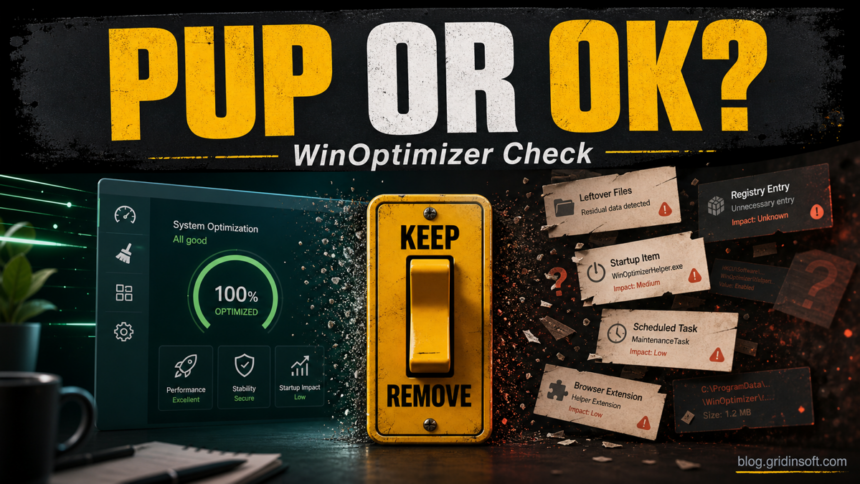
If Ashampoo WinOptimizer is detected as a PUP, do not treat that label as an automatic malware verdict. A potentially unwanted program warning means the software or one of its related files may be unwanted for this PC because of how it was installed, what it changes, or what leftover startup and cleanup components remain after use. If you installed WinOptimizer intentionally from Ashampoo or a trusted store and you still want it, review the exact detection path before removing anything. If it appeared after a bundle, keeps returning after uninstall, or sits in startup/task locations you did not approve, clean it up.
This guide is deliberately neutral: Ashampoo WinOptimizer is a real Windows optimization utility, and some security tools classify WinOptimizer-related items as potentially unwanted rather than as a conventional virus. The right answer depends on consent, source, behavior, and whether there are leftovers after uninstall.
What the PUP label means
PUP stands for potentially unwanted program. It is a warning category for software that may be legitimate in one context and unwanted in another. For Ashampoo WinOptimizer, the key question is not “is every copy malware?” but “is this copy expected, current, and behaving the way I want?”
A scanner may flag WinOptimizer-related files because they belong to an optimizer category, because the program was installed through a bundle, because a backup or leftover file still matches an older signature, or because a component runs at startup after you thought the program was gone. Malwarebytes, for example, documents PUP.Optional.WinOptimizer as its detection name for WinOptimizer-related items, while Ashampoo’s own support material presents WinOptimizer 28 as a Windows optimization product. Those two facts can both be true: one source describes the vendor tool, the other describes a security-tool classification.
Should you keep or remove it?
| Situation | Decision |
|---|---|
| You installed WinOptimizer yourself from Ashampoo or Microsoft Store, use it knowingly, and the detection path points to the program folder. | Review the detection details first. It may be an acceptable PUP classification or a false-positive-style decision for your setup. |
| WinOptimizer appeared after another installer, a “PC cleanup” bundle, a driver tool, or a pop-up download. | Treat it as unwanted. Uninstall it and check startup entries, scheduled tasks, browser changes, and remaining files. |
| The alert points to an old backup, quarantine restore, installer cache, or exported settings file. | Do not delete blindly. Confirm whether it is a backup you need, then remove only the unwanted installer or restore point. |
| The alert returns after uninstall or after reboot. | Check for a leftover task, service, startup entry, browser extension, or another cleanup utility reinstalling it. |
The detected file is outside normal program folders, for example in %TEMP%\, %APPDATA%\, Downloads, or a random subfolder. |
Be more cautious. Verify the file source and scan the PC for bundled or lookalike software. |
Check the detection path first
Open your scanner’s detection details before pressing restore or delete. The path usually tells you whether you are looking at the installed utility, an installer, a backup, or a leftover.
- Program folder: paths under
C:\Program Files\Ashampoo\orC:\Program Files (x86)\Ashampoo\usually point to the installed application. - User data or backups: paths under
%APPDATA%\Ashampoo\,%LOCALAPPDATA%\Ashampoo\, or a WinOptimizer backup folder may contain settings or rollback data. - Installer cache: files in Downloads, browser cache,
%TEMP%\, or a software-bundle folder are safer to remove if you do not need the installer. - Startup and scheduled task clues: if the alert mentions
HKCU\Software\Microsoft\Windows\CurrentVersion\Run, Task Scheduler, or a helper executable, check whether it still starts after uninstall.
If you are unsure, quarantine is safer than permanent deletion. Keep a note of the exact path and detection name, then decide whether that item belongs to an intentional WinOptimizer install.
How to clean Ashampoo WinOptimizer leftovers
Use the normal uninstall path first. Manual deletion before uninstalling can leave broken entries behind.
- Open Settings > Apps > Installed apps and uninstall Ashampoo WinOptimizer if you no longer want it.
- Restart Windows before judging whether the alert is gone.
- Open Task Manager > Startup apps and disable any WinOptimizer or Ashampoo helper you do not recognize.
- Open Task Scheduler and look for tasks with Ashampoo, WinOptimizer, optimizer, cleaner, updater, or maintenance wording. Disable unknown entries first, then delete only after confirming they are not needed.
- Check the common data locations:
%PROGRAMDATA%\Ashampoo\,%APPDATA%\Ashampoo\,%LOCALAPPDATA%\Ashampoo\, Downloads, and%TEMP%\. Remove installers and leftover folders only when you no longer need WinOptimizer backups. - Open your browser extensions and notification permissions if the original install came from a pop-up, bundle, or “PC cleanup” ad. Remove unknown extensions and suspicious allow-list entries.
- Run a full scan again and confirm whether the same path returns.
If the same alert returns after reboot, the visible program may not be the only item involved. A bundle, scheduled task, startup entry, browser change, or leftover helper can recreate the file or reinstall the utility. After the manual checklist, run a full Gridinsoft Anti-Malware scan, remove any detections you do not intentionally keep, reboot, and scan again if the warning returns.
Browser reset can remove visible symptoms, but adware may keep a desktop app, extension source, notification permission, or startup task that brings pop-ups and redirects back.
Scan for leftover PUP entriesWhen it may be a false positive or acceptable PUP
It is reasonable to pause before removing WinOptimizer when all of these are true:
- you installed it intentionally from Ashampoo or a trusted store;
- the path points to the expected program folder, not a random temporary folder;
- there are no surprise browser redirects, notification ads, unknown extensions, or bundled apps;
- the detection appeared after a scanner update and no other symptoms changed;
- you understand what the optimizer changes and still want to keep it.
Before restoring an item from quarantine, update the program from the official source, check the file’s digital signature when available, and make sure the detection is not pointing to an installer from an ad page or third-party bundle. If you submit a false-positive report to your security vendor, include the exact detection name, file path, version, and hash.
When removal is the safer choice
Remove the detected items instead of restoring them when the install was not intentional, the program came with another download, it shows pressure-style scan results you do not trust, it keeps adding startup entries, or alerts continue after uninstall. Also remove it if a browser started opening new tabs, showing notification ads, or changing search/homepage settings around the same time.
For related cleanup flows, see Gridinsoft’s guides to browser hijacker removal, resetting browser settings after hijacker pop-ups, and Advanced SystemCare startup and task leftovers. If you are comparing PC optimizer detections, the same decision logic also applies to simplitec Power Suite PUP cleanup and similar utilities.
How to avoid repeat PUP alerts
- Download utilities only from the vendor or the Microsoft Store, not from “driver updater,” crack, coupon, or pop-up pages.
- Choose custom installation and reject bundled cleaners, browser extensions, and notification prompts.
- Keep one primary cleanup/security workflow. Multiple optimizers and scanners can flag each other’s backups or quarantine files.
- After uninstalling a utility, check Startup apps and Task Scheduler once instead of repeatedly deleting random files.
- Keep backups that you understand, but remove old installers and restore files from untrusted sources.
FAQ
Is Ashampoo WinOptimizer a virus?
No blanket statement is accurate. Ashampoo WinOptimizer is a real Windows utility, but some scanners classify WinOptimizer-related files as potentially unwanted. Treat the alert as a decision point: check source, path, consent, and behavior.
Why does my scanner call it PUP.Optional.WinOptimizer?
That wording is a security-tool classification for WinOptimizer-related items. It does not always mean a destructive Trojan is present, but it does mean the scanner thinks the program or component may be unwanted for some users.
Should I delete WinOptimizer backups?
Not immediately. If the detection path points to a backup or rollback folder, decide whether you still need those backups. Delete installers and unwanted leftovers, but do not erase personal restore data blindly.
What if the alert returns after I uninstall it?
Check Startup apps, Task Scheduler, services, browser extensions, notification permissions, and leftover folders. A returning alert usually means a helper, task, bundle, or cached installer is recreating the item.
Can I restore it from quarantine?
Only restore it if you intentionally use WinOptimizer, the path and publisher look expected, the file came from a trusted source, and there are no unwanted browser or startup symptoms. When in doubt, leave it quarantined and reinstall from the official source if needed.
References
- Malwarebytes. “PUP.Optional.WinOptimizer.” Malwarebytes Labs, accessed June 24, 2026. https://www.malwarebytes.com/blog/detections/pup-optional-winoptimizer
- Ashampoo Support. “Tutorial: Ashampoo WinOptimizer 28 – Unleash Peak Performance on Your Windows PC – Discover What’s New!” Ashampoo Help Desk, updated September 11, 2025, accessed June 24, 2026. https://support.ashampoo.com/hc/en-us/articles/29396922299154-Tutorial-Ashampoo-WinOptimizer-28-Unleash-Peak-Performance-on-Your-Windows-PC-Discover-What-s-New