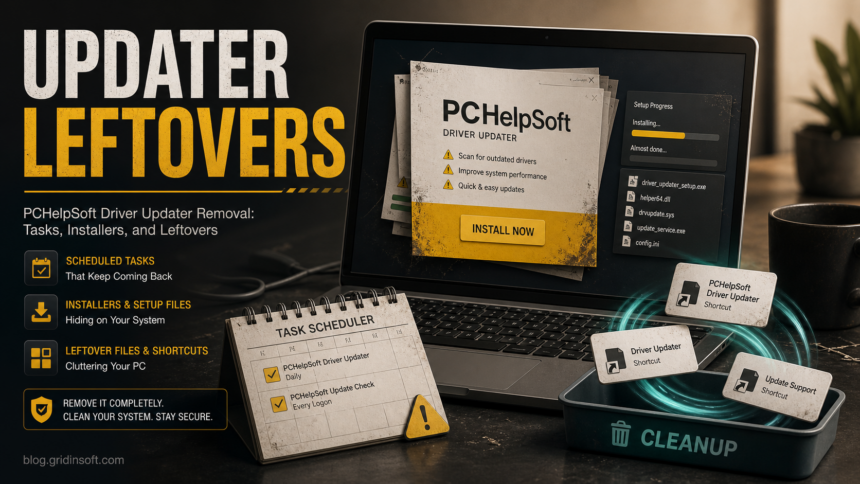
PCHelpSoft Driver Updater is not a Windows component. If it appeared after another installer, keeps prompting for driver fixes, or a security tool reports potentially unwanted driver-updater artifacts, treat it as an unwanted driver-updater cleanup: uninstall the visible app first, remove leftover scheduled tasks and setup files, reboot, then rescan before trusting the machine again.
Do not delete random driver files from C:\Windows\System32 just because a driver-updater scan looked alarming. Real driver maintenance should go through Windows Update, Device Manager, or the PC maker’s support page. This guide focuses on the PCHelpSoft files, shortcuts, tasks, and co-installed installer-updater traces that can remain after the unwanted utility is removed.
What Is PCHelpSoft Driver Updater?
PCHelpSoft Driver Updater is a third-party driver utility. The problem for many users is not the word “driver” itself, but the install path and behavior: the app may arrive from a bundle, show paid scan results, add a scheduled task, leave setup files in Downloads, or appear together with other potentially unwanted programs.
In a cleanup case, a security tool may flag nearby installer or updater objects as potentially unwanted. Treat those labels as file-specific warnings, not as a broad statement about every product from a named software vendor. Review the exact file path, install source, scheduled task, and whether the program returns after removal.
PCHelpSoft Leftovers to Check
| Item you may see | What to do |
|---|---|
C:\Program Files\PCHelpSoft\Driver Updater\...\Driver Updater.exe |
Uninstall the app from Windows Settings first. Delete the folder only after uninstall and reboot if it remains and no longer belongs to an installed program. |
installer.exe inside the PCHelpSoft folder |
Treat it as part of the same unwanted app unless you clearly need it. Do not run it again during cleanup. |
%USERPROFILE%\Downloads\Driver_Updater_setup.exe |
Delete downloaded setup copies after uninstall so the tool is not installed again by accident. |
C:\Windows\System32\Tasks\PCHelpSoft Driver Updater |
Remove the scheduled task if it remains after uninstall or keeps launching the updater. |
| PCHelpSoft Start Menu shortcuts | Remove leftover shortcuts after the main program is gone, including the uninstall shortcut if it points to a missing file. |
| Related installer updater task | Review it as an adjacent bundled-updater sign. Remove it only if the related product is unwanted, unknown, or no longer installed. |
How to Remove PCHelpSoft Driver Updater
- Disconnect the installer path from your next steps. Close PCHelpSoft Driver Updater and do not click more “fix”, “update”, or “install now” prompts while you are cleaning up.
- Uninstall the visible program. Open Settings -> Apps -> Installed apps, search for PCHelpSoft Driver Updater, Driver Updater, recently installed utilities, or recently installed bundles, and uninstall only the items you do not want or no longer recognize.
- Reboot once. A reboot clears locked files and shows whether the updater starts again automatically.
- Check Task Scheduler. Open Task Scheduler and look for
PCHelpSoft Driver Updateror another installer-updater task tied to software you removed. Disable or delete only tasks that clearly belong to software you removed or no longer recognize. - Clean downloaded installers. Delete
Driver_Updater_setup.exe, duplicate setup files such asDriver_Updater_setup(1).exe, and any installer you do not recognize from%USERPROFILE%\Downloads. - Remove leftover shortcuts. Check
C:\ProgramData\Microsoft\Windows\Start Menu\Programs\PCHelpSoftfor broken PCHelpSoft shortcuts after uninstall. - Check the program folder. If
C:\Program Files\PCHelpSoft\Driver Updaterremains after uninstall and reboot, remove it only after you confirm the app is no longer listed in Installed apps. - Scan for bundled leftovers. If other PUP detections appeared at the same time, scan before assuming the driver-updater uninstall removed everything.
If the updater was bundled with another cleaner, browser helper, or download manager, the visible uninstall may remove only the main window. A scheduled task, startup entry, browser change, or companion PUP can recreate prompts after reboot. Use Gridinsoft Anti-Malware after the manual uninstall to check for detections, hidden files, scheduled tasks, startup entries, bundled apps, browser changes, and persistence.
Browser reset can remove visible symptoms, but adware may keep a desktop app, extension source, notification permission, or startup task that brings pop-ups and redirects back.
Scan for updater leftoversWhy Other Installer-Updater Tasks May Appear Too
Some cleanup cases include unrelated installer-updater tasks near a driver-updater install. Do not treat a company or product name alone as proof of malware. Use context: if the task points to software you no longer use, if it appeared in the same bundle, or if it keeps reinstalling updater components, remove the related app and task together.
If the computer also shows fake virus alerts, browser notification spam, or a PC cleaner you did not choose, treat the driver updater as part of a larger unwanted-software cluster. The broader fake driver updater cleanup guide explains how to separate installed utilities from browser pop-ups. For cleaner-style bundles, use the SlimCleaner Plus removal guide for the exact cleaner workflow, then use the PC cleaner safety checklist for broader cleaner-warning decisions. If Adaware Web Companion appears in the same cleanup, follow the Web Companion removal guide instead of guessing from file names alone.
What to Use for Drivers Instead
For normal driver maintenance, start with Windows Update and the hardware maker’s support page. Device Manager is useful when you already know the device that needs a driver, but it should not be used to delete random driver packages because a third-party scan reported many outdated items.
- Use Windows Update for routine driver delivery.
- Use the laptop, motherboard, GPU, printer, or peripheral maker’s support page for model-specific drivers.
- Avoid installing multiple driver updaters to compare which one reports more problems.
- Be suspicious when a utility demands payment before it clearly names the device, driver version, and source.
If your main concern is whether plug-and-play driver installation is safe, read Are PnP Windows Drivers Safe? for the difference between normal Windows driver behavior and suspicious bundled installers.
After Cleanup
- Reboot and confirm PCHelpSoft Driver Updater does not open by itself.
- Open Task Scheduler again and confirm the PCHelpSoft task is gone.
- Search Downloads for old setup files and delete duplicates.
- Run a full security scan if the updater came from a bundle or another PUP was detected.
- Watch for browser notification prompts. If pop-ups continue after the app is gone, clean browser permissions with the fake virus alert and notification spam guide.
FAQ
Is PCHelpSoft Driver Updater a virus?
It is better to describe it as a third-party driver updater that may be unwanted in some installs. If it arrived from a bundle, keeps prompting, or is detected as a PUP, remove it and check for leftovers.
Can I just delete Driver Updater.exe?
No. Uninstall the app first. Deleting only the executable can leave scheduled tasks, shortcuts, uninstall entries, and downloaded setup files behind.
Should I delete Driver_Updater_setup.exe?
Yes, if you no longer want PCHelpSoft Driver Updater. Setup files in Downloads are not needed after uninstall and can reinstall the same utility later.
Why does the updater come back after reboot?
A scheduled task, startup entry, bundled companion app, or leftover installer may be launching it again. Check Task Scheduler, Installed apps, Downloads, and the PCHelpSoft program folder.
Do I need a third-party driver updater?
Most home users should start with Windows Update, Device Manager for a known device, and the hardware maker’s support page. A paid updater is not required just because it reports many outdated drivers.
References
- Microsoft Support. “Update drivers through Device Manager in Windows.” Microsoft, accessed June 29, 2026. https://support.microsoft.com/en-us/windows/update-drivers-through-device-manager-in-windows-ec62f46c-ff14-c91d-eead-d7126dc1f7b6