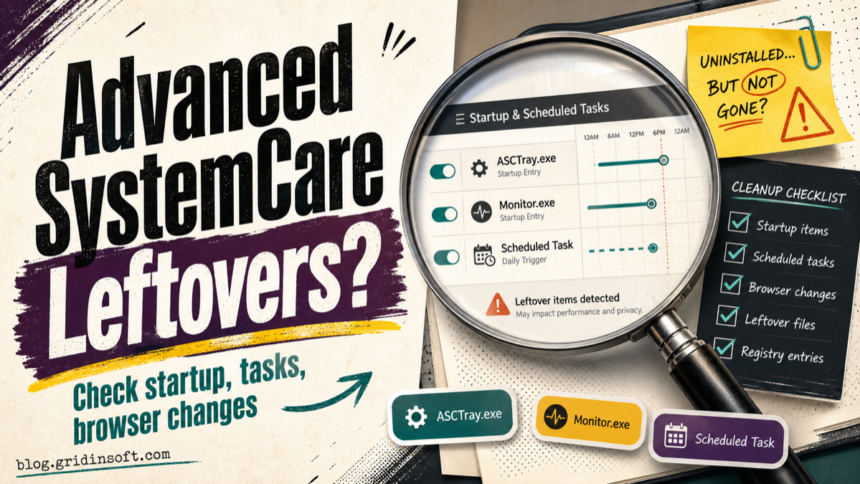
Advanced SystemCare Ultimate should be removed like a normal Windows application first, then checked for startup entries, scheduled tasks, services, browser changes, and leftover folders. The important distinction is that a potentially unwanted program (PUP) label is a software-policy decision, not proof that every copy is a conventional virus. If you no longer want the tool, or security software keeps flagging its components after uninstall, clean the persistence points instead of deleting random files one by one.
What Advanced SystemCare Ultimate Is
Advanced SystemCare Ultimate is IObit’s PC optimizer and security suite. Its own manual describes tools that manage services, startup items, and scheduled tasks, which explains why users may still notice entries after changing settings or removing the app.1 Security vendors may also classify Advanced SystemCare-related components as a PUP; Malwarebytes, for example, documents PUP.Optional.AdvancedSystemCare as its detection name for Advanced SystemCare.2
That does not mean you should call every installation malware. Treat it as a cleanup and trust decision: if you installed it knowingly and still use it, review the alert and settings. If it appeared after a bundle, keeps starting with Windows, pushes renewal or cleanup prompts, or leaves entries after uninstall, remove it and check persistence.
When To Keep It And When To Remove It
Keep it only if you intentionally installed it, understand what features are active, and do not see unexpected browser, startup, or notification changes. Remove it when the installation source is unclear, security tools keep detecting PUP components, Windows starts ASCTray.exe or Monitor.exe automatically, or Task Scheduler still shows Advanced SystemCare-related jobs after uninstall.
Do not remove core Windows services while cleaning this up. Focus on entries that clearly point to IObit, Advanced SystemCare, ASCU, ASCTray.exe, Monitor.exe, or an Advanced SystemCare Ultimate scheduled task.
If the alert is not about IObit but about another optimizer or unwanted browser, use the same consent-and-leftovers test. The Ashampoo WinOptimizer PUP decision guide shows how to separate an expected utility install from a cleanup or false-positive case, while the OneBrowser removal checklist shows the browser-updater version of the same problem.
Uninstall Advanced SystemCare Ultimate First
- Open Settings -> Apps -> Installed apps in Windows 11, or Apps & features in Windows 10.
- Find Advanced SystemCare Ultimate, Advanced SystemCare, or another IObit entry you no longer want.
- Choose Uninstall, then restart Windows when the uninstaller finishes.
- If the entry is missing but files remain, check
C:\Program Files (x86)\IObit\,C:\Program Files\IObit\, and the Start menu shortcuts only after confirming no IObit process is still running.
Microsoft’s own Windows guidance starts with uninstalling through Apps before removing leftovers manually.3 That order matters because deleting files first can break the uninstaller and leave more orphaned tasks behind.
Check Startup Entries
Open Task Manager -> Startup apps. Disable entries that clearly reference Advanced SystemCare, IObit, ASCTray.exe, or Monitor.exe. If you are comfortable with Registry Editor, also review these startup locations for IObit/ASCU entries only:
HKCU\Software\Microsoft\Windows\CurrentVersion\RunHKLM\Software\Microsoft\Windows\CurrentVersion\RunHKLM\Software\WOW6432Node\Microsoft\Windows\CurrentVersion\Run
Be conservative in the registry. Export the key before deleting anything, and do not remove entries unless the path or name clearly points to Advanced SystemCare or IObit.
Check Task Scheduler For ASCU Jobs
Open Task Scheduler and inspect Task Scheduler Library. Look for tasks whose name, action path, or author references Advanced SystemCare, ASCU, IObit, ASCTray.exe, Monitor.exe, or a performance monitor job such as ascu_performancemonitor. Disable the task first, restart, and confirm nothing breaks before deleting it.
If the program is already uninstalled and the task action points to a missing file under an IObit folder, it is usually a leftover. If the task points to a still-installed product you use, treat it as a configuration decision rather than malware.
Check Services And Running Processes
Press Ctrl + Shift + Esc and review running processes. Then open services.msc and check for services that clearly reference Advanced SystemCare, IObit, or ASCU. Stop and disable only product-specific services after uninstalling the app. Do not disable Windows services just because they mention maintenance, update, security, or monitoring.
After a reboot, repeat the check. If ASCTray.exe, Monitor.exe, or an IObit service returns after you removed the app, there may be a scheduled task, startup entry, or updater still recreating it.
Clean Browser Notifications And Extensions
PC optimizer bundles and cleanup utilities often coexist with browser notification spam, extension prompts, or changed browser settings. Even when Advanced SystemCare itself is not the browser problem, check Chrome, Edge, and Firefox notification permissions after cleanup:
- Chrome:
chrome://settings/content/notifications - Edge:
edge://settings/content/notifications - Firefox:
about:preferences#privacy-> Permissions -> Notifications
Remove sites you do not recognize, especially pages that send fake virus alerts, renewal warnings, prize messages, or cleanup-tool pop-ups. For broader optimizer and driver-tool pop-up cleanup, see our fake driver updater cleanup guide. If the issue looks like an installed unwanted app rather than just a browser permission, the Driver Support One removal guide shows the same startup/task/service pattern on a different PUP family.
Scan After Manual Cleanup
Manual cleanup removes visible entries, but it can miss a bundled installer, updater task, browser policy, or another unwanted program that arrived with the same download. If Advanced SystemCare Ultimate was installed from a bundle, security alerts return after reboot, or you found unknown browser notification permissions, run a full Gridinsoft Anti-Malware scan after uninstalling and removing obvious leftovers.
If the process path is wrong, the name imitates a Windows component, or high CPU started after an unknown installer, scan for hidden miners, services, startup entries, and bundled components.
Scan for leftover startup entriesReview detections before deleting. Keep the focus on IObit/Advanced SystemCare leftovers, bundled PUPs, suspicious startup items, browser changes, and files in temporary or user-profile locations. A scan can help find persistence and bundled apps, but it cannot prove that no exposure ever happened.
How To Confirm It No Longer Returns
- Restart Windows.
- Check Task Manager Startup apps for IObit or Advanced SystemCare entries.
- Open Task Scheduler and confirm ASCU/Advanced SystemCare jobs are disabled or gone.
- Check Installed apps for remaining IObit products you did not intend to keep.
- Open your browser notification permissions and remove suspicious sites.
- Run one follow-up scan if security warnings or pop-ups return.
If only a license file, backup folder, or configuration folder remains and no process, task, service, browser change, or alert returns, it is usually a low-risk leftover. If a process or task keeps reappearing, treat it as an active persistence problem and investigate the installer source.
FAQ
Is Advanced SystemCare Ultimate a virus?
Not by default. It is a PC optimizer and security suite, but some security vendors classify related components as potentially unwanted software. The practical question is whether you installed it intentionally and whether it keeps adding startup, task, browser, or notification changes you do not want.
Should I allow-list PUP.Optional.AdvancedSystemCare?
Only if you intentionally use Advanced SystemCare and accept its behavior. If you are removing the app, do not allow-list the detection just to silence alerts. Finish uninstalling, clean persistence points, then scan again.
What is ASCTray.exe?
ASCTray.exe is associated with Advanced SystemCare tray/startup behavior. It is suspicious when it starts from an unexpected folder, returns after uninstall, or appears alongside unknown scheduled tasks or browser changes.
What is ascu_performancemonitor?
It is a scheduled-task style name associated with Advanced SystemCare Ultimate performance monitoring. If Advanced SystemCare Ultimate has been removed and the task still points to an IObit path, disable it and confirm it does not return after reboot.
Can I just delete the IObit folder?
Use the Windows uninstaller first. Delete folders only after uninstalling, stopping related processes, and confirming no product-specific service or scheduled task is still active.
References
- IObit. “Advanced SystemCare Ultimate User Manual.” IObit, accessed June 24, 2026. https://www.iobit.com/product-manuals/asc-ultimate-help/
- Malwarebytes. “PUP.Optional.AdvancedSystemCare.” Malwarebytes Threat Alert, accessed June 24, 2026. https://www.malwarebytes.com/blog/detections/pup-optional-advancedsystemcare
- Microsoft Support. “Uninstall or remove apps and programs in Windows.” Microsoft, accessed June 24, 2026. https://support.microsoft.com/windows/uninstall-or-remove-apps-and-programs-in-windows-4b55f974-2cc6-2d2b-d092-5905080eaf98