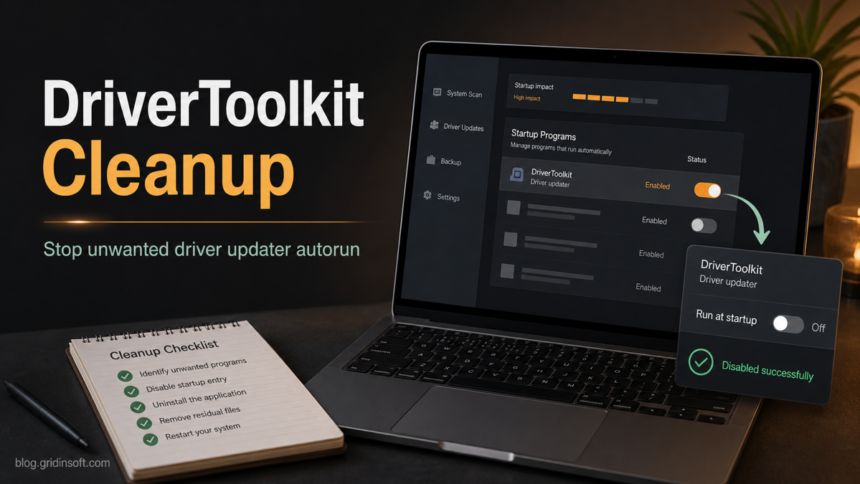
DriverToolkit is a third-party driver updater that many users remove after it appears in startup, reports broad driver problems, or arrives with other unwanted programs. If DriverToolkit.exe keeps returning after reboot, remove the visible app first, then check Windows startup entries, scheduled tasks, browser changes, and leftover folders instead of deleting random driver files.
What to do first
- Do not buy from a pressure warning. Close the updater window and avoid installing suggested drivers from inside the alert.
- Uninstall DriverToolkit from Windows Settings. Use Apps > Installed apps before deleting folders by hand.
- Disable autorun leftovers. Check Startup apps, Task Scheduler, and Run keys if
DriverToolkit.exestarts again. - Use Windows Update or the hardware vendor for real drivers. Avoid broad “all drivers outdated” claims unless Device Manager or the vendor names a specific device.
- Scan after cleanup if it came in a bundle. Driver updaters often travel with PC cleaners, adware, browser helpers, or notification spam.
What Is DriverToolkit?
DriverToolkit presents itself as a driver management utility, but security tools and removal guides often classify it in the potentially unwanted application category because users may see aggressive update warnings, paid repair prompts, autorun behavior, and bundled installs. That does not mean every copy is a destructive virus. It does mean the safest response is to uninstall it if you did not intentionally install it or if it keeps prompting you after removal.
The key distinction is the same one covered in our fake driver updater cleanup guide: Windows drivers should come from Windows Update, Device Manager, or the hardware maker. A utility that reports dozens of urgent driver problems without naming a specific device, driver version, and trusted source is usually not the right place to fix a PC.
Common DriverToolkit Symptoms
| What you see | What it usually means |
|---|---|
DriverToolkit.exe appears after sign-in. |
A startup app, Run key, scheduled task, or service may still launch the updater. |
| The app reports many outdated drivers immediately. | Treat this as a sales prompt until Windows Update, Device Manager, or the OEM confirms a real driver issue. |
| Uninstall succeeds, but warnings return after reboot. | Look for leftover folders, startup entries, bundled utilities, or browser notification permissions. |
| Browser search, ads, or PC-cleaner pop-ups appeared around the same time. | DriverToolkit may be part of a broader PUP bundle rather than the only unwanted app. |
How to Remove DriverToolkit Safely
Remove the updater itself, not legitimate device drivers. Deleting files only because their names contain “driver” can break audio, Wi-Fi, printers, graphics, touchpads, or vendor support tools.
- Disconnect from the warning flow. Close DriverToolkit and any browser tab or installer that led to it. Do not pay from the cleanup screen.
- Uninstall the visible app. Open Settings > Apps > Installed apps, search for DriverToolkit, select the three-dot menu, and choose uninstall. On older Windows versions, use Control Panel > Programs and Features.
- Restart Windows once. Some uninstallers remove services or startup entries only after reboot.
- Check Startup apps. Open Task Manager with Ctrl+Shift+Esc, go to Startup apps, and disable DriverToolkit or unknown updater entries.
- Review Task Scheduler. Open
taskschd.mscand look for recently created updater, scan, reminder, or driver-check tasks. Disable a suspicious task first; delete it only when you are sure it belongs to DriverToolkit or the same bundle. - Look for leftover folders. Check likely locations such as
C:\Program Files\,C:\Program Files (x86)\,%ProgramData%, and%AppData%for DriverToolkit or Megaify-named folders. Do not remove OEM driver folders that belong to your PC maker. - Check the obvious registry owner keys only if needed. If you are comfortable with Registry Editor, export a backup first, then look for DriverToolkit-owned entries such as
HKCU\Software\DriverToolkitor uninstall records underHKLM\Software\Microsoft\Windows\CurrentVersion\Uninstall. Do not clean the registry with a bulk “fix all” tool. - Clean related browser pressure points. If pop-ups continue, remove suspicious extensions and notification permissions from Chrome, Edge, Firefox, or another browser.
Scan for Bundled Leftovers
If DriverToolkit appeared after a free installer, a PC cleaner, a browser helper, or another “fix your PC” prompt, the visible app may not be the only unwanted component. A security scan is useful after manual uninstall because startup entries, scheduled tasks, hidden folders, browser changes, or bundled adware can recreate the warning after reboot.
Run a full scan with Gridinsoft Anti-Malware, remove detections you recognize as part of the unwanted bundle, reboot, and scan again only if symptoms return. This checks for the common leftovers without claiming that every DriverToolkit install is malware or that a scan can repair damaged drivers.
Browser reset can remove visible symptoms, but adware may keep a desktop app, extension source, notification permission, or startup task that brings pop-ups and redirects back.
Scan for DriverToolkit leftoversHow to Update Drivers Without DriverToolkit
For most home users, Windows Update handles recommended drivers automatically and offers optional driver updates when they are available. If a device is actually broken, use Device Manager to identify the exact hardware and then install the driver from Windows Update or the device manufacturer. Avoid updater pages that push a generic download before they name the exact device, version, vendor, and driver source.
- Use Settings > Windows Update > Advanced options > Optional updates for optional driver updates.
- Use Device Manager when a specific device has an error or missing driver.
- Download manually only from the PC maker or hardware vendor support page.
- Keep a restore point or backup before changing storage, chipset, graphics, or network drivers.
Related Cleanup Paths
If DriverToolkit arrived with other PC optimization utilities, compare the bundle with the SlimCleaner Plus removal guide. If the exact app is different but the symptom is still a driver warning that returns after reboot, the Driver Support One cleanup guide shows the same startup-and-leftovers pattern for another unwanted driver updater.
FAQ
Is DriverToolkit a virus?
DriverToolkit is better treated as a potentially unwanted application unless a scanner identifies a specific malicious payload. Remove it if you did not choose it, if it uses pressure warnings, or if it returns through startup after uninstall.
Should I delete DriverToolkit.exe manually?
Uninstall the app first. Manual deletion can leave startup entries, tasks, or uninstall records behind, and deleting random driver-related files can damage legitimate hardware drivers.
Why does DriverToolkit come back after reboot?
A startup entry, scheduled task, service, leftover folder, or bundled companion app may still be launching it. Check those locations after the normal uninstall.
What should I use for driver updates instead?
Use Windows Update, Device Manager, or the hardware vendor support page. These paths are safer than a third-party updater that reports broad issues without naming a specific device and driver source.
References
- Safer-Networking Ltd. “Manual Removal Guide for PU.DriverToolkit.” Safer-Networking, accessed July 2, 2026. https://www.safer-networking.org/imported/it/2018-2/manual-removal-guide-for-pu-drivertoolkit/
- Microsoft Support. “Automatically get recommended and updated hardware drivers.” Microsoft, accessed July 2, 2026. https://support.microsoft.com/en-us/windows/hardware/drivers/automatically-get-recommended-and-updated-hardware-drivers